
Evening arrives, you open a blazing white app on the sofa, and you want the whole phone dark — now, from the home screen, with the same flick you use for everything else. The search for a toggle dark mode gesture Android setup leads most people into Smart Launcher’s gesture picker, where they scan the action list twice and find nothing about themes. That absence is real, and this guide will not pretend otherwise: Smart Launcher 6 has no native gesture action that flips Android’s system dark mode on standard builds. What it has are three honest routes that achieve the result — one using quick settings, one using scheduling so the gesture becomes unnecessary, and one using an automation shortcut for people whose days genuinely do not follow the sun.
Choosing between them is a question about your pattern, not your skill. If you toggle at roughly the same times daily, schedule it and spend your gesture slots elsewhere. If your overrides are occasional, the two-motion quick settings route is unbeatable value. Reserve the automation chain for irregular lives — night shifts, studio work, migraines that make brightness a medical matter — where a true one-gesture toggle repays its setup cost. All three routes are explained below with their real requirements stated plainly.
Why the Toggle Is Not a Launcher Action
Dark mode is not a cosmetic preference inside one app; it is a system configuration that restyles the whole device and signals every app to redraw. Android therefore guards changing it behind system-level permissions that ordinary apps — including launchers — do not hold. A launcher gesture can launch things and perform a short list of its own actions; it cannot reach into protected system settings and flip them. This is the same structural limit that appears with Wi-Fi and mobile data toggles, and it is a deliberate Android security decision rather than a Smart Launcher omission.
Once you accept the limit, the design problem becomes simple: a gesture can start something that is allowed to change the theme. Quick settings tiles are allowed — they are the system’s own surface. Automation apps can be granted the specific permission through a deliberate, technical step. And the system’s own scheduler needs no gesture at all. The pattern matches the wider one described in the guide to launching system settings with gestures: open the right page or fire the right shortcut, never pretend the launcher holds the switch. Find related setups from the apkbz homepage index.
Treat these numbers as a starting point: apply them in Smart Launcher 6 under Settings → Home screen → Grid, use the layout for a day, then nudge one value at a time — your wallpaper, widget sizes and one-handed reach all shift what feels right.
Route One: Gesture to Quick Settings Tile (Recommended for Most)
- Pull down quick settings fully and tap the edit or pencil icon. Confirm a Dark theme (or Night mode) tile exists; add it and drag it into your first row if it is buried.
- In Smart Launcher, open Gestures and inputs and assign a comfortable swipe — down is the natural candidate — to Expand notifications, or to the quick settings expansion action where your version offers it separately.
- From the home screen: swipe, tap the tile. Two motions, both native, nothing running in the background.
- If swipe down already belongs to search or another job you value more, use a less-loaded slot; a theme toggle used twice a day does not need your best gesture.
- Practise the pair of motions three times. The tile’s location becomes memory faster than any menu path.
This route’s virtue is durability. OS updates rearrange automation permissions and reset accessibility services, but the quick settings tile and a shade gesture keep working year after year with zero maintenance.
Route Two: Let the Schedule Do It
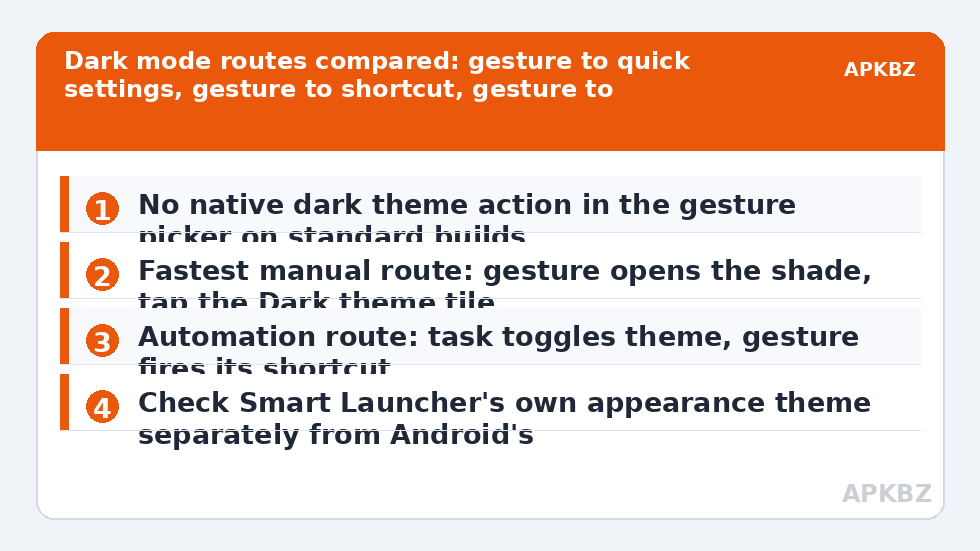
Open Settings, then Display, then the Dark theme or Night mode page. Most current phones offer scheduling: turn on at sunset, at a custom time, or tied to bedtime mode. Set it once and the daily toggle problem disappears — which is why this guide recommends honestly asking whether you need a gesture at all. Pair it with Smart Launcher’s own appearance: where your version offers it, set the launcher to follow the device theme so your home screen restyles in step, or simply keep the launcher permanently dark if its home screen is where your eyes spend the most time.
The schedule also has a failure mode worth knowing: travel across time zones and shift changes confuse fixed times briefly, and sunset mode follows location permissions on some builds. During those weeks, Route One is your manual override. The two routes are complements, not rivals.
Route Three: Automation Shortcut for a True One-Gesture Toggle
| Step | What happens | Watch out for |
|---|---|---|
| Build the task | In Tasker or MacroDroid, create an action that toggles dark theme | The action may demand a secure-settings permission granted via ADB or the app’s companion tool |
| Test inside the app | Run the task manually; the theme must flip both ways | A task that only turns dark on, not off, is a state bug, not a toggle |
| Expose a shortcut | Publish the task as an Android shortcut | Rename it clearly; you will meet it in the picker |
| Bind the gesture | Smart Launcher > Gestures and inputs > your slot > Shortcuts > the task | Keep the automation app exempt from battery optimisation or it will be killed |
The chain pattern here — task, shortcut, gesture — is identical to the one detailed in the article on gesture shortcuts for Tasker automation, and the debugging ladder from that piece applies unchanged: test the task, then the shortcut as an icon, then the gesture. Most failures live in the middle link or in a battery manager quietly stopping the automation app overnight.
Do Not Forget the Launcher’s Own Appearance
Part of what people mean by dark mode is simply that their home screen stops glowing. That part is entirely within Smart Launcher’s gift, with no system toggle involved: its appearance settings control the app page background, folder styling, text tones and how far the launcher follows the device theme, where your version offers that following behaviour. A permanently dark launcher paired with a scheduled system theme covers the two surfaces your eyes meet most — home screen at all hours, apps after sunset — and often dissolves the toggle urge completely. The reverse combination also exists and suits some people: a light launcher for daytime visibility outdoors, system dark strictly for apps at night. Neither arrangement is more correct; the point is that home screen appearance and system theme are two separate dials, and a gesture was only ever being asked to do the work of both because the distinction is rarely explained.
Deciding, and a Note on Eyes and Batteries
- Regular hours: schedule it. Zero gestures, zero maintenance.
- Occasional overrides: Route One. The tile is two motions away forever.
- Irregular or urgent need: Route Three, accepting the permission step and battery exemption as the price.
- OLED battery hopes: dark mode saves meaningful power mainly at high brightness on OLED screens; it is a comfort feature first, a battery feature second.
Whichever route you choose, the same slot discipline applies when you later add neighbouring tricks — and its natural partner in this batch is the piece on using gestures for screenshots and recordings, at gesture screenshot and recording shortcuts, since both are about turning multi-step system actions into single motions. Explore the rest under Gesture Setup, and back up the final map once it all feels settled.
Frequently Asked Questions
Can a Smart Launcher gesture toggle Android dark mode directly?
No, not through a native launcher action on standard builds. Changing the system theme is a protected system operation, and Smart Launcher’s gesture picker offers apps, shortcuts and launcher actions — a system dark theme toggle is not among them. Working setups route the gesture through a shortcut, the quick settings tile, or an automation task with the right permissions.
What is the simplest reliable way to switch dark mode from the home screen?
Assign a gesture to Expand notifications or quick settings and tap the Dark theme tile — two motions, both native, nothing to maintain. If your phone lacks the tile, add it from the quick settings edit screen. This route survives updates better than any automation chain.
Can Tasker or MacroDroid toggle dark mode from a gesture?
Yes, where the automation app holds the permissions Android requires for theme changes, which on many builds means a secure-settings permission granted via ADB or a companion tool. Build the task, test it inside the automation app, expose it as a shortcut, then bind your Smart Launcher gesture to that shortcut.
Does Smart Launcher’s own dark appearance follow the system?
Smart Launcher has its own appearance settings and, where your version offers it, an option to follow the device theme for parts of its interface. That is separate from toggling Android’s theme itself. Many users find setting the launcher to permanently dark, plus a system schedule, removes the urge to toggle manually at all.
Why not just schedule dark mode instead of using a gesture?
For most people the schedule is honestly the better tool: Display settings on most phones can switch at sunset or at fixed times, covering the daily pattern automatically. A gesture route earns its complexity only if your need is irregular — shift work, dark rooms at random times, or frequent manual overrides.


