Every guide in this category ends with the same advice, and this one is the advice: backup custom gesture configurations launcher setups depend on — because a gesture map is invisible, personal infrastructure. You cannot see it, you only notice it the day an update or a new phone takes it away and your hands keep performing gestures that now do nothing. A two-minute export habit is the difference between that day being a shrug and a full rebuild.
Smart Launcher has a proper backup system: the launcher can export its configuration — layout, settings and gesture assignments — to a backup file, and restore it on the same phone or a new one. This guide covers the export and restore workflow, what the backup does and does not contain (the gaps matter: button remaps, back-tap settings and automation live outside it), and the pre-update routine that makes the whole system trustworthy rather than theoretical.
Backup Custom Gesture Configurations: Launcher Export, Store, Restore Workflow
- Export. Open Smart Launcher Settings and find the Backup and restore section (its position varies slightly by build). Choose the backup/export option and save a fresh backup. Use any naming or note facility offered to tag it with the date and what changed (“pre-October update, new icon gestures”).
- Store it off the phone’s internal-only reach. A backup that exists only inside the app it protects dies with the phone. Move or copy the file to cloud storage or a PC as part of the same sitting — Smart Launcher’s share/export options or any file manager will do. This step is the one everyone skips and the only one that matters in a lost-phone scenario.
- Restore. On the same phone (after a scramble) or a new phone (after installing Smart Launcher and signing into nothing in particular — the backup is a file, not an account), open Backup and restore, choose restore/import, and select your file. Layout, settings and gesture assignments return together.
- Verify before trusting. After any restore, fire every gesture in your map once and tap through your pages. A restore is not done when the import says success; it is done when your hands confirm it.
Treat these numbers as a starting point: apply them in Smart Launcher 6 under Settings → Home screen → Grid, use the layout for a day, then nudge one value at a time — your wallpaper, widget sizes and one-handed reach all shift what feels right.
What the Backup Does Not Contain
| Configuration | In launcher backup? | Where it actually lives |
|---|---|---|
| Gesture assignments & layout | Yes | Smart Launcher backup file |
| Hidden apps list | Generally yes — verify after restore | Launcher data; re-check the tier post-restore |
| Icon gesture pairings per icon | Yes, as part of layout/settings | Launcher backup; spot-check after icon pack changes |
| Samsung side-key / Pixel Quick Tap settings | No | Android/OEM system settings — note them in writing |
| Tasker / MacroDroid workflows | No | Export from the automation app separately |
| Button remapper bindings | No | The remapper app; screenshot its screens |
| Battery exemptions & accessibility grants | No | Android settings; reapply after restore on a new device |
The practical conclusion: your “gesture configuration backup” is really a small folder — the launcher backup file, the automation app’s export, and a one-page written record of the system-level assignments (back tap target, side key target, remapper bindings, exemptions). The written record is not quaint; it is the only artefact that survives every app’s format changes, and it takes five minutes to write the first time.
The Pre-Update Routine
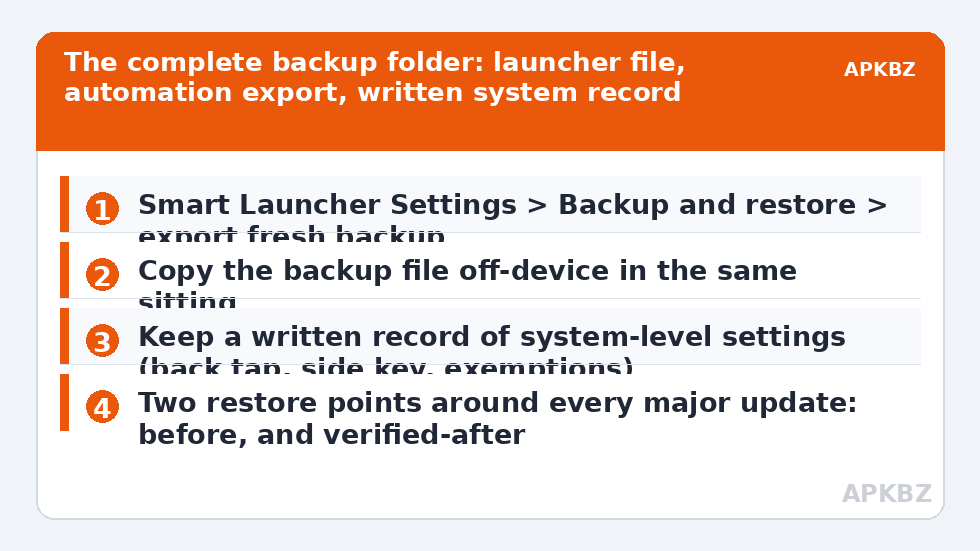
Updates are when configurations die, so the routine is anchored to them. Before a major Android or Smart Launcher update: export a fresh backup, copy it off-device, and add a line to your written record if anything changed since the last one. After the update: run the verification pass — every gesture once, hidden tier still hidden (the failure mode from the stealth gestures guide), automation tasks firing, feedback present per the haptics stack. Then export a second, new backup of the verified post-update state, keeping the pre-update one as well. Two restore points bracket every risky event, which converts disasters like the scrambles in resetting corrupted gesture mappings from archaeology into a file pick.
- Keep at most three generations of backups; more becomes its own confusion about which file is canonical.
- When changing phones, restore the launcher backup during setup, then work the written record top to bottom reapplying system-level settings — it is a checklist, and it ends.
- If you use cloud sync offered by any tool in the chain, still keep one manual copy; sync propagates deletions as faithfully as it propagates saves.
A Closing Note on Why This Matters More Than It Sounds
A gesture map is a learned bodily skill attached to configuration data. The skill is in your hands and cannot be backed up; the data is what lets the skill keep working. Every other guide in this category — the swipe map, the icon pairings, the private tier, the automation bridges — produces data that this routine protects. Treat the backup habit as part of the setup itself, not as housekeeping for later, and the entire system becomes something you own rather than something you rent from the next update. Full category index: Gesture Setup.
Versioning the Written Record
The written record itself deserves a small system, because an undated page of settings becomes archaeology within a year. Keep it as a single note — paper or digital — with three habits. Date every entry and never edit history: when an assignment changes, strike the old line and add the new one beneath it, so the record shows the map’s evolution and a bad change can be reverted from the record alone. Name the state, not just the settings: “as of the March update, verified working” is a restore point in sentence form, and it is the line you will search for when something breaks. Store the note with the backup files, in the same cloud folder, so the folder is self-explanatory to a future you who has forgotten this entire system exists. Five lines of discipline turn a scrap of paper into documentation. It is unfashionable advice, and it outperforms every app in this chain the first time a phone is replaced at short notice with a trade-in deadline ticking.
There is a small psychological dividend, too: a user with a trustworthy backup experiments freely. New gesture ideas get tried because failure costs a restore, not a rebuild; automations get bolder because the known-good state is one import away. The backup habit does not just protect the setup you have — it is what allows the setup to keep improving, and that compounding effect is worth more than any single restore it will ever perform.
Frequently Asked Questions
What exactly does a Smart Launcher backup include?
Your launcher configuration: home screen layout, launcher settings, and gesture assignments, including per-icon gestures as part of that configuration. It does not include system-level settings (back tap, side key, battery exemptions), other apps’ data such as Tasker tasks, or your icon pack files themselves.
Where should I store the backup file?
Off the phone’s sole custody: cloud storage, a PC, or both. A backup stored only within the same device and app ecosystem fails in exactly the scenarios — lost phone, corrupted app data — where you need it most. Copy it in the same sitting as the export; later rarely happens.
How often should I back up my gesture configuration?
At three moments: whenever you finish changing the map and are happy with it, immediately before any major launcher or Android update, and once more after that update once you have verified everything still works. That yields bracketing restore points around every risky event.
Does restoring a backup bring back my hidden apps list?
Generally yes, as part of the launcher configuration, but verify it explicitly after any restore: open your categories and search for one hidden app to confirm the tier survived. Updates and restores are the two moments hidden apps have historically resurfaced.
I never backed up and my gestures were wiped. Now what?
Rebuild in dependency order: global swipes first, then double tap, then icon gestures, then the extras — the staged thinking in the corrupted-mappings guide applies. Then, before you finish, do the export and written record. The rebuild is annoying exactly once; the habit ensures it stays that way.