The briefcase badge is small, but what it represents is the best idea in modern Android for anyone whose employer provides apps: a work profile that keeps company data managed and personal data private, in two sealed compartments on one phone. The practical question for launcher users is simpler — how do work profile apps on home screen placement work in Smart Launcher 6, which copies should you place, and how do you keep the boundary between work and life visible instead of blurring it across your main page? This guide walks through placement, organisation and the after-hours routine.
Understand the two-compartment model first
When your employer enrols your phone, Android creates a work profile alongside your personal profile. Apps can exist in both: your own Gmail in the personal profile, your company email in the work one, each with its own account, storage and notifications. Your IT department manages only the work side — they can require a PIN on work apps and wipe company data if you leave, but they cannot see your personal photos, messages or apps.
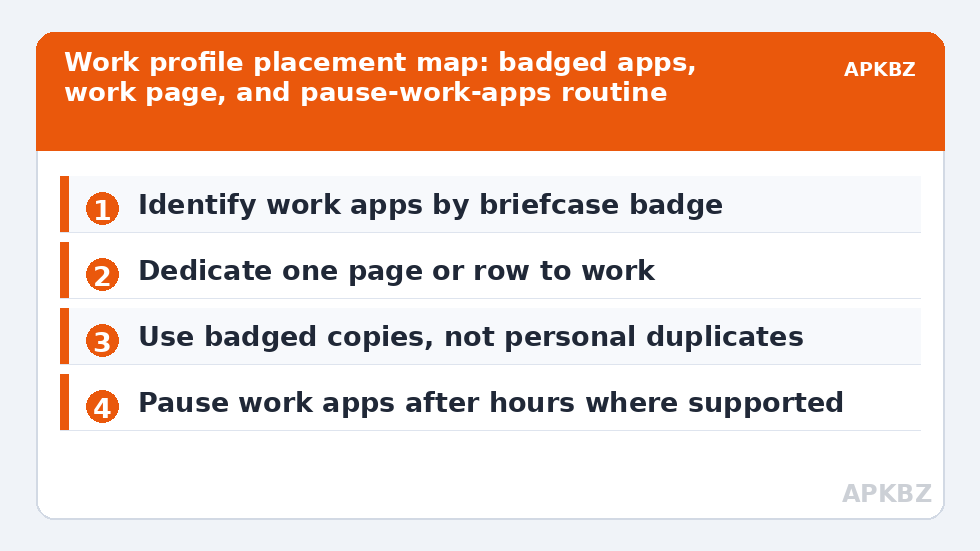
In the drawer, Smart Launcher shows work apps with their briefcase badges, and depending on your device they may also appear under a Work heading or tab. Learn to spot the badge before placing anything, because placing the personal copy when you meant the work copy is the classic beginner’s mix-up, and it surfaces as a confusingly empty inbox.
Treat these numbers as a starting point: apply them in Smart Launcher 6 under Settings → Home screen → Grid, use the layout for a day, then nudge one value at a time — your wallpaper, widget sizes and one-handed reach all shift what feels right.
Step one: place badged work apps deliberately
Decide the shape before placing a single icon. Two patterns work well. The dedicated work page keeps every badged app on its own page or satellite screen, so work is one swipe away and psychologically closable. The work row keeps a single row of the three or four most-used work apps on the main screen — email, calendar, chat, files — with the rest in the drawer. The dedicated page suits people who truly disconnect; the row suits people whose work interleaves with their day.
To place an app, find its badged copy in the drawer, long-press it and add it to the home screen using the same route as any personal app, where your IT policy permits. Then verify you placed the right copy by opening it once and checking the account shown inside.
Placement patterns borrow from the multi-page vs single-page layout guide and the filing logic in the custom app categories guide. The same one-job-per-page thinking drives setting up multiple dock pages and building a dedicated media page. Return to the APKBZ home page for the full set.
Step two: shortcuts, widgets and the badge check
Work apps support home screen shortcuts like personal ones — a specific work mailbox folder, a direct chat with your team, a documents folder. Add these from the app’s long-press shortcut menu where available. They inherit the work profile’s badge and its rules, so a shortcut into work email still respects work sign-in and pause states.
- Widgets: work calendar and email widgets exist on many devices, but widget availability for work apps varies with policy; if a work widget is absent from the picker, that is usually a policy decision, not a launcher fault.
- Folders: a single Work folder on the main screen is a tidy compromise between page and row patterns.
- Duplicates: never place personal and work copies side by side without labels — the badges are small and the icons identical.
Step three: the after-hours boundary
The work profile’s finest feature is pause. On devices that support it, a Pause work apps control — in the work area of the drawer, quick settings or profile settings — suspends every work app at once: notifications stop, badges clear, and the apps cannot be opened until you resume. Build the habit of pausing at the end of the workday and your home screen stops being a source of Sunday-evening email previews.
If you use the dedicated work page, pausing pairs beautifully with it: the whole page visibly rests, its icons often shown greyed while paused, which is exactly the psychological signal a boundary should send. Where pause is unavailable on your device, the fallback is notification schedules inside the major work apps themselves.
Step three: the after-hours boundary
| Pattern | Home screen footprint | Best for |
|---|---|---|
| Dedicated work page | One full page | Clear disconnection after hours |
| Work row on main page | 3-4 icons | Interleaved work and personal days |
| Single work folder | One icon | Minimal look, occasional work use |
| Drawer only | None | Rare work access from this phone |
When something is blocked, believe the policy
Work profiles come with an honest rule: if a placement, widget or shortcut is unavailable, the cause is almost always your organisation’s management policy rather than a Smart Launcher limitation, and attempting to circumvent work policy with launcher tricks is a bad idea professionally as well as technically. Ask IT what is permitted; many restrictions have approved alternatives, such as web access to a blocked app.
Equally, protect the personal side of the bargain. Your personal apps need no work badge, no work account and no place on the work page. The visible boundary is the feature — keep it crisp, back up your launcher layout as usual, and let the briefcase do its quiet work.
Two profiles, one backup habit and other practicalities
A few practical details complete the picture. Your launcher backup saves the positions of work shortcuts as part of your layout, but restoring on a new phone only fully resolves once the work profile itself has been enrolled and its apps installed on that device — order matters: enrol the profile first, let the work apps arrive, then restore the launcher, and the badged icons will land on real apps instead of placeholders. If you change employers, expect the old work profile and its shortcuts to be removed by policy; tidy the orphaned spaces in your layout the same week so the screen does not carry a ghost row.
Notifications deserve a final check. Work apps notify according to the work profile’s own settings and your employer’s rules, which may include quiet hours set centrally. If work badges appear but alerts never arrive, the cause is usually a notification setting inside the work profile or a focus mode on the device, not the launcher — launchers display badges, they do not decide alert policy. And if your phone offers separate lock options for the work profile, such as requiring authentication when opening work apps, enable them: the badge promises a boundary, and a lock is what keeps the promise when the phone is handed to someone else for a photograph.
Frequently Asked Questions
How do I recognise work profile apps in Smart Launcher 6?
Android marks work profile apps with a small briefcase badge on the icon, and many devices also group them under a Work tab in the app list. The badge is the reliable sign: the same app, such as email or Drive, can exist twice — personal without a badge, work with one.
Can I add work profile apps to the home screen?
Generally yes, where your organisation’s policy allows it. Long-press the badged app in the drawer and add it to the home screen like any other app, or drag it into place in edit mode. If the option is missing, your IT policy may restrict it, and the policy wins.
Why do I see two copies of the same app?
Because they are two separate installations in two profiles, with separate accounts and data. That separation is the point of the work profile: your employer manages the badged copy without seeing or touching your personal copy.
How do I stop work apps bothering me after hours?
Use Android’s work profile pause feature where your device offers it — usually a Pause work apps toggle in the work tab or quick settings. Paused work apps stop notifying and cannot be opened until you resume, which is a cleaner boundary than muting apps one by one.
My work apps vanished from the home screen. What happened?
The work profile may be paused, turned off, or temporarily unavailable after an update or policy refresh. Check the work profile toggle in settings first. If the profile itself was removed by your organisation, the home screen shortcuts disappear with it and only IT can restore access.