The automatic categories in Smart Launcher are a good default filing clerk, but every long-term user eventually meets the apps it cannot understand: the banking app filed under Utilities next to a flashlight, the work suite scattered across three tabs, the smart-home apps with no home at all. That is when you create custom app categories in Smart Launcher 6 — your own drawer tabs, named by you, filled by hand. Done well, two or three custom categories transform the drawer from the launcher’s opinion into your own filing system. This guide covers planning categories worth having, building them, and keeping automatic and manual filing from fighting each other.
Plan before you build: categories that earn their tab
A category tab is prime drawer real estate, and a tab you open twice a month is clutter in the place you built to escape clutter. The custom categories that consistently earn their keep share a trait: they group apps by situation rather than by software type, because the automatic system already files by type. The strongest candidates for most people:
- Money: banking, payments, budgeting, ID and authenticator apps — the set you open in one anxious cluster.
- Work: your employer’s suite, VPN, timesheets, work chat — especially satisfying on a phone that mixes personal and job life.
- Home: smart lights, TV remotes, robot vacuum, ISP and router apps — the classic orphans of automatic filing.
- Travel: airlines, maps, translation, booking and ride apps, dormant most of the year and priceless for two weeks of it.
Three custom categories is a healthy maximum for most drawers. Five and you have rebuilt the problem you were solving, one tab to the right.
Create custom app categories Smart Launcher 6: building and filling them
The creation flow in Smart Launcher 6 starts in the drawer:
- Open the app drawer and find the category management entry — on most versions you long-press a category tab or open the drawer’s edit/settings area and choose to add a category.
- Create the category, give it a short name (one word where possible: “Money” beats “Banking & Finance” on a narrow tab bar), and pick an icon for it.
- Add apps to it. Depending on version, you either multi-select from a list of installed apps or file apps one by one from each app’s long-press edit menu, choosing your custom category as its home.
- Position the new tab in the category bar — put your most-used custom category where your thumb expects it, usually adjacent to the standard tabs you use most.
Exact menu labels have shifted between Smart Launcher releases, and Pro/Feature Pack status can gate some drawer customisation; if the add-category entry is missing, check your version and unlock status before assuming the feature is gone.
Treat these numbers as a starting point: apply them in Smart Launcher 6 under Settings → Home screen → Grid, use the layout for a day, then nudge one value at a time — your wallpaper, widget sizes and one-handed reach all shift what feels right.
How custom categories interact with automatic filing
The rule that keeps the peace: an app lives in exactly one drawer home. When you file an app into a custom category, it leaves its automatic category — your Money tab becomes the single place banking apps live, and the Utilities tab stops showing them. This is the desired outcome, but it surprises people who expected the app in both. It also means custom categories are a commitment: if the automatic classifier later improves, your manually filed apps will not drift back, because manual assignments take precedence. Our category page setup guide explains the automatic system’s behaviour in full, and the two guides together in this Layout Tweaks series describe the hybrid drawer most power users end up running.
One more interaction worth knowing: hiding and custom categories compose well. A custom category can hold the apps you want findable-but-quiet, while genuinely dead drawer weight belongs in the hidden list covered by our guide to hiding unused apps.
Category design rules that age well
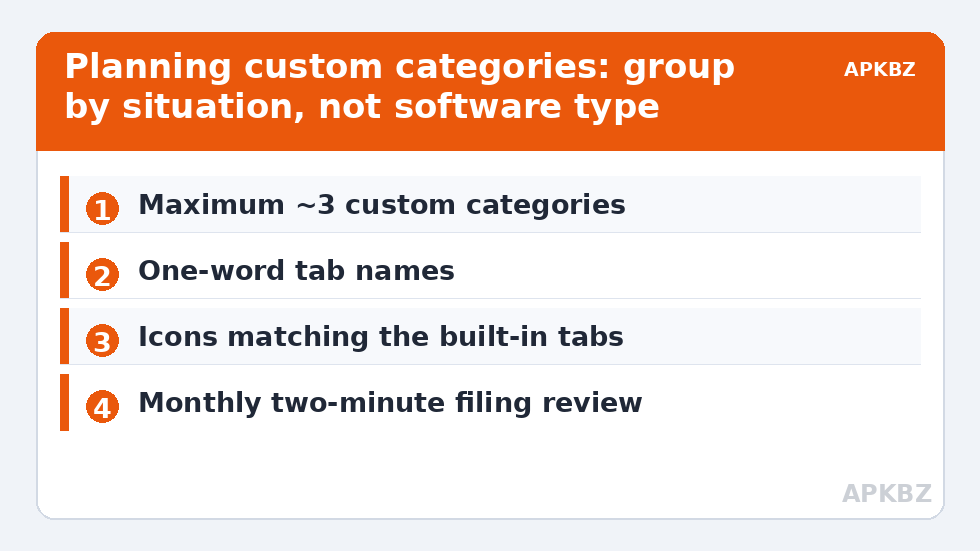
| Rule | Why it matters | Example |
|---|---|---|
| Name by situation, not software type | Automatic tabs already file by type | “Travel” not “Travel Apps & Maps” |
| One-word names | Tab bars truncate long labels | “Money”, “Work”, “Home” |
| Cap at roughly three custom tabs | More tabs recreate drawer sprawl | Merge “Flights” into “Travel” |
| Icon from the same pack family | Visual coherence with automatic tabs | Use Icon Pack Studio glyphs throughout |
| Review after big life changes | New job, new house, new baby — categories should follow | Retire “Work” categories from old employers |
Naming, icons and the tab bar
Your custom categories live on the same bar as the built-ins, so their presentation should match. If your built-in tabs use an icon pack’s glyphs, generate or choose matching icons for custom tabs — Smart Launcher’s Icon Pack Studio can produce glyphs in a consistent style if your pack lacks a suitable one. Order the bar by your real day: for many people that means Communication first, then their Money and Work customs, then the leisure tabs. Reordering is cheap and worth redoing after the first fortnight, once you know which tabs your thumb actually visits.
Maintaining the system
Custom categories decay in one predictable way: new apps get installed, the automatic system files them somewhere plausible, and your carefully designed Money tab never learns about the new banking app. The fix is a monthly two-minute ritual — open each custom category, ask “what is missing and what no longer belongs”, and file accordingly. When you uninstall an app, it leaves its category automatically; when you install a situational app, file it at install time while its purpose is fresh in your mind. That tiny habit is the entire difference between a drawer that stays designed and one that quietly reverts to chaos by spring.
Work profiles, clones and other special residents
A few app populations need a filing decision the automatic system cannot make for you. Work-profile apps arrive badged and often duplicate your personal apps (two Gmails, two Drives); most people file the work copies into their Work custom category so the badge and the tab reinforce each other, and the personal categories stay personal. OEM dual apps — the cloned second instance of a messenger — belong beside their original in whatever category the account’s life belongs to: the family clone in Communication, the marketplace-selling clone in Money, if that is how you live it. And the drawer of a phone that serves as a parent’s tech support exhibits a special citizen: the remote-help and family-location apps. A small “Family” category holding those, plus the relatives’ most-supported apps’ settings shortcuts where possible, turns a support call from archaeology into a guided tour. The principle across all three cases is the same one this guide started with: categories should mirror the shape of your life, and these apps are where the automatic type-based system is guaranteed to miss that shape.
Renaming and re-iconing later, without fear
Nothing about a custom category is permanent, and that is by design. Rename a tab when its job evolves (“Travel” becoming “Trips & Family” when it adopts the relatives’ apps), swap its icon when your pack changes, or dissolve it entirely and its apps fall back to their automatic homes — no filing work is lost beyond the tab itself, because the apps keep their other metadata. Categories are cheap to change and expensive only to neglect.
Frequently Asked Questions
How do I create a custom category in Smart Launcher 6?
Open the drawer and enter category management (long-press a category tab or use the drawer’s edit area), choose to add a category, name it, pick an icon, then add apps either by multi-selecting from the installed list or by editing each app’s assigned category from its long-press menu.
Can an app appear in both a custom category and its automatic one?
No. An app has one drawer home in Smart Launcher. Filing it into a custom category removes it from the automatic category, which keeps the drawer unambiguous — you always know the one place an app lives.
How many custom categories should I create?
Two or three for most people — Money, Work and Home are the classic trio. More than four or five and the tab bar itself becomes the clutter you were trying to escape.
Why can I not find the option to add a category?
Menu placement varies between Smart Launcher versions, and some drawer customisation sits behind the Pro or Feature Pack unlock. Check the drawer edit area and Smart Launcher Settings, and confirm your version and unlock status.
Do custom categories survive a backup and phone transfer?
Yes. Custom categories and manual app assignments are part of the Smart Launcher configuration saved by its backup, so restoring on a new phone brings your filing system with it.