Nobody describes their phone by its page transition, yet everybody feels it a hundred times a day. Home screen scroll effects are the difference between a phone that feels crisp and one that feels theatrical, cheap or strangely tiring. Smart Launcher 6 keeps its home screen centred on a composed main page, so its transition options matter most for people running multiple pages, widget satellites or heavy drawer use. This guide covers where the home screen scroll effects android launcher settings live, how to judge them by feel rather than by preview, and when to trade spectacle for smoothness.
Judge transitions by feel, not by the settings preview
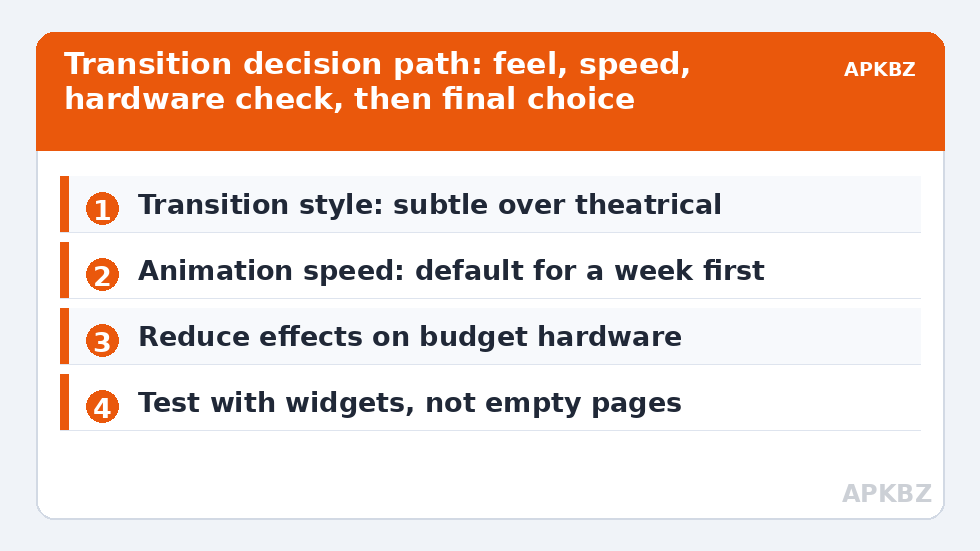
The preview in a settings menu lies politely: it shows the effect on an empty, weightless screen at a moment when you are staring directly at it. Real use is peripheral — a flick while thinking about something else, over pages carrying widgets, wallpapers and badges. So the only honest test is to choose a candidate effect, live with it for two full days of normal swiping, and notice whether you ever noticed it. The best transition is the one that disappears.
Pay attention to three qualities. Speed: does the page settle before your thumb wants its next action? Weight: heavy 3D rotations feel impressive for an hour and sluggish by Friday. Direction logic: effects should respect the swipe direction, so moving right through pages never visually suggests moving left or down.
Treat these numbers as a starting point: apply them in Smart Launcher 6 under Settings → Home screen → Grid, use the layout for a day, then nudge one value at a time — your wallpaper, widget sizes and one-handed reach all shift what feels right.
Step one: find and survey your options
Open Smart Launcher Settings and look through the home screen and appearance areas for transition, scroll effect or animation controls, where your version offers them. Builds differ: some offer a small set of page effects, others a single refined transition with speed as the only variable. Note what you find before changing anything, and take a moment to check whether a Pro or Feature Pack unlock gates the wider selection on your build.
While surveying, also note your page inventory. Transitions only occur where pages exist to move between, so a strict single-page user will feel these settings mostly in drawer and folder animations instead — which is a perfectly good reason to leave them at defaults.
Transitions only matter once pages exist, so the multi-page vs single-page layout guide is the natural first read, and the Ambient theme setup guide covers the surfaces those pages reveal. Pair motion choices with setting a different wallpaper for each page and the immersive finish of hiding the status bar for a full-screen look. All guides are linked from the APKBZ home page.
Step two: match the effect to the layout you actually run
Different page compositions reward different motion. Widget-heavy pages — a full calendar page, a media page — feel best with slides and fades, because complex widgets redraw during elaborate rotations and can flicker. Icon-grid pages tolerate more playful effects. A two-page setup barely needs an effect at all: with a single neighbour page, the swipe is a toggle, not a journey.
- Fade: calmest choice; suits minimalist and senior or kids layouts.
- Slide: the honest default; direction is always clear.
- Stack or depth effects: pleasant on icon pages, riskier over big widgets.
- Cube and carousel styles: fun for a week, then judged on speed alone.
If your version offers transition or animation speed separately from style, resist slowing it down for drama. Slower animations are perceived as a slower phone, however beautiful the frames between.
Step three: the hardware honesty check
Open your most widget-dense page and swipe back and forth ten times quickly. Smooth motion throughout means your hardware has headroom for any effect you like. Visible stutter, widget flicker or a page that lands in two stages means the GPU is negotiating — simplify the effect first, then consider whether a live wallpaper underneath is compounding the cost, since blur and motion together are the classic budget-phone overload.
Typical ranges help calibrate expectations: on recent flagships any effect should hold a steady high frame rate, on mid-range phones slides and fades are safe while heavy 3D styles may dip, and on entry-level devices the simplest effect is the professional choice. None of this is about status; it is about a swipe feeling instant.
Step three: the hardware honesty check
| Effect style | Feel | GPU load | Suits |
|---|---|---|---|
| Fade | Calm, flat | Lowest | Minimal, accessible setups |
| Slide | Direct, neutral | Low | Almost everything |
| Depth / stack | Layered, modern | Medium | Icon pages, flagships |
| Cube / carousel | Playful, heavy | Higher | Short-term fun, light pages |
Reduced motion and accessibility
For some users this topic is not taste but comfort: strong page motion can trigger genuine discomfort. If that is you, choose the flattest effect the launcher offers, enable reduced motion in Android’s accessibility settings where available, and know that several device makers add their own motion reduction that launchers respect. A phone that never makes you queasy beats a phone with a delightful cube spin, every single time.
Whatever you settle on, give it the two-day test before the next change, and stop when you stop noticing the swipes. At that point the transition is doing its real job — carrying your attention to the next page without asking for any of it.
Diagnosing transition problems that are not the transition
When page motion feels wrong, the selected effect is often innocent. Work through the usual impostors before changing styles. A live wallpaper redrawing beneath the motion makes even a simple slide look strained, so test with a static wallpaper first. A heavy widget — a large social feed or a news carousel — may redraw mid-transition and read as launcher lag; test by swiping between two light pages. Battery saver modes on many devices quietly cap animation and frame rates, producing a judder that vanishes the moment the phone is plugged in, which is the diagnostic giveaway.
Storage pressure is the fourth impostor: a phone within a gigabyte or two of full can stutter everywhere, transitions included, and freeing space restores smoothness no setting could. Only after those four checks should you conclude the effect itself is too heavy for the hardware and step down a style. This order matters because each impostor, left in place, will sabotage the next effect you choose too — users sometimes cycle through every transition in the list blaming each in turn, when the actual culprit was a live wallpaper the whole time. Diagnose once, fix the cause, then return to choosing by feel, which is where this guide started and where motion decisions belong.
Frequently Asked Questions
Where are scroll effect settings in Smart Launcher 6?
Look in the home screen or appearance section of Smart Launcher Settings for page transition or scroll effect options, where your version offers them. Selection and naming vary between builds, and some builds keep a single polished transition rather than a gallery of effects.
Do fancy page transitions slow the phone down?
On modern mid-range and flagship phones, barely at all. On budget hardware with limited GPU headroom, elaborate 3D transitions can drop frames, especially over widget-heavy pages. If swipes stutter, choosing a simpler effect is the correct fix, not a compromise to be embarrassed about.
Why do my transitions feel different after an Android update?
Android’s own animation scale settings and the maker’s motion preferences can change with updates, and launchers inherit some of that behaviour. Check both the launcher’s effect setting and the system animation scales in developer options or accessibility settings if the feel changed overnight.
What transition style suits a minimalist layout?
A simple fade or gentle slide. Minimalist screens are about calm, and a cube or carousel effect fights the aesthetic every time you swipe. The plainer the layout, the plainer its motion should be.
Can I turn page transitions off entirely?
Where your version offers an animation or effects control, choosing the simplest or fastest option comes close. Completely instant page changes are also achievable through system-level reduced-motion settings on many devices, which some users prefer for focus or motion sensitivity.