
The app drawer is where a launcher shows its manners. You open it dozens of times a day, flick through it half-thinking, and grab an icon by muscle memory — so when scrolling turns into a stuttering, frame-dropping trudge, the whole phone feels older than it is. In Smart Launcher 6, drawer stutter is seldom one fault. It is usually a stack of small costs: effects computed per frame, a huge inventory being drawn, a launcher that is being throttled, or a phone whose storage and thermals are already struggling before the drawer opens. The fix is to find which layer of the stack is yours, rather than turning off every effect in a panic and living with an ugly phone that still stutters. More guides in this unofficial series are linked from the APKBZ home page.
Diagnose: when exactly does it stutter?
Spend a minute scrolling with attention. Does it stutter only in the first second after opening, then smooth out? That suggests loading and caching work at open time — icons, categories and counts being assembled — which is partly normal and partly fixable. Does it stutter continuously, evenly, all the way down the list? That points at per-frame rendering cost: blur, shadows, big icon packs, or a refresh rate the GPU cannot sustain with those effects. Does it stutter in bursts, with the whole phone hitching? That sounds system-wide — thermal throttling, background load, or storage pressure — and the drawer is merely where you notice it.
Run two comparisons. First, scroll the home-screen pages: smooth there but rough in the drawer means drawer-specific load; rough everywhere means a wider problem. Second, try the phone after a reboot and a cool-down, and again when it is warm after gaming or charging. A drawer that is fine when cool and dreadful when warm is telling you about thermals, not settings. As ever in this category, the pattern names the cause more honestly than any single setting can.
Cause 1: per-frame effects, with blur at the top of the bill
A drawer drawn over a blurred background asks the GPU to recompute that blur continuously as content moves — the most expensive common effect in any launcher, and the one our batch-1 guide to disabling visual blur and animations for speed examines in detail. The drawer version of the rule is simple: reduce the blur radius first, because cost scales with radius, and disable background blur behind the drawer before you sacrifice effects you love elsewhere. Icon shadows, large custom icon rendering and elaborate page transitions add smaller per-frame costs that matter mainly in combination, or on budget GPUs. Change one effect at a time and scroll-test after each change; a drawer needs only to cross the line into smooth, not to win a benchmark.
Treat these numbers as a starting point: apply them in Smart Launcher 6 under Settings → Home screen → Grid, use the layout for a day, then nudge one value at a time — your wallpaper, widget sizes and one-handed reach all shift what feels right.
Cause 2: inventory size, categories and icon packs
A drawer holding several hundred apps, rendered through a high-resolution icon pack, with smart categories being maintained, is real work — particularly the first open after a reboot or an app install, when inventories and rendered icons are rebuilt. A malformed or simply enormous icon pack can make this dramatically worse, because every icon passes through it. The discriminating test costs nothing: switch temporarily to the default icon set for a day. If stutter vanishes, your pack is the cost, and you can choose between a lighter pack and living with the trade-off knowingly. Similarly, if stutter clusters around the moment new apps install, the inventory rebuild is the story, and patience plus a cache clear once — cache only — is the proportionate response.
There is also honest housekeeping here. Uninstall apps you genuinely no longer use; every phone accumulates dozens. Fewer apps means a smaller inventory, a shorter drawer, and less rendering. It is the rare optimisation that also makes the drawer nicer to navigate.
Cause 3: the launcher is being throttled or evicted
A launcher whose process keeps being pushed out of memory opens its drawer the hard way: cold, reassembling state, re-rendering icons. If drawer stutter arrives together with home-screen reloads — after the camera, for instance, as covered in our sibling guide to the home screen reloading after camera use — suspect residency before rendering. The remedy is the familiar exemption stack: Unrestricted battery use for Smart Launcher, the maker’s autostart and never-sleeping lists, and a locked Recents card where supported. Our batch-1 guide to reducing launcher RAM use on budget phones covers the surrounding memory hygiene. A resident launcher with a warm icon cache scrolls like a different app from a cold one, because in performance terms it is one.
Cause 4: refresh-rate mismatch and animation settings
On high-refresh phones, a drawer that cannot sustain the panel’s rate can feel worse than a steady lower rate, because inconsistent frame pacing reads as stutter even when average speed is high. If your phone offers an adaptive refresh mode, it is usually the best drawer setting: the rate rises for the flick and settles for the reading. Forcing the highest rate everywhere raises GPU load and heat, which can throttle the very scrolling you were trying to smooth. Animation scale settings in Developer options are the other lever people reach for; shortening animations makes transitions feel snappier but does not repair dropped frames during scrolling itself. Use them as seasoning after the structural causes are handled, not as the main course.
A measured trimming order
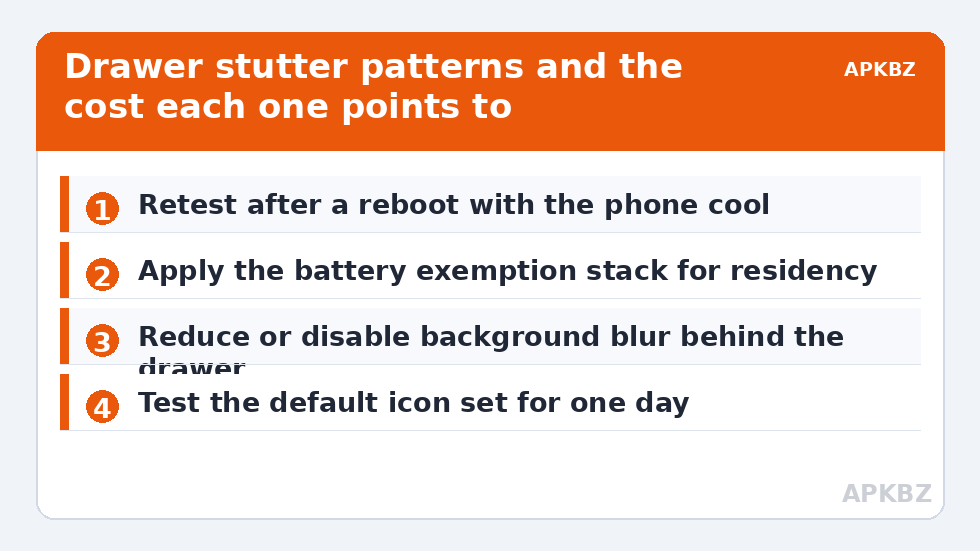
- Reboot and retest cool. Rule out thermals and transient load first.
- Confirm residency. Apply the battery exemption stack if the launcher reloads anywhere.
- Reduce drawer background blur radius; disable drawer blur if still rough.
- Test the default icon set for a day to price your icon pack honestly.
- Clear the launcher cache once if icons re-render constantly.
- Uninstall genuinely unused apps and keep a few gigabytes of storage free.
- Try adaptive refresh rather than a forced maximum on high-refresh phones.
If the drawer remains rough after all of that — and other apps scroll roughly too — the limit may genuinely be the hardware, especially on older budget phones with many hundreds of apps. Even then, the trimmed setup above is the best version of that hardware. And if stutter came with outright freezes or dialogs, step sideways to the sibling guide on recurring ‘isn’t responding’ errors, because a drawer that halts entirely is a different fault from a drawer that merely scrolls unevenly.
| Stutter pattern | Likely cause | First adjustment |
|---|---|---|
| Only the first second after opening | Inventory and icon loading | Cache clear once; accept slight load on cold opens |
| Continuous and even | Per-frame effects, led by blur | Reduce or disable drawer background blur |
| Only with a custom icon pack | Pack rendering cost or a malformed pack | Test default icons for a day |
| Worse when phone is warm | Thermal throttling | Retest cool; reduce sustained GPU effects |
| With home-screen reloads too | Launcher being evicted | Full battery exemption stack |
Do not forget the drawer you actually use
One last, practical observation: many people scroll the drawer far less than they think. If your real habit is searching — pulling down and typing two letters — then drawer scroll performance matters mainly on the days search fails you, and your optimisation time may be better spent keeping the app inventory healthy so search stays instant. If, by contrast, you browse categories visually, the category pages themselves deserve the same scroll test as the full drawer, since a stutter can live in one view and not the other. Test the surfaces you genuinely use, fix the ones you feel, and resist perfecting a screen you open twice a month. Performance work is finished when the phone stops reminding you about it during your real routine, not when every synthetic test is flawless.
Frequently Asked Questions
Why is my app drawer smooth sometimes and stuttery at other times?
Because the load changes: a cold launcher, a warm phone, a just-installed app rebuilding the inventory, or background work can all come and go. Note what correlates — heat, recent installs, time since reboot — and you will usually find the variable that explains the difference.
What is the single biggest drawer-speed improvement?
On most phones, reducing or disabling the blurred background behind the drawer, because blur over moving content is recomputed every frame. On phones where the launcher is being evicted, the battery exemption that keeps it resident matters even more.
Can an icon pack really slow the drawer down?
Yes. Every icon in the drawer is rendered through the pack, and high-resolution or poorly built packs add real cost, especially while scrolling. Switching to the default icon set for a day is a clean test: if the stutter goes with the pack, the pack was the price.
Do animation scale settings fix drawer stutter?
They shorten transitions, which can make the phone feel snappier, but they do not repair frames dropped during scrolling itself. Treat them as a finishing touch after blur, residency, icon pack and thermal causes have been handled.
How many apps is too many for a smooth drawer?
There is no fixed number — modern launchers handle several hundred apps — but inventory size adds loading and rendering work, particularly on budget hardware. Uninstalling apps you no longer use is worthwhile housekeeping regardless of stutter.


