
The song is wrong for the moment — the bus, the run, the paragraph you are writing — and you want it gone without a screen-diving expedition. It is natural to want music playback gesture controls Android style: swipe on the home screen to skip, tap to pause, keep moving. This guide gives you the honest map of that territory. Smart Launcher gestures cannot send media commands: play, pause and next track simply are not entries in its action picker on standard builds. But playback control is still very buildable once you separate the two jobs involved — getting to the controls, which a gesture does brilliantly, and issuing the command, which belongs to media surfaces, hardware buttons and, for the determined, an automation shortcut.
Read this as a routing exercise. Eyes-free moments (pocket, run, commute) belong to headset and watch controls that work with the screen off. At-home moments, where the home screen is already in front of you, are where a gesture opening your player or playlist in one motion genuinely shines. And the automation bridge serves the small group who want a home screen swipe that truly skips a track and accept a background app as the price. Each route is set out below with its requirements stated plainly, and the wider gesture library is indexed from the apkbz homepage.
Why Media Keys Are Not in the Picker
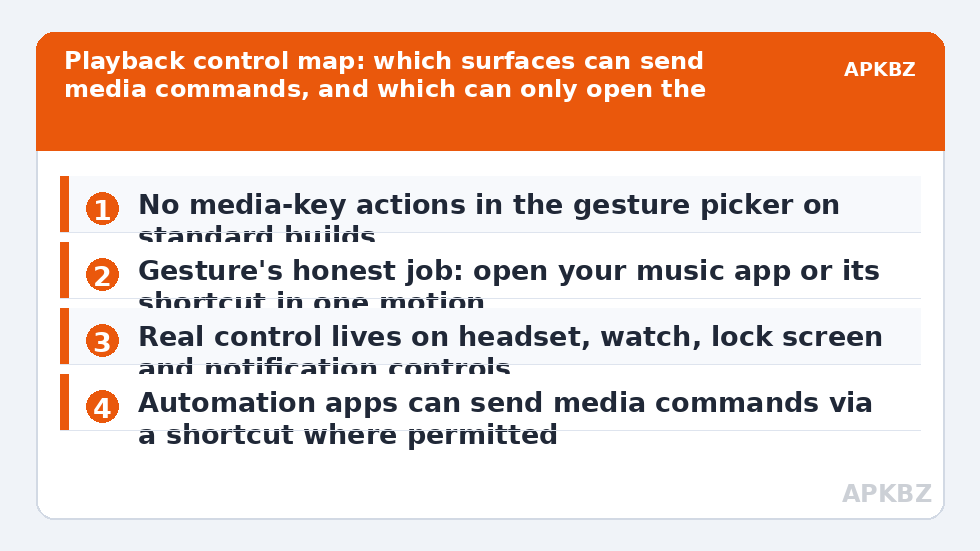
Android treats media playback as a session owned by the playing app, addressed through the system’s media controls — the lock screen card, the notification, the headset buttons, Bluetooth devices. Third-party surfaces join that system through specific APIs, and a launcher’s gesture action list is not one of those surfaces: it launches apps and shortcuts and performs launcher actions. No entry in it says Next track, and no hidden setting adds one on standard builds. Guides that claim a plain Smart Launcher swipe skips songs are usually describing an automation chain without mentioning it, or a different tool entirely — often an accessibility-based gesture overlay, with all the permission weight that category carries.
Understanding this saves real frustration. Users burn evenings reassigning swipes and rebooting, convinced they missed a toggle, when in fact the toggle does not exist. The fix is never in Gestures and inputs; it is in choosing the right surface for each moment, which the next sections do one by one. The same structural honesty governs the guide to toggling dark mode with a gesture — another protected system operation that needs a bridge rather than a direct assignment.
Treat these numbers as a starting point: apply them in Smart Launcher 6 under Settings → Home screen → Grid, use the layout for a day, then nudge one value at a time — your wallpaper, widget sizes and one-handed reach all shift what feels right.
Route One: A Gesture That Puts the Player in Your Hand
- Long-press your music app’s icon and inspect its app shortcuts. Note entries like a favourite playlist, Liked songs, or a Continue listening view.
- Open Smart Launcher’s Gestures and inputs and pick a slot you will remember under mild distraction — double tap suits music, since it is easy half-looking.
- Assign it to the music app, or, where the picker’s shortcut list offers it, to the specific playlist or view shortcut you found in step one.
- Fire the gesture and count the taps to music playing. App alone is usually two (gesture, play). A playlist shortcut is often the same two with a better landing page.
- If you use the media notification heavily, confirm the music app is set to Unrestricted in battery settings, so its controls never vanish mid-album.
This route respects the launcher’s real powers: presence and speed. The player is suddenly one motion away from anywhere on the home screen, including from the widget page you actually live on. Paired with the media card that Android already places in your shade — reachable by the swipe in the guide to swipe down anywhere for notifications — most home listening needs nothing more exotic.
Route Two: The Automation Bridge for a True Skip Gesture
| Link | Setup | Failure mode to check |
|---|---|---|
| Task | In Tasker or MacroDroid, an action that simulates media Play/Pause or Next | Test inside the app; some players need the command sent to their specific session |
| Shortcut | Expose the task as an Android shortcut with a clear name | Automation updates occasionally break shortcut bindings; re-select after updates |
| Gesture | Bind a spare Smart Launcher gesture to the shortcut | Choose a deliberate slot — an accidental skip mid-podcast is its own annoyance |
| Lifeline | Exempt the automation app from battery optimisation | If controls die overnight, the battery manager killed the bridge, not the gesture |
Be clear-eyed about scope: this bridge still only works from the home screen, because that is where launcher gestures live. It does not give you pocket control; it gives you a home screen that behaves like a remote for the specific case of sitting with the phone in hand. For a fuller treatment of this chain pattern, the article on gesture shortcuts for automation workflows remains the reference, and this music setup is one of its happiest applications.
Route Three: The Controls That Work with the Screen Off
- Earbud and headset gestures: taps and holds on buds map to play/pause, skip and assistant on most modern sets; configure them in the buds’ own app once and they work in every app.
- Inline and Bluetooth buttons: single press usually toggles play, double and triple presses skip on many accessories; your accessory’s manual holds the map. The phone-side version of this thinking is covered in the guide to mapping physical button presses to launcher actions.
- Watch controls: a paired watch’s media app is the most capable eyes-free surface, with volume and queue access.
- Lock screen and shade cards: Android’s media player puts play, skip and seek on the lock screen and in quick settings; keep the player’s notifications allowed so the card exists.
- Voice assistant: for driving and cooking, asking for the next track is safer than any swipe.
The Overlooked Surface: Home Screen Media Widgets
Between the gesture and the automation bridge sits a surface many users never try: the music app’s own widget. A well-made player widget puts album art, play and pause, and skip buttons directly on the home screen — real media controls, issued through the proper media session, reachable with zero gestures beyond the tap itself. Placed beside the icon your double tap targets, the widget turns your home screen’s music corner into a small, honest control deck: gesture to open the full player when you want depth, widget taps when you only want the song changed. Widget quality varies sharply between players, and a few drain more battery than they should by polling; test yours for a day and check its battery line before granting it permanent residence. Where the widget is good, it quietly removes most of the demand for gesture playback control that remains after Route One.
Assembling a Sensible Music Setup
A realistic finished configuration looks like this: double tap opens your main playlist shortcut; swipe down reaches the shade’s media card for quick skips while reading; earbuds own everything that happens away from the desk; and, optionally, one automation gesture on a deliberate pinch handles a true skip for the reader who asked for it by name. Nothing in that list pretends the launcher sends media keys, and everything in it works on the first try. Add it to your backup once settled, browse the neighbouring capture ideas in this same category, and keep the full collection under Gesture Setup for the day you extend the system to calls and contacts as well.
Frequently Asked Questions
Can a Smart Launcher gesture pause or skip tracks directly?
No. Media commands like play, pause and next track are not among the apps, shortcuts and launcher actions a Smart Launcher gesture can fire on standard builds. A gesture can open your music app instantly, after which its controls are one tap away — or an automation shortcut can send the media command, which is the only gesture-adjacent route that truly controls playback.
What is the best way to control music without looking at the phone?
Headset and earbud controls, a connected watch, or your phone maker’s button features — all designed for eyes-free use and all working inside any app and with the screen off. Launcher gestures require the home screen to be visible, which makes them the wrong tool for pocket or driving control by design.
How does the automation route for playback work?
In Tasker or MacroDroid, build a task whose action simulates media buttons — play/pause toggle or next track — then expose it as a shortcut and bind a Smart Launcher gesture to it. Test the task inside the automation app first. Reliability depends on the automation app staying alive and on your music app responding to standard media commands, which most do.
Why did my music controls stop appearing on the lock screen?
Usually a notification permission or media notification setting was changed for the music app, or battery optimisation is killing the player so its session ends. Allow the app’s notifications, set it to Unrestricted battery use, and check Android’s media player settings. None of those controls live in the launcher.
Can a gesture open a specific playlist instead of just the app?
Often, yes. Many music apps expose shortcuts — a playlist, a liked-songs view, a radio — through Android’s app shortcuts, visible on long-press. If the gesture picker’s shortcut list includes your playlist entry, bind the gesture to it and the swipe lands you one tap from playing exactly that list.


