On a tall phone, the notification shade lives at the furthest point from your thumb. You get a message buzz in a shopping queue, shift the phone in your hand, stretch, nearly drop it, and repeat the whole performance twenty times a day. The fix most people actually want from swipe down anywhere notifications Android setups is simple: pull the shade down from the middle of the home screen, where your thumb already is. Smart Launcher 6 can do exactly that, because its swipe down gesture can be assigned to the launcher action called Expand notifications.
This guide sets that up properly, explains where the gesture can and cannot start, and deals honestly with the trade-off it creates: swipe down can only hold one job, so if it currently opens Smart Search, you need a new home for search before you reassign it. Nothing here needs a companion app, a root trick or an edge overlay. It is one native assignment, done well, plus a week of habit.
What Expand Notifications Actually Does
Expand notifications is a launcher action, not an app and not a shortcut. When the gesture fires, Smart Launcher asks Android to pull down the notification shade exactly as if you had swiped from the status bar. Your notifications, quick settings tiles and media controls all arrive in their normal order, and a second swipe expands quick settings further where your phone offers that behaviour. Dismissing the shade works as usual: swipe up, tap Back, or tap an empty area.
The important boundary is where Smart Launcher can see the swipe. Launcher gestures are recognised on the launcher’s own surfaces, meaning empty areas of the home screen. A swipe beginning on an icon launches or interacts with that icon, and a swipe beginning on a widget is handed to the widget — a weather widget may scroll, a calendar widget may do nothing at all. This is not a flaw; it is how Android divides touch ownership. Design your layout so a comfortable bare patch sits in the lower-middle of the screen, and the gesture becomes effortless. If you are new to the gesture system as a whole, start from the apkbz homepage guides and build outward from this one anchor gesture.
Treat these numbers as a starting point: apply them in Smart Launcher 6 under Settings → Home screen → Grid, use the layout for a day, then nudge one value at a time — your wallpaper, widget sizes and one-handed reach all shift what feels right.
Assign Swipe Down to Notifications, Step by Step
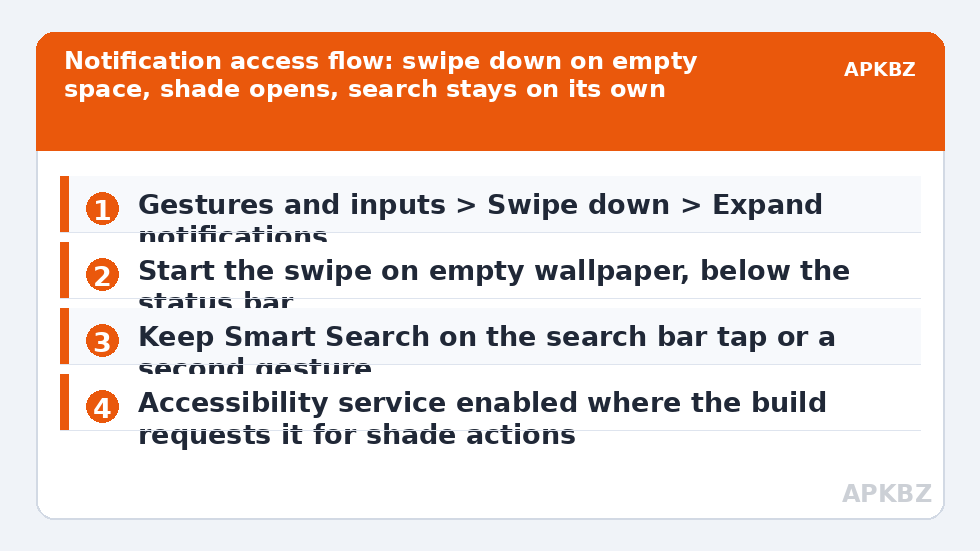
- Before changing anything, note what Swipe down currently does. Long-press empty home screen space, open Home screen settings, and find Gestures and inputs.
- Tap Swipe down and read its current assignment. If it says Smart Search, decide where search will live after this change — the search bar tap is the obvious home.
- Select Expand notifications from the action list. Where your version offers it under slightly different wording such as Show notifications, that is the same action.
- If the picker prompts you to enable Smart Launcher’s accessibility service, accept and follow the Android Settings screens, then return. Some builds need that service to perform the shade action on modern Android.
- Go back to the home screen, place your thumb on empty wallpaper below the status bar, and swipe down decisively.
- Test three times in a row. The shade should arrive each time without the search page appearing.
If the gesture editor itself shows a Premium marker on your build, that badge applies to the editor in that version rather than to the notifications action specifically — feature placement varies between builds, so check what your installed version actually shows instead of assuming either way.
Giving Smart Search a New Home
The commonest reason people abandon this setup after a day is not the shade — it is losing their search habit. They swipe down out of old muscle memory, get notifications, and feel the phone got worse. Solve that in advance. The search bar remains tappable in its usual position, and on many layouts moving the bar toward the bottom of the screen makes that tap nearly as fast as the gesture was. The background to this tension is covered in the guide to the search bar swipe down action, which explains why search owned this gesture by default for so long.
Alternatively, give search a different gesture entirely. Double tap is a strong candidate if you are not using it to lock the screen, and swipe up is free on single-page layouts where it does not need to open the app drawer. What matters is that both destinations — shade and search — end up one motion away, on motions different enough that your thumb never confuses them. Down for shade and tap on a bottom bar for search is the pairing most people settle on, and it pairs neatly with a tidy layout once your wider gesture map grows. Keep the count small: two well-worn routes beat five clever ones you have to think about.
When the Swipe Misses: A Short Diagnostic Table
| Symptom | Likely cause | Fix |
|---|---|---|
| Nothing happens at all | Swipe started on a widget, or the assignment was never saved | Start on bare wallpaper; re-check Gestures and inputs |
| Smart Search opens | Swipe down still assigned to Smart Search, or swipe began on the search bar | Reassign to Expand notifications; start lower on the screen |
| Shade opens then closes | A long, slow swipe is read as down then up | Use a shorter, brisker flick and lift your thumb cleanly |
| Works on page one, not page two | Page two is covered by a full-screen widget stack | Leave a bare strip on every page you use daily |
| Stopped after an update | Assignment or accessibility permission was reset | Re-select the action and re-grant the service if prompted |
Notice that none of these fixes involve reinstalling anything. Gesture misses are almost always about start position or a reset assignment. The edge-related version of this problem — where a swipe that starts too high collides with the system shade gesture or an OEM panel — is treated in depth in the article on edge swipe gestures for notification panel access, which is worth reading if your misses cluster near the top corners of the screen.
Making the Habit Stick on a Tall Phone
Ergonomics decide whether this change survives the week. Put the gesture’s natural home where your thumb rests, not where the layout looks symmetrical in a screenshot. For most right-handed users that means a bare area slightly right of centre, around two-thirds down the screen. Left-handed users should mirror it. If your layout is icon-dense, the honest answer is that this gesture needs a little empty territory to exist — consider whether every one of those icons earns its place, or whether the app page categories could hold the rarely used ones.
- Keep one clear landing zone per home screen page, roughly thumb-sized.
- Avoid placing the clock or weather widget in the lower-middle band; it will swallow your swipes.
- After changing cases, re-test: thicker case lips change how your thumb approaches the screen.
- Give the new habit three full days before judging it; day one always feels slower.
Once the shade gesture feels automatic, the same pattern extends naturally to a second anchor — many readers pair this with assigning a gesture toward their favourite contacts, covered in the guide to one-swipe calling for favourite contacts, so the two most common interruptions of the day each cost a single thumb motion. Browse the wider library under Gesture Setup when you are ready to add more, and export your Smart Launcher backup first so a phone change never makes you rebuild the map from memory.
Frequently Asked Questions
Does swipe down for notifications work anywhere on the home screen?
It works on empty home screen space, which is where launcher gestures are recognised. Swipes that start on a widget, an icon or the search bar are delivered to that element instead. In practice a clear patch of wallpaper near the middle of the screen becomes the natural starting point within a day or two.
Can I have swipe down open notifications and search at the same time?
No, one gesture carries one assignment in Smart Launcher. Choose notifications for the swipe and keep search on its bar, on a double tap, or on swipe up if that direction is free. Most tall-phone users check the shade far more often than they search, so notifications usually win the gesture.
Why does my swipe down sometimes open Smart Search instead?
Either the Swipe down assignment still points at Smart Search from an earlier setup, or your swipe started on the search bar itself and opened its page. Reopen Gestures and inputs, confirm Expand notifications is selected for Swipe down, and test starting the motion on bare wallpaper.
Does expanding notifications this way need accessibility access?
On some builds Smart Launcher uses its accessibility service to perform the system shade action, and it will prompt you to enable it when you pick the action. That prompt is normal for shade and lock actions on modern Android. If you decline it, the gesture may simply do nothing on those builds.
Will the gesture work inside apps or games?
No. Launcher gestures exist only on the launcher’s own surfaces. Inside an app, a swipe down belongs to that app or to Android’s own shade gesture from the very top edge, which is unchanged by anything you assign in Smart Launcher.