
Reinstalling a launcher sounds drastic, and done carelessly it is: people tap through it expecting a fresh start and get one — an empty home screen, default categories, and gestures they spent months tuning, all gone. Done properly, though, a reinstall of Smart Launcher 6 is a controlled operation with a safety net, and it is sometimes the right cure for faults that survive every gentler fix. The difference between the two experiences is entirely preparation. This guide is the careful version: back up first, verify the backup exists, reinstall cleanly, restore, and then re-apply the system-level settings a reinstall cannot carry with it. Our other unofficial guides are linked from the APKBZ home page.
Before you reinstall: is it actually necessary?
A reinstall replaces the app’s installation; it does not fix settings that live outside the app. If your problem is a default launcher that keeps changing, a battery manager killing the app, revoked permissions, or a grid scrambled by a display change, a reinstall will faithfully reproduce the problem on a fresh install. Work the cheaper steps first: reboot, clear the cache only, check exemptions and defaults, remove a suspect widget. Our guide to clearing the cache without losing layouts belongs before this one in the sequence for almost every fault. Reinstall earns its place when the app itself seems damaged — persistent crashes after cache clearing, faults that began with a corrupted update, or behaviour that matches a known bug a fresh build addresses.
Decide, too, what you are trying to preserve. For most people the list is: home-screen pages and grid, folders and categories, icon pack choices and any per-icon customisations, gestures, and general settings. Write that list down. After the restore you will check against it, item by item, rather than relying on a vague feeling that things look roughly right.
Step 1: export a backup — and prove it exists
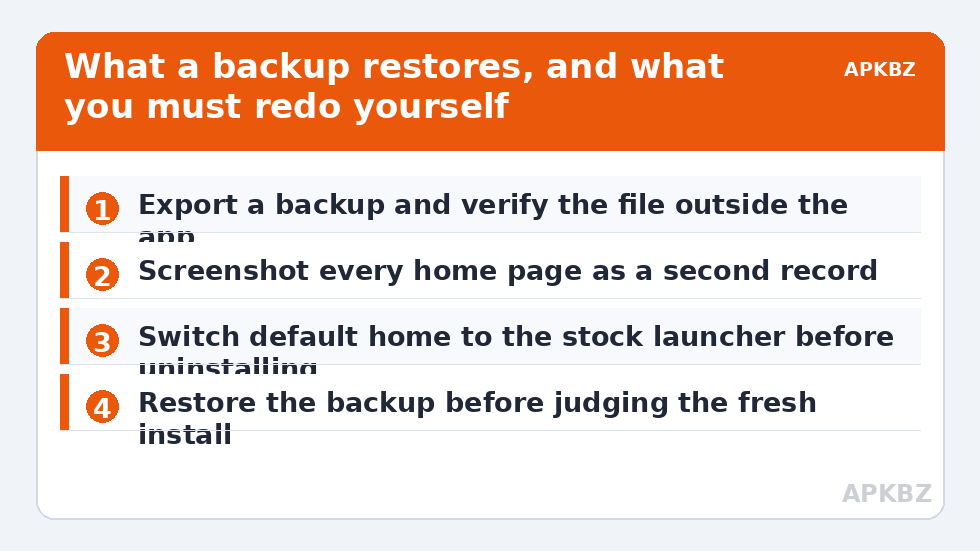
Open Smart Launcher’s backup options (in the launcher’s settings, under backup and restore in most builds) and export a backup. Save it somewhere that survives uninstalling the app: a folder in your main storage you can see in a file manager is the minimum; copying it to cloud storage or a computer is better, because an uninstall followed by a storage mishap should not be able to take the backup with it. Then verify: open your file manager, find the file, and check its size is non-trivial and its date is today. A backup you have not seen is a hope, not a backup.
Take screenshots of every home page and of your drawer categories as a second, independent record. Screenshots cannot be restored automatically, but if anything in the automatic restore disappoints, they turn a rebuild from archaeology into copying. This two-layer approach — export plus pictures — is the same discipline recommended in our batch-1 complete maintenance checklist for a Smart Launcher setup, and reinstall day is exactly when it earns its keep.
Treat these numbers as a starting point: apply them in Smart Launcher 6 under Settings → Home screen → Grid, use the layout for a day, then nudge one value at a time — your wallpaper, widget sizes and one-handed reach all shift what feels right.
Step 2: note the settings that live outside the backup
A backup restores the launcher’s own world. It does not restore Android’s decisions about the launcher, because those are stored by the system. Before uninstalling, note or simply plan to redo the following after reinstall:
- Default home app — you will need to choose Smart Launcher again.
- Battery exemption — Unrestricted status and any maker-specific autostart or never-sleeping entries may need re-applying, because the system may treat the reinstalled app as new.
- Notification Access — needed for badges; re-grant it if counts matter to you.
- Other permissions — anything you granted for widgets, shortcuts or features.
- Widget bindings — Android sometimes requires widgets to be re-added or re-authorised after a restore, because widgets are granted per installation. Expect to tap through a few widget permission prompts.
None of this is difficult; all of it is forgotten in the relief of seeing your pages return. Having it as a checklist is the difference between a finished job and a week of small mysteries.
Step 3: uninstall and reinstall cleanly
Switch your default home app temporarily to the stock launcher first, so the phone always has a working home screen during the operation. Then uninstall Smart Launcher from Settings > Apps, and reboot the phone once — the reboot clears any lingering processes and gives the fresh install a clean start. Reinstall Smart Launcher from the same source you originally used. Avoid side-loading a random copy from the web: apart from the safety question, a different build than your backup expects helps nobody. This is an unofficial fan guide site and we host no APK files; get the app through its normal distribution channel.
Open the fresh install, skip its first-run customisation offers, and go straight to restore. Import the backup file you verified earlier. Then be patient: icon packs re-apply, widgets rebind, and thumbnails rebuild, and the first few minutes can look scruffier than the finished result. Judge the restore after a reboot and a short settling period, not in the first sixty seconds.
Step 4: verify against your list, then re-apply system settings
Walk your preservation list from Step 0: pages in the right order, grid numbers correct, categories populated, gestures responding, icon pack applied. Re-add any widget that shows a placeholder or a tap-to-authorise message, granting its permission prompt; a widget that lost its binding is a known reinstall side effect, not a failed restore. The sibling guide on a grid resetting after an update is useful here if dimensions look off, because a fresh install may default to a grid that differs from your backup’s expectations until the restore fully applies.
Then do the outside-the-backup checklist: set Smart Launcher as the default home app, re-apply battery exemptions, re-grant Notification Access, and check any accessibility or overlay permissions your setup uses. Finish by exporting a brand-new backup of the verified, working setup — clearly named or dated — so the next emergency starts from a known-good state. If the original fault returns even on a clean install with a restored setup, restore is telling you something valuable: the fault travels with your data or your environment, not the installation. At that point, test a fresh install without restoring, briefly: if the fault vanishes, a corrupted element inside the old setup is the culprit, and rebuilding selectively beats restoring wholesale. That diagnostic is the subject the sibling guide to recurring ‘isn’t responding’ errors also leans on.
| Item | Covered by backup? | Your job |
|---|---|---|
| Pages, grid, folders, categories | Yes, normally | Verify against screenshots |
| Gestures and launcher settings | Yes, normally | Test each gesture once |
| Default home app status | No — system setting | Re-select after reinstall |
| Battery exemption and autostart | No — system/OEM setting | Re-apply fully |
| Notification Access for badges | No — system permission | Re-grant |
| Widget permissions | Partly | Re-authorise prompts; re-add stubborn widgets |
Timing the reinstall so it costs you least
Choose your moment. A reinstall is a poor companion for a busy morning, a trip, or the same day as a major system update, because each adds variables you cannot separate from the reinstall’s own effects. Pick a quiet hour, with the phone charged or plugged in, and leave the setup untouched for a day afterwards before judging small behaviours like widget refresh or badge counts — several of those depend on background schedules that need a few hours to settle into their normal rhythm. If the reinstall was meant to cure a specific fault, test that fault deliberately once the settling period is over, in the same conditions where it used to appear. A reinstall judged in a panic in the first ten minutes gets blamed for settling behaviour that would have passed by evening.
Frequently Asked Questions
Will reinstalling Smart Launcher delete my home screen layout?
Only if you reinstall without a backup. Export a Smart Launcher backup first, verify the file exists outside the app, and restore it after reinstalling — your pages, grid and categories should return. Screenshots of every page are a sensible second safety net.
What does a Smart Launcher backup not restore?
System-level decisions: the default home app choice, battery exemptions, maker-specific autostart entries and Notification Access are stored by Android, not in the backup. Plan to re-apply those after the restore, and expect some widgets to ask for permission again.
Should I clear data instead of uninstalling and reinstalling?
They achieve similar freshness, but a clean reinstall also replaces a possibly damaged installation, which Clear data does not. Either way, the rule is identical: never do it without a verified exported backup first, because both erase the app’s local setup.
My widgets show placeholders after restoring. Did the restore fail?
Usually not. Widgets are authorised per installation, so a reinstalled launcher often needs you to grant widget prompts again or remove and re-add a stubborn widget. Your pages and layout returning correctly means the restore worked; widgets are a separate, expected chore.
The same fault came back after a clean reinstall. What does that mean?
That the fault travels with your restored data or your phone’s environment — a bad widget, a corrupted element in the setup, or a system setting — rather than living in the installation. Test the fresh install briefly without restoring to separate those two possibilities.


