A complete preventive maintenance checklist for a smooth Smart Launcher setup is not a list of things to fix — it is a rhythm of small verifications that stop the fixable failures from ever scheduling themselves. Every other article in this category is reactive: drain, crashes, kills, lockouts. This one is the alternative to needing them. The premise, earned across all of those diagnoses, is that launcher problems almost never arrive as bolts from the blue. They arrive as drift — an exemption quietly reset, a widget quietly updated, a backup quietly ageing — and drift is exactly what a checklist catches while it is still free to correct. What follows is organised by cadence: after every update, monthly, and quarterly, with the reason for each item stated so you can skip intelligently rather than superstitiously.
After every system update (the five-minute pass)
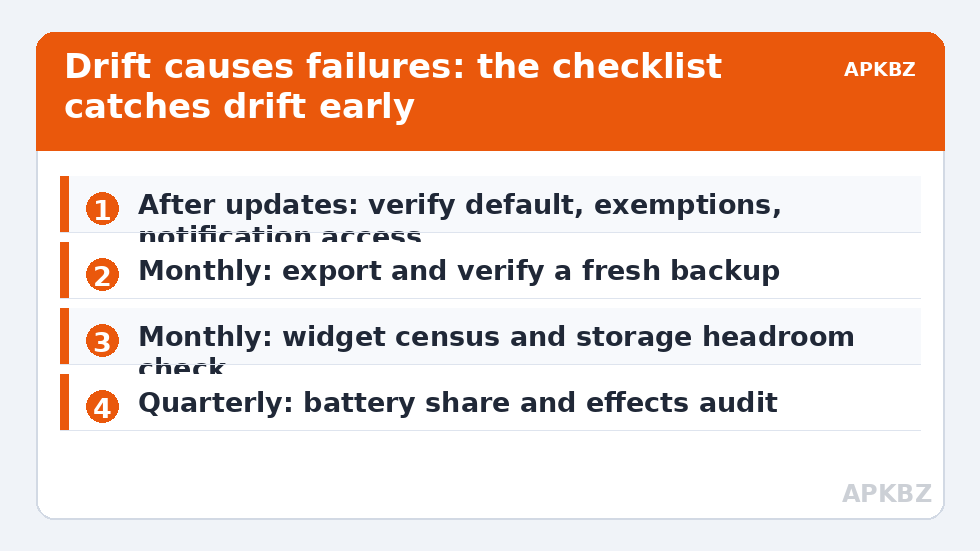
System updates are the single largest source of launcher regressions, per the pile-up anatomy in resolving feature lock outs after an Android system patch. After each one, verify:
- Default home: Settings > Apps > Default apps > Home app still says Smart Launcher — updates re-register the stock launcher; see setting the default launcher permanently.
- Battery exemption stack: Unrestricted in stock settings, plus your OEM layer (MIUI Autostart/No restrictions, Samsung Never sleeping, ColorOS background-allowed) from preventing OEM savers from killing the launcher.
- Notification Access: still granted, or badges silently die — the mechanism is in badges disappearing after battery saver mode.
- “Remove permissions if unused”: still disabled for Smart Launcher, so Android does not auto-revoke a launcher it mistakes for idle.
- One reboot, then a normal day. Many post-update faults are first-boot debris; judge after the second day, not the first hour.
Treat these numbers as a starting point: apply them in Smart Launcher 6 under Settings → Home screen → Grid, use the layout for a day, then nudge one value at a time — your wallpaper, widget sizes and one-handed reach all shift what feels right.
Monthly (the fifteen-minute pass)
- Backup is current. Export a Smart Launcher backup (Settings > Backup and restore) and keep a copy off the phone. This single habit converts every catastrophe in this category — including an accidental Clear data — into an anecdote. Verify the file exists and has a recent date; an unverified backup is a hope, not a backup.
- Widget census. Count your widgets. Remove any you have not actually read in a month, and note any that updated recently — silent widget updates are the top cause of the failures in incompatible widgets blocking startup and widget loading delays after reboot.
- Storage headroom. Keep several gigabytes free; check especially after camera-heavy months. Full storage degrades everything the launcher touches.
- Cache, conditionally. If icons look wrong, search misses a new app, or previews lie, clear the launcher cache once — the safe method and its limits are in clearing cache without losing layouts. If nothing is wrong, skip it; cache clearing is a remedy, not a ritual.
- App updates swept. Update Smart Launcher, the Google app, and Android System WebView from the Play Store — stale WebView in particular is an unglamorous source of launcher-adjacent crashes, as the crash diagnosis notes.
Quarterly (the honest audit)
- Battery reality check. Read Settings > Battery usage across a normal day. The launcher should be a low single-digit share; if it is not, the drain differential in battery drain on high refresh rate screens — wallpaper, widgets, kill-restart cycles — tells you where to look. Also glance at battery health: a physically fading battery masquerades as software drain, and no checklist fixes chemistry.
- Effects audit against your ambitions. Blur, live wallpaper, animated packs: confirm each is still earning its continuous cost, per the framework in disabling blur and animations for speed. Hardware has not changed since you enabled them; your tolerance may have.
- Layout sanity. One slow pass across pages and categories: dead shortcuts to uninstalled apps, duplicate icons, a grid that no longer fits how you use the phone. Ten minutes of tidying here prevents the slow accretion that eventually presents as “the launcher feels old.”
- RAM and residency on budget hardware. If the phone is in the 3–4GB class (or Android Go), re-run the residency test from reducing RAM consumption on budget phones: heavy app, ten minutes, Home — instant or redrawn?
What is deliberately not on this list
No daily cache clearing. No booster or cleaner apps — they cannot maintain a launcher, and vendor one-tap optimisers actively cause half the faults in this category by resetting exemptions. No factory-reset-as-maintenance. No chasing a “free RAM” number. Maintenance, properly understood, is verification of the few settings whose drift causes real failures, plus one current backup. Everything else is theatre, and theatre is how a smooth setup gets “maintained” into a broken one. The full set of repairs this checklist exists to prevent is catalogued in the Fixes & Battery hub — file this article at the front of it, and with luck you will rarely need the rest.
Keep a one-line health log
The checklist’s cheapest upgrade is a note you keep in whatever notes app you already use: date, what changed, what you verified. “Oct — HyperOS update; re-granted autostart; badges OK.” “Nov — new weather widget; backup exported.” Three lines a quarter is not record-keeping, it is a time machine: when something breaks in February, the log tells you the last thing that changed, and in this entire category of faults, the last thing that changed is guilty until proven innocent. Every diagnosis in the Fixes & Battery hub secretly depends on that information — crash timing, update proximity, which widget is new — and the owners who have it solve in minutes what everyone else solves in evenings. If you adopt nothing else from this page, adopt the backup and the log; they are the difference between maintaining a phone and archaeology on one.
When the phone changes: migration as maintenance
The checklist has one final, rare entry that owners forget until it is expensive: the phone itself is temporary. When you replace the device, your Smart Launcher backup is the difference between an evening of setup and a ten-minute restore — but only if the backup is recent and was copied off the old phone before it was wiped, traded, or lost. Add a line to your habits: any time a new phone enters the house, export and transfer the launcher backup on day one, before the old device leaves. Then rebuild the exemption stack on the new hardware deliberately, using the post-update pass above as your template, because defaults and battery lists are per-device and never migrate. Maintenance ends, fittingly, with making sure the setup can survive its own success.
Frequently Asked Questions
What is the single most valuable maintenance habit for a launcher?
Keeping a current Smart Launcher backup exported and copied off the phone. Every serious launcher failure — data clears, corruption, a phone replacement — becomes a minor event when a recent backup exists, and a major loss when it does not.
Why does the checklist focus so much on post-update checks?
Because system updates are the leading cause of sudden launcher problems: they reset defaults, battery exemptions, permissions, and notification access in one pass. Five minutes of verification after each update prevents most of the failures the rest of this category exists to repair.
Should I clear the launcher cache on a schedule?
No. Clear it when a symptom indicates stale or corrupt cached data — wrong icons, missing apps in search, lying previews. Scheduled clearing only forces rebuilds you did not need and can mask the pattern that would have told you the real cause.
Are optimiser or cleaner apps part of good maintenance?
The opposite. Vendor one-tap optimisers reset the very exemptions your launcher depends on, and third-party cleaners add their own background load. Maintenance for a launcher is a short list of verifications done by hand, not a button in a cleaner app.
How do I know my maintenance is working?
By absence: no redraws, badges that stay accurate, widgets current after reboots, and updates that come and go without a troubleshooting session. If a quarter passes with no launcher incident, the checklist is doing its job.