
The update finished overnight, the phone feels new, and by breakfast your double tap does nothing, your shade swipe opens search, and the automation gesture you relied on is silently dead. Gestures not working after Android update is one of the most searched launcher complaints for a reason: major system updates are reset machines. They clear assignments, revoke services, re-apply battery rules and retune the system’s own gestures, all while cheerfully reporting success. The good news is that almost nothing here is actually broken. Your setup’s dependencies were switched off in an order you can reverse, and this article is that reversal, sequenced so you check the commonest cause first and the rarest last.
Resist two instincts before starting. Do not reinstall the launcher — that treats corruption, which is rare, and can convert a settings problem into a full rebuild. And do not redesign your gesture map today; a map rebuilt on top of reset settings will confuse you about which change fixed what. Restore first, judge later. If your problem is narrower — one conflict between system navigation and the launcher — the dedicated piece on Android 14 and 15 gesture navigation conflicts goes deeper on that single front, while this article covers the whole post-update landscape. Orientation for the full library is on the apkbz homepage.
The Fifteen-Minute Checklist, in Order
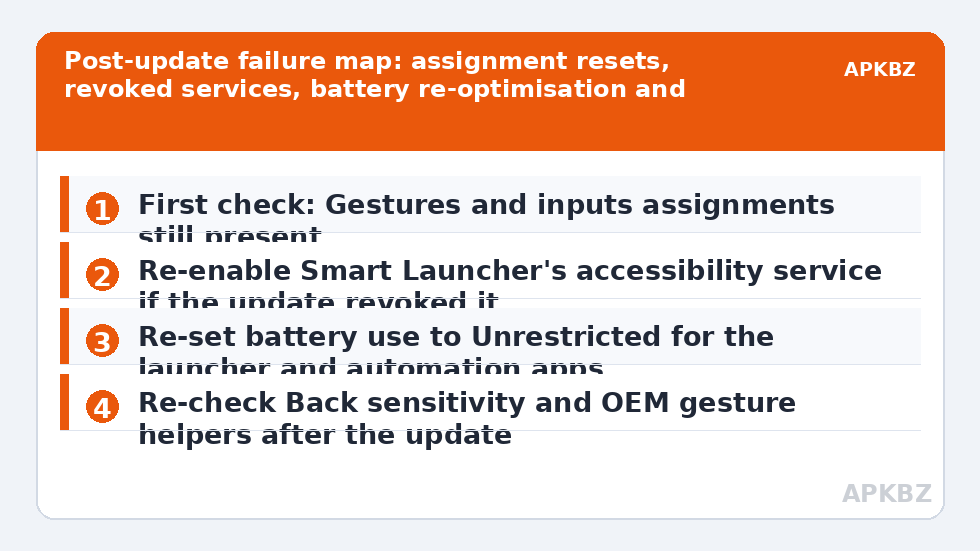
- Assignments. Open Smart Launcher’s Gestures and inputs and read every slot. If entries reverted to defaults or None, the update or a companion launcher update reset them. Reassign by hand, or restore your launcher backup now if you keep one — restoration is faster than re-entry.
- Accessibility service. In Android Settings under Accessibility and installed services, confirm Smart Launcher’s service is still on. Updates switch these off routinely, and every service-backed action — shade expansion, locking, some toggles — dies with it while plain app launches keep working, which is the classic confusing pattern.
- Battery rules. Set Smart Launcher, and any automation app your gestures depend on, back to Unrestricted battery use, and re-apply OEM-specific protections like autostart permission or locking the app in Recents where your skin offers them. Updates re-optimise apps silently.
- System gesture layer. Re-check Navigation mode and Back sensitivity, and look for OEM helpers the update re-enabled: edge panels, side key shortcuts, one-handed triggers, screenshot motions. A resurrected helper sitting on your swipe’s territory produces failures that look exactly like a broken launcher.
- Permissions. Spot-check anything your setup touches: notifications for shade-related behaviour, and per-app permissions for targets your gestures launch.
- Full rehearsal. Perform every assigned gesture twice, from different home screen pages, and only then declare the map restored.
Treat these numbers as a starting point: apply them in Smart Launcher 6 under Settings → Home screen → Grid, use the layout for a day, then nudge one value at a time — your wallpaper, widget sizes and one-handed reach all shift what feels right.
Matching the Symptom to the Reset
| Symptom after update | Most likely reset | First fix |
|---|---|---|
| Every gesture back to defaults | Assignments wiped | Restore backup or reassign |
| Shade and lock gestures dead, app swipes fine | Accessibility service off | Re-enable the service |
| Gestures work, then stop by evening | Battery re-optimisation | Unrestricted battery plus OEM autostart |
| Automation gestures silent | Automation app killed or its permissions revoked | Open the app, re-grant, test the task directly |
| Swipes trigger Back or an edge panel instead | System sensitivity retuned, helper re-enabled | Adjust Back sensitivity; move or disable the helper |
| One specific shortcut target wrong or missing | Target app updated and moved its shortcut | Recreate the shortcut, re-select it in the picker |
That middle row — works in the morning, dead by evening — deserves a underline, because it sends people reinstalling in despair. It is the battery manager’s signature: the launcher or automation app survives while in use, gets killed in a quiet hour, and takes its gestures with it. The tuning piece on gesture sensitivity and accidental triggers covers related feel problems, but post-update timing like this is a power-management story every time.
When It Is Not a Reset: Genuine Post-Update Faults
Occasionally an update introduces a real incompatibility — a launcher version that predates a new Android release can misbehave until the launcher itself updates. Signs you are in this rarer territory: the checklist is fully green, a clean rehearsal still fails, and the failure began with a major version jump rather than a monthly patch. The correct responses are patience and sequencing: check for a Smart Launcher update first, then your phone maker’s known-issues notes, and give the pairing a few days of patches before concluding anything. Rolling back an Android update is generally not a realistic option on consumer phones, and sideloading older launchers trades a gesture problem for a security one.
Also separate launcher gestures from system gestures in your diagnosis. If swiping home or going Back feels wrong inside apps, the launcher is not involved at all — that is the system layer the update retuned, and its settings live in the system screens from step four of the checklist. Conflating the two systems is how people spend an evening fixing the wrong one.
Whose Update Was It? Separating Three Suspects
Post-update breakage reports blur three different events that often land in the same week. The Android system update is the big one, with the reset behaviours this article has catalogued. But Smart Launcher itself also updates, and a launcher update can rearrange its own settings screens, rename actions or change defaults without Android changing at all — check the launcher’s version and recent changelog in the Play Store before blaming the system. Third, the target apps update constantly and silently: an automation task, a shortcut or a media action can break because the app at the end of the chain changed, while every gesture fires perfectly. Separating the suspects is a five-minute discipline: note the dates each layer last updated, test the gesture layer alone with a simple app launch, then test outward. The layer that changed most recently, and whose test fails, is almost always your culprit — and fixing the wrong layer is how a fifteen-minute checklist becomes a lost weekend.
Building an Update-Proof Routine
- Before updating: export a fresh Smart Launcher backup and store it outside the phone if you can — cloud or computer. This single habit converts worst-case gesture loss into a two-minute restore, a practice detailed in the guide to backing up gesture configurations before Android updates.
- Immediately after: run the four-point check — assignments, service, battery, system layer — before your first full day on the new version.
- Note dependencies: keep a one-line list in your notes of which gestures need the accessibility service or an automation app, so the checklist targets them first.
- Rehearse, do not spot-check: one casual test misses the gesture that only fails from page two or after idle; the full rehearsal catches both.
None of this makes updates welcome, but it makes them boring — and boring is the goal for infrastructure you rely on hourly. Once your map passes rehearsal, it rejoins the rest of your system under Gesture Setup, including the sensitivity tuning piece linked earlier. Export one more backup now that everything works, labelled with today’s date and the new Android version; future you, mid-breakfast after the next update, will be grateful.
Frequently Asked Questions
Why did all my gestures stop after the Android update?
Major updates commonly reset several dependencies at once: launcher gesture assignments can be cleared, accessibility services are frequently switched off, battery optimisation is re-applied to apps, and system gesture sensitivity is retuned. Any one of these makes gestures look broken. Work the checklist in order — assignments, service, battery, system settings — and most setups are restored within fifteen minutes.
Only some gestures broke. Is that still the update?
Probably, yes. Updates break selectively: a shade gesture fails because its accessibility service was revoked, while an app-launching swipe keeps working because it never needed the service. Match each dead gesture to what it depends on — service-backed actions, automation shortcuts and edge-adjacent swipes each have their own post-update failure mode.
Should I reinstall Smart Launcher to fix post-update gesture problems?
Almost never as a first step, and only after exporting a backup if your layout still exists. Reinstalling treats corruption, which is rare, while the common causes are settings resets that a reinstall does not address — indeed it can add a full layout rebuild to your problem. Exhaust the reset checklist first.
The update also changed how system gestures feel. Can I get the old feel back?
Partly. Revisit Navigation mode settings for Back sensitivity, check whether the update re-enabled OEM helpers like edge panels or one-handed triggers, and re-tune animation scales if they were reset. Some changes are permanent parts of the new version, though; where that is true, adjusting start positions for launcher swipes usually recovers the practical feel.
How do I stop this happening at the next update?
Keep a current Smart Launcher backup exported before updating, note which of your gestures depend on the accessibility service or an automation app, and run the four-point check — assignments, service, battery, system gestures — as a standing post-update routine. Ten minutes of routine beats an evening of rediscovery.


