
Few dialogs are as wearying as the one that interrupts whatever you were doing to announce that Smart Launcher isn’t responding, and to ask whether you would like to wait or close it. Once, it is a hiccup. Several times a day, it is the phone repeatedly telling you that its most fundamental app — the one that draws your home screen — is seizing up. The good news is that this dialog has a specific technical meaning: Android shows it when an app’s main thread is blocked for too long. Something is making the launcher work very hard, or wait on something very slow, at the moment you touch it. Finding that something is a process of elimination, and this guide runs it in the order that wastes the least of your time. Our other unofficial guides sit on the APKBZ home page.
Read the dialog’s timing like a symptom chart
Before changing anything, collect a day of evidence. When does the dialog appear? At unlock or first boot, it points at startup load: widgets binding, wallpapers starting, inventories rebuilding all at once. When returning home from a heavy app, it points at the launcher recovering from eviction under pressure. Randomly, while simply navigating the home screen, it suggests something resident is periodically seizing the main thread — a misbehaving widget is the classic offender. Only inside one view, such as opening the drawer or a folder, it suggests data belonging to that view: a huge inventory, a troublesome icon pack, a corrupted category.
Also note what you do at the dialog. Choosing Wait and finding the launcher recovers smoothly tells you the blockage was temporary. Choosing Close, or finding the launcher frozen solid every time, suggests a harder fault. Write the pattern down; two lines of notes will steer every step below, and they turn a support conversation from ‘it hangs a lot’ into something diagnosable.
Cause 1: a widget blocking the main thread
Widgets render inside the launcher’s surface, and a widget that hangs, retries a network fetch endlessly, or crashes in a loop can take the home screen down with it. This is the territory of our batch-1 guide to troubleshooting incompatible widgets that block startup, and the method is disciplined subtraction: remove the most recently added or updated widget first, use the phone for a day, and work backwards through your widgets if the dialogs persist. Half-measures like removing all widgets at once do identify that a widget was responsible, but you then rebuild without learning which one, and it tends to invite itself back.
Pay special attention to widgets whose own apps were recently updated, widgets fed by accounts — mail, social, news — and clever custom widgets built with scripting-style tools, which are powerful and therefore capable of powerful mistakes. A widget you have used happily for a year can become the culprit the week its app updates; recency, not reputation, is the clue.
Treat these numbers as a starting point: apply them in Smart Launcher 6 under Settings → Home screen → Grid, use the layout for a day, then nudge one value at a time — your wallpaper, widget sizes and one-handed reach all shift what feels right.
Cause 2: eviction, cold starts and a phone under pressure
A launcher that has been killed in the background must rebuild itself when you return, and on a busy phone that rebuild can take long enough to trip the not-responding threshold or come close. If your dialogs cluster after heavy apps — camera, games, video calls — suspect this pattern, which is the severe end of the behaviour in our batch-1 guide to the launcher crashing and stopping unexpectedly. The remedy is residency: Unrestricted battery use for Smart Launcher, your maker’s autostart and never-sleeping entries, and a lighter home screen so the rebuild that does happen is quick. Nearly full storage aggravates everything here, because the system is simultaneously reclaiming space; keep a few gigabytes free as basic hygiene.
Cause 3: corrupted launcher data or cache
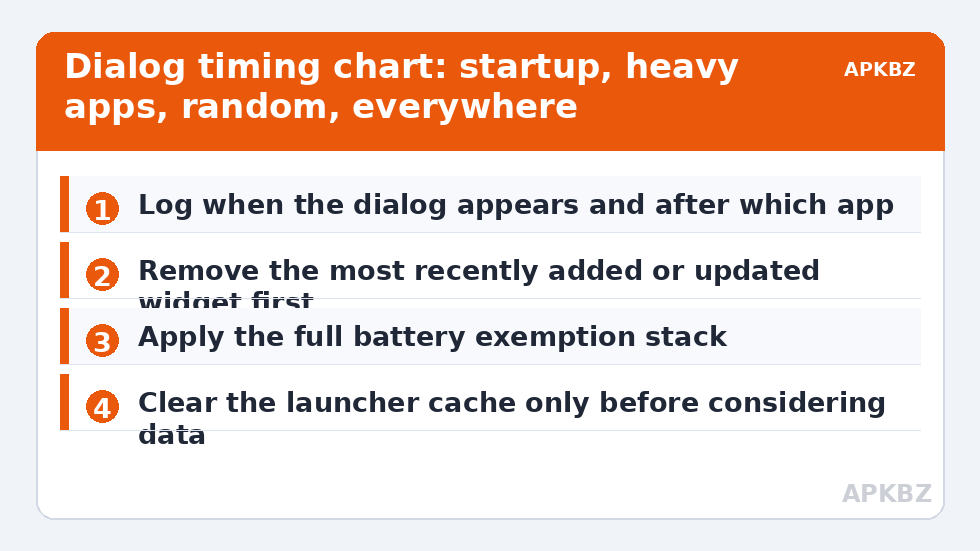
Sometimes the launcher’s own stored state is the blockage: a damaged database entry, a cache full of renders for icons that no longer exist, settings left inconsistent by an interrupted update. The safe first move is clearing the cache only, which discards disposable renders and forces clean rebuilds without touching your layout. If dialogs survive a cache clear, the heavier question of data arises — and that should only ever be answered with a verified backup exported first. Our sibling guide to reinstalling Smart Launcher without losing your setup is the controlled version of that road, and it applies equally to a data reset: backup, verification, restore, then re-apply the system settings that live outside the backup.
Cause 4: it is not only the launcher
Be honest about scope. If other apps also show not-responding dialogs, if the phone reboots itself, or if freezes happen inside Settings as readily as on the home screen, you are looking at a device-level problem — failing storage, a troubled system update, chronic overheating — wearing the launcher as its most visible symptom, simply because the launcher is the app you touch most. Test in safe mode if your phone offers it: third-party widgets and apps are disabled there, and a launcher that behaves in safe mode is being sabotaged by something installed, while a phone that freezes even in safe mode needs system-level or hardware attention. Updating Android System WebView and the system itself is also worthwhile, since many apps and some launcher surfaces lean on shared components whose faults are widely shared.
The elimination sequence, in full
- Log the pattern for a day — timing, preceding app, Wait versus Close outcome.
- Reboot once and confirm whether the dialogs return immediately or after hours.
- Remove the newest widget; test a day; repeat backwards if needed.
- Apply the full battery exemption stack if dialogs follow heavy apps.
- Free storage to a few gigabytes and clear the launcher cache once.
- Test the default icon pack and a static wallpaper to price rendering suspects.
- Only then consider data or reinstall, with a verified backup in hand, using the safe-reinstall routine.
What not to do is live with the dialog by tapping Wait forty times a day while changing nothing. A recurring not-responding pattern is data about your phone’s health, and it tends to worsen rather than heal. Conversely, do not factory-reset the phone as an early step for a launcher dialog; the elimination sequence above finds most causes within two or three of its steps, at a tiny fraction of the cost. If your version of the fault is slower and milder — hesitation without dialogs — the sibling guide to a slow, stuttering app drawer covers that end of the spectrum.
| Dialog appears… | Suspect first | First move |
|---|---|---|
| At unlock or boot | Startup widget or wallpaper load | Remove the newest widget |
| After camera or games | Eviction and slow cold start | Battery exemption stack; lighten home screen |
| Randomly during the day | A resident widget misbehaving | Subtract widgets one at a time |
| In other apps too | Device-level fault | Safe mode test; system updates; storage health |
After the dialogs stop, keep them stopped
Once you find your cause, spend five minutes on prevention while the lesson is fresh. Keep a current Smart Launcher backup, so any future data problem is an inconvenience rather than a rebuild. Be deliberate about new widgets: add one at a time, live with it for a day or two, and be suspicious of the newest resident whenever dialogs return. Keep pending system and app updates reasonably current, since several not-responding epidemics in Android history ended with a shared-component update nobody had installed. And keep that small log from your diagnosis. If the dialog ever reappears, a note saying ‘last time it was the weather widget after its March update’ converts a week of dread into a ten-minute check.
Frequently Asked Questions
What does ‘Smart Launcher isn’t responding’ actually mean?
It means Android detected that the launcher’s main thread — the thread that draws the interface and answers your touches — was blocked for too long. Something is making it work extremely hard or wait on a slow operation, most often a misbehaving widget, a cold start after eviction, or damaged cached data.
Should I tap Wait or Close app when the dialog appears?
Try Wait first. If the launcher recovers and behaves normally, the blockage was temporary, such as a heavy rebuild. If it freezes again immediately or repeatedly, Close is reasonable — and the pattern of how often this happens, and after which apps, is valuable diagnostic information to note down.
Can a widget really freeze the whole launcher?
Yes. Widgets render within the launcher’s surface and share its fate, so a widget that hangs, loops or crashes can block the home screen. Removing the most recently added or updated widget and testing for a day is the fastest way to identify the offender.
Will clearing Smart Launcher’s data stop the dialogs?
It can, if corrupted app data is the cause, but it also erases your layout and settings, so it belongs near the end of the sequence — after widget subtraction, exemptions and a cache clear — and only with a verified backup exported first.
Other apps show ‘isn’t responding’ dialogs too. Is it still the launcher?
Probably not. Dialogs across many apps point to a device-level problem such as failing storage, a bad system update or chronic overheating. Test in safe mode, install pending system updates, and if freezes persist even there, the phone needs system or hardware attention rather than launcher fixes.


