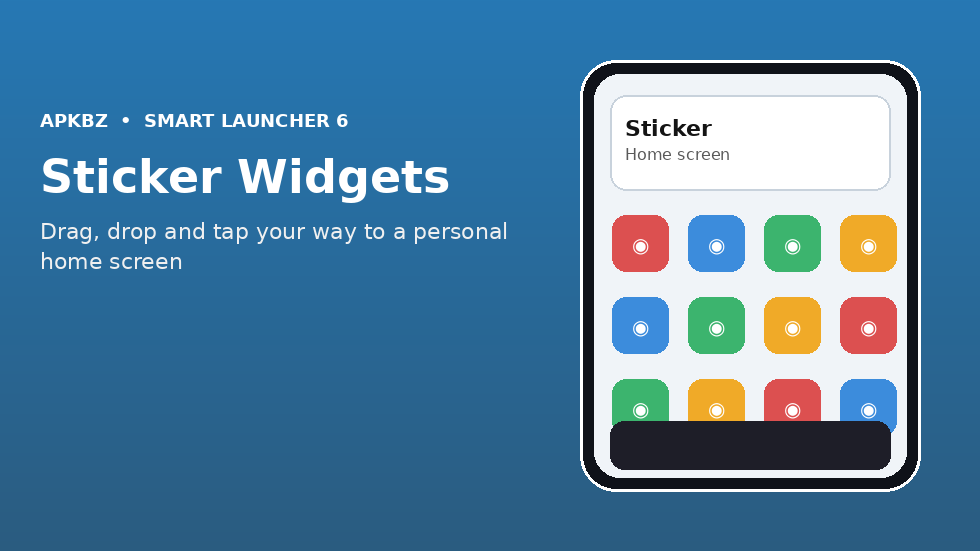
Most home screens force a choice: either a tidy grid of app icons or a large, boxy widget that eats half the display. Smart Launcher 6 takes a different route with sticker widgets. These are small, free-floating elements you can place almost anywhere on a panel, resize with a pinch, and assign a tap action to. A sticker can show a clock, a shortcut, a small piece of information, or simply a decorative touch, and because it is not locked to the rigid rows of a traditional grid, it lets you build a home screen that feels designed rather than assembled. This guide explains what sticker widgets are, how to add and arrange them, and how to use tap actions so that your phone becomes quicker to use, not just prettier to look at.
What a sticker widget actually is
In Smart Launcher 6, a widget normally occupies a rectangular block on the home screen grid. A sticker, by contrast, behaves more like a note stuck to a board. You can drag it to a corner, overlap it slightly with other elements, shrink it until it is barely noticeable, or enlarge it so it becomes the focal point of the panel. The launcher still keeps things usable: stickers snap sensibly, they do not disappear behind other items without a way back, and you can always long-press one to move, resize, or remove it.
The practical difference matters. A conventional widget is excellent when you need a lot of information at once, such as a full calendar month or a detailed weather forecast. A sticker is better when you need one quick glance or one quick action. Think of a small clock in the top corner, a shortcut to your most-called contact beside it, and a tiny weather indicator near the dock. None of those needs a full widget block, and together they create a layout that is personal without being cluttered.
Stickers also suit people who change their minds. Because placement is free-form, you can experiment in seconds. Move a sticker, live with it for a day, and move it again if it gets in the way. There is no need to rebuild an entire page, and no need to commit to a layout before you know how you actually use your phone during a normal week.
Adding your first sticker widget
Start on the home screen panel where you want the sticker to live. Long-press an empty area, or open the launcher’s add and edit controls, and look for the widget or sticker option. The exact label can vary slightly by version, but the flow is consistent: choose the type of sticker you want, and it appears on the panel ready to be positioned.
Once it appears, drag it with one finger to the spot you want. If you drag it near the edge of the screen, give it a little breathing room so it is not cut off by a curved display edge or a gesture bar. Then pinch to resize it. A good rule is to start larger than you think you need, check legibility from a normal holding distance, and then shrink it until it stops drawing attention away from everything else.
If a sticker offers its own settings, tap it once to see whether a small configuration panel opens, and long-press it when you want to move or delete it. That distinction — tap to use, long-press to edit — is the single most useful habit to learn in Smart Launcher 6. It prevents accidental rearrangements when you are simply trying to open something, and it keeps editing deliberate.
Tap actions: turning decoration into a shortcut
The feature that separates a sticker from a static decoration is its tap action. Many stickers can be assigned an action, so tapping the sticker does something useful instead of merely opening its own settings. A clock sticker might open the clock app, a photo sticker might open the gallery album it came from, and a simple text sticker might open a note, a contact, or a favourite app.
To set this up, long-press the sticker and look for an action, shortcut, or tap setting. Choose the app or action you genuinely use most in that context. A sticker placed near the top of the screen works well for something you check, such as weather or calendar. A sticker near the dock works well for something you launch, such as messages, the camera, or a music app. Matching the position to the purpose is what makes the layout feel intuitive after the first day.
Be selective. If every sticker launches something different, you will forget which one does what. Two or three well-chosen tap actions beat ten clever ones you cannot remember. Label stickers clearly where possible, use recognisable images or text, and keep the most important action in the easiest thumb position. Your future self, opening the phone one-handed while carrying something, will be grateful.
Designing a panel that stays readable
Free placement is liberating, but it can also produce a mess. The trick is to treat the panel like a small poster: one main element, a couple of supporting elements, and plenty of empty space. Start with your wallpaper. A busy photograph needs fewer, simpler stickers. A plain or dark wallpaper can carry bolder stickers without competing for attention.
Colour and contrast deserve a moment of thought. Light text disappears on a bright sky, and a pale sticker vanishes on a white background. If Smart Launcher 6 offers a background, shadow, or opacity control for the sticker, use it to lift the sticker off the wallpaper just enough to read it. You do not need a heavy border; a subtle shadow or a semi-transparent backing usually does the job while keeping the design light.
Alignment helps even in a free-form layout. Line up the left edges of two stickers, or centre a sticker above the dock, and the panel instantly looks intentional. Leave a clear margin around the edges and around the dock, because stickers crowded against the screen border are harder to tap accurately and easier to trigger by accident when swiping between panels.
Practical layouts to try
A minimal morning panel might carry only three stickers: a clock near the top, a weather indicator beside it, and a single shortcut to your calendar or task list near the bottom. Nothing else competes, and the phone feels calm at the start of the day. This works particularly well if you already use Smart Launcher 6’s automatic app categories in the drawer, because the home screen does not need to duplicate every app.
A productivity panel can go further. Place a small to-do or note sticker where you will see it when you unlock the phone, a shortcut to your most-used work app beside it, and a clock that opens your calendar on tap. The point is not to cram your whole working day onto one screen; it is to surface the next action. If the sticker shows a task you have already finished, update or remove it promptly, or the panel will start to feel like a neglected noticeboard.
A personal panel is where stickers shine most. A favourite photograph, a short phrase that matters to you, or a small icon representing a hobby can make the phone feel like yours in a way a stock grid never will. Keep these stickers slightly smaller than functional ones, so personality does not crowd out usability, and place them where your eye naturally rests rather than where your thumb naturally taps, to avoid launching something by accident.
Common problems and how to fix them
If a sticker will not move, check that you are long-pressing rather than tapping, and that you are not in a locked-layout mode. Some launchers offer a lock to prevent accidental changes; if yours is on, turn it off, rearrange, and turn it back on. If a sticker overlaps an app icon and becomes hard to tap, shrink it or move it to a genuinely empty area rather than squeezing it into a gap that is too small.
If tap actions stop working after an update, reassign the action once. Updates occasionally reset custom shortcuts, and reassigning takes less than a minute. If a sticker looks blurry or stretched, resize it back toward its original proportions; dragging one corner too far in one direction distorts images and text. Finally, if the whole panel starts to feel cluttered, remove one sticker at a time, starting with the one you tap least. A home screen improves more often by subtraction than by addition.
When stickers are not the right tool
Stickers are not a replacement for every widget. If you need to read a full week of appointments, scan several news headlines, or control music with large buttons, a standard widget is still better. Likewise, if you share your phone with family, a very personal free-form layout can confuse someone else. In that case, keep one panel conventional and reserve the sticker-heavy design for your own panel.
Battery and performance are rarely a concern with a handful of stickers, but dozens of live-updating stickers can add up. If you notice slower animations, audit how many stickers refresh frequently, and keep only the ones whose live information you genuinely check. A static photo or text sticker costs almost nothing; a constantly updating feed costs more.
Conclusion
Sticker widgets in Smart Launcher 6 reward a simple approach: add one, place it deliberately, give it a useful tap action, and live with it before adding another. Done that way, they turn a generic Android home screen into a personal, efficient space where the things you check and launch most are exactly where your hand expects them. Start small, keep the layout readable, and let the panel evolve with how you actually use your phone.
Frequently Asked Questions
What is a sticker widget in Smart Launcher 6?
A sticker widget is a small, free-floating home screen element you can drag, resize, and position outside the rigid widget grid, often with a tap action assigned to it.
How do I move or resize a sticker widget?
Long-press the sticker to enter edit mode, then drag it to a new position or pinch to resize it. A single tap normally triggers its assigned action rather than editing it.
Can a sticker widget open an app when I tap it?
Yes, many stickers support tap actions. Long-press the sticker, open its action or shortcut setting, and choose the app or action you want it to launch.
Why does my sticker look blurry or stretched?
Stretching a sticker far from its original proportions distorts it. Resize it back toward its natural shape, or recreate it at a smaller size for a sharper result.
Do sticker widgets drain the battery?
A few static stickers have negligible impact. Many live-updating stickers can add up, so keep only the ones whose information you actually check regularly.