Icon packs are small, which is exactly why they accumulate. A pack tried for an afternoon and abandoned, a duplicate downloaded twice, last year’s favourite kept “just in case” — each is a modest download, but a dozen of them, plus their caches and your Icon Pack Studio exports, can quietly claim a noticeable corner of a budget phone’s storage, and an untidy pack picker besides. This guide shows how to audit what you actually have, what is safe to remove, what to keep for setups you still use, and how to reclaim the space in Smart Launcher 6 without breaking a single current icon.
Where icon pack storage actually goes
An installed pack occupies storage in three places. The pack app itself holds its icon resources — hundreds or thousands of images or vector drawables — and this is the bulk. Its app data holds a little configuration and sometimes a downloaded preview cache. Separately, Smart Launcher caches rendered, masked versions of the icons from whichever pack is currently applied, sized for your screen; that cache belongs to the launcher, not the pack, and it is rebuilt automatically when needed. A fourth pile grows outside the apps entirely: packs you exported yourself from Icon Pack Studio, screenshot folders full of setups, and downloaded pack files sitting in your Downloads folder waiting for a decision. Knowing which pile you are looking at prevents the classic mistake of clearing the wrong thing — launcher cache cleared in a panic, packs untouched, nothing reclaimed, layout anxiety endured for no benefit.
Check the real numbers before deleting anything. In your phone’s Settings, the Apps list sorted by size shows each pack’s total footprint honestly. Users are routinely surprised in both directions: a beloved pack is smaller than feared, while a “lightweight” pack with a bloated dashboard app is not. Sort, look, then decide — storage work done by measurement rather than vibes. The wider maintenance mindset here matches our approach throughout this series, indexed on the APKBZ home page.
Treat these numbers as a starting point: apply them in Smart Launcher 6 under Settings → Home screen → Grid, use the layout for a day, then nudge one value at a time — your wallpaper, widget sizes and one-handed reach all shift what feels right.
The safe cleanup, step by step
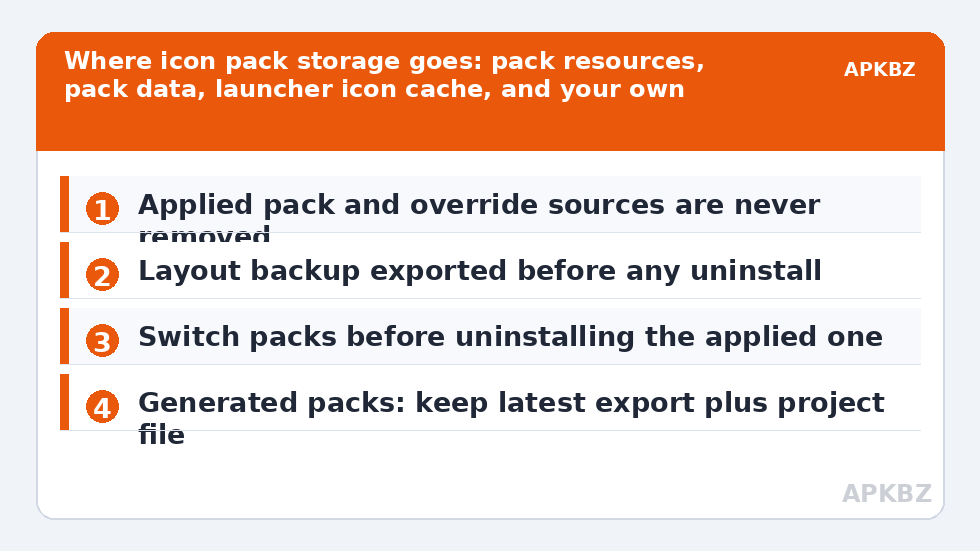
- Note your current pack and your overrides. Open Smart Launcher’s icon appearance settings and confirm which pack is applied. If you have per-icon overrides sourced from other packs, those packs must stay — the override draws its artwork from them. Our guide to customizing individual icons explains that dependency.
- Export a launcher backup. Before any uninstall, save a Smart Launcher backup. It protects your layout whatever happens next, and it is the two-minute habit every cleanup deserves.
- Uninstall packs you have not applied in months. Long-press the pack in Settings → Apps, or uninstall from its store page. Uninstalling a pack that is not applied and not feeding overrides changes nothing on your screen.
- Never uninstall the currently applied pack first. If you must remove it, apply a different pack or the stock icons in Smart Launcher before uninstalling, so the launcher is not left pointing at a vanished resource. It will fall back gracefully, but graceful is uglier than planned.
- Clear out your own exports deliberately. In your files, review Icon Pack Studio exports and downloaded pack files; keep the current version of any pack you generated, archive or delete the superseded versions. The generation workflow in creating your own pack with Icon Pack Studio explains why version discipline matters here.
What to keep, what to let go
| Item | Keep if | Remove if |
|---|---|---|
| Currently applied pack | Always, while applied | Only after switching to another pack |
| Pack feeding per-icon overrides | Overrides are still in use | You reset those icons to the base pack |
| A seasonal or dark-mode alternate | You genuinely rotate to it | You have not rotated in a year |
| Generated pack exports | Latest version, plus its project file | Old versions superseded by newer exports |
| Trial packs from months ago | Rarely justified | You cannot remember applying them |
The honest test for every “just in case” pack is reinstall cost. A commercial or open-source pack can be re-downloaded in a minute whenever nostalgia strikes; it does not need to live on your phone as a tribute. Your own generated packs are the exception — the project file and latest export are effectively irreplaceable without rebuilding — so those earn permanent storage, ideally also copied somewhere off the phone. Everything else is a store listing away. This is the same standard we apply when judging packs to install in the first place in open-source ad-free icon packs: value is in use, not in possession.
Making the picker tidy, and keeping it that way
Cleanup has a cosmetic dividend: Smart Launcher’s icon pack picker lists what is installed, so every removed pack shortens the list you scroll when experimenting. After a purge, the picker becomes a short menu of real candidates again, and trying a new look stops feeling like archaeology. To keep it that way, adopt a one-in-one-out instinct: when a new pack earns a permanent place, the trial it replaced leaves the same day. And schedule nothing — storage habits attached to events (a new pack, a new phone, a storage warning) survive, while calendar resolutions do not.
Finish by opening your home screen and doing nothing at all. A correct cleanup is invisible: every icon where it was, every override intact, the same calm grid — with a shorter picker and a lighter Apps list as the only evidence. If anything does look wrong, your backup and the store are both within reach, which is precisely why this maintenance is safe to do briskly rather than fearfully. Small packs, small stakes, tidy phone.
The pack picker as a health check for your theming habit
There is a diagnostic hiding in your installed list. A picker with twenty packs usually belongs to a user still searching for a look; a picker with three — current, alternate, generated — usually belongs to someone who found one. Neither is a moral state, but the transition between them is worth noticing, because storage cleanup is easiest exactly when your taste settles: you can finally name which packs are infrastructure and which were auditions. If you are still auditioning, keep the trials but time-box them — a pack that has not been applied in a month has given its verdict, whatever your intentions were, and the store will happily sell or give it to you again when a new wallpaper makes you curious.
Budget-phone owners get one more concrete benefit from this discipline. System storage pressure is what triggers the most aggressive background app restrictions and the most intrusive “cleaner” prompts on low-storage devices, and every reclaimed hundred megabytes postpones that regime. Icon packs will never be the largest item on a full phone — photos and videos own that title — but they are among the few categories that can be reduced to near zero with literally no change to daily use, since an uninstalled pack you were not using is invisible. Easy, lossless reclamation is rare in storage management; take it where it exists.
Frequently Asked Questions
Is it safe to uninstall an icon pack I am not currently using?
Yes, with one check: make sure no per-icon overrides are sourced from it, because overrides draw artwork from the pack they came from. If the pack is neither applied nor feeding overrides, uninstalling it changes nothing on your screens, and it can be reinstalled from the store in a minute if you ever want it back.
What happens if I uninstall the pack that is currently applied?
Smart Launcher falls back to stock system icons for your apps, so your layout survives but the themed look disappears. Nothing breaks permanently. To avoid the abrupt change, apply a different pack or the default icons first, confirm the new look, and only then uninstall the old pack.
Does clearing Smart Launcher’s cache delete my layout?
No. The cache holds rendered icon bitmaps and other temporary data, which the launcher rebuilds automatically; your layout, settings, and overrides live in the app’s data, not its cache. Clearing cache reclaims a little space temporarily. Clearing app data is the destructive action — avoid it, and keep a layout backup regardless.
How much storage do icon packs really use?
It varies widely with icon count, asset resolution, and whether the pack bundles a heavy dashboard app — from a few megabytes for a small line set to well over a hundred for a large high-resolution pack with extras. Check Settings → Apps sorted by size on your own phone rather than trusting store-page download sizes, which omit installed data.