Change your wallpaper on most launchers and exactly one thing happens: the picture changes. Change it with a smart launcher 6 ambient theme setup and the whole interface follows — drawer background, search page, folder panels and accents pick up colours drawn from the image, so the phone feels re-dressed rather than re-papered. Ambient theming is one of Smart Launcher’s defining features, but it rewards a deliberate setup: the wrong wallpaper or a clashing icon pack can make it look muddier than a plain dark theme. This guide explains how Ambient picks its colours, how to feed it wallpapers it can work with, and how to keep icons and widgets coherent inside an automatically coloured UI.
How Ambient theming makes its decisions
When Ambient is active, Smart Launcher samples the current wallpaper and derives a palette — typically a dominant surface tone for panels, an accent for highlights and selection states, and text colours chosen for contrast against them. The derivation happens when the wallpaper changes, which is why a new wallpaper can take a second or two to “settle” across the drawer and search pages. Ambient colours the launcher’s own surfaces: home screen panels, the app drawer, category bar, Smart Search and folders. It does not recolour your apps’ interiors, and it does not override a widget’s own background unless the widget is one of Smart Launcher’s and follows the theme. On Android 12 and later, Smart Launcher’s dynamic colour behaviour coexists with the system’s Material You palette; the two are related ideas but separate implementations, and the launcher’s own theming is what governs launcher surfaces.
Smart Launcher 6 Ambient theme setup: turning it on and setting its character
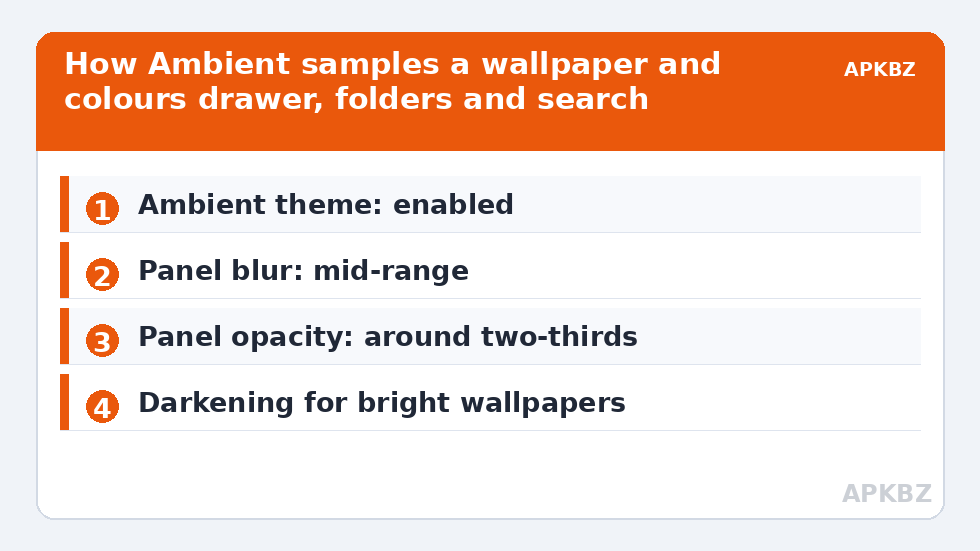
Find the theme controls in Smart Launcher Settings under the theme/appearance area and select the Ambient theme. From there, most versions give you influence over three things: how strongly surfaces are tinted, whether the derived theme leans light or dark where the wallpaper is ambiguous, and blur/transparency of panels. A few practical rules:
- Busy wallpapers need stronger panel opacity or blur. If drawer icons sit on a detailed photo region, legibility dies first. Raise the background dimming/blur until icon silhouettes separate cleanly from the picture.
- Dark wallpapers produce the most elegant Ambient results, because derived surfaces stay deep and the accent colour glows against them.
- Light wallpapers are the hard mode. Ambient will build light panels, and third-party widgets designed for dark glass can look stranded. Test both the drawer and a folder after each wallpaper change, not just the home screen.
Treat these numbers as a starting point: apply them in Smart Launcher 6 under Settings → Home screen → Grid, use the layout for a day, then nudge one value at a time — your wallpaper, widget sizes and one-handed reach all shift what feels right.
Choosing wallpapers Ambient can actually work with
Not every good photo is a good theming source. Ambient needs a discernible dominant colour family; a wallpaper that is half teal ocean and half orange sunset gives the sampler a coin-flip, and it may choose differently than you would. Gradient wallpapers, duotones, landscapes with one dominant sky, and dark abstract art are the reliable feedstock. Portraits of people produce skin-tone palettes — occasionally lovely, usually beige in a way nobody intended. If you use a wallpaper app that rotates images daily, expect the UI to change personality daily too; some people love that, others find it unsettling by Wednesday. A middle path is a small rotation of three or four wallpapers from one colour family.
Ambient interacts with two neighbouring topics in this Layout Tweaks series: it is the foundation of the dark cyberpunk setup when fed neon-on-black artwork, and its colour derivation overlaps with the system-level approach in our Material You theming guide — reading both helps you decide which engine should lead.
Icons and Ambient: where setups fall apart
The single most common Ambient failure is an icon pack chosen for a different theme. A pastel pack on a deep teal Ambient surface, or heavy black-outlined icons over a soft derived panel, reads as accidental. The robust combinations are: adaptive icons with simple glyphs that let the surrounding surfaces carry the colour story; Smart Launcher’s own themed icons via Icon Pack Studio, which can be regenerated to sit inside the palette; or a monochrome pack, which never clashes because it refuses to participate in colour at all. When you change wallpapers often, monochrome or studio-generated icons are the only choices that stay coherent without maintenance.
Ambient behaviour by wallpaper type
| Wallpaper type | Ambient result | Adjustment to make |
|---|---|---|
| Dark gradient / abstract | Deep tinted panels, vivid accent | Usually none — the ideal case |
| Bright landscape photo | Light panels, strong dominant tint | Check widget contrast; consider slight dimming |
| Mixed warm/cool scene | Unpredictable dominant colour | Crop to the half you prefer, or pin light/dark mode |
| Portrait / people | Skin-tone, often beige palette | Use on lock screen instead, or accept a warm theme |
| Near-black minimal | Very dark surfaces, battery-friendly on OLED | Raise accent visibility if highlights feel dim |
When Ambient picks a colour you hate
It will happen: a wallpaper you love whose derived accent is a shade you cannot stand. Your options, in order of effort: crop or shift the wallpaper so a different region dominates the sampling; flip the theme’s light/dark leaning if your version allows; increase panel tint strength so the accent plays a smaller role; or keep the wallpaper and switch the launcher theme to a fixed dark/light theme, sacrificing the automatic matching for that one image. What you cannot do is hand-pick the sampled colour on most versions — Ambient’s bargain is automation in exchange for control. Users who need exact control over every surface colour are better served by a fixed theme plus manual accent choices.
The three-screen check: testing an Ambient setup properly
Most people judge an Ambient setup from the home screen alone, which is the one surface Ambient influences least. Judge it instead on the three screens where it does the painting. First, the drawer over the wallpaper’s busiest region: open it, and check icon labels at arm’s length. Second, a folder: folders stack tint on tint, and an Ambient setup that survives the folder test survives anything. Third, Smart Search with the keyboard up — the search panel plus keyboard compresses the visible theme into a band, and weak contrast shows immediately. Run this check in two lightings: indoors, and outdoors or near a window, because derived palettes that look rich at night can wash out at noon. If a setup passes all three screens in both lightings, it is finished; if it fails one, you now know exactly which slider — opacity, blur or darkening — belongs to the failing surface, instead of twiddling the whole theme at random.
Two wallpapers, two moods: home versus lock screen
Android lets the lock screen and home screen carry different images, and Ambient only samples the home one — a loophole worth exploiting. Keep the emotionally important photo (family, the dog, the holiday) on the lock screen where nothing competes with it, and run a calmer, theming-friendly image as the home wallpaper that Ambient samples. You see the photo at every unlock, the launcher gets a cooperative palette, and neither job compromises the other. Many “Ambient looks wrong on my phone” reports trace back to this single conflation of two surfaces with two different jobs.
Frequently Asked Questions
What is the Ambient theme in Smart Launcher 6?
Ambient is Smart Launcher’s automatic theme: it samples your wallpaper and colours the launcher’s surfaces — drawer, search page, folders and panels — from the derived palette, so the interface matches the picture instead of sitting on top of it.
Why does my drawer look muddy after changing wallpaper?
Usually the wallpaper region behind the drawer is busy or mid-toned, so derived panels inherit low contrast. Increase panel blur or dimming in the theme settings, or choose a wallpaper with a calmer area behind where panels open.
Does Ambient theme replace Material You?
They are separate systems. Material You colours Android and supporting apps from the wallpaper at system level; Ambient colours Smart Launcher’s own surfaces. They can run together, and on Pixel-style setups many people let Material You lead in apps while Ambient handles the launcher.
Can I choose the exact colour Ambient uses?
On most versions, no — the palette is derived automatically. You can influence it by cropping the wallpaper, adjusting tint strength and light/dark leaning, but users needing precise manual colours should use a fixed theme instead.
Why do my widgets clash with the Ambient theme?
Third-party widgets keep their own backgrounds and do not follow the launcher theme. Prefer Smart Launcher’s own widgets, which follow Ambient, or choose widget styles with transparent backgrounds so the themed surface shows through.