New phone day has a recognisable grief: the hardware is better in every way, and the home screen is a stranger’s. Your Flower order, your corrected categories, your hidden bloat, your icon choices — all still arranged on the old phone in your drawer. The good news is that you can transfer launcher layout settings across different Android phones almost completely, because Smart Launcher’s configuration is portable by design. This guide is the careful version of that move: what to prepare on the old phone, the order of operations on the new one, and the half-dozen small things that never transfer and must be rebuilt by hand.
What transfers, what does not
Set expectations first, because a transfer judged against the wrong standard feels like a failure when it is actually a success. Through Smart Launcher’s backup-and-restore mechanism, these travel: home layout (Flower/grid composition and positions), drawer categories including your manual corrections and custom categories, hidden apps, icon pack assignment and per-icon customisations, theme settings, gesture assignments and most launcher preferences. These do not travel, because no launcher backup can carry them: your apps themselves and their data (each app has its own migration story), Android permissions granted to Smart Launcher (notification access, contacts and the like must be re-granted), widgets’ internal states (accounts, locations), and anything the new phone’s different screen size forces the layout to re-flow. A transfer that lands layout, categories and icons intact has done its whole job; the remainder is an hour of small re-connections, listed at the end.
Transfer launcher layout settings Android phones require: old-phone prep
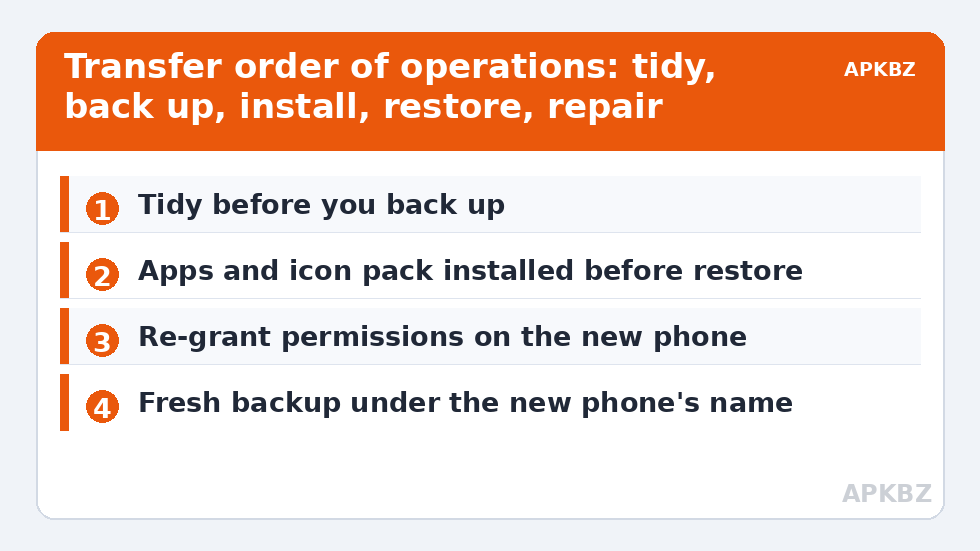
- Tidy first, transfer second. A backup faithfully preserves your mess. Spend ten minutes deleting dead home shortcuts and filing the apps you have been meaning to file — the new phone deserves the edited version of your system, not the draft.
- Update Smart Launcher on the old phone so the backup format is current.
- Create the backup in Smart Launcher Settings (Backup/Restore area) and name it with the date and source phone.
- Move the file off the phone — cloud drive, email to yourself, USB to a PC. The transfer medium does not matter; what matters is the file existing somewhere the new phone can reach. The full backup discipline, cadence and storage advice live in our backup and restore guide.
Treat these numbers as a starting point: apply them in Smart Launcher 6 under Settings → Home screen → Grid, use the layout for a day, then nudge one value at a time — your wallpaper, widget sizes and one-handed reach all shift what feels right.
Order of operations on the new phone
Sequence is the difference between a clean landing and a screen of placeholders:
- Set up the phone and install Smart Launcher; make it the default launcher.
- Install your icon pack (if you use one) — before restoring, so icons bind correctly the first time.
- Install your apps. Use the old phone’s app list or your store library; completeness now prevents placeholder-hunting later. This is also the moment to not reinstall the apps you never opened — a transfer is a natural audit.
- Copy the backup file onto the new phone and restore it from Smart Launcher’s Backup/Restore area.
- Wait a minute, then walk the layout: open the drawer, flip through categories, test the Flower, flip the widget stack.
If the two phones differ greatly in size — a compact to a foldable, say — read the re-flow notes below and the foldable layout guide in this Layout Tweaks series before judging the result.
Post-transfer repair list
| Item | Symptom after transfer | Repair |
|---|---|---|
| Permissions | No notification badges; search lacks contacts | Re-grant Smart Launcher’s permissions in Android Settings → Apps |
| Widgets | Weather shows no location; calendar empty | Open each widget’s app and sign in / set location; re-add stubborn widgets |
| Missing apps | Placeholder icons in Flower or categories | Install the app, or long-press the placeholder to re-point or remove it |
| New-phone bloat | Uncategorised OEM apps crowd the drawer | One filing/hiding pass — the new brand’s cast differs from the old one’s |
| Screen size change | Layout feels sparse or cramped | Adjust grid columns/padding for the new canvas rather than forcing the old geometry |
| Gestures | Assignment exists, target missing | Re-select the target app in gesture settings |
Crossing brands and screen sizes
Brand switches (Samsung to Pixel is the classic) change the pre-installed cast, the default icon shapes the system suggests, and occasionally which permissions live where in settings — none of which blocks the transfer, all of which explain the small repairs above. Size switches are the more interesting case: Smart Launcher re-flows your composition to the new grid rather than stretching it, so relative order survives even when absolute position shifts. Give a re-flowed layout two days of use before rearranging; muscle memory adapts to the new geometry faster than your eyes expect. And when the new phone settles, immediately take a fresh backup under its own name — the old phone’s backup has now done its job and should retire to archive, not remain your only safety copy.
When the transfer goes wrong: a short troubleshooting ladder
Nearly all transfers succeed, but the failures rhyme, so here is the ladder in the order to climb it. Restore option cannot see the file: the backup is in a folder the picker does not browse, or a cloud app is offering a placeholder rather than the file itself — download it to local storage (Downloads folder) with a file manager and retry. Restore runs but the layout looks default: confirm you restored while Smart Launcher is the active default launcher; a restore applied while another launcher holds default can appear to vanish — set the default properly and restore again. Icons all fell back to stock: the icon pack was installed after the restore or not at all — install it, reapply it from Smart Launcher’s appearance settings, and per-icon choices will rebind. Categories are there but empty: the apps were installed after the restore (order of operations again) — install them and they will take their filed seats, since the assignments survived even while the apps were absent. And the meta-lesson of the ladder: every rung is an ordering or presence problem, not data loss. Your backup is almost certainly fine; transfers fail logistically, not catastrophically, which is why a calm second attempt fixes most of them.
Running two phones at once: the dual-device household
A growing minority keep two live phones — a work handset and a personal one, or a flagship and a rugged backup — and want one layout philosophy across both. Smart Launcher’s portability serves this well with one adjustment: maintain a master backup from your primary phone and restore it to the secondary, then allow the secondary to diverge. The work phone will shed games and gain authenticators; the backup phone will grow travel and offline tools. Re-syncing them forcibly every month destroys the useful divergence. Instead, sync only at the level of corrections: when you fix a category misfiling or perfect a gesture on one phone, replicate that single decision by hand on the other. Layouts, like packing lists, should share a template and differ in the contents — and the transfer machinery in this guide is the template’s delivery system, not a cloning mandate.
Frequently Asked Questions
Can I transfer my Smart Launcher layout to a different brand of phone?
Yes. The backup is brand-agnostic because it stores Smart Launcher’s own configuration. Expect small repairs afterwards — re-granting permissions, filing the new brand’s pre-installed apps, reconnecting widgets — but the layout, categories and icon choices carry over.
What is the correct order: install apps first or restore first?
Install apps first, then restore. Restoring onto a phone that already has your apps and icon pack lets every layout position bind immediately; restoring first leaves placeholders you must chase down one by one.
Why are my notification badges missing after the transfer?
Permissions do not transfer between phones. Smart Launcher needs its notification access (and any other permissions you used, like contacts for search) re-granted in the new phone’s Android settings before those features resume.
Does the transfer work between phones with very different screen sizes?
Yes, with re-flow: Smart Launcher adapts your composition to the new grid rather than stretching it, so order and grouping survive even when exact positions shift. A short grid/padding adjustment for the new canvas usually finishes the job.
How do I move the backup file if I do not use cloud storage?
Any channel works: USB cable to a PC and back, a microSD card, Bluetooth file transfer, or emailing the small file to yourself. The backup is a single small file — the only requirement is that the new phone can reach it.