
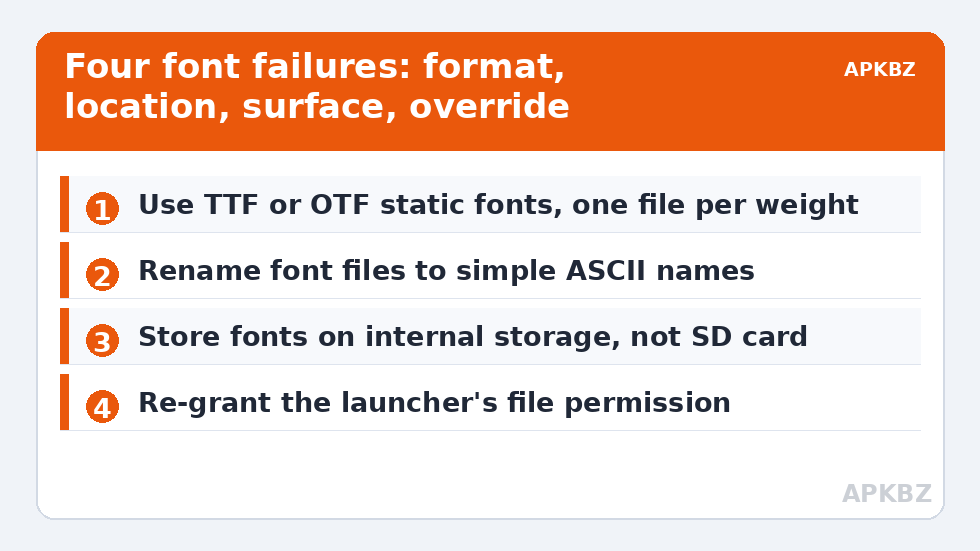
Attempts to fix custom font files not loading correctly in your launcher theme fail in predictable places, because “the font does not load” is four different faults wearing one label: the file is in a format or state Android cannot use, the file is somewhere the launcher can no longer reach (scoped storage moved the goalposts), the font loads but the launcher only applies it to some surfaces, or the phone’s own font system overrides the launcher’s choice. Each has a different remedy, and re-downloading the same file — the internet’s favourite advice — fixes none of them. Start by pinning down which failure you have: does the font fail everywhere in the launcher, or only on the clock, only in the drawer, only after reboot?
Check the file itself first
Android renders TrueType (TTF) and OpenType (OTF) fonts. It does not render web fonts (WOFF/WOFF2) directly, and variable fonts — a single file containing many weights — are handled inconsistently by apps that expect one file per weight; a launcher asking a variable font for “bold” may fall back silently to the system font for those labels, which presents exactly as “loads in some places, not others.” Practical checks:
- Confirm the extension is genuinely .ttf or .otf, not a renamed zip or a web font. If your source was a font pack, extract it first — launchers do not read inside archives.
- Prefer static fonts with separate files per weight (Regular, Medium, Bold) over a single variable file for launcher use.
- Rename files to simple ASCII names without spaces. More font loaders than you would expect choke on spaces, brackets, or non-Latin characters in paths.
- Test the file in any other app that accepts custom fonts. If it fails there too, the file is corrupt or mislabelled and no launcher setting matters.
Also source fonts legitimately: typefaces are licensed software. Use fonts you have the right to use — open-licensed families (the Google Fonts library is the obvious well) or fonts you purchased. A fansite’s rule that applies across this whole category is that the official, legal source is almost always the reliable source too.
Where the file lives: scoped storage is the usual culprit
Since Android 11’s scoped storage enforcement, apps cannot freely read arbitrary folders. A font that “worked last year” and broke after an update often broke because the launcher’s access path changed — the same reset family as feature lock outs after an Android system patch. Fixes: keep fonts in a folder the launcher itself offers or requests (its own Fonts/Themes directory, or one you pick through the system file picker when prompted — the picker grants durable access), grant Smart Launcher storage/files permission under Settings > Apps > Smart Launcher > Permissions if it was revoked, and never store the only copy on an SD card that may mount late or be removed. If the font applies in-session but vanishes after every reboot, late-mounting storage is the signature — move the files to internal storage and re-apply once.
Treat these numbers as a starting point: apply them in Smart Launcher 6 under Settings → Home screen → Grid, use the layout for a day, then nudge one value at a time — your wallpaper, widget sizes and one-handed reach all shift what feels right.
Partial application: which surfaces take the font?
Suppose the font applies to icon labels but not to the clock widget or the drawer headers. That is usually architecture, not corruption: launcher surfaces are rendered by different components, and third-party widgets draw their own text with their own fonts — no launcher setting can restyle the inside of someone else’s widget. Smart Launcher’s own clock and built-in elements follow the theme font on most builds; a third-party clock widget never will. Similarly, some builds apply theme fonts to the home and drawer but leave settings screens on the system font by design. Set expectations accordingly, and if a specific built-in surface ignores the font on your build, a cache clear (Settings > Apps > Smart Launcher > Storage > Clear cache — safe procedure in clearing the cache without losing layouts) plus re-applying the theme is the standard cure for a half-applied theme state.
When the phone overrides the launcher
Some OEM systems enforce a global font: Samsung’s Font size and style settings, Xiaomi’s system font with its “apply to everything” reach, and various theme engines can supersede or blend with an app’s custom font, producing double-applied or half-applied results — bold system font inside your light custom font is the classic Frankenstein. If the launcher font looks wrong everywhere on the phone in the same way, set the system font to the default (Roboto or the OEM standard) and let the launcher be the only font authority on its own surfaces. There is also a blunt accessibility interaction: system-wide “high contrast text” and bold-text toggles reshape rendering in ways that mimic font failures. Check Settings > Accessibility before blaming the file.
A clean re-apply sequence
When several small things may be wrong, this order converges fastest: (1) verify the file in another app; (2) move a copy to internal storage with a simple filename; (3) confirm Smart Launcher’s file permission; (4) clear the launcher cache once; (5) re-apply the theme/font and reboot. Then judge on all surfaces — labels, drawer, built-in clock — and after one more reboot, since reboot-persistence separates storage faults from application faults. If a correctly formatted, locally stored, permission-cleared font still fails only in the launcher, the remaining suspect is the build itself: check for a Smart Launcher update, and report the bug with the font name and file details — font-loading bugs are precisely the kind developers can reproduce from a file. Related theme and rendering repairs continue in the Fixes & Battery hub.
Font weights and the fake-bold problem
A subtler failure looks like success until you stare at it: the custom font applies, but every label renders in the same weight, or bold text looks smeared. What happened is synthesis. If your font family ships only a Regular file, Android fabricates bold by stroking the glyphs wider — fake bold — which reads as blur at small label sizes, while a family missing its Medium often renders body text a step lighter than the theme intended. The cure is completeness: install the family’s core weights (Regular, Medium, SemiBold if offered, Bold) as separate files from the same release, so the launcher can pick true outlines instead of manufacturing them. Mixed releases — a Regular from one version and a Bold from another — produce mismatched metrics that look like a rendering bug and are actually a filing error. Keep each family in its own folder, complete and from one source, and font behaviour stops being mysterious.
Frequently Asked Questions
Which font formats work in Android launchers?
TTF and OTF are the safe formats. WOFF/WOFF2 web fonts do not load directly, and variable fonts behave inconsistently in launchers that expect one file per weight — prefer static fonts with separate Regular, Medium, and Bold files.
Why does my font disappear after every reboot?
The file is almost certainly on an SD card or in a folder whose access is granted late or revoked at boot. Move the font to internal storage, ideally the folder the launcher itself uses, and re-apply it once — persistence across reboot is the test.
Why does the font work on icons but not on my clock widget?
Because widgets render their own text. A launcher theme font can restyle the launcher’s own surfaces — labels, drawer, built-in elements — but a third-party widget draws itself with its own typeface, and no launcher setting can override that.
Could my phone’s system font be interfering?
Yes. OEM font engines (Samsung, Xiaomi and others) can override or blend with app fonts, and accessibility options like bold text reshape rendering. Set the system font back to its default and let the launcher be the only font authority on its surfaces.
Is it legal to download fonts from free font sites?
Only within the font’s licence. Many “free” font downloads are unlicensed copies of commercial typefaces. Stick to openly licensed libraries such as Google Fonts or fonts you have purchased — legal sources are also the ones whose files are properly built and named.


