
Advice to disable visual blur animations for maximum launcher speed is usually given as a ritual — turn everything off, feel virtuous — when in fact blur is a specific, measurable cost with a specific mechanism, and it deserves a targeted decision rather than a purge. Real-time background blur is the most expensive decoration a modern launcher carries: every frame, the GPU must sample the wallpaper, run a multi-pass blur kernel over the region behind each panel, and composite the result beneath text and icons. On a flagship that cost is invisible. On a mid-range or budget GPU — especially at 120Hz, with a large blur radius, over a live wallpaper — it is the difference between a home screen that tracks your thumb and one that trails it. This guide explains what to disable, in what order, and what each change honestly buys.
Why blur costs more than other effects
Most launcher effects are one-time computations. An icon shadow is rendered once and cached. A page transition is a simple transform of already-drawn layers. Blur is different in kind: if anything behind the panel changes — the wallpaper, a live wallpaper frame, a scrolling page — the blur must be recomputed, because its input changed. That is why the worst-case combination is blur over a live wallpaper, a pairing examined from the other side in live wallpaper freezing and lag: two continuous workloads stacked, each invalidating the other’s cache. Even over a static wallpaper, opening the app drawer or search page re-runs the blur over a full screen at your panel’s refresh rate — 120 full-screen kernel passes per second on high-refresh phones, which is also why blur appears in the drain analysis at Smart Launcher 6 battery drain on high refresh rate screens.
The settings, in the order to try them
- Blur intensity/radius. Before switching blur off, reduce it. Blur cost scales with radius; a subtle blur is dramatically cheaper than a deep frosted-glass blur and keeps most of the look. Smart Launcher exposes background blur controls in its home-screen and theme settings on most builds.
- Blur locations. Disable blur selectively: behind the app drawer and search first (largest area, most frequent), keep it — if you love it — behind small panels where the area is tiny.
- Full disable. If the phone still stutters on home transitions, turn background blur off entirely and judge a full day without it. Many users discover the aesthetic loss is smaller than the speed gain, particularly with a well-chosen wallpaper.
Test honestly after each step with the action that annoyed you — fast page swipes, drawer open-and-close, returning home from an app (see also redraw lag when returning to the home screen). Perceived smoothness that only exists while you are looking for it is not a fix.
Treat these numbers as a starting point: apply them in Smart Launcher 6 under Settings → Home screen → Grid, use the layout for a day, then nudge one value at a time — your wallpaper, widget sizes and one-handed reach all shift what feels right.
Animations: the other half of the title
Animations are not GPU-heavy in the way blur is — they are time-heavy. A 300ms transition makes a fast phone feel deliberate; stacked system and launcher animations can make it feel slow even when every frame renders instantly. Two layers exist and should not be confused: Smart Launcher’s own transition/animation settings govern its pages and drawer; the system animator scales (Developer Options > Window animation scale, Transition animation scale, Animator duration scale) govern everything, everywhere. Setting scales to 0.5x is the balanced move — interfaces feel snappier without losing the spatial cues that full 0x removes. State the limit plainly: animation scales change how fast things feel, not how fast the phone computes. If your home screen is genuinely dropping frames under load, scales will not save it — blur and process-kills are the real addresses — but as a finishing layer over a healthy setup, they are the cheapest perceived-speed win available.
What else quietly taxes the first frame
| Effect | Cost pattern | Verdict for speed |
|---|---|---|
| Background blur (large radius) | Recomputed per frame over moving content | Reduce or disable first |
| Live wallpaper rendering | Continuous GPU workload | Replace with static image |
| Icon shadows & badges rendering | Cached after first render | Minor; leave unless hardware is very weak |
| Page/dock transitions | Fixed animation time | Shorten via launcher settings or 0.5x scales |
| Animated icon packs | Per-icon continuous rendering | Disable on budget devices |
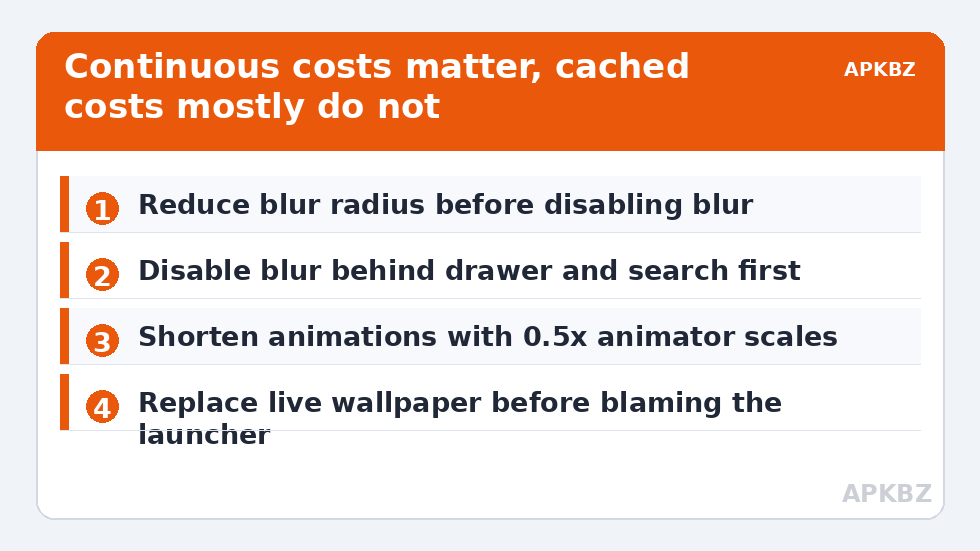
Notice the pattern: continuous costs matter, cached costs mostly do not. Advice that tells you to strip every shadow and label is performing austerity rather than engineering. Spend your cuts where the meter is running.
Know when blur is not your problem
If the home screen stutters mainly when returning from heavy apps, your launcher is probably being killed, and no visual setting will fix a cold start — that road leads through the OEM exemptions in preventing MIUI, One UI and ColorOS from killing the launcher. If the whole phone, including Settings and apps, animates poorly, the constraint is the device or its thermal state, and the budget-hardware playbook in reducing launcher RAM consumption on 3GB/4GB phones is the relevant frame. Blur tuning is for the specific, common case in between: a resident launcher, a healthy phone, and a GPU asked to frost a full screen 120 times a second. In that case it is not a marginal tweak — it is frequently the whole problem, wearing a pretty disguise. The rest of the performance family is gathered in the Fixes & Battery hub.
A word on ‘Force GPU rendering’ and other developer-option folklore
Every speed thread eventually recommends Developer Options toggles — Force GPU rendering, Disable HW overlays, 4x MSAA — and a speed guide owes you a verdict on them. Modern Android already renders launcher surfaces on the GPU; forcing the legacy path changes nothing except disabling a fallback, and on some devices it destabilises compositing. Disable HW overlays forces every surface through GPU composition, which can raise power draw and heat — the opposite of this article’s goal on a phone already struggling with blur costs. MSAA is a gaming anti-aliasing setting with no bearing on the launcher. The honest summary is that the developer menu’s animation scales are the only entries with a real, predictable effect on launcher feel, and they are already covered above. If a tweak’s mechanism cannot be explained in one sentence — what it makes the hardware do differently — it is folklore, and folklore applied to a working phone is how working phones stop working.
Frequently Asked Questions
How much speed does disabling blur actually give?
It depends on the GPU, blur radius, refresh rate, and wallpaper. On strong flagships the gain may be imperceptible; on mid-range and budget phones — especially at 120Hz or over live wallpapers — removing full-screen blur is commonly the difference between dropped frames and smooth transitions.
Should I reduce blur or switch it off completely?
Reduce first. Blur cost scales with radius, so a light blur keeps most of the aesthetic for a fraction of the cost. Disable entirely only if transitions still stutter after the reduction, and judge the result across a full day of use.
Do animation scale changes make the phone faster?
They make it feel faster by shortening transitions, which is a legitimate quality-of-life win, but they do not increase rendering or processing speed. If frames are genuinely dropping due to load or process kills, animation scales will not address the cause.
Why is blur so much worse over a live wallpaper?
Because the blur’s input changes every frame, so it can never be cached — the GPU pays for the wallpaper’s rendering and then pays again to blur it, every frame. Either a static wallpaper with blur, or a live wallpaper without, avoids the double charge.
I disabled blur and it is still slow. What next?
Check whether the launcher is being killed in the background (cold starts masquerade as slowness) and whether the slowness exists in other apps too. Those point to OEM battery management and general device limits respectively, not to visual settings.


