Since Android 12, your phone has had two theming engines living in it: the system’s Material You, which recolours the OS and supporting apps from your wallpaper, and whatever your launcher does on its own surfaces. Owners reasonably expect them to agree. Learning how to enable Material You dynamic theming on Smart Launcher 6 — and how it divides responsibilities with Smart Launcher’s own Ambient theme — stops the common weirdness of a drawer that matches nothing and app widgets that match everything except the launcher. This guide maps which engine paints which surface, how to set each, and how to get a coherent result on Pixel and non-Pixel phones alike.
Two engines, two territories
Material You (Google’s dynamic colour) is a system service: Android extracts a palette from your wallpaper and offers it to the OS and to apps that adopt the Material You APIs. It colours quick settings, system dialogs, Google apps and a growing list of third parties — from the inside of those apps outward. It does not reach into your launcher’s drawer code. Smart Launcher’s surfaces are painted by Smart Launcher: its Ambient theme samples the wallpaper itself and colours the drawer, search page, folders and panels. So the honest architecture on a Smart Launcher phone is a duet, not a solo: Material You governs the system and apps, Ambient governs the launcher, and coherence comes from both engines reading the same wallpaper. If you change one wallpaper, both re-derive — which is why a well-matched setup feels magical and a mismatched one feels like two phones glued together.
How to enable Material You dynamic theming Smart Launcher phones benefit from
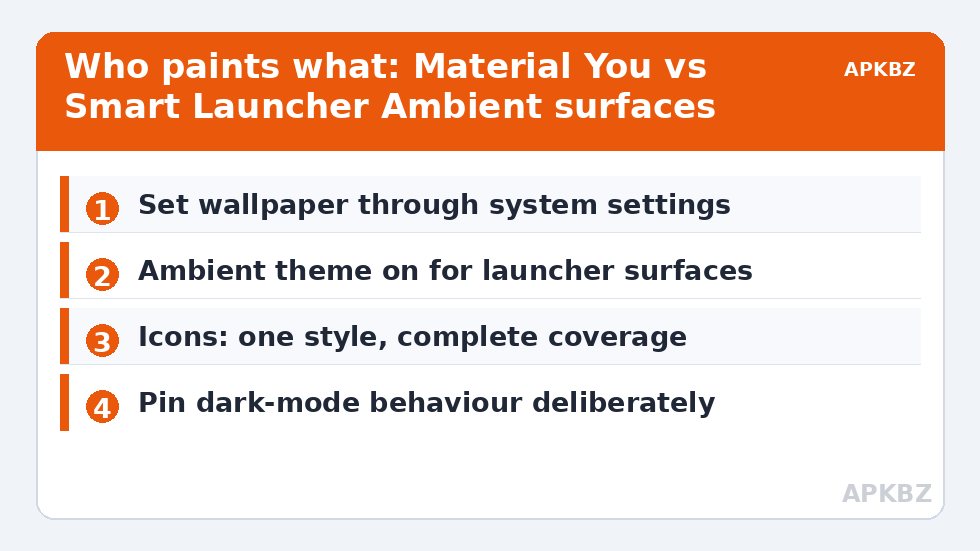
- Set your wallpaper through the system (or any app — the system registers it either way) so both engines sample the same image.
- Enable Material You at system level: on Pixel, Settings → Wallpaper & style, pick your wallpaper colours and icon theming preferences. On Samsung and other OEMs, the equivalent lives in their wallpaper/theme settings — the palette system is Android’s, the menu names are the OEM’s.
- Enable Smart Launcher’s Ambient theme in its theme settings so launcher surfaces derive from the same source. Our Ambient setup guide covers its sliders in depth.
- Align the icon layer: system “themed icons” (the monochrome Material You icon style) applies inside the system icon framework; in Smart Launcher, the equivalent coherence comes from choosing an adaptive or monochrome pack, or Icon Pack Studio icons that sit quietly inside the palette.
- Check the seams: open quick settings (system colours), an app like Gmail (app colours), then the drawer and a folder (launcher colours). They should feel like relatives, not twins — exact matching is neither possible nor necessary.
Treat these numbers as a starting point: apply them in Smart Launcher 6 under Settings → Home screen → Grid, use the layout for a day, then nudge one value at a time — your wallpaper, widget sizes and one-handed reach all shift what feels right.
Where it goes wrong, and whose fault it is
Three mismatches cover most complaints. The drawer clashes with everything: Ambient is off and the launcher is running a fixed theme from last season’s wallpaper — turn Ambient on. App interiors clash with the launcher: an app that ignores Material You keeps its brand colours; nothing in the launcher can fix an app’s internal choices, and stock Android has the same limitation. Icons are the odd ones out: a colourful third-party pack ignores both palettes. This one is yours to solve — the monochrome and studio-generated approaches in this Layout Tweaks series (see the cyberpunk build for an extreme, deliberate exception) exist precisely because icons are the layer neither engine fully controls. A related trap: wallpaper apps that set the image through their own plumbing without the system registering a change can leave Material You sampling yesterday’s wallpaper while Ambient samples today’s — set the wallpaper once through system settings to resynchronise them.
Who paints what
| Surface | Material You | Smart Launcher Ambient |
|---|---|---|
| Quick settings & system UI | Yes | No |
| Inside Google/OEM apps that adopt it | Yes | No |
| App drawer & category bar | No | Yes |
| Smart Search page | No | Yes |
| Folders & launcher panels | No | Yes |
| Widgets (system/themed ones) | Partially — widget’s own choice | Smart Launcher’s own widgets follow Ambient |
| Icons | System themed icons where the framework applies | Pack / Icon Pack Studio choice is yours |
OEM reality check
Material You’s reach varies by brand. Pixels implement it most completely; Samsung folds dynamic colour into One UI’s colour palette system with its own menu layout; some OEMs expose only basic wallpaper-based accents. Smart Launcher’s Ambient behaves identically everywhere because it is the launcher’s own code — which makes Ambient the dependable half of the duet on heavily skinned phones. If your OEM’s dynamic colour feels half-hearted, lean on Ambient for the launcher, accept the system palette as-is for apps, and invest your effort in the icon layer, where your choice applies uniformly.
Dark mode scheduling across both engines
One seam deserves its own section because it generates a steady trickle of confused reports: day/night behaviour. Android’s dark theme can follow a schedule or the battery saver; Smart Launcher’s theme has its own light/dark leanings derived from the wallpaper and, where offered, its own preferences. When the two disagree — a bright daytime system with a launcher Ambient that derived a dark palette from a moody wallpaper, or the reverse at night — the phone feels visually drunk at exactly the transitions. The stable configurations are two. Either let wallpaper drive both and accept that your phone’s mood follows your wallpaper taste (the coherent choice for people who pick darker wallpapers anyway), or pin deliberate opposites with intention: fixed dark launcher at all hours, system dark theme on a sunset schedule for apps — a defensible split, because the launcher is a glance surface and apps are reading surfaces. What does not work is the accidental middle, where neither engine was ever consciously set and each update rearranges the relationship. Spend the five minutes once; the duet should be conducted, not improvised nightly.
The icon layer, in more depth
Icons deserve a second pass because they are where the duet most visibly fails. Android’s themed-icons idea — every icon redrawn as a two-tone glyph in the system palette — is elegant in Google’s renders and patchy in the wild, because coverage depends on each app shipping a monochrome variant. Inside Smart Launcher you control the outcome more directly. Icon Pack Studio can generate a full set of consistent glyphs, including for apps no pack covers, which solves the coverage problem at a stroke; alternatively, a well-maintained monochrome adaptive pack tracks new apps faster than most users install them. What does not work is hoping a conventional colourful pack will harmonise by luck: forty brands’ art directors did not coordinate with your wallpaper. Choose the icon layer as a system — one style, complete coverage — and the two theming engines suddenly look like they were always in conversation.
Frequently Asked Questions
Does Smart Launcher 6 support Material You dynamic colour?
Smart Launcher’s own surfaces are coloured by its Ambient theme, which samples the same wallpaper Material You uses, while Material You itself colours the system and adopting apps. Running both gives a coherent result; the launcher does not need a separate Material You switch for its drawer and panels.
Why does my drawer not match my quick settings colours?
Because two engines paint them. Quick settings follow the system palette; the drawer follows Smart Launcher’s theme. Enable the Ambient theme so both derive from the same wallpaper, and they will harmonise even if they never match to the exact hex value.
How do I get themed monochrome icons in Smart Launcher?
Use a monochrome adaptive icon pack, or generate icons with Icon Pack Studio in a single-tone style. The system’s own themed-icons feature applies within the system icon framework and does not automatically restyle a third-party launcher’s pack.
My wallpaper app changed the picture but system colours stayed old. Why?
Some wallpaper apps bypass the system’s registration, so Material You keeps sampling the previous wallpaper while the launcher samples the new one. Set the wallpaper once via Android’s own Wallpaper settings to resynchronise both engines.
Can I use Material You colours with a fixed dark launcher theme?
Yes — nothing forces the duet. Many users run a fixed dark Smart Launcher theme for the launcher surfaces and let Material You colour apps and system UI. You lose the automatic harmony, but gain a stable launcher look across wallpaper changes.