Smart Launcher’s category system is its signature: instead of one alphabetical drawer, your apps live in sorted category pages. How you apply an icon pack to the floating category dock in the launcher decides whether that system looks designed or accidental. The floating variant of that idea — the category dock/panel you can summon over the home screen — is where many pack setups quietly fall apart. Icons that looked generous on the home grid render small in the dock, detailed glyphs turn to mush, folder covers shrink, and the pack you chose for big beautiful artwork suddenly has to perform at postage-stamp scale. Applying an icon pack to Smart Launcher’s floating category dock is not a separate technical process — the pack is global — but it demands a different evaluation: judge the pack at dock size, not home-screen size, and tune the trio of shape, background, and overrides for the smallest surface your icons inhabit.
Apply icon pack settings to the floating category dock: one launcher, every surface
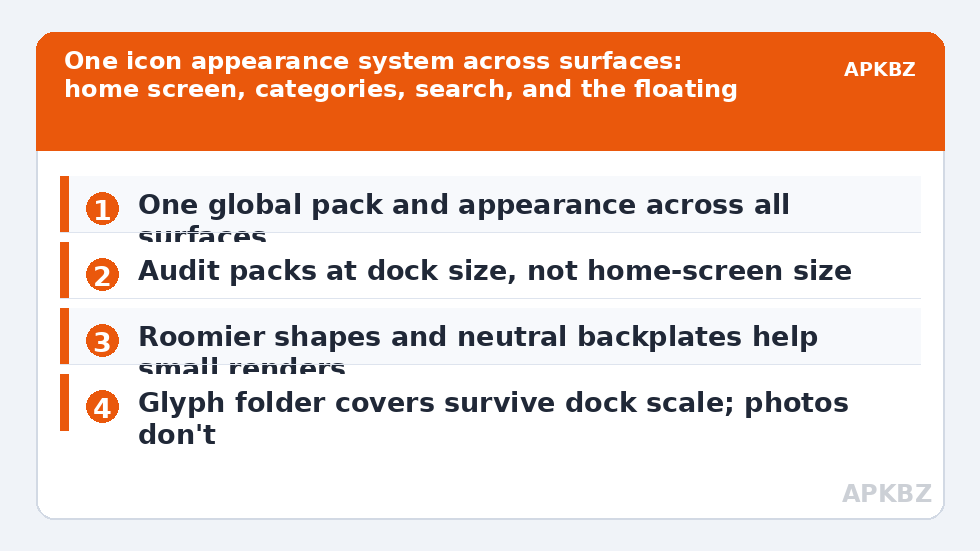
Smart Launcher applies a single icon appearance configuration — pack, shape, size logic — across home screen, drawer/category pages, Smart Search, and the floating category dock. That consistency is a design principle, not a limitation: an app should look like itself everywhere. But render sizes differ by surface. The dock is a transient overlay built for speed of selection, and its icons are rendered at the compact end of the scale. Consequences follow. Fine-line packs that sing at 60dp look starved at dock size; photographic icons become unrecognisable; busy backgrounds behind glyphs turn into visual static. None of this implies the dock uses a different pack or needs separate application — a common misconception worth discarding early. It means your pack choice has to survive its hardest exam, and the dock is where you should grade it.
Auditing your current pack at dock size
- Summon the dock and screenshot it mentally category by category. Look for the three failure tells: glyphs you cannot identify without labels, icons whose backgrounds clash because the art was designed to be seen larger, and folder covers that read as smudges.
- Count the unidentifiable. Under 5% is normal fallout for any library. Over 15% means the pack’s drawing style, not its coverage, is wrong for small rendering — thin strokes and interior detail are the casualties.
- Check the fallbacks. Uncovered apps in the dock show their stock icons amid your themed set at small size, where contrast between the two populations is even more obvious than on the home screen.
- Toggle labels as a diagnostic. If labels rescue identification entirely, your problem is glyph legibility; if you still struggle, it is contrast/background.
Treat these numbers as a starting point: apply them in Smart Launcher 6 under Settings → Home screen → Grid, use the layout for a day, then nudge one value at a time — your wallpaper, widget sizes and one-handed reach all shift what feels right.
Tuning for the dock without wrecking the home screen
| Lever | Dock-friendly direction | Home-screen side effect |
|---|---|---|
| Pack style | Bold glyphs, strong silhouettes, minimal interior detail | Simpler look overall — usually a benefit, not a cost |
| Shape | Squircle/rounded square (larger inscribed area than circle) | Roomier artwork everywhere |
| Generated backgrounds | Consistent neutral backplates for uncovered apps | Calmer drawer; matches masking fallback fixes |
| Per-icon overrides | Replace the worst five offenders with simpler glyphs | Carries the maintenance rules of any override set |
| Labels in dock | On, at least while the setup is new | None on home screen if surfaces are configured separately in your build |
Notice what is not on the table: a separate “dock pack”. People search for one because other surfaces in Android (and some rival launchers’ docks) do have independent icon settings. Smart Launcher’s unity is deliberate — resist workarounds that fork the icon set, because a forked set doubles every future audit. If the dock’s constraints genuinely conflict with a pack you adore for the home screen, the dock can be used less (categories opened as full pages instead) — a workflow choice, honestly made, beats a fractured theme.
Folder covers and badges at dock scale
Two dock citizens deserve specific mention. Folder covers, set with care per custom folder icons and covers, render at dock size when the folder lives in a category; photographic covers are the first to illegibility, glyph covers survive. Choose covers with the dock in mind if your folders sit in categories. Badges, meanwhile, scale down gracefully — a dot remains a dot — and remain the dock’s most useful glanceable signal, since a transient panel is exactly where “which category needs me?” is answered fastest; the badge mechanics in enabling icon badges apply unchanged here. Across the Icon Customization guides the refrain is constant: surfaces differ in size, not in system — design for the smallest and the rest takes care of itself.
Use the dock as a diagnostic instrument
Here is the professional habit this article is really teaching: the dock is the harshest honest critic your icon set will ever meet, so use it as one even if you rarely open it. Whenever you change packs, shapes, or overrides, summon the dock and read it cold. Because it strips away your spatial memory (you do not “know” where things are in a transient panel the way you know your home grid), it reveals pure legibility — which glyphs communicate and which merely decorate. A pack that survives the dock test will survive every other surface; a pack that fails it is borrowing its beauty from large rendering and familiarity. Designers of icon systems use exactly this trick, shrinking artwork to favicon size to expose weak silhouettes. Your dock is that shrink test, built into your phone, free forever.
And if a beloved pack fails the dock test while passing everywhere else? You have three honest options, in the order most people end up choosing them: demote the dock in your workflow and open categories as full pages, where rendering is larger; run the pack but repair its worst dock offenders with bolder per-icon overrides, accepting a slightly hybrid drawer; or admit the pack was a home-screen beauty and choose a bolder system for daily use. What does not work is squinting harder. The dock told you the truth about small-size legibility, and that truth applies equally to your notification-era glances, your one-handed reaches, and your ageing eyes — audiences that, unlike the dock, cannot be reconfigured.
Frequently Asked Questions
Does the floating category dock use a different icon pack from the home screen?
No. Smart Launcher applies one icon pack and one icon appearance configuration across all its surfaces — home screen, category pages, search, and the floating dock. If dock icons look different, it is because they render smaller there, which exposes detailed or thin artwork, not because a different pack is in play.
Why do my icons look worse in the dock than on the home screen?
Scale. The dock renders icons compactly, so fine lines, interior detail, and photographic content lose legibility first. Audit your pack at dock size: if more than a small fraction of glyphs become unidentifiable, the pack’s drawing style is too delicate for small rendering, whatever its home-screen beauty.
Can I increase the icon size just for the dock?
Smart Launcher’s icon appearance is intentionally global, so there is no independent dock size to raise. The effective levers are pack style (bolder glyphs), shape (roomier masks like the squircle), consistent backgrounds for uncovered apps, and per-icon overrides for the worst offenders at small size.
Should folder covers in categories be photos or glyphs?
Glyphs, if the folder lives where it may render small — in categories or the dock, photographic covers collapse into smudges. Save photo covers for home-screen folders that always render large, and keep category folder covers simple, high-contrast glyphs in the pack’s own style.
Do notification badges show on the floating dock?
Yes, badges render on dock icons just as on other surfaces, drawn from the same per-app unread state. At dock scale a badge dot stays legible even when the glyph beneath it is small, which makes the dock genuinely useful for spotting which category holds something waiting for you.