Tall phones created a small daily indignity: the notification shade lives at the very top of a 6.7-inch screen, and your thumb lives at the bottom. Smart Launcher already solves this on the home screen with a swipe-down assignment, but a growing number of users prefer edge swipe gestures notification panel access — a swipe inward from a screen edge that drops the shade from anywhere on the launcher, with a motion that never collides with their other gestures.
Accuracy first, because this topic attracts exaggeration. Smart Launcher 6 does not ship a dedicated, configurable “edge swipe” gesture system of its own comparable to Samsung’s Edge Panels or dedicated edge-gesture apps. What it offers is the swipe-down gesture on the home screen (including from the search bar area) for expanding notifications. True edge-triggered actions in the launcher context come from three neighbouring sources: your OEM’s built-in edge features, Android’s own edge behaviour, or a reputable edge-gesture app layered on top. This guide shows how to combine those honestly into a reliable edge route to the shade, and when the simple built-in swipe down is actually the better answer.
Edge Swipe Gestures Notification Panel Access: Your Three Real Options
| Option | Source | Works where | Cost / caveat |
|---|---|---|---|
| Swipe down on home screen | Smart Launcher built-in gesture | Home screen only | Free; not an edge motion |
| OEM edge panel / handle | Samsung Edge Panels, OnePlus sidebar, similar | Everywhere, incl. inside apps | Panel is a launcher for shortcuts, shade access is indirect |
| Edge gesture app | Play Store utilities (accessibility-based) | Everywhere | Requires accessibility permission; quality varies widely |
| Fingerprint sensor swipe | Device feature on some phones | Everywhere | Only on phones whose sensor supports it |
Notice the pattern: everything that works inside other apps needs either the OEM’s blessing or an accessibility service, because Android does not let ordinary apps watch touches over other apps without one of those two. That fact alone should calibrate your expectations of any tool in this space — and your suspicion of any that claims otherwise.
The Pragmatic Setup Most Users Should Choose
- In Smart Launcher, open Settings → Gestures and inputs → Swipe down and assign Expand notifications. This is your home screen route: a short downward pull anywhere on empty space.
- If your phone has a fingerprint sensor gesture for the shade (common on Pixels with rear sensors in earlier generations, and present in various OEM skins), enable it in Settings → Gestures. It is the fastest in-app route where it exists.
- On Samsung, decide whether Edge Panels help or hinder: if you keep them, place the handle low on the side you do not use for Android’s Back gesture, and accept the panel as an app shortcut tool rather than a shade tool.
- Only if you still need a true edge-to-shade action everywhere, install a well-reviewed edge gesture app, grant its accessibility service, define one edge zone (bottom-left or bottom-right corner regions conflict least with Back), and bind it to the notification shade.
- Test inside three apps and on the home screen. An edge zone that fires while you scroll a feed or play a game is mis-drawn — shrink it toward the corner.
Treat these numbers as a starting point: apply them in Smart Launcher 6 under Settings → Home screen → Grid, use the layout for a day, then nudge one value at a time — your wallpaper, widget sizes and one-handed reach all shift what feels right.
Drawing Edge Zones That Do Not Fight Android
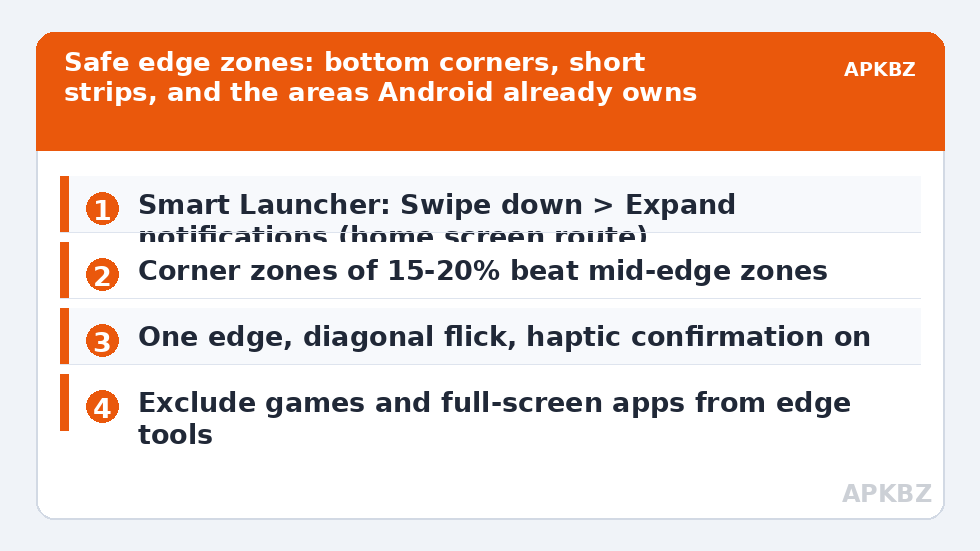
Edge real estate is the most contested territory on the phone, as the breakdown in fixing Android 14/15 gesture navigation conflicts shows: the sides belong to Back, the bottom to Home and Recents. Successful edge setups respect that map. Corners beat mid-edges because Back swipes travel along the side, not from the corner point. Short zones beat long ones: a 15–20% strip near the bottom corner is reachable and rarely triggered by scrolling, which usually starts mid-screen. One edge beats two: a single, practised corner becomes reflex; symmetrical zones on both sides double the accidental activations. And give the zone a distinct motion — a diagonal inward flick reads differently to your hand than a straight Back swipe, which helps your muscle memory keep the two apart.
- If the edge app offers haptic confirmation, enable a short buzz: it teaches your thumb the zone boundary faster than any visual cue. If the buzz never comes, see fixing haptic feedback for launcher gestures.
- Exclude games and full-screen video apps in the edge app’s per-app settings if it offers them; edge zones and gaming do not mix.
- Re-check the setup after OS updates — accessibility-based edge tools are the first thing OEM battery managers try to kill, a pattern covered in delayed gesture response fixes.
When to Skip the Edge App Entirely
If your shade problem exists only on the home screen, the built-in swipe down already solves it with zero extra permissions, and adding an accessibility-level tool for the same job is poor trade-craft. If your problem is inside apps, ask whether the fingerprint gesture or a quick settings tile habit solves it before reaching for an edge app. The users who genuinely benefit from edge tooling are those with large phones, one dominant hand, and a shade habit measured in dozens of times a day. For everyone else, the layered built-in options above are enough. Whichever combination you settle on, note it in your configuration record alongside your other gestures — edge zones are precisely the settings people forget they changed — and keep the whole map in your gesture configuration backup routine. More in Gesture Setup.
The Forgotten Middle Option: Quick Settings Habits
Before committing to an edge tool, audit the routes Android already gives you, because two of them are better than their reputation. The two-finger swipe down on many builds jumps straight past notifications to full quick settings, which is what a large share of shade visits actually want. And on the lock screen and home screen alike, several OEM skins let a swipe down anywhere on the wallpaper — not just from the top — pull the shade, a behaviour worth confirming in your skin’s gesture settings before assuming the top edge is mandatory. Neither option works inside third-party apps, which is the honest gap edge tools fill; but if your shade problem turns out to be 80% a home-screen problem, the built-in routes solve 80% of it for zero permissions. Measure your own usage for a day: count how many shade pulls happen on the home screen versus inside apps. That ratio, not enthusiasm for tooling, should decide whether an edge app earns its accessibility permission on your phone.
Frequently Asked Questions
Does Smart Launcher 6 have built-in edge swipe gestures?
No dedicated edge-swipe system. Smart Launcher’s built-in answer to shade access is the swipe-down gesture on the home screen assigned to Expand notifications. Edge-triggered actions come from your OEM’s edge features, a fingerprint sensor gesture where available, or a third-party edge gesture app using an accessibility service.
Is it safe to grant an edge gesture app accessibility access?
It is a significant permission: accessibility services can observe screen content and perform gestures. Only install well-established apps from the Play Store, check that the app works fully offline if it claims to, and review the permission list. For a single notification-shade shortcut, weigh whether the built-in options cover you first.
Why does my edge swipe keep triggering Back instead?
Your zone overlaps Android’s Back gesture strip along the screen side. Move the zone toward a bottom corner, shorten it, and use a diagonal inward motion. On Pixel builds you can also reduce Back sensitivity under Settings → System → Gestures → Navigation mode to narrow the system’s strip.
Can an edge gesture open quick settings directly, skipping notifications?
On many phones a second swipe down expands quick settings, and some edge tools and OEM features offer “expand quick settings” as a direct action. Where offered, it is a legitimate assignment — just expect one more layer of Android-version and OEM variance in how reliably it fires.
Will an edge gesture app drain battery?
A well-built one should not noticeably; it listens for touches at edges it owns. Poorly built ones with aggressive wake behaviour can. If battery use appears under the app’s name in Battery usage after a day, replace it — the category has better citizens — or fall back to the built-in swipe down.