Double-press the power button and the camera opens — most Android users know that trick, and many wish the same physical shortcut could fire their launcher actions instead: a flashlight, a favourite app, a Smart Launcher gesture. Learning how to map physical button presses launcher actions can be attached to is mostly an exercise in knowing where the boundary sits. Android guards its hardware buttons jealously, and what you can remap depends entirely on your OEM’s generosity and whether you are willing to involve an automation app.
The honest map of the territory: Smart Launcher itself does not remap hardware buttons — no launcher can, because button events belong to the system, not the launcher. What you can do is combine three real layers: your OEM’s built-in button shortcuts (power double-press, fingerprint gestures, side-key customisation on Samsung), accessibility-based button remapper apps for volume-key combinations, and automation tools like MacroDroid or Tasker that can catch certain button events and then launch an app, a shortcut, or a launcher action. This guide walks those layers in descending order of simplicity.
Map Physical Button Presses: Launcher Actions Each Layer Can Reach
| Layer | Buttons reachable | Needs | Reliability |
|---|---|---|---|
| OEM built-in shortcuts | Power double-press/tap, Samsung side key, fingerprint swipes | Nothing extra | Excellent — system level |
| Automation apps (MacroDroid/Tasker) | Volume keys via triggers on some builds, power-button patterns limited | Accessibility or device-admin style permissions vary | Good on supported triggers |
| Button remapper apps | Volume up/down combos, headset buttons, Bixby-style keys on older phones | Accessibility service | Varies; OEM battery managers interfere |
| Smart Launcher gestures | None — touch gestures only | — | The target your button action can launch into |
The trick that makes this article’s title achievable is the last row read in reverse: a button press cannot become a Smart Launcher gesture, but it can launch an app or shortcut, and Smart Launcher actions like opening Smart Search or a specific category view are reachable as launched destinations in some configurations. In practice most users bind buttons to outcomes (torch on, camera open, search ready) rather than to launcher mechanics, and that is the right instinct.
Setting Up the Built-In Layer First
- Pixel and near-stock: Settings → System → Gestures. “Double tap power” (where present) is fixed to the camera on some builds and offers a wallet/camera choice on others; “Quickly open camera” double-twist on Motorola is similarly camera-bound. Note what your build allows before reaching for apps.
- Samsung: Settings → Advanced features → Side button. Double press can be set to Quick launch camera or to open a chosen app — this is one of the few genuinely free button slots on any phone. Pick the app your launcher gesture map could not cover.
- Fingerprint gestures: if your phone supports swipe-on-sensor for notifications, enable it; it is effectively a physical gesture and pairs with the shade strategy in edge swipe notification access.
- Test each built-in binding with the screen off and on — several only work from one state, which changes what they are good for.
Treat these numbers as a starting point: apply them in Smart Launcher 6 under Settings → Home screen → Grid, use the layout for a day, then nudge one value at a time — your wallpaper, widget sizes and one-handed reach all shift what feels right.
Adding Volume-Key and Combo Actions with a Remapper
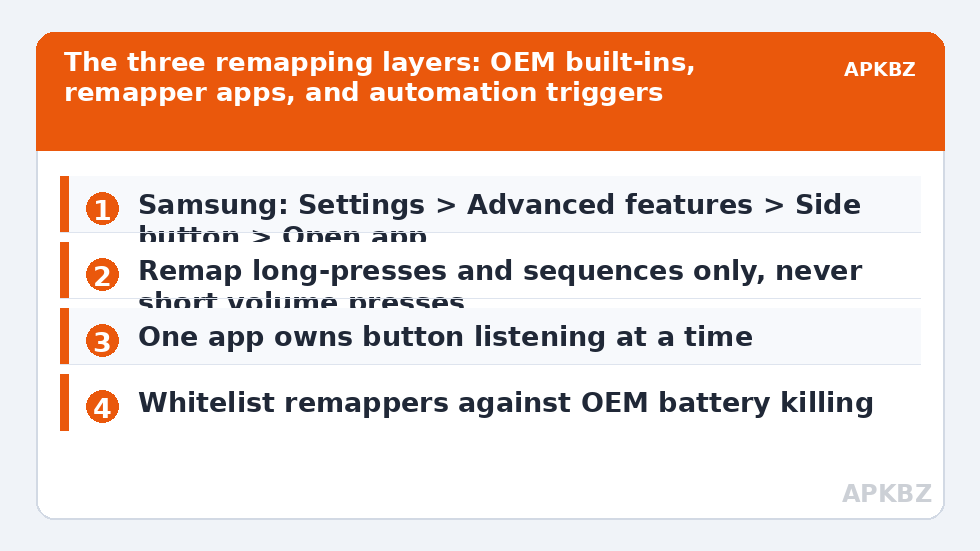
Volume keys are the realistic expansion slot. A reputable button remapper using an accessibility service can distinguish volume-up long-press from a normal press, or up+down sequences, and fire actions like toggling the torch, launching an app, or running a Tasker/MacroDroid task. Three working rules keep this sane. Never remap single short presses of volume keys — you will break media control and regret it within the hour. Long-presses and sequences only, because they cannot happen accidentally in a pocket as easily. One app owns the buttons: two remappers or a remapper plus an automation app both listening for volume events will double-fire and misbehave in ways that look haunted.
- On MIUI/HyperOS and ColorOS, whitelist the remapper in battery settings or it will be killed within a day — the same OEM behaviour dissected in delayed gesture response troubleshooting.
- Headset and Bluetooth media buttons are a separate, easier class: most remappers handle them without accessibility, and they are ideal for car use alongside Tasker gesture workflows.
- If a remapper asks for device admin or payment-related permissions for basic volume mapping, uninstall it and choose another; the job needs accessibility, nothing more exotic.
Aiming the Button at Smart Launcher Outcomes
With a working button trigger, point it at destinations that complement your touch map instead of duplicating it. Buttons shine for screen-off and eyes-free jobs: torch, voice recorder, camera, emergency contact call. Touch gestures shine for visual navigation: search, categories, app pairs. A common polished setup is side-key double-press for the camera (built-in layer), volume-up long-press for the torch (remapper layer), and the full Smart Launcher gesture map — double tap, swipes, pinch — untouched for everything on-screen, exactly as designed in the swipe gestures guide. Document the button bindings in the same written record as your gesture map, and include them in the review you do before OS updates, since button features are OEM-side and live outside your launcher backup — one more reason the routine in backing up gesture configurations should include a notes file, not just the backup itself. The rest of the category is in Gesture Setup.
A Testing Protocol That Catches the Embarrassing Failures
Button bindings fail in states, not in settings screens, so test them like it. For every binding you create, run four checks. Screen off: does it fire from sleep, and if it needs the screen on, is that acceptable for its job? A torch binding that requires an unlocked phone is a torch binding in name only. Screen on, in an app: does the binding still reach the remapper, or does the foreground app eat the volume keys (media apps and readers often do)? With media playing: a volume long-press must not first blast the volume to maximum on its way to your action; if it does, look for a binding that intercepts before the volume change, or pick a different trigger. After a reboot: does the binding survive, or did the OEM battery manager quietly retire the remapper overnight? That last check is the one everyone skips and the one that explains most “it worked yesterday” reports. Run the four checks on setup day and again after every major OS update; five minutes of protocol beats a month of intermittent mystery.
Frequently Asked Questions
Can Smart Launcher remap my power or volume buttons itself?
No. Hardware button events belong to Android and the OEM, not to any launcher. Smart Launcher’s gesture system is touch-based. Button remapping comes from OEM built-in shortcuts, accessibility-based remapper apps, or automation apps — which can then launch apps and shortcuts that pair with your launcher setup.
What is the most reliable button I can customise?
On Samsung phones, the side key double press, because it is a system-level feature you can point at an app. Elsewhere, volume-key long-presses via a single reputable remapper are the most dependable expansion slot. Power double-press is usually locked to the camera by the OEM.
Why do my volume-key actions stop working after a day?
Almost always the OEM battery manager killing the remapper’s accessibility service or background process. Whitelist the app in battery settings, lock it in Recents if your skin offers that, and re-enable its accessibility service after major updates, which commonly reset it.
Can a button press trigger a Smart Launcher gesture action?
Not directly — there is no bridge that converts a button event into a launcher touch gesture. What you can do is launch the same destination the gesture would open (an app, a shortcut, Smart Search where reachable as an activity), which achieves the outcome if not the exact mechanism.
Is it safe to give a remapper app accessibility access?
It is a powerful permission that must be earned by the app’s reputation. Choose established Play Store remappers, verify the app works offline, and grant nothing beyond accessibility for button work. If your need is only one or two actions, prefer OEM built-ins and skip the remapper entirely.