The request sounds modest — a calm photo behind the main page, something brighter behind the media page — yet a different wallpaper per home screen page is one of the most commonly promised and least commonly delivered launcher features. This guide is straight about what Smart Launcher 6 does and does not offer, then builds the result you actually want using the routes that genuinely work: a scrolling panorama that gives each page its own slice, live wallpaper helpers used carefully, and page design tricks that create distinct moods without distinct image files.
What Smart Launcher 6 actually supports
On most builds, the home screen wallpaper is a single image applied across the home screen, with the launcher offering choices about scrolling behaviour and how the image is cropped. Per-page image assignment, where each page carries an unrelated picture file, is not a standard Smart Launcher feature at the time of writing, and any guide claiming a hidden toggle for it should be treated with suspicion. Where your version offers it, the option will sit plainly in the wallpaper or home screen settings — no secret menu required.
That limitation is less painful than it first appears, because the effect people want is rarely separate files as such. They want each page to feel like its own place. Distinctness can come from the picture changing, but it can equally come from what sits on the picture: different widgets, different density, different colour emphasis per page.
Treat these numbers as a starting point: apply them in Smart Launcher 6 under Settings → Home screen → Grid, use the layout for a day, then nudge one value at a time — your wallpaper, widget sizes and one-handed reach all shift what feels right.
Route one: the wide panorama that changes as you swipe
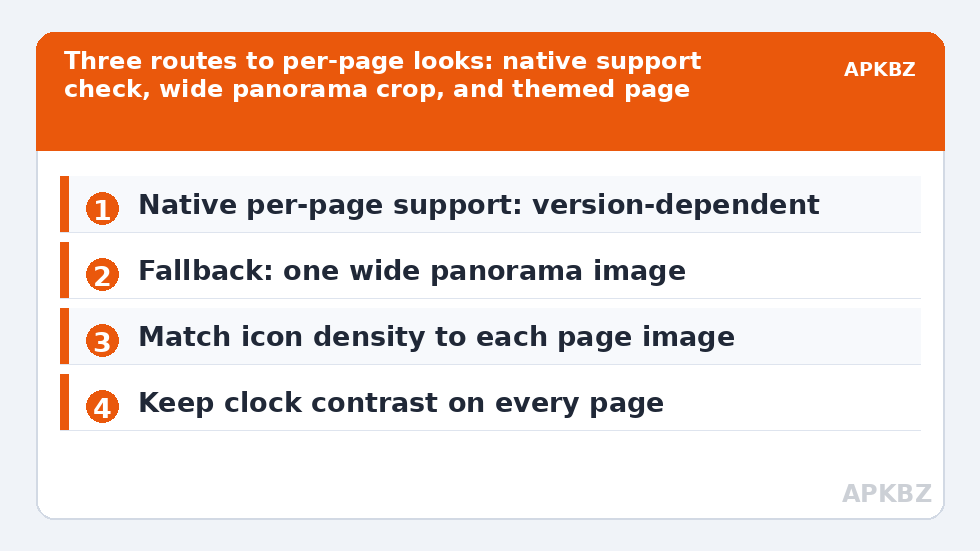
The most reliable technique uses a single ultra-wide image — a landscape photograph, a city skyline, a gradient artwork several screens wide — with wallpaper scrolling enabled. As you move between pages, the visible window slides across the image, so page one shows the left scene, page two the middle, page three the right. Choose an image whose composition varies along its width: a beach-to-city-to-mountain panorama rewards swiping in a way a uniform texture never will.
Set the wallpaper through Android’s own wallpaper settings or Smart Launcher’s wallpaper area, confirm the image is wider than a single screen crop, and then swipe through every page checking two things: that the clock and labels stay legible on the busiest slice, and that no page lands on an awkward crop such as half a face.
Wallpaper choices ripple into theming, so read the Ambient theme setup guide alongside this one, and decide how many pages you even want with the multi-page vs single-page layout guide. A natural companion project is building a dedicated media page with its own visual mood. The APKBZ home page links the full collection.
Route two: multi-picture live wallpapers, used with care
A category of live wallpaper apps exists specifically to assign different images per page, reacting as you swipe. If you go this route, choose an established Play Store app with clear privacy practices, grant only the permissions it genuinely needs, and judge it over a full day rather than a full minute.
- Battery: a well-made multi-picture app with static images should cost little, typically a small single-digit percentage across a day, but poorly made ones redraw constantly and cost far more.
- Transitions: crossfade transitions hide the page-change mechanics and look calmer than hard cuts.
- Image sizing: pre-crop images to your screen resolution inside the app to avoid blurry scaling.
- Fallback: keep your previous static wallpaper saved so retreat takes thirty seconds.
Never sideload wallpaper helpers from file sites. A wallpaper app sits underneath everything you do, which makes it exactly the wrong category of software to source casually.
Route three: one wallpaper, distinct page personalities
If neither route appeals, design the distinction into the pages themselves. Keep one coherent wallpaper and give each page a different widget family and density: the main page sparse with a clock, the work page dense with calendar and tasks, the media page dominated by one large playback widget. Visitors to your phone will read the pages as different places even though the photograph never changes, because humans judge a screen by its content more than its background.
This approach has a hidden advantage with theming. Because the wallpaper is constant, Ambient-derived panel colours stay consistent everywhere, and folders, search and drawer all match whichever page you came from.
Keeping the set coherent, whichever route you choose
| Route | True separate images | Battery cost | Effort |
|---|---|---|---|
| Single scrolling panorama | No, slices of one image | Negligible | Low |
| Multi-picture live wallpaper app | Yes | Low if well made | Medium |
| One image, distinct page design | No | None | Medium |
| Native per-page (where offered) | Yes | Negligible | Low |
Troubleshooting contrast and cropping
The failure mode of every per-page scheme is the same: one page where the image is bright or busy exactly where the clock sits. Fix it per page rather than globally — move the widget to a calmer region of that page’s slice, add a subtle panel behind it, or swap that one image for a quieter variant. Judging all pages in bright outdoor light, not at a desk, is the test that predicts real-world readability.
Finally, back up the arrangement and keep the source images in a single album. Per-page setups involve more moving parts than a single wallpaper, and the album is the difference between a five-minute rebuild on a new phone and an evening of archaeology.
Choosing images that survive being sliced
Whether you use the panorama route or a multi-picture app, image choice decides whether per-page wallpapers look like a gallery or an accident. For panoramas, landscapes with a slow gradient of interest — coastline, mountain layers, a city at dusk — slice gracefully because every window contains a complete little scene. Avoid panoramas with one dramatic subject, since two of your three pages will be left showing its unglamorous surroundings. For separate images, bind the set with one shared property: all dusk photographs, all the same duotone treatment, all textures. The shared property is what the eye reads as intention.
Resolution deserves a sentence of its own. Use images at least at your screen’s native resolution per page; a panorama should be several times the screen width in pixels, or the later slices will soften visibly compared with the first. Sources matter too — your own photographs are the safest copyright position and, happily, the most personal. Finally, keep a plain fallback: one quiet, dark, single wallpaper saved in the same album. On the day a live wallpaper app misbehaves after an update, the fallback turns a broken home screen back into a calm one in under a minute, and you can debug the fancy setup later, at leisure, rather than at the bus stop.
Frequently Asked Questions
Can Smart Launcher 6 set a different wallpaper for each home screen page?
On most builds, Smart Launcher applies one home screen wallpaper across its pages rather than offering a separate image per page. Some versions and companion approaches differ, so check your build’s wallpaper settings, but plan around a single-image design unless your version explicitly offers per-page images.
What is the panorama workaround for per-page wallpapers?
Use one very wide image and let each page reveal a different slice as you swipe, where your launcher and device support scrolling wallpaper. The pages feel distinct while remaining one continuous picture, which also keeps colours and lighting consistent across the set.
Why does my wallpaper not scroll between pages?
Scrolling depends on the launcher setting, the image being wider than one screen, and sometimes the device maker. If the image is exactly screen-sized or scrolling is disabled in settings, the same crop stays fixed on every page.
Do live wallpaper apps offer true per-page images?
Some live wallpaper and multi-picture apps are designed to show different images per page by reacting to page changes. Quality and battery cost vary widely, so use reputable Play Store apps only and test battery impact over a full day before committing.
Will different wallpapers clash with the Ambient theme?
They can. Ambient derives launcher colours from the wallpaper, so strongly different page images can make panels feel inconsistent. A related colour family across pages keeps the theme coherent even when the pictures differ.