You install a new app, glance at your home screen, and there it is: one raw, stock icon sitting in your carefully themed drawer like it never got the memo. The pack did not break, and Smart Launcher 6 is not ignoring you. Icon packs work from a mapping list written before your new app existed, and a new app is, by definition, not on it. This guide explains that mechanism plainly, then walks through the fixes in the right order — from the thirty-second per-icon override to the pack update or icon request that solves it permanently — so every new arrival can join the theme instead of crashing it.
Why new apps miss the pack: the appfilter in plain language
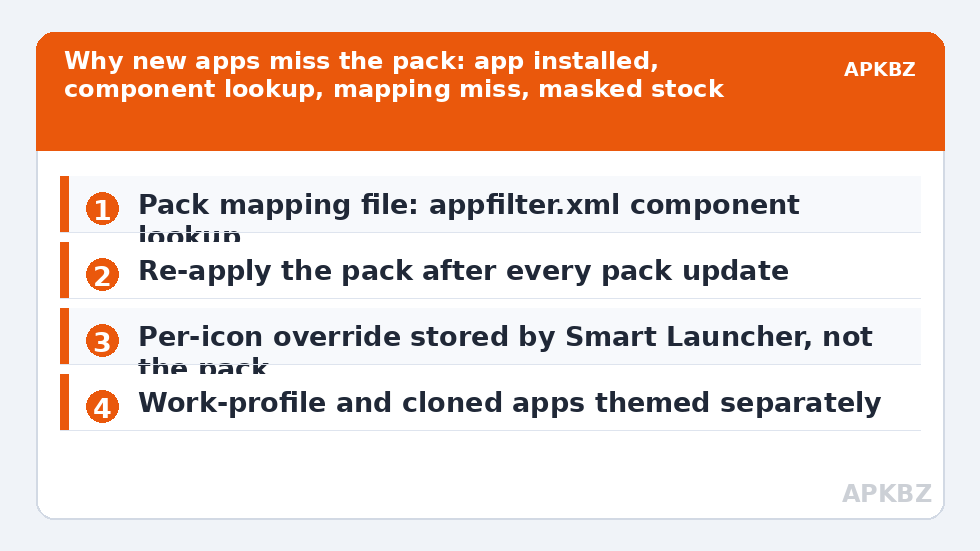
Every icon pack carries an index file, usually called appfilter.xml, that pairs an app’s component name — an internal identifier like a package plus its main activity — with a specific icon in the pack. When you apply the pack, Smart Launcher looks each installed app up in that index. A match gets the pack’s artwork; no match means the launcher falls back to the app’s own adaptive icon, masked to your chosen shape. A newly released or newly installed app has no entry because the pack author had not drawn it, or had not published the update containing it, when your copy of the pack was built. Nothing is malfunctioning. The system is doing exactly what a lookup table does when a row is missing.
Two variations confuse people. An app you have owned for years can suddenly lose its themed icon after the app updates, if the developer renamed its main activity; the pack’s row now points at a name that no longer exists, a related problem we dissect in fixing icons that revert after app updates. And an app can be covered in one pack and missing in another, because coverage is per pack, per author. Neither case is fixed by reinstalling Smart Launcher, clearing its data, or other launcher-side surgery — the missing row lives in the pack.
Treat these numbers as a starting point: apply them in Smart Launcher 6 under Settings → Home screen → Grid, use the layout for a day, then nudge one value at a time — your wallpaper, widget sizes and one-handed reach all shift what feels right.
Fix 1: give the new app an icon yourself, right now
- Long-press the app’s icon in the drawer or on the home screen and open the edit icon option.
- Browse your current pack first. Most packs include generic glyphs — a shopping bag, a bank card, a music note. A generic glyph in the pack’s style looks more at home than the stock logo.
- Or pick from another installed pack. The editor can source an icon from any pack on the device, so a second pack with coverage of that app solves it in the first pack’s place.
- Or use your own image. A square PNG works; our guide to customizing individual app icons covers sources and pitfalls in depth.
This override is stored by Smart Launcher, not inside the pack, so it survives pack updates. Its one weakness is honesty: if the pack later adds a proper icon for that app, your manual stand-in will keep covering it until you reset the icon to the pack default. Keep a mental note — or an actual note — of apps you have patched this way, and clear the patch when a pack update announces new icons. The full mechanics of how packs are applied in the first place are in our adaptive icon pack guide, linked here because understanding the apply step makes every later fix obvious.
Fix 2: check whether the pack already fixed it
Before requesting anything, update the pack. Authors add icons in batches, and the app you installed last week may have been drawn months ago in a release you never downloaded because pack updates are easy to postpone. Open the pack’s store page, check the version and release notes, and update if one is offered. Then re-apply the pack in Smart Launcher — switching to another pack and back, or re-selecting the same pack — so the icon cache rebuilds against the new mapping. Half of “the pack doesn’t cover my app” reports end at this step, quietly, which is why they are underrepresented in forum threads.
| Situation | Most likely cause | Right fix |
|---|---|---|
| Brand-new app, stock icon | App younger than your pack version | Update pack; override meanwhile |
| New to you, old app, stock icon | Pack never covered it | Override, then file an icon request |
| Several new apps all unthemed | Pack development stalled | Consider a maintained pack or generated set |
| Every app lost its theme | Pack not applied or cache issue | Re-apply the pack; check it is still installed |
Fix 3: request the icon, and prevent repeats
If the pack is maintained and the app is genuinely missing, request it properly — our dedicated walkthrough on requesting missing icons from developers covers what a complete request contains. The short version: app name, store link, and patience measured in release cycles, not days. Meanwhile, prevention is mostly about pack choice. Prefer packs with visible recent updates and a stated request channel; treat a beautiful pack untouched for two years as a finished artwork with a fixed library, not a living product. If your app collection leans local or obscure — regional banks, transit apps, workplace tools — consider a generated set from Icon Pack Studio as your base, since it builds coverage from your installed apps. That trade, and the wider world of tools and guides, is summarised on our APKBZ home page for readers planning a full setup rather than a single fix.
One last diagnostic worth keeping: install the new app, then check whether it is themed inside the pack’s own preview app if it has one. If the pack’s preview shows a themed icon but Smart Launcher shows stock, the mapping exists but your launcher cache is stale, and re-applying the pack is the whole cure. If the preview also shows nothing, the row truly does not exist yet, and no launcher setting can invent it.
Edge cases worth knowing before you blame the pack
Work profiles and app clones create a subtle version of this problem. An app installed inside a work profile, or cloned by a manufacturer’s dual-apps feature, is a separate installation with its own identity, and a pack that themes the personal copy may not theme the clone, because the clone’s component is presented differently to the launcher. The fix is the same manual override, applied to the clone’s icon, but knowing the cause saves you from reinstalling a pack that was never at fault. Similarly, apps installed after a pack was generated from your library in a studio tool will be missing by construction — the generated mapping is a snapshot — and regenerating the pack is the designed remedy rather than a workaround.
Finally, distinguish “not themed” from “themed but unrecognisable”. A pack may cover an app with a highly abstract glyph that you simply do not associate with it, so the app looks untouched at a glance. Opening the pack’s own icon list and searching the app name settles which problem you have in seconds. If an entry exists, your quarrel is with the artwork, and an override with a clearer glyph — or a short adjustment period — is the honest cure. Diagnosis before treatment is the whole theme of this page: the lookup table either has your row, has it under a name you did not expect, or does not have it yet, and each of those states has a different, specific, unglamorous fix.
Frequently Asked Questions
Why did only my newest app keep its stock icon?
Because the pack’s mapping was written before that app was added to it. Icon packs are lookup tables, not live services: an app with no entry falls back to its own adaptive icon, masked to your shape. Updating the pack, overriding the icon manually, or requesting the icon from the author are the three real fixes.
Will reapplying the icon pack fix a missing icon?
Only if the icon exists in the pack but your launcher cache is stale — for example after a pack update. Re-applying rebuilds the cache against the current mapping. If the app has no entry in the pack at all, re-applying changes nothing, and a manual override or icon request is needed.
Does Smart Launcher automatically theme apps the pack misses?
Partially. Uncovered apps keep their own adaptive icons, which Smart Launcher still masks to your chosen shape and can place on a generated background colour, so they blend rather than clash. It cannot redraw them in the pack’s artistic style; only the pack author, or a generated pack, can do that.
How long do icon requests usually take?
It varies from one release cycle to never, depending on the author’s schedule and the app’s popularity. Well-maintained packs batch requests into periodic updates. Treat a request as a long-term improvement to the pack, and use a manual override so your home screen looks right while you wait.