
Screenshots are the phone’s memory: the error message you need to show support, the recipe step, the chat before it gets edited. Screen recordings are its witness: the bug that only happens when nobody is watching, the game highlight, the how-to clip for a parent. Both deserve to be fast, so the idea of a screenshot gesture shortcut Android users can fire from the home screen is an appealing one. This guide starts with the structural fact that shapes everything: Smart Launcher gestures live only on the home screen, while screenshots are needed everywhere — and the launcher’s action list contains no capture action on standard builds. From that honest starting point, it builds the setup that actually serves you: system capture motions for everywhere, tuned properly, plus a launcher gesture route for recordings and quick settings at home.
That may sound like a downgrade from the dream, but it is the opposite. A home-screen-only screenshot gesture would fail in the exact moment you reached for it — mid-app, mid-error. The system-level methods below work in apps, on the lock screen’s allowed surfaces, everywhere captures are permitted at all. Configure them once and capture becomes a reflex rather than a project. Related system-level thinking appears in the guide to mapping physical button presses, since buttons are the original capture shortcut, and you can survey the whole gesture library from the apkbz homepage.
The Capture Methods Android Actually Gives You
| Method | Where it works | How to enable or find it |
|---|---|---|
| Power + Volume down | Everywhere captures are allowed | Built in; press both briefly together |
| Three-finger swipe down | System-wide on phones that offer it | Maker settings, often under Motions and gestures or Additional settings |
| Palm swipe | System-wide on Samsung and similar skins | Advanced features > Motions and gestures |
| Back tap (double or triple) | Pixel and phones with a back-tap feature | System > Gestures > Quick Tap, assignable to Screenshot |
| Quick settings tile | Anywhere the shade can open | Add the Take screenshot or Screen record tile in the shade editor |
| Assistant request | Most screens | Ask the voice assistant to take a screenshot; sharing flow follows |
Pick one motion method as your primary and keep the buttons as backup. Owning three half-remembered capture gestures is worse than owning one completely. For most people the three-finger swipe, where offered, wins: it is one-handed on many phones, works in apps, and does not wear the power button. Samsung’s palm swipe is equally loved by its users but awkward on narrow phones. Back tap, where your version offers it, is the dark horse — invisible, fast, and assignable in system settings to Screenshot directly. Tap-based quick actions of this family are examined further in the guide to triple tap gestures for flashlight and camera toggles.
Treat these numbers as a starting point: apply them in Smart Launcher 6 under Settings → Home screen → Grid, use the layout for a day, then nudge one value at a time — your wallpaper, widget sizes and one-handed reach all shift what feels right.
What the Launcher Gesture Should Do Instead
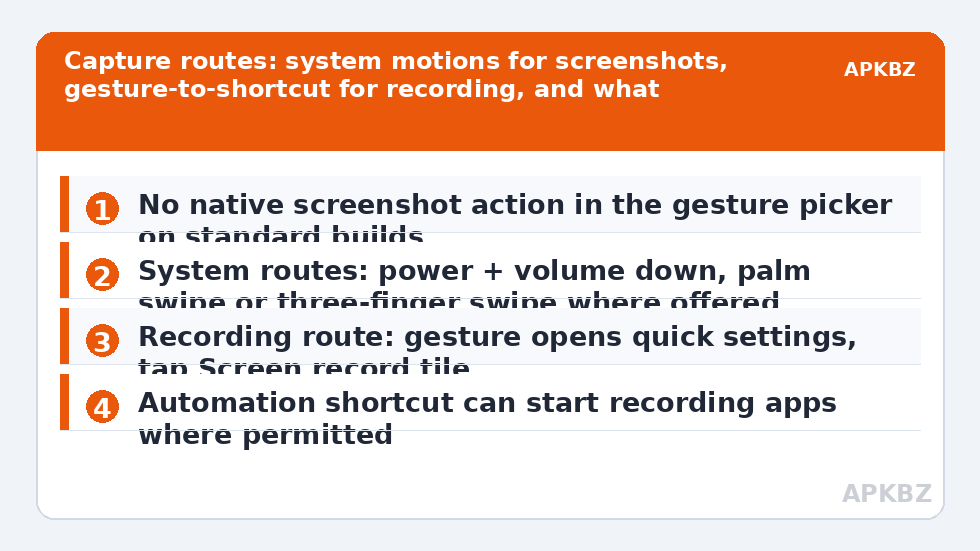
At home, a Smart Launcher gesture still earns a place in the capture story — pointed at the right target. Assign a spare gesture to Expand notifications or the quick settings expansion, with the Screen record tile placed in your first row. Recording then costs a swipe and a tap from the home screen, and because recordings usually start from a deliberate decision rather than a split-second reaction, that extra tap costs nothing in practice. It also sidesteps a real Android constraint: recording sessions require a system consent prompt through the media projection permission, so a truly silent one-gesture recording start is something Android intentionally does not offer ordinary apps.
- Add the Screen record tile to the first row of quick settings via the shade’s edit mode.
- In Smart Launcher’s Gestures and inputs, assign your chosen spare gesture to expand the shade or quick settings.
- From the home screen, fire the gesture and tap the tile; handle the system consent prompt and the countdown.
- Choose your recording options once — audio source and touch indicators — since the tile remembers sensible preferences on most builds.
- Stop recordings from the notification or the tile, and find the file in your gallery’s screen recordings album.
If you already route a gesture to the shade for notifications, as in the guide to swipe down anywhere for notifications, this is the same gesture doing double duty — the record tile simply lives one tap deeper on the same surface. That kind of stacking, where one well-chosen gesture feeds several native surfaces, is the pattern the companion piece on toggling dark mode uses too: see the dark mode gesture guide.
The Automation Option, with Its Limits Stated
Recorder apps and automation tools sometimes expose shortcuts that begin capture, and a Smart Launcher gesture can fire such a shortcut like any other. Expect three caveats. First, the consent prompt still appears — it is Android’s, not the app’s choice. Second, background-start restrictions tighten with each Android version, so a shortcut that worked last year may now open the recorder app instead of starting instantly; test after updates. Third, secure content — banking, payments, many streaming apps — records as black regardless of route, by design. Within those limits, an automation-fired recorder is a legitimate convenience for people who record tutorials regularly, and the shortcut bridge pattern from this site’s automation guides applies unchanged.
After the Capture: The Half Everyone Forgets
Speed of capture is only half the workflow; a screenshot you cannot find, annotate or share is a rumour. Most galleries file captures into dedicated screenshots and screen recordings albums, separate from camera photos — learn those locations before the urgent moment, not during it. Android’s capture overlay on many builds offers immediate crop, markup and share actions for a few seconds after a shot; taking that half-second to crop a chat screenshot to the relevant lines is both kinder to whoever receives it and safer for the unrelated notifications and names above and below. For recordings, trim the dead seconds at the start where you were still arranging the screen; viewers forgive almost anything except waiting. And keep a light hand on storage: recordings are the largest files most phones produce, so a monthly glance at the recordings album during your other maintenance prevents the slow surprise of a full phone on a holiday.
Troubleshooting Captures That Misbehave
- Buttons trigger the power menu or volume instead: the press was not simultaneous. Press both edges together briefly; holding too long summons the power menu on many builds, and a setting on some phones reassigns long-press power to the assistant.
- Three-finger swipe scrolls the app instead: the maker’s motion is disabled, or an accessibility feature owns three fingers on your build. Enable exactly one three-finger feature.
- Screenshots save but recordings have no sound: the recorder’s audio source was set to none, or the recorded app forbids internal audio capture. Set microphone or device audio deliberately before recording.
- Captures of one app are always black: that app uses secure windows. There is no setting fix; photograph the screen with another device if the content is yours to document.
- Gesture opens the shade but the tile is missing: tiles reset occasionally after updates; re-add Screen record in the shade editor.
Finish by rehearsing your primary capture motion five times on unimportant screens, so the reflex exists before the error message you actually need appears. The rest of the gesture library waits under Gesture Setup, and your final map — including the shade gesture this setup leans on — deserves a backup once it all works together.
Frequently Asked Questions
Can a Smart Launcher gesture take a screenshot directly?
Not through a native action on standard builds. Capturing the screen is a system operation, and Smart Launcher’s gesture picker contains apps, shortcuts and launcher actions — screenshot is not among them. The working routes are Android’s own capture gestures and button combinations, your phone maker’s motions, or a shortcut to a capture tool where one is legitimately available.
What is the fastest screenshot method that works everywhere, including inside apps?
The power plus volume down combination remains the universal method, supplemented on many phones by a three-finger swipe down or a palm swipe in the maker’s gesture settings. Those system motions work inside apps too, which no launcher gesture can — launcher gestures only exist on the home screen, exactly where you least need a capture shortcut.
Can a gesture start a screen recording?
Indirectly, yes. Assign a Smart Launcher gesture to expand quick settings and tap the Screen record tile — two motions, fully native. Some recorder apps and automation shortcuts can start a recording directly where Android’s media projection permission allows, but expect a system confirmation prompt, because Android requires your consent for capture sessions.
Why do screenshots of banking or streaming apps come out black?
Those apps mark their windows as secure, and Android blocks capture of secure content regardless of the method used — gesture, buttons or recorder. The black frame is the protection working as designed, and no launcher setting can override it.
My three-finger screenshot keeps colliding with other gestures. Help?
Three-finger motions are claimed by several layers: the maker’s screenshot, accessibility features, and some apps’ own controls. Keep only one three-finger feature enabled — check the maker’s Motions and gestures settings and Accessibility for rivals — and remember launcher gestures are not part of this conflict, since they never run inside apps.


