Triple tap has an appealing logic to it: double tap is taken (lock the screen, in most good setups), so surely three taps can carry the flashlight and the camera. Users searching for triple tap gestures flashlight camera quick toggle options in Smart Launcher deserve a straight answer before a workaround: Smart Launcher 6 does not have a native triple-tap gesture. Its tap gesture is the double tap; there is no third tap slot hiding in the settings, and any guide implying otherwise is inventing a feature.
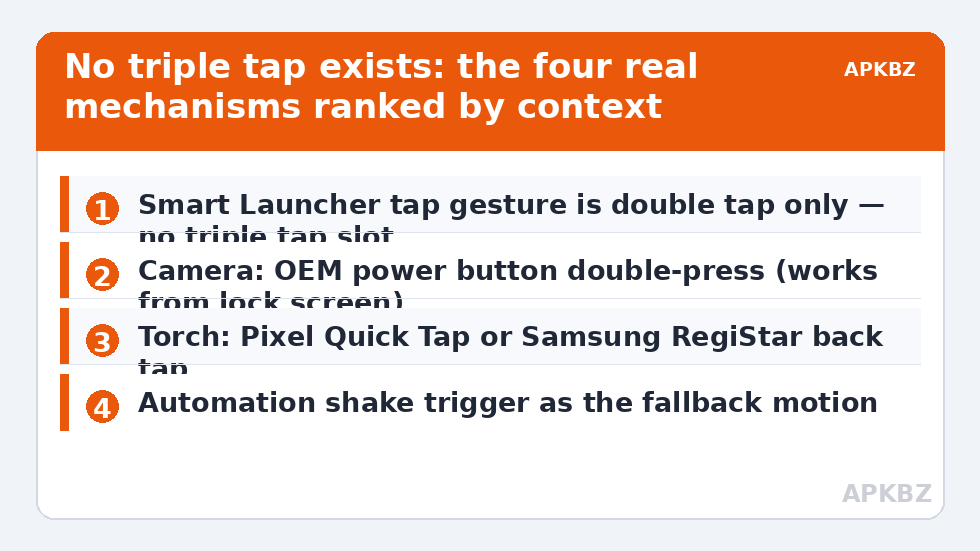
That is not the end of the story, because the goal — torch and camera reachable in under a second, eyes-free — is entirely achievable through four real mechanisms this launcher ecosystem does offer: the double tap assignment itself, icon gestures, physical button shortcuts, and a small automation assist. This guide builds the best version of the setup from those honest parts, and along the way explains why the platform probably omits triple tap deliberately: each added tap multiplies false triggers and detection delay, which is why even OEM “triple tap” features live on the back of the phone (Pixel’s Quick Tap, Samsung’s RegiStar back-tap actions) rather than on the screen.
Triple Tap Gestures Flashlight Camera Quick Toggle Alternatives, Ranked
| Mechanism | Path | Best job |
|---|---|---|
| Power button double-press | OEM system gesture | Camera — the classic, works screen-off |
| Back double-tap (Quick Tap / RegiStar) | Pixel / Samsung system feature | Torch or camera, screen on or off |
| Smart Launcher double tap | Gestures and inputs | Lock screen — or torch via shortcut if you prefer |
| Icon gesture on torch/camera icon | Long-press icon > gesture | Home-screen-only secondary access |
| Automation (MacroDroid/Tasker) | Shake or button triggers | Chop-for-torch style motions and combos |
Building the Fastest Honest Setup
- Camera goes to the power button. Enable your OEM’s double-press-power for camera (Settings → System → Gestures on Pixel; Advanced features → Side button on Samsung). It works from the lock screen, which no launcher gesture can claim, and the camera is the app where a saved second matters most.
- Torch goes to the back tap, if your phone has one. Pixel: Settings → System → Gestures → Quick Tap to start actions → Use Quick Tap → set to Toggle flashlight. Samsung: install/open Good Lock’s RegiStar and assign Back tap (double) to the torch. Two firm taps on the phone’s back panel — the true home of “tap tap” features.
- Smart Launcher’s double tap keeps its best job — locking the screen, per the double tap to lock guide. If you do not use double-tap-to-lock, the slot can instead fire a torch shortcut on builds whose action list offers one, making the screen double tap your torch and the back tap your spare.
- Add the icon-gesture layer for home screen redundancy: assign a torch app icon’s swipe-up gesture to the camera, or vice versa, following icon gesture pairings — useful when the phone is unlocked and already in your hand on the home screen.
- Rehearse each path twice. Speed features you have not practised do not exist in the moment you need them; the dark stairwell is not where you want to remember which tap does what.
Treat these numbers as a starting point: apply them in Smart Launcher 6 under Settings → Home screen → Grid, use the layout for a day, then nudge one value at a time — your wallpaper, widget sizes and one-handed reach all shift what feels right.
The Automation Assist for Everything Else
If your phone lacks a back tap and you still want a motion-based torch, MacroDroid’s shake device trigger — the famous chop-chop — is the most reliable remaining option, firing a torch toggle without any screen interaction; pair it with the trigger discipline from gesture shortcuts for Tasker automation. Set the shake sensitivity conservatively and exclude it while in a car cradle if bumps toggle your torch on the motorway. Volume-button long-press via a remapper is the other eyes-free path, with the setup and caveats laid out in mapping physical button presses.
- Torch timeout: some automation setups add an auto-off after a few minutes; a forgotten torch is a hot phone and a dead battery by morning.
- Camera from the lock screen opens in its secure mode on most phones (you can shoot, but the gallery shows only this session’s photos) — a privacy feature working as intended, not a bug in your shortcut.
- If back tap fires in your pocket, raise its sensitivity requirement (“Require stronger taps” on Pixel) before abandoning it; pocket fabric taps are a known tuning issue.
Why This Layered Answer Beats a Fake Triple Tap
Assign each tool to the context where it is strongest: buttons and back taps when the screen is off or the phone is in a pocket, launcher gestures when you are already looking at the home screen, automation for the exotic remainder. The result is faster than any hypothetical triple tap — because it works from the lock screen, which a launcher gesture never can — and it uses only features your phone verifiably has. Record the final arrangement in writing with the rest of your map and preserve it via the gesture configuration backup routine; button and back-tap assignments live in system settings, outside the launcher backup, and are the first things forgotten at phone-change time. Category index: Gesture Setup.
Splitting the Pair: One Feature per Tool, Rehearsed
The most common failure of the layered setup is generosity: users assign the torch to the back tap and a double tap and an automation, and the camera to two different buttons, until no one — including the owner — remembers which route works from which screen state. Discipline beats coverage. Give the camera exactly one primary route (the power button, which works everywhere it matters) and the torch exactly one primary route (the back tap, or the double tap if you swapped it), and let the icon-gesture layer be a conscious bonus rather than a coequal system. Then rehearse the pair as a pair: phone in pocket, out, camera, shoot, pocket; lights off in imagination, back tap, torch on, back tap, off. Thirty seconds of rehearsal on setup day converts two settings into one reflex, and the reflex is the actual product — the settings were only ever the means. If a route goes unused for a month, retire it rather than letting it linger as a trap for a stressful moment.
Frequently Asked Questions
Does Smart Launcher 6 really not have a triple tap gesture?
Correct. Its tap-based gesture is the double tap, assignable in Gestures and inputs. There is no triple-tap slot in current builds. Tap-based multi-tap features that do exist on Android live elsewhere: Pixel’s Quick Tap and Samsung’s RegiStar act on the back of the phone, and OEM power-button double-presses handle the camera.
What is the fastest way to open the camera?
The power button double-press, enabled in your OEM’s gesture settings. It works from the lock screen and inside any app context where the system allows, which no launcher surface gesture can match. The camera opens in secure mode from the lock screen — you can shoot immediately, and gallery access is limited to the current session.
Can the Smart Launcher double tap toggle the flashlight instead of locking?
On builds whose gesture action list includes a torch/flashlight action or a shortcut to one, yes — assign Double tap to it and give locking to another route. Most users get more value from double-tap-to-lock plus a back-tap torch, but if you use the torch far more than you gesture-lock, the swap is legitimate.
My back tap keeps triggering in my pocket. Fix?
On Pixel, enable “Require stronger taps” in the Quick Tap settings; on Samsung’s RegiStar, adjust the sensitivity/thickness settings and check your case is not flexing against the sensor area. Also confirm the action is set to toggle the torch rather than open an app you are mistaking for accidental behaviour.
Is a shake-to-torch automation reliable?
With conservative sensitivity, yes — MacroDroid’s shake trigger is a mature feature. The failure modes are environmental (vehicle vibration, running with the phone in hand), so exclude contexts where the phone is shaken for other reasons, and add a torch auto-off timeout as insurance.