
You take a few photos, press Home, and instead of your familiar screen you get a blank beat, a spinner of redrawn icons, and widgets rebuilding themselves one by one. Used occasionally it is an annoyance; happening after every camera session it makes the phone feel broken. The important thing to understand is that the camera did not damage Smart Launcher 6. Taking photos — especially high-resolution, night-mode or video work — uses so much memory that Android evicts background processes to make room, and an unprotected launcher is an early casualty. When you press Home, the launcher is not resuming; it is starting from scratch. Fix the eviction and the reload goes away. Our APKBZ home page links the rest of this unofficial guide series.
Confirm it is a restart, not just a slow redraw
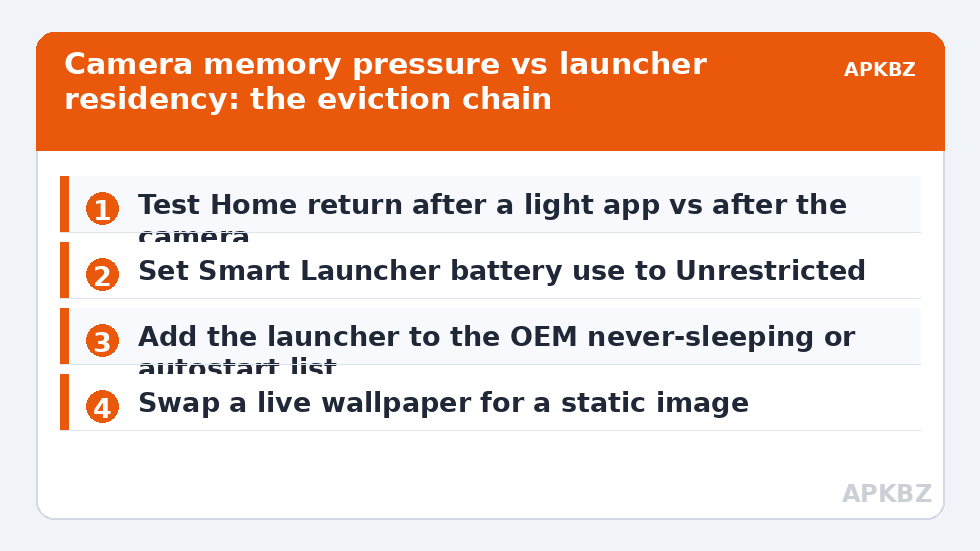
The two look similar but need different remedies, so spend two minutes separating them. Use a light app — Settings, or a notes app — for a minute, then press Home. If the home screen returns instantly, the launcher can stay resident under gentle pressure. Now open the camera, take a burst of photos or a short 4K clip, and press Home again. A full reload after the camera but not after light apps is the signature of memory eviction: the size of the previous app is the variable that changed the result.
Watch what reloads. Icons appearing in waves, widgets showing placeholders, and a wallpaper that arrives late all indicate a cold start. A screen that is complete but stutters for a second suggests rendering load instead, such as heavy blur over a live wallpaper. Also notice whether other recent apps have been evicted too: if your browser has lost its page and your music app has restarted, the phone is under broad memory pressure, not suffering a launcher-specific fault.
Why the camera is such a heavy neighbour
A modern camera app is one of the most memory-hungry things a phone runs. It holds large sensor buffers, processes multi-frame computational photography, writes big files, and on many phones loads AI models for scene detection and night modes. Video adds sustained encoding on top. Android’s low-memory management responds by reclaiming background processes in a rough order of importance, and it judges a backgrounded launcher — however essential it feels to you — as reclaimable unless something marks it as worth keeping. On phones with 4GB to 6GB of RAM this can happen after a handful of photos; on 8GB and above it usually takes video, night mode, or another heavy app running alongside.
None of that is a defect in the camera or the launcher. It is a budgeting decision by the system, and your job is to change the budget inputs: protect the launcher’s place, and reduce what competes with it. The broader memory picture is covered in our batch-1 guide to reducing launcher RAM consumption on budget phones.
Treat these numbers as a starting point: apply them in Smart Launcher 6 under Settings → Home screen → Grid, use the layout for a day, then nudge one value at a time — your wallpaper, widget sizes and one-handed reach all shift what feels right.
Fix 1: exempt Smart Launcher from battery and memory management
This is the decisive step in most cases, because OEM battery managers on Xiaomi, Samsung, Oppo and similar phones evict more aggressively than stock Android does, and they do not exempt a third-party launcher automatically. Set Smart Launcher’s battery use to Unrestricted in Settings > Apps > Smart Launcher > Battery, then add the OEM layer: Autostart and No restrictions on MIUI/HyperOS, Never sleeping apps on One UI, and background activity allowances on ColorOS. Locking the launcher’s card in Recents helps on some skins. The related guide to launcher redraw lag when returning home walks through the same ground from the lag angle, and the two fixes overlap almost completely.
Give the change a fair test: a day of normal camera use, not a single photo. Eviction behaviour varies with everything else the phone is doing, and one successful Home press proves little.
Fix 2: reduce what the launcher must rebuild
Even a resident launcher benefits from a lighter rebuild, and a launcher that is occasionally evicted will return far faster if its home screen is cheap to draw. The big costs are predictable: live wallpapers, heavy background blur, and image-heavy widgets such as photo frames and news carousels. You do not need a bare screen. Swapping a video wallpaper for a static image, trimming one photo widget, or reducing blur radius can cut reload time noticeably while keeping the look you like. If the reload remains but completes in a blink, for many people the problem is effectively solved — the goal is a home screen that feels instant, not a theoretical guarantee the process never restarts.
Fix 3: check storage, updates and the camera’s own habits
A phone with nearly full storage behaves badly under memory and I/O pressure alike, because caches cannot grow and the system works harder to reclaim space. Keep a few gigabytes free if you can. Keep Smart Launcher and the camera app updated, since both receive fixes for exactly this class of behaviour after major Android releases. Then look at your camera settings honestly: if you rarely need 200-megapixel stills or 8K video, shooting at more modest settings reduces both file sizes and the processing peak that triggers evictions. That is a trade-off only you can judge — the point is that the reload and the camera mode are connected, and changing the mode is a legitimate lever, not an admission of defeat.
When it is not memory at all
Sometimes the reload after the camera has a duller cause. If the home screen reloads after every app, not just heavy ones, the launcher may be crashing rather than being evicted — look for an error dialog, and try the sibling guide to recurring ‘isn’t responding’ errors if dialogs appear. If it reloads only when you use a particular camera mode or a third-party camera app, that app may be leaking memory or holding resources after it closes; test with the stock camera to compare. If the whole phone stutters and heats after photos, suspect gallery processing — cloud backup uploads and media scanning after a big shoot can keep a phone busy for many minutes, and the launcher reload is one symptom among several. In that case, test with backup paused. Finally, if reloads began immediately after a system update, re-check the exemptions from Fix 1 before anything else: updates resetting those lists is a well-worn pattern in this category, also covered in our drawer stutter guide where the same reset shows up differently.
| Test result | Interpretation | Next step |
|---|---|---|
| Reload after camera and games, fine after light apps | Memory eviction under load | Battery/memory exemption for the launcher |
| Reload after every app, with error dialogs | Launcher crashing, not evicted | Crash troubleshooting; remove recent widgets |
| Everything reloads, phone warm after photos | Broader pressure: gallery sync, scanning, heat | Pause backup and retest; free storage |
| Started right after a system update | Exemptions likely reset | Re-apply default and battery settings first |
Work in that order and most owners find the camera and the launcher can coexist perfectly well. The phone was never too weak for both; it was simply never told that the launcher should be the last thing it lets go of.
Frequently Asked Questions
Why does the home screen reload only after I use the camera?
Because the camera uses exceptionally large amounts of memory for sensor buffers and image processing, so Android evicts background processes to make room. If Smart Launcher is not exempt from battery and memory management, it is evicted too, and pressing Home forces a full cold start.
Will adding a RAM booster app stop the reloads?
No — boosters make eviction worse by clearing cached processes and adding their own background load. The effective fix is the opposite: protect the launcher with an Unrestricted battery setting and your manufacturer’s never-sleep or autostart list so the system leaves it resident.
How much RAM does a phone need to avoid this?
There is no clean threshold, because camera modes, other apps and OEM management matter as much as the headline figure. Phones with 4GB to 6GB show the problem most often, especially with night mode or 4K video, but correct exemptions make even modest phones behave well in normal use.
Does lowering my camera resolution really help?
It can, at the margins. Very high-resolution stills and high-bitrate video create the largest processing peaks. If reloads happen only in your heaviest camera mode, using a slightly more modest mode for everyday shots reduces the pressure that triggers eviction.
My home screen reloads after every app, not just the camera. Is it the same fault?
Probably not. Reloads after light apps suggest the launcher is being killed constantly by battery management, or is crashing. Check for error dialogs, re-apply the full exemption stack, and if dialogs appear, work through crash troubleshooting instead.


