Replying to messages while a document stays open, watching a train time above your chat, checking a recipe beside a timer — split screen is the most genuinely productive trick Android has, and also the most fiddly to start. Three taps in Recents, a long-press, a second app hunt: by the time the pair is open, the moment has passed. So the search for a launch split screen gesture Android shortcut is completely understandable. This guide gives you the honest version: a Smart Launcher gesture cannot perform the split itself, but it can fire the thing that does, and that distinction is what makes the setup work instead of mysteriously failing.
Read the next section before assigning anything, because it decides your whole route. If your phone supports saved app pairs — Samsung’s system is the most complete, and recent Pixel and other builds have added their own — you are one shortcut away from a true one-gesture split. If it does not, you will get a reliable two-step version instead, and you will know exactly why the fully automatic version is not something any launcher can honestly promise.
The Honest Limit: Gestures Launch Things, They Do Not Split Screens
Smart Launcher’s action picker contains apps, shortcuts and launcher actions such as opening Smart Search or expanding notifications. Splitting the screen is a window-management operation owned by Android and your phone maker, and it does not appear in that picker as a native entry on standard builds. Any tutorial that tells you to simply select Split screen in the gesture list is describing a different launcher, a different phone, or a feature that is not on your device.
What a gesture can do is launch a shortcut — and a saved app pair is, from the launcher’s point of view, a shortcut-like object that the system created. Samsung app pairs can live as icons; some other brands expose pair launching through their own widgets or the Recents save flow. Bind the gesture to that object and the chain completes: gesture, shortcut, pair, split. This pattern — gesture as trigger, shortcut as bridge — recurs across advanced setups, and the same thinking powers the guide to gesture shortcuts for automation workflows. Keep that model in mind and many apparently missing features become reachable. The library index is on the apkbz homepage.
Treat these numbers as a starting point: apply them in Smart Launcher 6 under Settings → Home screen → Grid, use the layout for a day, then nudge one value at a time — your wallpaper, widget sizes and one-handed reach all shift what feels right.
Step One: Create and Test the App Pair
- Open the first app of your pair, then open Recents and choose the split screen option from the app’s header icon or menu — the exact label varies by brand.
- Select the second app so both are running split, arranged the way you like them, including which one sits on top.
- Look for a save option: on Samsung, the pair can be added to the home screen or Edge panel from the split divider menu; on Pixel and other recent builds, Recents may offer to save the pair where your version offers it.
- Place the resulting pair icon on your home screen temporarily, even if it will not stay there.
- Leave split view, tap the pair icon once, and confirm both apps reopen together in the right order. Do not proceed until this works as a plain icon — the gesture can only be as reliable as the shortcut beneath it.
If your phone offers no save option anywhere in that flow, note it and skip to the fallback section below rather than hunting through settings for a feature your model does not ship.
Step Two: Bind a Gesture to the Pair
- Long-press empty home screen space, open Home screen settings then Gestures and inputs.
- Choose the gesture slot for the pair. A deliberate motion — pinch or double tap — suits a heavy action like splitting better than a casual swipe you might perform by accident.
- In the action picker, choose the shortcuts route and select your app pair entry. Its name and location in the picker vary: Samsung pairs may appear among shortcuts or as their own item type depending on build.
- Return to the home screen and perform the gesture once. Both apps should arrive split, in order.
- Repeat from a different home screen page and after locking and unlocking the phone, to make sure the pair survives normal state changes.
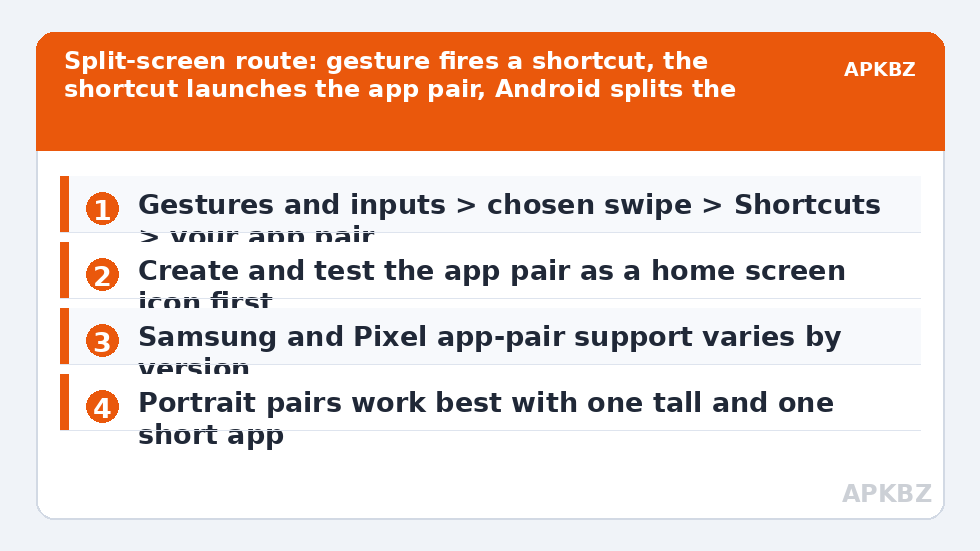
Choosing the slot matters more than it looks. A split is a context change: whatever you were doing on the home screen disappears behind two apps. Accidental splits are genuinely disruptive, which is why the pairing advice later keeps this action off your most casual swipe. Readers who already use swipe up for the drawer, as in the guide to swipe up on icons for secondary apps, often find double tap or pinch the natural home for the pair instead.
The Fallback When Your Phone Cannot Save Pairs
No pair-saving, no problem — just one extra step. Bind your chosen gesture to launch the first app of the pair normally. When it opens, tap Recents, choose split from its header, and pick the second app, which Android conveniently lists with your recent apps first. With practice this is a gesture plus two taps and about three seconds. It is less elegant than a saved pair, but it is honest, universal, and works on effectively every Android phone of the last several years.
| Phone situation | Best route | Motions needed |
|---|---|---|
| Samsung with app pairs | Pair icon bound to a gesture | One gesture |
| Recent Pixel or similar with pair saving | Saved pair bound where the picker exposes it | One gesture, verify after updates |
| No pair saving | Gesture launches first app, Recents split adds second | One gesture plus two taps |
| Foldable or tablet | Brand’s own pair or taskbar system, gesture optional | Varies; the big screen usually has its own flow |
Choosing Pairs That Earn the Gesture
- Chat over reference: messages above a browser, document or map — the classic, worth it daily.
- Notes beside source: a notes app beside the article, lecture or meeting page you are summarising.
- Media above conversation: video in the top third while comments or chat run below.
- Travel stack: maps above messages during a journey, so directions survive the conversation.
Limit yourself to one gesture-bound pair. Two pairs means two memorised slots spent on a feature most people use in one dominant combination, and the second pair will be forgotten within a fortnight. If a second pair becomes genuinely daily, revisit — the map can grow when the habit proves itself. This setup also combines well with reviewing your split-screen choices after a month, alongside the tuning in gesture sensitivity and accidental triggers, and with the wider set under Gesture Setup, including assigning the freed swipe to something lighter like the shade. Finally, back up your launcher configuration: pair shortcuts are system objects that may need recreating on a new phone, but your gesture assignments restore cleanly and only need re-pointing at the fresh pair.
Frequently Asked Questions
Can a Smart Launcher gesture open split screen directly?
Not by itself. Smart Launcher gestures launch apps, shortcuts and launcher actions, and there is no native split-screen entry in that action list on standard builds. The working route is indirect: create an app pair or split shortcut using your phone maker’s feature where offered, then bind the gesture to that shortcut.
Which phones support app pair shortcuts?
Samsung Galaxy phones have the most complete app pair system through the Edge panel and home screen pair icons. Pixel and other brands have added pair-saving in recent Android versions, but availability varies by model and update. Check your Recents screen for a split or save pair option; if it is absent, no launcher gesture can invent it.
What if my phone has no app pair feature?
Use the two-step fallback: bind the gesture to launch the first app, then use the standard Recents split option to add the second. It is one extra tap rather than a true one-gesture split, and any guide claiming a launcher alone can do more on such a phone is overstating what launchers are allowed to do.
Why did my pair shortcut stop working after an update?
App pairs are created and owned by the system or OEM layer, and updates sometimes invalidate them. Recreate the pair, test the new icon, then re-select it in the gesture action picker. The gesture itself usually survives; the shortcut underneath it is the part that changed.
Which app pairs are actually worth a gesture?
Pairs you open together repeatedly: messages over a browser, notes beside a document, video above comments, or maps beside a chat during travel. A pair you use twice a month does not deserve one of only four global swipes; open it manually from Recents instead.