

Advice on how to reduce launcher RAM consumption on budget phones usually starts with a myth, so let’s bury it first: free RAM is not the goal. Android is designed to keep memory occupied with cached processes so apps reopen instantly; a phone showing 80% RAM used is healthy, and “RAM cleaner” apps that empty it make everything slower and cost battery by forcing cold starts. The real problem on a 3GB or 4GB phone is narrower — when memory pressure gets high enough, the system starts evicting things you notice: your launcher redraws, widgets stall, apps reload. To reduce Smart Launcher 6 RAM consumption on a 3GB/4GB phone in a way that actually matters, you trim what the launcher holds (icons, widgets, wallpapers, pages) and reduce the competition around it, so eviction stops reaching it.
Measure before you trim
Check what Smart Launcher is actually holding: Settings > Apps > Smart Launcher shows storage, and on many builds Developer Options > Running services (or Memory > Memory used by apps) shows its resident size. On a typical setup a launcher sits in the rough region of 80–200MB depending on how much it is hosting; widgets and wallpaper services it hosts can double the apparent figure. Numbers vary a lot by device and load, so treat any single reading as a snapshot, not a verdict. What matters is the symptom: is the launcher being evicted (you will see redraws, covered in redraw lag when returning to the home screen) or is it resident but the phone still struggles? Those are different budgets.
Trim 1: widgets — the biggest lever you control
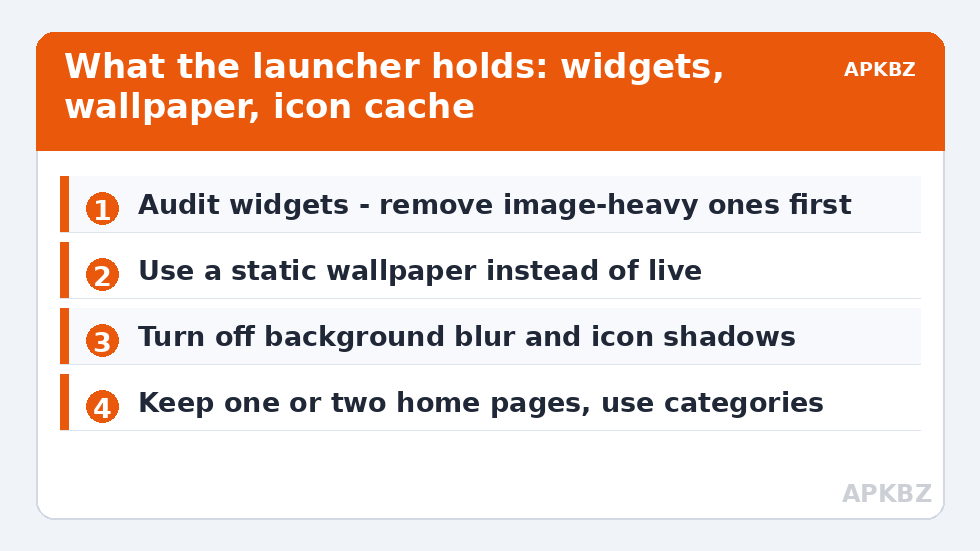
Every widget is a remote view rendered by its own app but hosted, laid out, and kept alive by the launcher. A home screen carrying a weather suite, a news feed, a music player, a calendar, and a photo frame is really five mini-apps sharing the launcher’s memory space. On a 3GB phone, audit hard:
- Remove widgets whose information you actually open the app for anyway.
- Prefer one information-dense widget over three overlapping ones.
- Photo-frame and feed widgets that preload images are the heaviest class; on budget hardware they are the first cut.
This is unglamorous and it is also where most of the recoverable memory lives. The same audit helps on bigger phones, but there it is optional polish; at 3GB it is the difference between a launcher that stays resident and one that does not.
Treat these numbers as a starting point: apply them in Smart Launcher 6 under Settings → Home screen → Grid, use the layout for a day, then nudge one value at a time — your wallpaper, widget sizes and one-handed reach all shift what feels right.
Trim 2: wallpaper and effects
A live wallpaper is a second process plus a full-screen bitmap (or several) held in memory; on a small-RAM phone, switching to a static image is the single largest one-tap saving available, and static also dodges the whole family of stalls in live wallpaper freezing and lag on Smart Launcher 6. Below that: reduce background blur (blurred panels hold extra rendered buffers), turn off icon shadow effects, and avoid animated icon packs. Each is small; stacked together on constrained hardware they are the margin between eviction and residency.
Trim 3: pages, icons, and drawer load
Smart Launcher’s category-based organisation is lighter than a ten-page grid, which is one reason it suits budget phones. Still, you can help it: keep the home to one or two pages, let categories hold the long tail of apps instead of pinning everything, and if you use an icon pack, prefer a mainstream pack with proper adaptive icons over an exotic one that forces the launcher to render and cache masks for hundreds of apps at unusual sizes. After changing packs, one cache clear (Settings > Apps > Smart Launcher > Storage > Clear cache) lets the icon cache rebuild at a sane size — cache only, never data, as detailed in clearing the cache safely without losing layouts.
Reduce the competition, not the launcher
If the launcher is already lean but still gets evicted, the memory is going elsewhere: typically a heavy social app suite, a game left resident, or the OEM’s own bundled services. Two legitimate moves exist. First, uninstall or disable OEM bloat you never use (via Settings > Apps; leave system components alone unless you are certain what they are). Second, protect the launcher’s residency with the battery exemptions in preventing OEM battery savers from killing the launcher — on budget phones the vendor manager is often more trigger-happy, and an exempt launcher survives sweeps that evict unprotected residents. Trade-off, again stated plainly: exemptions trade a safety throttle for stability; applied to the launcher alone, that is a good trade.
What not to do
Do not install a booster. Do not force-stop apps in a loop; Android will restart the persistent ones and bill you for the churn. Do not chase swap/zRAM tweaks from forums unless your device exposes them officially — on most budget phones the OEM already tuned zRAM for the hardware, and second-guessing it trades launcher stability for benchmark theatre. And do not judge success by a “free RAM” number: judge it by a week with no redraws, widgets that stay current, and apps that reopen where you left them. That is what memory health looks like from the user’s chair. For the full budget-device picture, including Android Go builds, continue to optimising Smart Launcher settings for low-end Android Go devices and the rest of the Fixes & Battery hub.
The zRAM footnote, explained without folklore
Budget phones lean on zRAM — a compressed swap area inside RAM itself — to stretch 3GB further than it should go, and forum advice to “increase swap” or disable zRAM circulates endlessly. Here is the honest version: zRAM is why your 3GB phone works as well as it does; the compression trades a little CPU for a lot of effective memory, and OEMs size it for the specific hardware. Some phones expose a “RAM expansion” or “virtual RAM” feature that adds slow flash-based swap on top — enabling it can reduce hard evictions of the launcher at the cost of slower paging and extra flash wear, a trade that is sometimes worth it on 3GB devices and rarely on 4GB ones. Test it for a week if your phone offers it officially; ignore any version of the tweak that requires root, a terminal, or a stranger’s script. And keep perspective: swap settings rearrange the lifeboat. The widgets and wallpaper you removed in the sections above are the passengers you put ashore.
Frequently Asked Questions
How much RAM should a launcher use?
It depends heavily on what it hosts. A bare launcher is often in the 80–150MB region, while wallpapers, widgets, and large icon caches can push the hosted total far higher. Judge by symptoms — evictions and redraws — rather than by chasing the smallest possible number.
Do RAM cleaner apps help on 3GB phones?
No — they hurt. Clearing cached processes forces expensive cold starts, and Android refills the memory anyway. Cleaners also run their own background services and ads. Removing heavy widgets and live wallpapers achieves more, permanently.
What is the single biggest memory saving for a launcher setup?
Replacing a live wallpaper with a static image, followed closely by removing image-heavy widgets such as photo frames and news feeds. Both remove continuously held buffers and rendering work that a budget phone cannot spare.
Why does my launcher get killed even though free RAM shows in settings?
“Free” figures include cached memory that the system reclaims under pressure, and OEM battery managers evict on their own rules regardless of the headline number. Exempting the launcher from the vendor battery manager is what protects its residency.
Should I move Smart Launcher or my apps to the SD card to save space?
Keep the launcher on internal storage. Cards are slower and mount late at boot, which causes redraws and can even cost the launcher its default status. If you must move apps to a card, move large, rarely used ones — never the launcher.


