Search for kids mode home screen layout android and you will find plenty of cheerful icon packs and very little honesty about what a launcher can and cannot protect. This guide separates the two jobs clearly. The launcher’s job is curation: a friendly page containing only approved apps, arranged so a child can succeed unaided. The guarding — what can be installed, bought, watched and for how long — belongs to Android’s own parental tools. Build both layers, and a borrowed phone or a child’s first tablet becomes something you can hand over without hovering.
Layer one: build the curated kids page
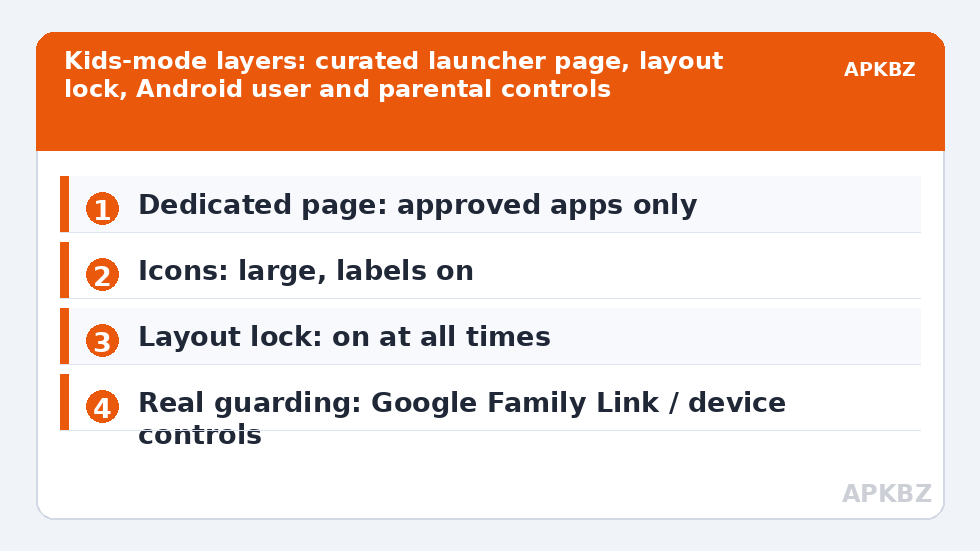
Add a dedicated home page, or dedicate the whole home screen on a child’s own device, and stock it like you would stock a playroom shelf: few things, all chosen, nothing sharp. Large icons with labels on help early readers connect words to pictures. Order the page by the child’s own routine — the game they always start with first, drawing next, stories last — rather than by your categories, because this screen is theirs.
Choose a bright, simple wallpaper that is not a photograph of people, and keep widgets minimal: a big clock is harmless and even useful, while weather and news widgets add text, taps and exits you did not plan. Every element on the page should be something you are content for the child to open alone at 7 a.m.
Treat these numbers as a starting point: apply them in Smart Launcher 6 under Settings → Home screen → Grid, use the layout for a day, then nudge one value at a time — your wallpaper, widget sizes and one-handed reach all shift what feels right.
What belongs, and what never belongs
Approve apps by opening them yourself first, including their settings screens. Turn off in-app purchases at the store level, sign children’s video services into their kids profiles, and check whether a friendly-looking game contains open chat or unmoderated user content — that distinction matters more than cartoon graphics.
- Yes: offline games, drawing and music-making, camera, kids-profile video, audiobooks and stories.
- Careful: anything with ads, browsers disguised as games, and apps that reward daily-login pressure.
- No: web browsers, app stores, social apps, messaging with strangers, and your own banking, work or shopping apps.
The no list is why the curated page must sit on top of real controls: a child who cannot see the store on the page but can install anything from a notification has a decoration, not a boundary.
The protection steps lean on two earlier guides: the lock home screen layout guide and the hide unused apps guide. The design discipline mirrors building a senior-friendly home screen — different audience, same respect for the user — and simple grouping ideas come from organising home screen folders. Browse more via the APKBZ home page.
Layer two: lock the layout and reduce exits
Turn on the layout lock once the page is built so icons cannot be moved, deleted or long-pressed into edit mode by experimental fingers. Hide the apps you do not want surfaced from the drawer and search where your version supports hiding, and think about gestures: a swipe that opens a full app drawer or a store page undermines the curation, so reassign or accept them consciously rather than by default.
On a parent’s phone, Android’s screen pinning is the strongest simple tool for younger children: pin the single app for the session and the child cannot wander at all until you unpin with your PIN. It turns lending your phone in a waiting room from a supervised activity into a relaxed one.
Layer three: the controls that actually guard
This is the layer that does the safety work, so do not skip it because the page looks tidy. Set up Google Family Link or your device maker’s equivalent for the child’s account: require approval for new installs and purchases, set content ratings, and agree screen-time and bedtime limits in the open. On a shared family tablet, a separate Android user profile for the child keeps their apps, and your apps, in genuinely different rooms.
Test the whole system like an adversary and like a child — try to buy something, try to reach a browser, try to change the layout. The gaps you find in five minutes of testing are the gaps that matter, and they are almost always in settings, not in the launcher page.
Layer three: the controls that actually guard
| Layer | Tool | What it controls |
|---|---|---|
| Curation | Kids home page | What is easy to open |
| Stability | Layout lock and hiding | What stays where you put it |
| Session control | Screen pinning | Staying inside one app |
| Real guarding | Family Link / user profiles | Installs, purchases, content, time |
Age the layout as the child grows
A kids layout should be rebuilt, not just loosened. At each stage — first tablet, first phone, first messaging with friends — revisit the page deliberately with the child, promote new responsibilities onto it in the open, and retire what has been outgrown. Children accept boundaries they watched being built far better than invisible ones they discover by tripping over them.
Keep a launcher backup of each stage before rebuilding. It preserves the option to step back a stage for a week if a new freedom proves too much, and it documents a small piece of family history you will be unexpectedly glad to have kept.
Setting expectations: scripts for the grown-ups
The technical layers work better when the human agreements around them are explicit, and three short conversations cover most friction. The first is with the child, at their level: this page is yours, these are your apps, the rest of the phone is grown-up tools the way the kitchen knives are grown-up tools. Children who hear the reasoning accept the boundary as a property of the world rather than a personal suspicion. The second conversation is with other adults who may hand over their own phones — grandparents especially — so the family’s standard travels: screen pinning on, approved app only, phone back if an advert or pop-up tries to lead somewhere else.
The third conversation is with yourself, about your own consistency. A kids page undermined by a parent casually unlocking the full phone for a moment of peace in a restaurant queue teaches the real rule: boundaries are negotiable under pressure. Everyone has that moment and nobody should feel judged for it, but noticing it honestly is what lets the system recover the next day. Revisit the agreement at each rebuild stage, involve the child more as they grow, and let the layout be what it is best at being — a visible, friendly expression of rules the family has already agreed together, rather than a substitute for agreeing them.
Frequently Asked Questions
Does Smart Launcher 6 have a built-in kids mode?
Smart Launcher does not centre on a dedicated one-tap kids mode in the way some family launchers do. A safe kids layout is something you build: a curated home page with approved apps only, protected by a layout lock and, importantly, by Android-level controls such as a separate user profile or Family Link.
Can a launcher layout alone keep a child safe?
No, and any guide claiming otherwise is overselling. A curated page controls what is convenient, not what is possible. Real protection comes from device-level tools: content filters, store purchase approval, app installation limits and time limits managed by the parent’s account.
How do I stop a child leaving the kids page?
Use Android’s screen pinning for single-app sessions with younger children, or a separate restricted user profile for older ones, alongside the curated page. Screen pinning keeps one app in front until an adult unpins it with the device PIN.
Which apps belong on a kids home page?
Only apps you have opened yourself and approved: a couple of games, a drawing app, an approved video app in its kids configuration, camera and a story or audiobook app. No browser, no store, no messaging with strangers, and nothing with open chat.
Should the kids layout live on the parent’s phone or a child’s own device?
Both patterns work. On a parent’s phone, treat the page as a lending mode combined with screen pinning. On a child’s own device, build the whole home screen as the kids layout and manage the device with proper parental controls from day one.