Every phone has one: a folder named Utilities containing nineteen apps, three of which anyone can identify. Smart Launcher 6 home screen folders do not have to end that way. Because Smart Launcher already organises the full app list into drawer categories automatically, its home screen folders can be reserved for a narrower, more valuable job — the small groups you open in sequence, in a context, with one thumb. This guide covers creating folders, the grouping and naming rules that keep them scannable, and the light upkeep that stops folder rot.
Create your first folder the deliberate way
Start in edit mode rather than by accident. Decide the folder’s job in one sentence — paying things, controlling the house, messaging family — then pick the two apps that best represent that job and combine them: long-press the first, drag it onto the second, and release. The folder forms with both inside. Add the remaining members one at a time from the home screen or drawer, stopping the moment the next candidate app needs a justification speech.
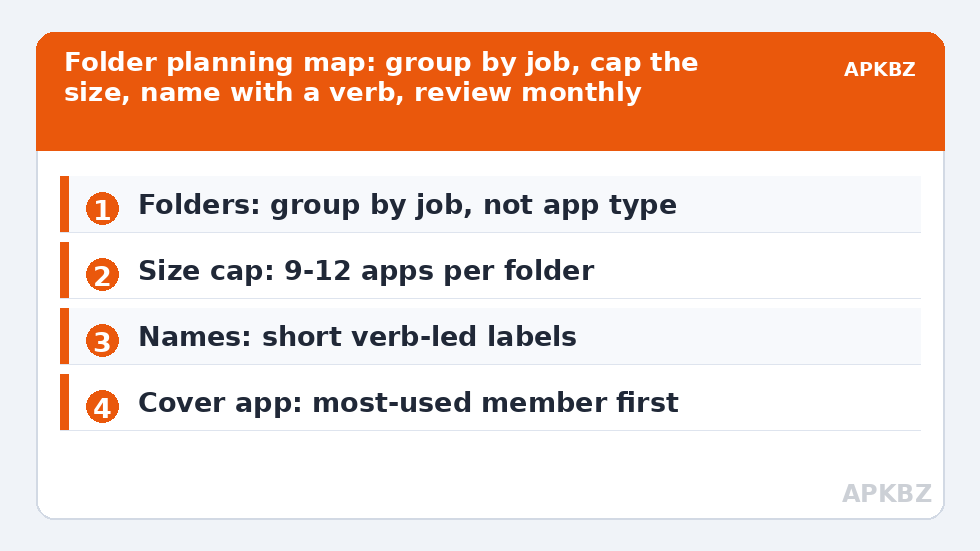
Name the folder immediately, while its purpose is fresh. A folder renamed later is usually renamed vaguely, because by then even its owner has forgotten the original intent. If your version lets you choose a cover or first-position app, put the most-used member first: it becomes the folder’s face and its fastest tap.
Treat these numbers as a starting point: apply them in Smart Launcher 6 under Settings → Home screen → Grid, use the layout for a day, then nudge one value at a time — your wallpaper, widget sizes and one-handed reach all shift what feels right.
The grouping rule: by job, never by app type
The single decision that separates useful folders from junk drawers is grouping by job instead of software category. A folder called Travel that holds maps, airline, translation, currency and photos gets opened in real sequences. A folder called Tools that holds a calculator, a VPN, a file manager and a torch gets opened never, because no real moment calls for that combination.
- Pay: bank, wallet, bills, loyalty cards.
- Home: lights, heating, vacuum, doorbell.
- Family: chat, shared photos, location, school app.
- Create: camera, editor, notes, scanner.
Notice each list is a situation, not a genre. When an app serves two situations, place it in the one where you open it most and rely on search for the other.
Folders work best alongside the drawer system explained in our custom app categories guide and the category page setup guide. The same grouping thinking powers two specialised builds: creating a safe kids-mode layout and building a senior-friendly home screen. Start from the APKBZ home page for more.
Sizing, covers and visual order inside the folder
Cap folders at nine to twelve apps. That range fits one folder view without scrolling on typical configurations, which preserves the folder’s whole point: seeing everything at once. Inside the folder, order by frequency with the top row reserved for daily members. The bottom row is where apps go to be forgotten, so anything that sinks there for a month is a candidate for removal back to the drawer.
Keep folder count on the home screen itself low — three to five folders is a working set, ten is a filing cabinet. Each folder should also earn its place against the Flower: your very top apps belong in the open, not buried one tap deep inside even the prettiest folder.
Folders versus categories: using both without duplication
| Surface | Scope | Access | Best use |
|---|---|---|---|
| Home screen folder | 9-12 apps | One tap, then choose | Job-based frequent groups |
| Drawer category | All matching apps | Swipe up, then tab | Complete automatic organisation |
| Flower favourites | 5-7 apps | Direct tap | Single most-used apps |
| Smart Search | Every app | Swipe plus typing | Occasional and new apps |
The monthly two-minute folder audit
Folders rot quietly because nothing ever looks broken. Counter it with a tiny ritual: once a month, open each folder and ask three questions. Is every app here still used for this job? Has anything new joined the job and earned a place? Could this folder merge with a neighbour or split into two clearer jobs? Two minutes, no more — the point is frequency, not thoroughness.
Finish by backing up the launcher once the folders are in a state you are proud of. Folder memberships and positions are part of the saved configuration, and a restore on a new phone should bring your filing system with it rather than a factory approximation.
Worked examples: three folders rebuilt properly
Abstract rules land better with evidence, so here are three real-world folder rescues described in general terms. The first was the classic nineteen-app Utilities folder. Audited by job, it dissolved into a four-app Pay folder, a three-app Home folder, and twelve apps that returned to the drawer without a single one being missed in the following month — because seven of them had been opened, in total, twice in a year. The folder had not been organising anything; it had been storing guilt.
The second case was a Travel folder built correctly from the start for a two-week trip: airline, maps, translation, currency, bookings, photos. It was the most-used folder on the phone for fourteen days, and on day fifteen its owner archived the whole folder back to the drawer in one edit, keeping only maps and photos on the screen. That lifecycle — build for a job, use intensely, retire whole — is the sign of a healthy folder, not a failed one. The third case was a Family folder that kept failing because it tried to hold both daily messaging and rarely used school administration apps; splitting it into Family for the daily four and a drawer category for the rest ended the complaints. The pattern across all three is identical: folders succeed at the size of a real, recurring human job, and fail at every other size, usually while looking perfectly tidy in a screenshot.
One more habit separates tidy folder systems from decaying ones: every new app earns its folder place on arrival, not at the next audit. When you install something, spend the five seconds then — file it into its folder, leave it in the drawer, or admit it belongs on the open screen. Apps installed in a hurry and left wherever the system dropped them are the seeds of the next junk folder, because a cluttered surface quietly lowers the standard for everything placed after it. Five seconds at install time is the cheapest organisational habit in this entire guide, and the one whose absence is most visible a year later.
Frequently Asked Questions
How do I create a folder on the Smart Launcher 6 home screen?
In a grid layout, long-press an app and drag it onto another app you want grouped with it, and a folder forms containing both. In Flower-centred layouts the exact gesture varies by version, but folder creation always begins from edit mode by combining two icons or using the add-folder option where offered.
How many apps should one folder hold?
Nine to twelve is a practical ceiling for a home screen folder. Beyond that the folder becomes a miniature drawer you have to browse, which defeats its purpose. Split larger groups by sub-job, such as Banking and Bills, rather than growing one folder.
Can I use folders instead of drawer categories?
They serve different speeds. Folders are for small sets you open constantly from the home screen; categories organise everything, including apps you open twice a year. Most tidy setups use both, with folders holding the frequent subset of a category.
Why did my folder disappear after an app update?
It usually has not disappeared — an app was uninstalled or disabled, shrinking the folder, and a folder reduced to one app may collapse back to a single icon on some versions. Re-add the missing app or a replacement and rebuild the pair.
Do folders follow the Ambient theme?
Smart Launcher’s own folder panels are launcher surfaces, so they follow the launcher theme, including Ambient tinting from your wallpaper. The folder contents keep their normal app icons unless you apply an icon pack across the launcher.