Setting up a phone for an older parent or relative fails in a predictable way: the person doing the setup builds the phone they would want, only larger. A good senior friendly android home screen setup starts from the opposite direction. It asks what the owner actually does — call three people, message family, take photos, check the time and weather, perhaps video-call grandchildren — and it builds exactly that, with big forgiving targets, plain words and nothing that rearranges itself. Smart Launcher 6 is a solid base for the job because its home screen is one composed page and its drawer files everything else automatically.
Step one: set size at the system level first
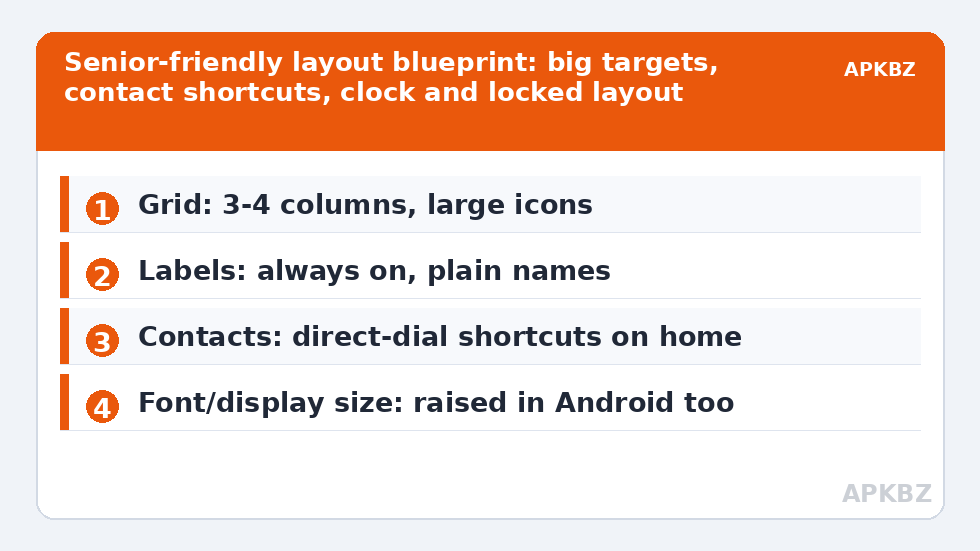
Before touching the launcher, open Android Settings and raise both font size and display size one or two steps. This is the change most setups miss: launcher icons can be enormous while the text inside every app stays tiny, and the owner concludes the phone is simply hard. System-level sizing carries into messages, settings and most apps, so the whole device becomes easier, not just its first screen.
Then open Smart Launcher’s home screen settings and choose a sparse grid — three or four columns — with icon size pushed large where your version offers the control. Keep icon labels switched on permanently, and choose a plain, high-contrast wallpaper with no pattern behind the icons. Photographs of family make lovely wallpapers and terrible backgrounds; if a family photo is wanted, place it in a widget frame rather than behind the grid.
Treat these numbers as a starting point: apply them in Smart Launcher 6 under Settings → Home screen → Grid, use the layout for a day, then nudge one value at a time — your wallpaper, widget sizes and one-handed reach all shift what feels right.
Step two: the essential screen, and nothing else
Build one page. On it, in a stable order the owner can memorise by position: Phone, Messages, Camera, Photos, and the family’s group chat app. Add a large clock widget with the date written out in words, because knowing it is Tuesday matters more than knowing it is the 14th. Add weather only if the owner actually checks it; every unnecessary element is a small tax on finding the necessary ones.
- Names over icons: rename shortcuts in plain language — Call Mary beats a contact icon with a surname.
- Photos for people: use contact photos for direct-dial shortcuts wherever possible.
- No folders: a folder is a hidden second step; essentials live in the open.
- No stacks: swipeable widget stacks hide content behind a gesture the owner may never discover.
Resist adding just-in-case apps. The drawer, with its automatic categories, holds everything else, and the owner can be shown one reliable route — swipe up, tap the big category — rather than a home screen crowded with precautions.
Two batch-one guides complete this build: the lock home screen layout guide for the finishing protection step, and the minimalist home screen layout guide for the discipline of showing less. The mirror-image project is creating a safe kids-mode layout, and if a folder or two is genuinely needed, our guide to organising home screen folders keeps them simple. More from the APKBZ home page.
Step three: direct-dial contacts as first-class citizens
For many older users the phone is, in order, a way to reach specific people, and everything else is a distant second. Honour that in the layout: place direct-dial or direct-message shortcuts for the three to five most important people on the home screen itself, ideally with photos. One tap should start the call or open the conversation — no contact app, no search field, no favourites tab.
Include one shortcut that matters in a bad moment: the person to call in an emergency, labelled plainly. Some families also add the doctor or pharmacy. Test each shortcut together with the owner, from the locked layout, so the teaching happens on the real screen rather than a demonstration version of it.
Step four: reduce surprises to near zero
Surprises are the enemy. Turn off news feed pages and discover-style surfaces where your version offers them, because content that changes daily makes the screen feel unreliable. Avoid live wallpapers and auto-changing wallpaper carousels for the same reason: the owner should be able to trust that the screen in the morning is the screen from yesterday. Choose notification badges sparingly — a red number on Messages is information, but badges on a dozen apps is low-level alarm.
Also audit what a long-press does. Owners exploring by touch will long-press things, and the calmer the result, the better. This is another argument for the layout lock, covered next: with editing locked, the most common exploratory gesture becomes harmless.
Step four: reduce surprises to near zero
| Element | Senior-friendly choice | Why |
|---|---|---|
| Grid | 3-4 columns | Largest, most forgiving targets |
| Labels | On, plainly renamed | Words are checked when icons are uncertain |
| Pages | One | Nowhere to get lost |
| Folders and stacks | Avoid | No hidden second steps |
| Layout lock | On | Prevents accidental rearrangement |
Step five: teach three gestures, then lock the layout
Teach exactly three things in person: tap to open, the home button or gesture to get back to the safe screen, and swipe up to see all apps. Write them on a card kept with the phone if that helps. Everything else — settings, customisation, updates — is the helper’s department, and saying so kindly removes a whole category of anxiety.
Then lock the layout so icons cannot be moved or removed by long-presses, disable any home screen elements prone to accidental activation, and take a full launcher backup stored somewhere the helper controls. When — not if — something eventually looks wrong, the fix is a restore or a visit, not a distressed phone call conducted one confusing screen at a time.
The handover visit: a checklist that respects everyone
The setup deserves a proper handover, ideally in person and unhurried. Sit where the phone will actually be used — the kitchen table, the favourite chair — because lighting and glare differ from your desk, and adjust brightness and size there rather than in theory. Make one real phone call together using the direct-dial shortcuts, send one real message, and take one real photo, so the first use of every essential happens with help present rather than alone at midnight.
Then agree the support arrangement out loud. Which changes will the helper make remotely or on visits? What should the owner do when something looks wrong — the honest answer is usually nothing beyond pressing home and waiting for help, and saying so removes the fear of breaking things. Leave the written card with the three gestures, your own number as a printed shortcut if it is not already on the screen, and the date of the backup you took. Finally, schedule a light review in a fortnight. Needs settle: an app added in week one enthusiasm may prove unused, a label may need plainer words, a grandchild’s video app may deserve promotion. A senior-friendly screen is not installed once; it is tuned twice and then left peacefully alone, which is exactly the relationship with technology its owner was asking for all along.
Frequently Asked Questions
What grid size works best for a senior-friendly home screen?
Three or four columns with generous spacing gives large, forgiving tap targets. Prioritise the size of the target over the number of apps shown, because everything beyond the essentials can live in the drawer or be reached with help from search.
Should I increase text size in Android settings or just in the launcher?
Both, deliberately. Android’s display and font size settings affect the whole system, including other apps, while launcher icon size and labels affect the home screen. Set the system size first, then tune the launcher so the two feel consistent.
How do I add one-tap calling for family members?
Add contact or direct-dial shortcuts and widgets from the widget and shortcut picker, placing the most important people on the main screen with their photos where possible. A photo of a grandchild is recognised faster and more warmly than a name in a list.
Can I stop the layout being changed accidentally?
Yes. Once the screen is arranged, turn on the layout lock so long-presses cannot move or remove icons, and take a launcher backup. Accidental edits are the most common way a carefully built senior setup unravels.
Is Smart Launcher 6 itself suitable for older users?
Its single composed home screen, automatic app categories and search suit the goal well, because there are fewer places for things to hide. The setup work described here matters more than the choice of launcher: big targets, few choices and a locked layout.