
Every home screen icon is hiding a second layer. Press and hold the messaging icon and a Compose shortcut appears; hold the calendar and you can jump straight to a new event; hold your browser and a fresh tab is one lift of the finger away. Users who discover this go looking for how to customize long press actions Android icons offer — to rewrite those menus with their own favourite actions. The honest answer shapes this whole guide: the shortcut list belongs to each app, not to the launcher, so you cannot rewrite it. But Smart Launcher 6 wraps that list in its own icon tools, and between pinning shortcuts, assigning icon gestures and tuning press duration, you can reshape the long-press experience far more than most people realise.
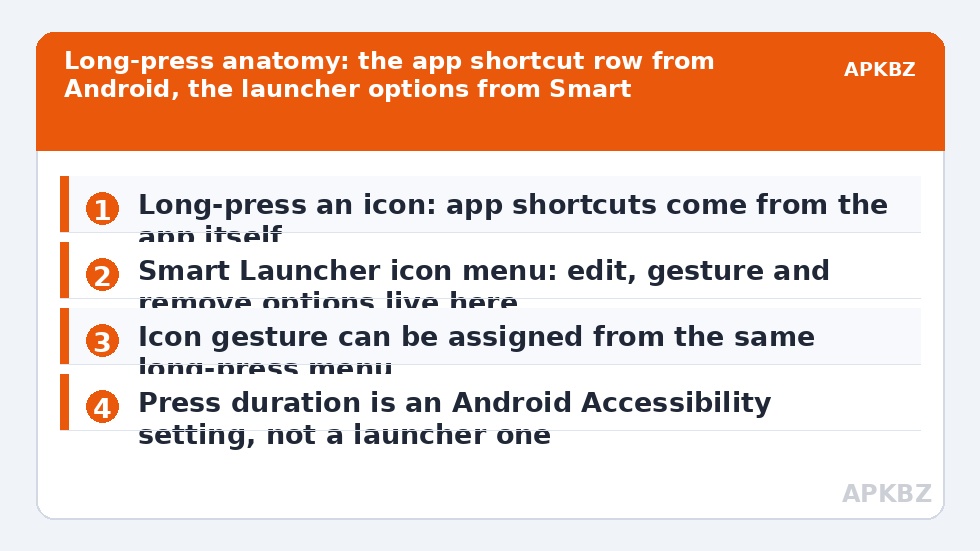
Think of a long-press as two menus sharing one motion. Android contributes the app’s shortcuts. Smart Launcher contributes editing and organisation: rename, change the icon, assign its swipe gesture, move or remove it. Knowing which layer owns which line in the menu tells you instantly what is customisable and what is fixed — and stops you hunting through launcher settings for an editor that does not exist. The rest of this article works layer by layer, then builds a practical setup for the icons you touch most.
The App Shortcut Layer: Powerful, but the App Owns It
App shortcuts — formally, Android’s shortcuts system — are deep links each developer publishes inside their own app. A mail app offers Compose; a maps app offers Home and Work navigation; a music app offers a recent playlist. Smart Launcher’s job is only to display them faithfully when you long-press. It cannot add a shortcut the developer never defined, remove one you dislike from that row, or reorder another app’s list. If a favourite app shows an empty menu, that is a gap in the app, full stop.
What you can do with this layer is promote from it. Where your Android version and the app support it, a shortcut can be pinned — dragged out of the long-press menu onto the home screen as its own icon, so New event or Navigate home stops being a press-and-hold secret and becomes a first-class tap target. Pinning quality varies: some pinned items keep the parent app’s icon badge, some become generic-looking. Test the few you care about rather than mass-pinning everything. This pairs naturally with the approach in the guide to swipe up on icons for secondary apps, because a pinned shortcut and an icon gesture solve adjacent problems — one adds an icon, the other hides the second action inside an existing one. Return to the apkbz homepage for the category map when planning which icons deserve treatment.
Treat these numbers as a starting point: apply them in Smart Launcher 6 under Settings → Home screen → Grid, use the layout for a day, then nudge one value at a time — your wallpaper, widget sizes and one-handed reach all shift what feels right.
The Launcher Layer: What Smart Launcher Lets You Change
- Long-press an icon and study the full menu, separating the app’s shortcut rows from Smart Launcher’s own options — typically icon editing, gesture assignment and removal tools.
- Choose the edit option to rename the icon or change its picture. Short names survive small icon sizes; a two-word label beats a truncated four-word one.
- From the same menu, open the icon’s gesture entry where your version offers it, and assign its swipe-up action. This is the launcher layer’s most powerful customisation: a second destination on the same icon.
- Repeat for your five most-used icons only. Treating twenty icons turns the system into homework and the gestures into trivia you forget.
- Long-press empty space afterwards and review the layout as a whole — the goal is a home screen whose hidden layer you could describe from memory.
A subtle but important point: per-icon customisations — renamed labels, changed icons, assigned gestures — live in the launcher’s database, not in the apps. Changing icon packs or restoring a backup can reset some of them, so after any big visual change, spot-check your treated icons. The maintenance habit from the article on backing up gesture configurations applies to icon treatment exactly as it does to global gestures.
Press Duration: The One Real Sensitivity Knob
Unlike gesture detection, long-press timing does have a system control — it just does not live in the launcher. Many Android builds expose a Touch and hold delay under Accessibility settings, with Short, Medium and Long choices. If you keep triggering long-press menus while trying to scroll a page or drag an icon, Medium usually fixes it without making deliberate long-presses feel sluggish. If an older relative struggles to hold still long enough, the same setting in reverse — plus larger icons — makes their phone kinder. Remember the change is system-wide: it also affects long-presses inside apps, in the keyboard and everywhere else Android uses the gesture.
| You want to… | Layer that owns it | Route |
|---|---|---|
| Add a Compose entry to Mail’s menu | The app | Not possible; use a pinned shortcut or gesture instead |
| Make Navigate home a tap target | Android shortcuts | Pin it from the long-press menu where supported |
| Open a second app from the same icon | Smart Launcher | Assign the icon’s swipe-up gesture |
| Rename or restyle the icon | Smart Launcher | Edit from the long-press menu |
| Stop accidental long-presses | Android | Accessibility > Touch and hold delay > Medium |
Long-Press on Widgets, Folders and the Dock
The same press behaves differently depending on what it lands on, and knowing the variants saves confusion. On a widget, long-press usually belongs to the widget system: you get resize handles, a remove option or the widget’s own configuration, not app shortcuts — the widget’s host app may not even be the thing you pressed. On a folder, long-press generally opens the folder’s editing tools — rename, and on supported builds the icon gesture assignment discussed earlier — rather than a shortcut list, because a folder is a container, not an app. Icons in the dock or bottom row follow the normal icon rules on most builds, which makes the dock a good home for your most-treated icons: their long-press menus and flick gestures are reachable from every home screen page, not just the one where a shortcut happens to live. If an icon seems to break the rules described in this article, check which of these three objects you are actually pressing before concluding anything is wrong.
A Sensible Long-Press Setup for Busy Icons
Worked examples beat theory. On a messages icon: keep the app’s Compose shortcut in the menu, and assign the icon gesture to your voice-messages or camera action if the app exposes it as a shortcut — now tap opens conversations, hold offers compose, flick jumps to the other mode. On a maps icon: pin Navigate home as a separate small icon near it if you drive often, keeping the long-press for Work. On a browser icon: the long-press New tab shortcut is usually enough; spend its gesture on your saved-articles app instead. On the phone icon: pin or gesture toward favourite contacts, a theme developed fully in the guide to assigning gestures to favourite contacts among the newer pieces in this batch, which pairs with this one as a set.
- Treat a maximum of five to seven icons; beyond that the hidden layer stops being memorable.
- Prefer shortcuts that skip a step (Compose, New event) over ones that merely open the app differently.
- After an app update, re-check its shortcuts — developers add and occasionally remove them.
- If a shortcut matters daily, pin it; hidden daily actions are a tax you pay forever.
Finish by exporting your launcher backup, then explore the rest of Gesture Setup — the long-press layer works best as one tier in a map that also includes considered global swipes and a double tap you trust.
Frequently Asked Questions
Can I change what a long-press on an icon does in Smart Launcher?
Partly. The shortcut list that appears — things like Compose or New event — is supplied by each app through Android’s app shortcuts system, and no launcher can rewrite another app’s list. What Smart Launcher controls is its own icon menu around those shortcuts: editing the icon, assigning its gesture, and organising options. Customising means choosing which of those tools you use, not editing the app’s shortcuts.
How do I turn a long-press shortcut into its own icon?
On builds and Android versions that support pinning, long-press the icon, then drag the shortcut from the menu onto the home screen, or use a pin option where offered. The result is a direct icon for that deep action. Support varies by app — some apps expose shortcuts that cannot be pinned — so test with the specific app you care about.
Why do some icons show no shortcuts on long-press?
Because that app publishes none. App shortcuts are opt-in for developers, and many apps — especially older or very simple ones — never define any. The launcher cannot invent them. For such apps, the nearest equivalent is assigning the icon’s swipe-up gesture to a related app or an automation shortcut.
Can I make long-press open a different app instead?
Not through the long-press itself; that behaviour is fixed by Android and the launcher’s menu design. The customisable equivalent is the icon gesture: assign swipe-up on the icon to the second app, which gives you tap for the main app and flick for the partner. It achieves the two-apps-one-icon goal with a different motion.
My long-press keeps triggering while I scroll. Can I lengthen it?
The press-and-hold duration is governed by Android, and many builds expose a Touch and hold delay in Accessibility settings with short, medium and long options. Raising it makes long-presses more deliberate system-wide, including in other apps, so try Medium before Long.


