Your home screen quietly contains two species that look identical: real apps, and shortcuts — web apps saved from the browser, contact shortcuts, file shortcuts, and deep links into apps. Icon packs theme the first species automatically and mostly ignore the second, which is why a single stubborn tile with a browser badge or a grey generic globe survives every pack change. The good news is that Smart Launcher 6 lets you edit shortcut icons with nearly the same freedom as app icons. This guide separates the species, explains why packs treat them differently, and shows how to give every shortcut a proper, themed face.
Apps, web apps, and shortcuts: what is actually on your screen
A real app owns a component name in the system, and icon packs map artwork to that name. A web app — created when you choose “Add to Home screen” or “Install app” in a browser — is a different creature. Installed web apps (sometimes called PWAs) register enough identity that many launchers treat them almost like apps. Simple home-screen shortcuts, by contrast, are little parcels created by the browser or another app, carrying their own icon image supplied at creation time. They have no stable component for a pack to look up, so no pack update will ever theme them. The icon you got is the icon the creating app chose, frequently its own logo shrunk down, a favicon stretched beyond its dignity, or a generic globe.
Other shortcuts behave similarly. A shortcut into a specific chat, a navigation destination, or a document arrives with an icon chosen by its parent app. Smart Launcher’s automatic category sorting and its icon pack both operate on apps; shortcuts are guests. Once you accept that division, the fix stops being mysterious: shortcuts are edited individually, by hand, and the edit sticks because the shortcut itself stores it. Our general guide to customizing individual app icons covers the editor itself, and everything in it applies to shortcuts with the small differences noted below.
Treat these numbers as a starting point: apply them in Smart Launcher 6 under Settings → Home screen → Grid, use the layout for a day, then nudge one value at a time — your wallpaper, widget sizes and one-handed reach all shift what feels right.
Step by step: changing a shortcut or web app icon
- Long-press the shortcut on the home screen and look for the edit option. On Smart Launcher versions where a shortcut offers fewer long-press actions than an app, open its edit screen through the icon-edit entry rather than the app-info entry — shortcuts have no app info of their own.
- Choose a source. Pick an icon from your current pack for instant theme consistency, from another installed pack, from the stock set, or from your own image. A pack glyph that resembles the site’s purpose — a newspaper, a shopping basket, a train — reads better than a stretched favicon.
- Rename at the same time. Browser-created shortcuts carry long page titles. Shorten the label while you are here, following the same one-or-two-word discipline as our guide to editing app labels. “Bank”, not “Welcome to Meridian Online Banking”.
- Confirm and check the shape. The new icon is masked like every other icon, so verify the glyph survives your mask shape without clipped corners.
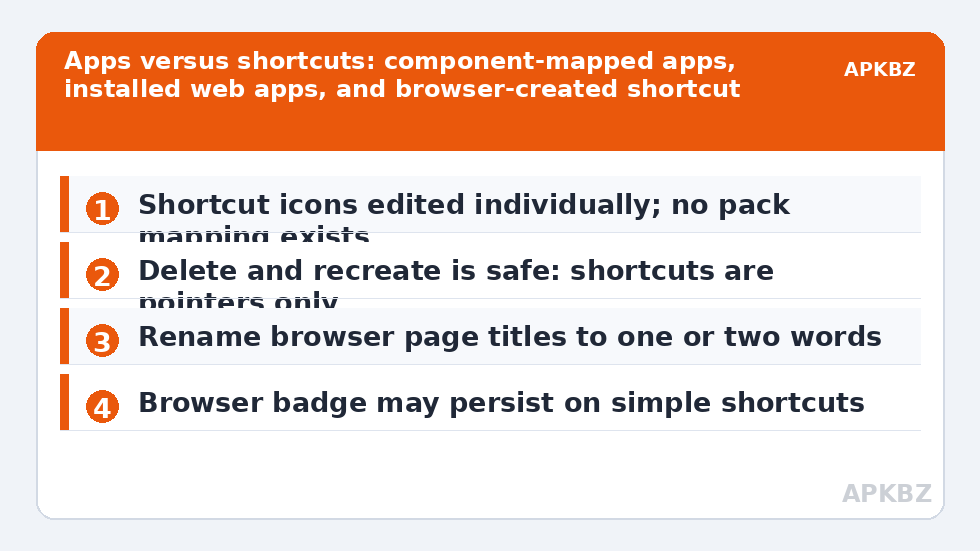
If the long-press menu offers no edit route for a particular shortcut type, the reliable workaround is to delete the shortcut and recreate it after preparing your icon: the recreated shortcut can usually be edited immediately, and its target — the web address or action — is unchanged. Deleting a shortcut never deletes the underlying app, file, or account; it removes only the tile. That fact, which worries many users, is worth stating plainly because it makes experimentation safe.
Choosing icons that make shortcuts recognisable
| Shortcut type | Good icon choice | Avoid |
|---|---|---|
| News or blog web app | The site’s colour as tile with a simple glyph, or its proper logo from a pack | A stretched low-resolution favicon |
| Shopping web app | Basket or bag glyph in your pack’s style | A generic globe that says nothing |
| Contact shortcut | The person’s photo, centred and cropped square | Initials tiles identical to three other contacts |
| File or folder shortcut | A folder glyph or a custom cover image | The file manager’s own app icon, which misleads taps |
Recognition beats branding for shortcuts. You created this tile because you visit that destination often, so the icon’s job is to be found at a glance among themed neighbours. Using your own photo-based icon follows the same preparation rules as any custom image — square, generously sized, subject inside the central safe zone — and the per-icon editor guide already linked above covers that image handling in practice. Treat the table here as the decision layer: what the icon should depict, decided before how to prepare it. For a curated shelf of related reading, the APKBZ home page gathers the series.
When shortcuts misbehave: badges, duplicates, and resets
Three quirks deserve warning. First, some browser shortcuts carry a small badge of the browser’s own icon in the corner; that badge is part of how Android marks shortcut provenance and may persist regardless of your icon edit, though installed web apps from the browser’s install prompt usually arrive badge-free and behave most like real apps. Second, recreating a web app after the site updates its own icon can produce a duplicate tile while the old one lingers; delete the stale tile, since only the shortcut is being removed. Third, a shortcut created by an app can be reset if that app regenerates it — chat shortcuts are the usual suspects — in which case your custom icon may revert and need a fresh edit, a cousin of the problem in our sibling guide to icons reverting after app updates.
A tidy habit closes the topic: whenever you add a shortcut, spend the extra twenty seconds to theme and rename it immediately. Shortcuts added “temporarily” have a way of living on a home screen for two years, and a themed, honestly labelled shortcut stops being visual debt from day one. Your future self, scanning a calm grid, will not remember the twenty seconds — only that everything matches.
A small system for keeping shortcuts themed over time
Because shortcuts are manual creatures, they reward a tiny amount of administration. Keep a single home-screen page or folder as your shortcut shelf while a destination earns a permanent place; this concentrates your unthemed newcomers where you will notice them, instead of scattering them across screens. When you promote a shortcut to a permanent screen, theme and rename it as part of the same gesture. And when you change icon packs — which changes every app icon automatically and no shortcut icon at all — do one slow pass over your shortcut shelf, reassigning the handful whose pack-sourced icons belonged to the old set. Five minutes, once per pack change, is the entire maintenance budget of a themed shortcut collection.
It is also worth distinguishing destinations that deserve a web app from those that deserve a real app. If a service has a proper Android app whose icon your pack themes beautifully, the shortcut problem disappears by upgrading the destination itself. Reserve web apps for services with excellent mobile sites and no app, for secondary accounts you keep signed in through the browser, and for pages — a transit timetable, a documentation hub — that are genuinely documents rather than applications. Chosen that way, your shortcut shelf stays small, and small is what makes manual theming sustainable rather than a recurring chore.
Frequently Asked Questions
Why doesn’t my icon pack theme my web app shortcuts?
Because packs map artwork to app component names, and simple home-screen shortcuts have no component entry in the pack’s index — they carry an icon supplied by the browser or app that created them. Installed web apps sit in between and may be partly recognised. Editing the shortcut’s icon individually is the intended fix, and the change persists.
Will deleting a shortcut delete the app or website account?
No. A shortcut is only a pointer. Deleting it removes the tile from your home screen; the app stays installed, the file stays stored, and the website account is untouched. This makes it safe to delete and recreate a shortcut when its icon cannot be edited directly.
How do I remove the small browser badge on a shortcut icon?
That corner badge is added by Android to mark icons created as shortcuts by another app, and launcher settings cannot reliably strip it. Recreating the destination through the browser’s “Install app” option, where offered, usually produces a true web app icon without the badge. Otherwise, choosing a fuller, busier icon makes the badge less noticeable.
Can I use a photo as a contact shortcut icon?
Yes, through the same icon editor used for apps. Choose a square photo with the face centred in the middle of the frame so the mask shape does not crop it. Contact photos make excellent shortcut icons because recognition is instant, which is the entire purpose of a contact shortcut.