One icon, two apps. That is the quiet trick behind the gesture power users rate highest in Smart Launcher: press an icon and the app opens, but swipe up app icon open secondary popup app behaviour means the same icon can launch a related second app or open a small popup of choices. A messages icon that taps to chat and swipes to compose, a browser icon that swipes to its private window counterpart, a maps icon that swipes straight to navigation — the home screen stays visually minimal while quietly doubling in capacity.
Terminology deserves care, because two related features are easily confused. Smart Launcher supports an icon gesture: assign a swipe-up action to an individual home screen icon, and swiping up on that icon fires the assigned app or shortcut instead of opening the main app. Separately, some builds and companion setups surface a popup/folder-style reveal on icon interaction — a small cluster of related apps presented above the icon. The dependable, documented mechanism is the icon gesture; treat it as the foundation of this guide, with popup behaviour described where builds genuinely offer it rather than promised as universal.
Swipe Up App Icon, Open Secondary Popup App: Setting Up the Gesture
- On the home screen, long-press the icon you want to upgrade. In the context menu, look for the gesture or “swipe action” entry (labelled along the lines of Icon gesture or an edit-icon option that includes gesture assignment, varying by build).
- Choose the secondary target: an app (its natural partner), or a shortcut belonging to the main app or another app — a compose action, a specific chat, a navigation destination.
- Confirm and return to the home screen. Tap the icon once: the main app must still open. Then swipe up on the icon with a short, deliberate flick beginning on the icon itself.
- If the swipe instead scrolls the page or triggers your global swipe-up action, the icon gesture is not registered: re-check the assignment, and start the flick squarely on the icon rather than above it.
Treat these numbers as a starting point: apply them in Smart Launcher 6 under Settings → Home screen → Grid, use the layout for a day, then nudge one value at a time — your wallpaper, widget sizes and one-handed reach all shift what feels right.
Pairings That Earn Their Place
| Icon (tap) | Swipe-up partner | Why the pairing works |
|---|---|---|
| Messages | Compose new message shortcut | Reading vs writing are different intents |
| Browser | Second browser / private mode shortcut | Everyday vs throwaway browsing separated |
| Maps | Start navigation home shortcut | Browse the map vs drive — one flick apart |
| Camera | Gallery | Capture vs review, the classic couple |
| Music app | Podcasts / radio app | Two listening modes, one visual slot |
| Banking app | Budgeting app | Sensitive pair kept off the visual surface |
The pattern to copy is same context, different intent. Pairings that are merely “two apps I like” decay into confusion; pairings where the swipe means “the other mode of this” stay obvious forever. Note the banking row too: an icon gesture can reach an app you have also hidden from the app page, which connects this technique to the concealment approach in stealth gestures for private apps — the icon on screen need not confess everything it can do.
Icon Gestures vs Global Swipes: Who Does What
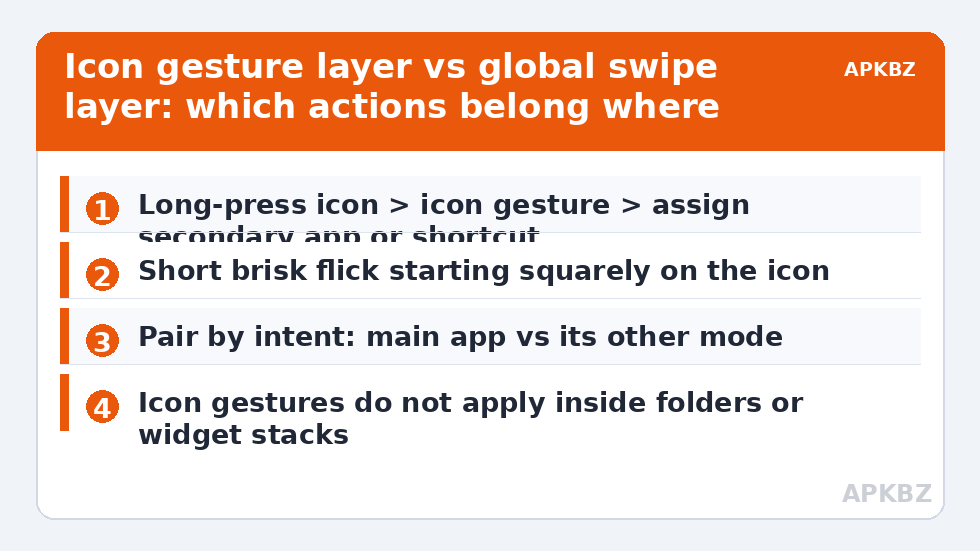
New gesture users often overload one layer and starve the other. A clean division: global swipes (the four directions from the swipe gestures guide) handle system-level destinations — search, notifications, the app page, one flagship app. Icon gestures handle per-app secondaries, scaling with the number of icons rather than stopping at four. If a candidate action is “the partner of this specific app,” it is an icon gesture. If it is “something I want from anywhere on the home screen,” it is a global swipe. Mixing the rule is how maps become riddles.
- Keep icon gestures to your top six to ten icons; beyond that, you will forget which icons are loaded.
- The flick should be short. Users who fail at icon gestures are usually performing a full-screen swipe starting on the icon, which the launcher reads as page interaction.
- After changing an icon pack, spot-check two or three icon gestures; icon replacement flows occasionally reset per-icon customisations on some builds.
When the Icon Gesture Opens the Main App Anyway
Nine times out of ten the flick was too slow or too long. The detector wants a brisk upward flick clearly beginning on the icon; a slow drag becomes a long-press or a scroll. Practise on one icon until the motion is a flick, not a swipe. If technique is right and it still fails, the icon may sit inside a folder or a stacked widget where icon gestures do not apply — move it to the plain home screen grid. And if your build’s icon menu shows no gesture entry at all, your version exposes icon gestures as a Premium or build-dependent feature; the fallback is a folder containing the pair, opened with a tap, which preserves the two-apps-one-slot idea at the cost of one extra tap. Folder behaviour has its own depth in folder animations and icon swipes. Once your loaded icons are set, they are prime content for your gesture configuration backup — per-icon assignments are the most tedious part of a rebuild. Full category: Gesture Setup.
Teaching the Flick: a Week of Muscle Memory
Icon gestures fail socially before they fail technically: people set up six loaded icons, forget which is which by Thursday, and stop flicking. The adoption method that works is embarrassingly plain. Load one icon the first day — the camera-to-gallery pair is the ideal teacher because you use it constantly — and live with it until the flick is reflexive. Then add one pairing per day, never more, each time choosing the next most-used couple from your table. By the end of the week you have five or six pairings that your thumb knows better than you do. Resist loading your whole home screen in one sitting: the ceiling for remembered icon gestures is real, and it sits around eight to ten for most people. A written note in your configuration record — “messages flick = compose, maps flick = navigate home” — costs nothing and rescues the setup the first time a pairing slips your mind after a holiday.
Frequently Asked Questions
What is the difference between an icon gesture and a global swipe?
A global swipe is one of four directions performed anywhere on empty home screen space and fires one global action. An icon gesture is a swipe performed on a specific icon and fires that icon’s own assigned secondary app or shortcut. Icon gestures scale per icon; global swipes are fixed at four.
Can the swipe-up on an icon open a popup of several apps?
On builds offering a popup or folder-style reveal for icons, yes, you can present a small cluster. The universally dependable mechanism is the single secondary target via icon gesture. If your build lacks the popup variant, a folder holding the related apps achieves nearly the same result with one extra tap.
Why does my icon swipe keep opening the main app?
Your motion is registering as a tap or a drag rather than a flick. Start squarely on the icon and flick upward briskly and briefly. Also confirm the assignment exists — long-press the icon and re-open its gesture entry — and that the icon is not inside a folder or widget stack, where icon gestures generally do not apply.
Do icon gestures survive changing icon packs?
Usually, but not always; some icon-pack application flows reset per-icon customisations. After any pack change, test a couple of your loaded icons and reassign any that lost their gesture. Keeping a written list of which icons carry gestures makes the check take two minutes.
Can I assign different gestures to the same icon, like swipe up and swipe down?
Smart Launcher’s icon gesture system is built around the single swipe-up action per icon on current builds. If you need a second action for the same app, pair the icon gesture with a global gesture or a folder rather than expecting multiple per-icon directions.