

Smart Launcher’s categorised app page is its signature: instead of one alphabetical flood, your apps sit in Communication, Media, Games, Tools and friends, sorted automatically. Power users inevitably ask the next question — can an open drawer category swipe gesture skip the drawer entirely and land inside, say, Media, in one motion? This guide answers honestly and then makes you fast anyway. On standard builds, no: gestures can open the app page, but its individual categories are internal views, not gesture targets or shortcuts. What you can build — and what this article builds step by step — is a route so short it stops mattering: one gesture into the app page with your categories ordered for a single follow-up tap, plus promotion routes that take your daily categories out of the drawer altogether.
That second idea is the real prize. Categories are a filing system for the eighty apps you open rarely; the five you open hourly should not live behind any drawer at all, gesture or not. Treat this setup as two projects: compress the drawer route for everything, then exempt your top categories from needing it. The result feels like the feature you asked for, achieved with parts the launcher genuinely ships. The surrounding gesture techniques are indexed from the apkbz homepage.
How the App Page and Its Categories Actually Work
Smart Launcher replaces the conventional app drawer with an app page divided by a category strip — a side or bottom rail of category names or icons, depending on your layout and version. The launcher files apps into categories automatically and, on most builds, lets you rename categories, reorder them, hide ones you dislike, add your own, and correct individual misfilings by moving an app to a different category manually. Opening the app page shows the last category you used or your designated first category, again depending on build and settings worth checking in your own copy.
Now the boundary: a gesture assignment points at an app, a shortcut, or a launcher action. The app page itself is one such action — commonly reached by swipe up by default. A named category inside it is none of those three things; the picker has no per-category entries on standard builds, and the categories do not register as Android shortcuts either. This is the same architecture that limits other requests in this series, and the workaround philosophy is the same too: shorten the real path instead of hunting for a hidden direct one. The general swipe system behind it is covered in configuring swipe gestures for app shortcuts.
Treat these numbers as a starting point: apply them in Smart Launcher 6 under Settings → Home screen → Grid, use the layout for a day, then nudge one value at a time — your wallpaper, widget sizes and one-handed reach all shift what feels right.
Step One: Make the App Page Itself Instant
- Decide your drawer gesture. Swipe up is the classic and the default on many builds; if yours opens something else, weigh whether the app page deserves the slot — for category users, it almost always does.
- Open Gestures and inputs and confirm or assign that gesture to the app page action, labelled App page, Drawer or Show apps depending on build.
- Test that the gesture lands on the app page from every home screen page you use, starting on empty space each time.
- Inside the app page, check which category it opens on. If a setting for the starting category exists where your version offers it, point it at your most-used category so a third of your visits need no further tap at all.
- Remove rivals: if a second gesture or an OEM motion also opens an app list, consolidate, so your hand learns one drawer route only.
Step Two: Order Categories for the One-Tap Landing
- Open the app page and enter its category management — typically via a long-press on the category strip, an edit icon, or the app page section of settings.
- Drag your two most-used categories to the front of the strip, in the order your thumb expects them.
- Hide categories you have not opened in a month. Hidden is not deleted; the apps remain reachable through search and by unhiding.
- Correct the worst misfilings: move the three or four apps you always hunt for into the category where you look for them, regardless of where the automatic sorter put them.
- Leave the manager and rehearse: gesture, tap category, tap app. Time it loosely — the whole sequence should feel like one flowing motion, roughly a second.
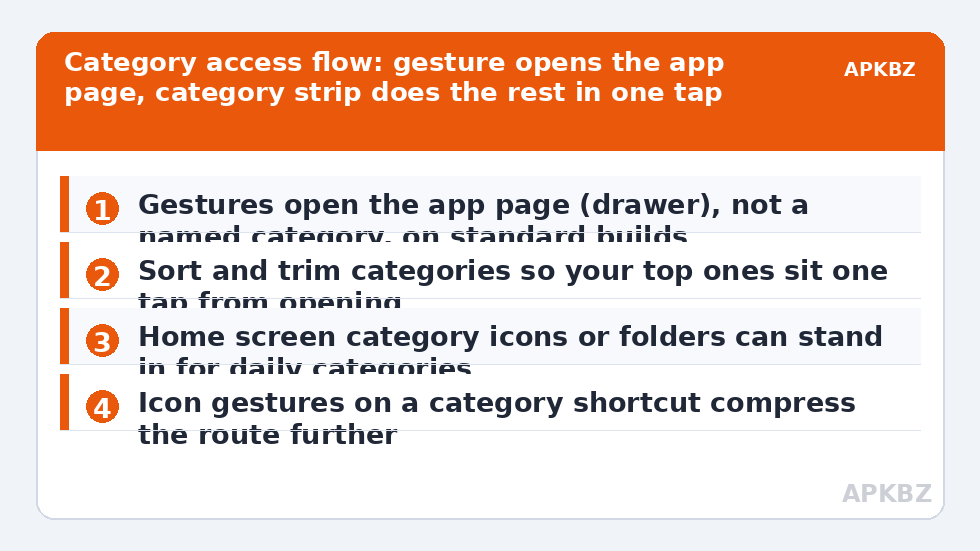
Step Three: Promote Daily Categories Out of the Drawer
| Promotion route | Best for | Cost |
|---|---|---|
| Folder of the category’s top apps on the home screen | A category with three to six true regulars | One home screen slot; manual upkeep as habits change |
| Individual icons for the top two apps | One dominant app per category | Two slots, zero taps to the apps themselves |
| Icon gesture on a related icon | Pairs like browser and reading app | Nothing visible; one flick |
| Smart Search habit | Fast typists with many mid-frequency apps | Bypasses categories entirely for named apps |
Notice the pattern: every promotion trades a little home screen tidiness for a lot of daily speed, which is the correct trade for things you touch hourly. The category system then does the job it is genuinely great at — holding the long tail in findable order — instead of being forced to serve as a launcher for your favourites. The icon-level technique in the middle rows is detailed in the guide to swipe up on icons for secondary apps, and the same thinking produced this batch’s piece on customising long-press actions on icons, which stacks yet another destination onto the icons you promote.
Search: The Category System’s Built-In Bypass
One more honest shortcut deserves naming, because for many users it quietly replaces category navigation altogether: Smart Search. Typing two or three letters of an app’s name is, for a fast typist, quicker than any category route — gesture, strip, scan, tap — especially for mid-frequency apps whose category you would have to recall anyway. This does not make categories pointless; they remain the browsing system, the way you find the app whose name you have forgotten, and the filing that makes the long tail navigable. It does mean your optimisation effort should be spent where categories are genuinely the route — browsing moods, games on a train, tools you use monthly — rather than forcing every app launch through them. A mature setup uses all three systems without loyalty: favourites promoted to the home screen, categories for browsing, search for named targets.
Keeping Categories Honest Over Time
- Monthly five-minute review: scan each category for apps you no longer recognise; uninstall or hide rather than refiling endlessly.
- New app check: after installing anything you will keep, glance at where it was filed while you still remember installing it.
- Category count discipline: five to eight visible categories is the usable band; beyond that the strip itself becomes a scrolling chore.
- Backup after tidying: category order and manual moves live in your launcher backup, so export one after a cleanup session.
Done well, the drawer stops being a place you visit and becomes a place you pass through — gesture in, one tap, app open — while your real favourites never enter it at all. Browse the remaining techniques under Gesture Setup, including category-adjacent ideas like opening specific pages with a swipe, and keep this article’s route in mind the next time a guide promises a direct category gesture that your picker does not list: the honest two-part route here will still be working long after that promise disappoints.
Frequently Asked Questions
Can a swipe gesture open a specific app drawer category directly?
Not on standard Smart Launcher builds. The gesture action for the drawer opens the app page as a whole; individual categories inside it are not exposed as separate gesture targets or shortcuts. The practical setup is a gesture that opens the app page instantly, with your categories ordered so the one you want is a single tap on the category strip.
What is the fastest route to a category I use every day?
Stop routing through the drawer at all. Put that category’s handful of essential apps — or a folder containing them — directly on the home screen, or assign an icon gesture to its most-used member. Categories are an organising system for the long tail of apps; your daily five deserve promotion out of it.
How do Smart Launcher’s automatic categories work?
Smart Launcher sorts apps into categories such as Communication, Media, Games and Utilities automatically, using its own classifications, and you can rename, reorder, hide and manually adjust categories in the app page’s settings on most builds. Because the sorting is automatic, a newly installed app usually lands somewhere sensible without any filing work from you.
Can I create a shortcut to a category and bind a gesture to that?
Only if your build exposes category shortcuts in the gesture picker’s shortcut list, which standard builds generally do not. Check your own picker — if a category entry appears where your version offers it, binding works exactly like any other shortcut. If it is absent, no other app can create a genuine category shortcut for Smart Launcher’s internal pages.
My categories feel messy and slow to use. How do I fix that?
Trim before you optimise gestures. Hide categories you never open, merge thin ones, move your top two categories to the front of the strip, and evict misfiled apps by adjusting them manually. A tidy five-category drawer reached by one gesture beats a fourteen-category museum reached by a clever one.


