Ask a room of Android users to picture a dock and they picture the iPhone: a frosted shelf, four icons, always there. Smart Launcher never built its home screen around that shelf — its answer to the same problem is the Flower, a fan of favourite apps anchored low on the screen. Yet the smart launcher 6 floating fixed dock setup question keeps surfacing, because users arriving from Nova or a stock launcher want to know where their permanent bottom row went and what replaces it. This guide explains how Smart Launcher handles the always-available app strip, how its floating and fixed elements behave, and how to compose the bottom of the screen so the four-to-six apps you always need are always one tap away.
First, an honest vocabulary lesson
Smart Launcher does not offer a classic dock toggle in the way Nova Launcher does, and pretending otherwise would waste your time. What it offers instead are two related mechanisms. The Flower is the home screen’s arc of favourites: it is “fixed” in the sense that it belongs to the home screen itself and is always present there, and its semi-circular arrangement is designed for thumb reach rather than shelf symmetry. Separately, the drawer and category pages have their own persistent elements, and Smart Launcher’s search bar — where you place one — can float over the home screen as a pill rather than occupying a grid row. When users say “floating vs fixed dock” in a Smart Launcher context, they are usually weighing the Flower against keeping a row of pinned favourites on every home page, or asking whether the search pill and Flower overlap awkwardly. Both questions have practical answers.
Smart Launcher 6 floating fixed dock setup: the Flower as your fixed dock
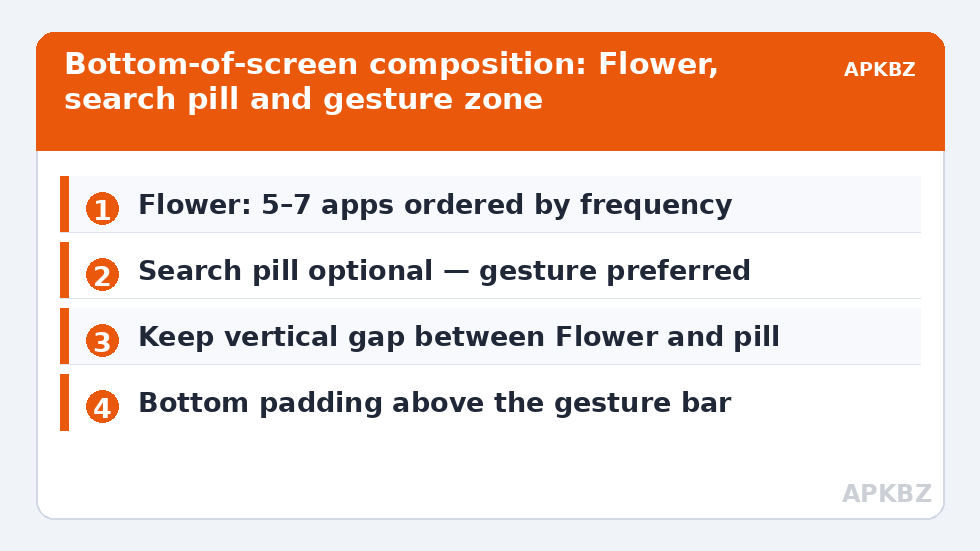
Treat the Flower as the dock and most of the dilemma evaporates. It holds the apps you would have docked — dialer, messages, browser, camera, plus one or two personal staples — and it is present on the home screen permanently. Editing it is a long-press away. Two composition rules make it work as a dock replacement. First, order it by frequency, not aesthetics: the app you open most belongs at the position your thumb lands on most naturally, which for most people is the centre or the side of their dominant hand. Second, respect its size: five to seven members keeps each target large; stuffing it fuller shrinks tap targets and recreates the clutter a dock was meant to tame.
Treat these numbers as a starting point: apply them in Smart Launcher 6 under Settings → Home screen → Grid, use the layout for a day, then nudge one value at a time — your wallpaper, widget sizes and one-handed reach all shift what feels right.
The floating search pill and the bottom edge
The genuinely floating element in Smart Launcher’s home composition is the search bar. Where your layout uses one, it can sit as a floating pill near the bottom of the screen — visually hovering over the wallpaper rather than carved into the grid — and it can coexist with the Flower if your composition gives each its own vertical territory. The failure mode to avoid is stacking the search pill directly against the Flower so the two crowd the same two centimetres of glass; the fix is composition, not settings: Flower low, search pill above it with a clear gap, or drop the pill entirely and reach Smart Search with the swipe-up gesture, which most long-term users end up preferring. Our Smart Search guide covers making that gesture path fast enough to replace a visible bar.
If your instinct is to replicate a multi-page setup with a persistent bottom row, read the multi-page vs single page analysis in this Layout Tweaks series first — Smart Launcher’s single-home-screen philosophy is precisely an argument that the dock question dissolves when the drawer and search are strong.
Floating vs fixed thinking, applied
| Approach | In Smart Launcher terms | Best for | Watch out for |
|---|---|---|---|
| Fixed shelf (classic dock) | The Flower, always on the home screen | Muscle-memory users coming from iOS/stock launchers | Only exists on the home screen, not over apps |
| Floating element | Search pill hovering near the bottom edge | Search-first users who want a visible target | Crowding if placed against the Flower |
| Gesture replacement | Swipe up for Smart Search; no visible strip | Minimalists; maximum wallpaper | Guests cannot discover it — your phone, your rules |
| Category bar as dock | Drawer category tabs for grouped favourites | Users who think in groups, not single apps | One extra tap versus the Flower |
Ergonomics: the bottom of the screen is prime real estate
Modern phones are tall, and the bottom fifth of the display is the only region a thumb reaches without a grip shift. Whatever you place in the Flower/search zone should be justified by frequency, because that territory is precious. It is also the zone most polluted by gesture navigation: the system home bar and back gestures live there too. If taps on low icons occasionally trigger system gestures instead, your Flower sits too close to the screen’s bottom edge — increase the home screen’s bottom padding if your version exposes it, or accept the system’s gesture inset and let Smart Launcher’s default spacing handle it. A day of deliberate use retrains the thumb angle for most people.
A practical bottom-of-screen recipe
For the majority of users this composition simply works: Flower with six apps ordered by frequency with your top app at thumb-centre; no search pill (gesture instead) unless you are still building the search habit; clock widget in the upper-middle where it does not fight the bottom cluster; and a home screen lock enabled once composed, so the arrangement survives pockets and children. Review it monthly — the sixth Flower seat should always be contested by whatever app is rising in your usage, because a dock, fixed or flowered, is only as good as its current relevance.
What about the app drawer button?
One more bottom-edge question deserves a straight answer: Smart Launcher has no mandatory all-apps button squatting in the centre of a dock, because the drawer opens by gesture (swipe up into search, or the drawer gesture your build assigns). Former dock loyalists sometimes read this absence as a missing feature; it is better understood as the dock’s final evolution — the entire bottom edge became the button. If you strongly prefer a visible target, the search pill described above is your on-screen anchor, and it opens something more useful than a grid of everything: a search field that already knows what you are likely to want. Give the gesture version a genuine week before bolting the training wheels back on; most converts report that the visible button becomes the thing they cannot imagine wanting again.
A note on muscle memory when switching launchers
If you arrived from a dock launcher this week, expect a clumsy fortnight. Your thumb will keep landing on an absent shelf centre where the all-apps button used to live. That is not evidence the Flower is worse — it is evidence you had ten thousand repetitions of the old map. The Flower’s arc becomes equally automatic at roughly the same repetition count the dock once took, and most switchers stop noticing the change inside two weeks.
Frequently Asked Questions
Does Smart Launcher 6 have a dock like Nova Launcher?
Not a classic shelf-style dock. Smart Launcher’s equivalent is the Flower — the arc of favourite apps fixed to the home screen — supplemented by the category drawer and Smart Search. Most users find the Flower covers the dock’s job once it is ordered by frequency.
What is the floating element at the bottom of the screen?
Usually the search bar rendered as a floating pill over the wallpaper. It can coexist with the Flower if you leave vertical space between them, or you can remove it and open Smart Search with the swipe-up gesture instead.
How many apps should the Flower hold if I use it as a dock?
Five to seven. That range keeps tap targets generous and mirrors what a traditional dock holds. Order them by how often you open them, with the most frequent at your natural thumb position.
Can I have a persistent app row on every home page?
Smart Launcher is built around a single home screen composition rather than paged grids with a shared dock row. The Flower serves that persistent role on the home screen; additional pages, where used, are for widgets rather than parallel app grids.
Why do my low icons sometimes trigger system gestures?
Android’s gesture navigation zone sits at the very bottom edge. If low icons feel unreliable, increase home screen bottom padding where your version offers it, and give your thumb a day to adjust — the launcher’s default spacing already accounts for the gesture inset on most devices.