The fastest way to open an app on Android is not a folder, a dock or a home screen grid — it is three keystrokes. When you customize Smart Launcher 6 Smart Search properly, a swipe up and two or three letters gets you to almost any app, contact or setting on the phone. Out of the box the search page works well enough, but its defaults are generic: it searches everything, shows suggestions you may never use, and asks permission for things many people never approved consciously. This guide walks through every meaningful setting on the Smart Search page, in the order you should configure them, so the page behaves like a tool built around your habits rather than a demo screen.
What the Smart Search page actually does
Smart Search is the page you reach by swiping up on the home screen (or tapping the search bar, if you keep one there). It combines four things in a single field: app launching by name, contact lookup, on-device content such as shortcuts, and web search through your default browser or search provider. Smart Launcher 6 indexes your installed apps automatically, including apps in the drawer categories, so typing two letters is normally enough to surface a match. The page also remembers your recent searches and can surface frequently used apps as quick suggestions before you type anything. Which of these behaviours you actually want is personal — a work phone benefits from contacts and calendar shortcuts, while a media phone may only ever need apps and web search.
Step one: choose what Smart Search is allowed to search
Open Smart Launcher Settings, go to the Smart Search section and work through the content toggles first. The exact labels differ slightly between Smart Launcher versions, but you are looking for options along these lines:
- Apps: leave this on permanently. It is the entire point of the page, and it has no privacy cost because the index never leaves the device.
- Contacts: useful if you call or message people often. It requires the Contacts permission; without it, the toggle simply does nothing.
- Shortcuts and settings: surfaces system shortcuts and in-app shortcuts (for example a direct “new message” action) inside results. Worth enabling on phones where you use long-press shortcuts elsewhere.
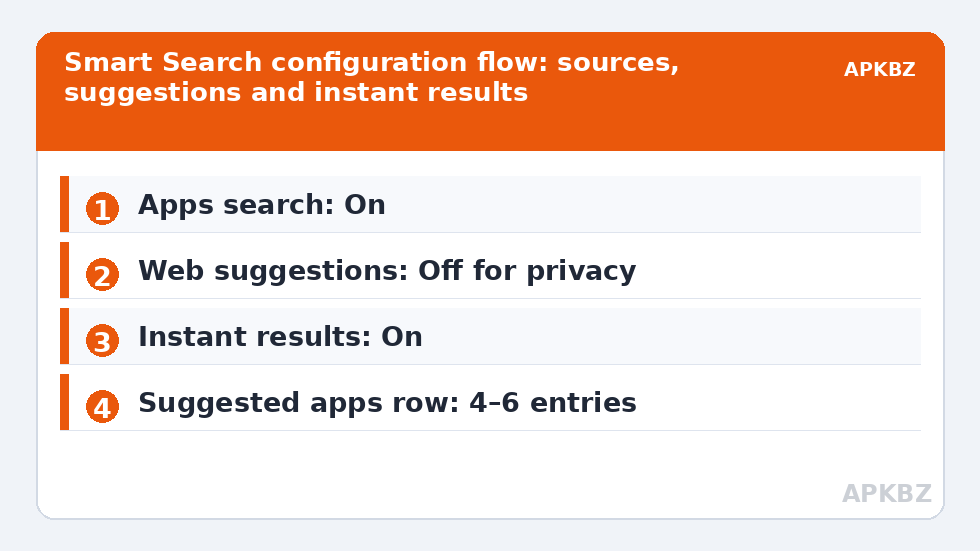
- Web suggestions: sends your partial queries to your search provider to fetch autocomplete suggestions. This is the one toggle with a real privacy trade-off, because half-typed queries leave the phone. Disable it if you would rather search locally and only go online when you press enter.
While you are in this section, set the search provider to the one you actually use. Sending results to a provider you avoid everywhere else produces a jarring hand-off every time you search.
Treat these numbers as a starting point: apply them in Smart Launcher 6 under Settings → Home screen → Grid, use the layout for a day, then nudge one value at a time — your wallpaper, widget sizes and one-handed reach all shift what feels right.
Step two: shape the suggestions row
Before you type a single character, Smart Search shows a row of suggested apps. By default these lean on a mix of recency and frequency, which on a new phone can look random. Give the algorithm a week of honest use before judging it — it cannot rank apps you have not opened yet. If certain apps keep appearing despite never being launched from search, they are usually apps you open constantly from the home screen; that is the frequency signal working as intended, not a bug. Where your version offers a suggestions count or a “most used apps” style option, keep the row short — four to six entries. A longer row pushes the keyboard results down and slows the very thing the page exists to speed up.
Related reading: once your search page is tuned, the natural companion projects are a tidier drawer — see our guide to the Smart Launcher 6 category page setup — and a home screen that needs fewer icons on it, covered in multi-page vs single page layouts. This article sits in the wider Layout Tweaks collection for the site.
Step three: keyboard behaviour and instant results
Two smaller settings make a disproportionate difference. First, make sure the keyboard opens automatically and the text field is focused the moment the page appears; if you ever have to tap the field before typing, a setting or an OEM keyboard quirk has broken the flow, and the fix is usually to set your keyboard app as the system default again. Second, enable instant results if your version offers it, so matches filter as you type instead of after a pause. On older or budget hardware, instant filtering of a very large app library (300+ apps) can feel slightly heavy; if the page stutters while typing, turning instant results off trades a small delay for a smoother keyboard — an acceptable compromise on low-RAM devices.
Step four: match the page to your wallpaper and theme
Smart Search inherits the launcher theme, so if you run the Ambient theme the page tints itself from your wallpaper automatically. If the search page looks washed out, the problem is usually contrast in the wallpaper behind the translucent panel rather than a search setting. Dark wallpapers with a blurred search panel give the most legible results; busy, bright wallpapers benefit from increasing the panel’s background opacity or blur in the theme settings, where your version exposes those controls. Check the interplay with the rest of your setup in our Ambient theme setup guide — search, drawer and home screen should read as one surface, not three.
Reference: how pros customize Smart Launcher 6 Smart Search settings
| Setting | Recommended value | Why |
|---|---|---|
| Apps search | On | Core function; local-only index |
| Contacts search | On if you call/message often | Requires Contacts permission |
| Web suggestions | Off for privacy, on for speed | Partial queries leave the device when on |
| Instant results | On (off on very low-RAM phones) | Filters matches as you type |
| Suggested apps row | 4–6 entries | Keeps results above the keyboard fold |
| Automatic keyboard | On | Field should be focused on open |
When search feels slow or wrong
If results lag, the usual culprit is not the launcher but an index built when the phone was busy or right after a bulk app install; using the phone normally for a day rebuilds it. If an app you installed never appears, check that it has a launcher icon at all — some companion apps hide theirs deliberately — and confirm the app is not disabled in Android settings. If a removed app still shows in results, restart the launcher from Smart Launcher Settings (there is a restart option in the advanced/backup area on most versions) and the ghost entry will clear. Persistent weirdness after a major Android update is often solved by clearing the launcher’s cache from system settings, which does not touch your layout.
Frequently Asked Questions
How do I open Smart Search in Smart Launcher 6?
Swipe up on the home screen. If you have changed the swipe-up gesture to something else, reassign it in Smart Launcher Settings under Gestures, or add the search bar widget to your home screen and tap it instead.
Does Smart Search send my queries to the internet?
App and contact searches happen entirely on the device. Only the optional web suggestions feature sends partial queries to your chosen search provider, and you can turn it off in the Smart Search settings while keeping local search fully functional.
Why does an app I installed not appear in search results?
Check that the app is enabled in Android settings and actually ships a launcher entry — some helper apps hide theirs. If it still does not appear, restart Smart Launcher from its settings so the app index rebuilds.
Can I search contacts without giving Smart Launcher the Contacts permission?
No. Contact results are read from the system contacts database, which Android protects with that permission. Without it, Smart Search limits itself to apps, shortcuts and web results, which is a perfectly valid configuration.
How do I stop certain apps appearing as suggestions?
Hide the app in the drawer if your version supports per-app hiding, and it will stop surfacing in suggestions. Short of that, the suggestions row reflects real usage, so launching your preferred apps from search for a few days re-trains what appears first.