Type smart launcher 6 multiple dock pages into a search engine and you will find confident tutorials describing a scrolling dock that Smart Launcher, honestly, does not have. This guide takes a different approach. It explains what Smart Launcher 6 actually offers at the bottom of the screen, then shows how to combine the Flower, additional home pages and the drawer into favourite sets that give you the practical benefit people want from dock pages: different apps within one swipe, grouped by context, without hunting through the full app list.
First, an honest map of the bottom of the screen
Smart Launcher replaces the traditional dock with the Flower, the arc of favourite apps anchored to the home screen. Around it sit optional elements such as a search pill, and behind everything sits a drawer that is far better organised than the alphabetical lists dock loyalists are used to escaping from. Once you accept that model, the dock-pages question changes shape: instead of asking how to scroll a shelf, you ask how many distinct favourite sets you actually need quick access to.
For most people the honest answer is two sets, not five: the everyday set that never changes, and one rotating set for the current context — work hours, a trip, a project, a child’s bedtime routine. Everything beyond that is usually drawer material wearing a dock costume.
Treat these numbers as a starting point: apply them in Smart Launcher 6 under Settings → Home screen → Grid, use the layout for a day, then nudge one value at a time — your wallpaper, widget sizes and one-handed reach all shift what feels right.
Step one: make the Flower your permanent dock
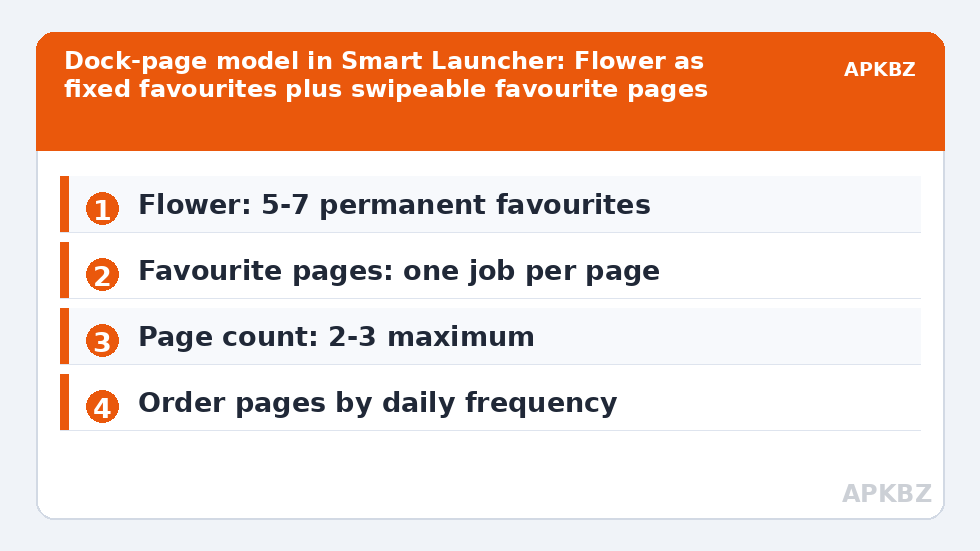
Long-press home screen favourites to edit the Flower and choose five to seven apps by frequency, not by loyalty. Phone, messages, browser, camera and your primary chat app are typical permanent residents. Order them by thumb position: the app you open most should sit where your thumb naturally rests, not in the visual centre because it looks balanced in a screenshot.
These permanent choices matter because every other page you build will be measured against them. If an app lives in the Flower, it never needs to appear on a secondary page as well. Duplication feels safe and quietly doubles the places you have to look.
Before building pages, read our floating vs fixed dock explainer so the vocabulary is straight, and weigh the honest trade-offs in the multi-page vs single-page layout guide. Pages sit on top of the grid, so fine-tuning your grid size and spacing first will save you rebuilding twice. More guides live on the APKBZ home page.
Step two: build a second page as a context dock
Enter edit mode and add a home page where your version offers page management, then give that page a single stated job before adding anything to it. A work page might hold email, calendar, documents, your authenticator and a notes widget. A travel page might hold maps, airline, translation, wallet and photos. The one-sentence job is the discipline: if an app does not serve the sentence, it does not board the page.
- Work page: communication, calendar, files and two-factor tools.
- Media page: music, video, podcasts and a playback widget.
- Family page: shared albums, school apps, location sharing.
- Travel page: rebuilt per trip, then archived back to the drawer.
Keep labels switched on for these secondary pages even if your main screen hides them. You visit these pages less often, so recognition by position is weaker and labels earn their space.
Step three: navigation habits that make pages feel like a dock
A dock works because it is always there. Pages work when reaching them is a reflex. Keep the page count low enough that a single swipe in a known direction always lands on the right set, and keep the order stable for at least a fortnight before judging the system. Rearranging pages weekly guarantees you never build the muscle memory that makes the setup feel fast.
Use the home gesture as your reset button: whatever page you are on, one home press should return you to the main composition with the Flower. If your version lets you choose the default page, the main page is almost always the correct default, because it holds the permanent favourites and the clock.
Comparing the approaches honestly
| Approach | Access speed | Capacity | Best for |
|---|---|---|---|
| Flower only | Instant | 5-7 apps | Minimal, single-context use |
| Flower plus one page | One swipe | 12-18 apps | Work and personal split |
| Flower plus two pages | One-two swipes | 20-28 apps | Work, media and family sets |
| Drawer and search only | Swipe plus typing | Unlimited | Everything beyond favourites |
Step four: maintain the system monthly
Dock-style pages decay the same way drawers do: a temporary app becomes permanent, a finished project keeps its page, a duplicate creeps in. Once a month, spend three minutes asking of each page whether its one-sentence job is still true. Archive dead pages without sentimentality — their apps remain one drawer search away.
Back up the launcher after any reorganisation you are happy with, so a phone change restores the whole system of pages rather than just the main screen. A setup that took an afternoon to balance should never depend on one device’s storage.
A sample three-page system, day by day
Here is a concrete arrangement that has survived real life in testing conversations with heavy phone users. Page one, the permanent page, holds the Flower with phone, messages, browser, camera and the household chat app, plus the clock. Page two, the weekday page, holds work email, calendar, documents, authenticator, a tasks widget and the commute app, ordered by the sequence of a working morning rather than by app brand. Page three, the weekend page, holds photos, maps, the shared family calendar widget, music and whichever project — garden, renovation, trip planning — currently owns Saturday.
Notice what the system refuses to do. It does not duplicate: the chat app lives only in the Flower even though it is used for work, because duplication would create two places to look. It does not grow: adding a fourth page for fitness was considered and rejected, because fitness is a twice-weekly context that the drawer serves perfectly well. And it does not rename itself weekly: the pages kept their jobs for months, and that stability is precisely why reaching page two became a reflex quicker than conscious thought. If you build only one idea from this guide, build that discipline of refusal. Dock pages fail by accumulation, not by design, and the monthly review in the previous section exists to catch accumulation while it is still three minutes of work rather than an afternoon.
Frequently Asked Questions
Does Smart Launcher 6 have multiple dock pages like Nova Launcher?
Not as a classic scrolling dock shelf. Smart Launcher centres on the Flower and its category drawer, so multiple dock pages are achieved by combining permanent Flower favourites with additional home pages dedicated to favourite sets. The result feels similar in daily use, but it is not the identical feature.
How many favourite pages should I create?
Two or three is the practical ceiling. One main page plus a work page and a media or travel page covers most lives. Beyond three, finding an app by page memory becomes slower than simply searching for it.
Will my Flower favourites appear on every page?
The Flower belongs to the main home screen composition rather than acting as a universal bar repeated identically over widget pages. Keep truly universal apps in the Flower and page-specific apps on their own pages, so each surface has a clear job.
Can I put widgets on a dock-style page?
Yes, and a page built around one large widget plus a small favourite row is often the most useful pattern. A calendar page or a media page works better than a page that is only a second grid of icons.
What if the multi-page option is missing in my version?
Placement and availability of page controls vary between Smart Launcher versions and unlock tiers. Check edit mode and the home screen settings, confirm your version is current, and check whether the feature sits behind the Pro or Feature Pack unlock on your build.