
A widget that shows yesterday’s weather, a calendar stuck on last week, or a to-do list that never notices new items is worse than no widget at all, because it looks trustworthy while quietly lying to you. In Smart Launcher 6 the launcher’s job is mostly to host the widget and give it a surface; the data comes from the widget’s own app, working to its own schedule, under limits set by Android and by your phone maker’s battery manager. When updates stop, one of those three parties has stopped doing its job. The good news is that you can find out which one with a short test, instead of randomly reinstalling things. Our APKBZ home page collects the rest of our unofficial Smart Launcher guides if you are working through several faults at once.
Diagnose: is it one widget, or every widget?
This single distinction splits the problem in half. If only the weather widget is stale while your calendar and music widgets are current, Smart Launcher and the phone are broadly fine, and the fault lives in that one app: its refresh setting, its permission, its account sync, or its own battery restriction. If every widget froze at roughly the same time, look upward instead — at the launcher being killed, at a battery-saver mode switching on, or at a system update that reset several permissions at once. Note the time the widgets stopped, if they show one, and compare it with anything you remember: a reboot, an update, a trip that drained the battery, or the day you ran the phone’s optimiser tool.
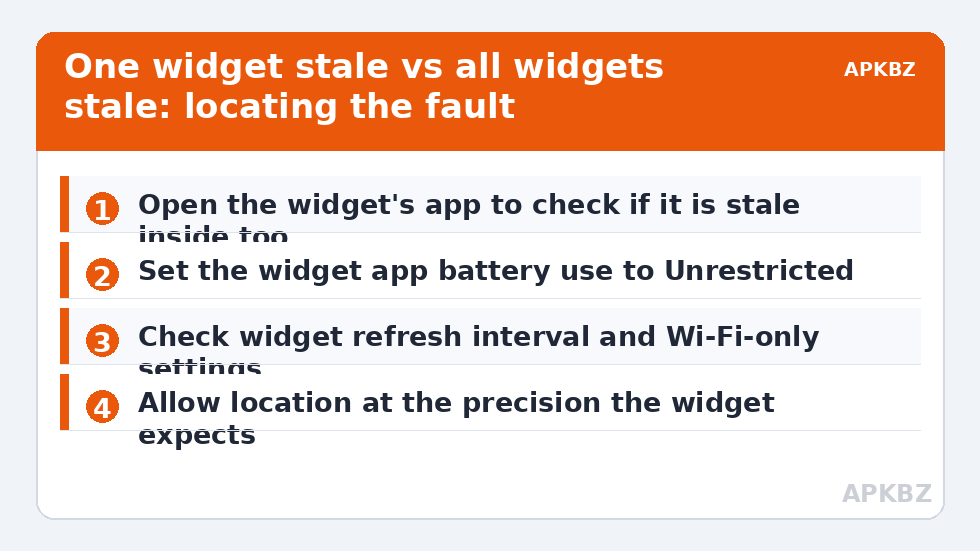
Run a manual test before changing settings. Open the widget’s own app directly. If the app itself also shows stale data, the widget is faithfully displaying a stale app, and no launcher work will help. Force a refresh inside the app, check its account is still signed in, and confirm it can reach the network. If the app is current but its widget is not, the break is in the delivery step between app and widget — which is where battery restrictions and broken widget bindings usually live.
Cause 1: the widget’s app is being put to sleep
Modern Android, and especially the extra power managers on Xiaomi, Samsung and Oppo phones, learned to save battery by stopping apps you rarely open. A weather or news app you only ever look at through its widget looks, to that system, like an app you never use — so it gets frozen, and its widget stops updating with it. The pattern is distinctive: the widget updates happily for a while after you open the app, then goes stale again hours later.
The fix is to exempt the widget’s app, not just the launcher. Set that app’s battery use to Unrestricted where the option exists, add it to your maker’s never-sleeping or autostart lists as appropriate, and then leave it alone for a day to judge the result. This is the same two-layer battle described in our guide to preventing OEM battery savers from killing the launcher — the principle is identical, only the app being protected changes. Be selective: exempt the two or three apps whose widgets genuinely matter, not everything on the phone, or you trade a stale widget for real battery drain.
Treat these numbers as a starting point: apply them in Smart Launcher 6 under Settings → Home screen → Grid, use the layout for a day, then nudge one value at a time — your wallpaper, widget sizes and one-handed reach all shift what feels right.
Cause 2: refresh intervals, permissions and quiet settings
Many widgets are not broken at all; they are obeying a setting someone changed. Weather widgets commonly offer refresh intervals from fifteen minutes to manual-only, and some switch to a lazy schedule when location access is set to approximate or denied, because they cannot tell where you are. News and finance widgets may refresh only on Wi-Fi, or pause on mobile data and in data-saver mode. Open the widget’s own settings — often by tapping the widget, or through a configure option when you add it again — and check three things: the interval, whether refresh is Wi-Fi only, and whether location is allowed at the precision the widget expects.
Also check time. A phone whose automatic date, time or time zone has been switched off can confuse schedules and make calendar and clock-adjacent widgets behave oddly. It is a rare cause, but it takes ten seconds to rule out in Settings > System > Date and time.
Cause 3: the widget binding itself is broken
Sometimes the connection between launcher and widget simply wedges: the widget renders, taps may even open the app, but new data never lands. This happens most often after the widget’s app updates, after a launcher update, or after a backup restore. The test and the treatment are the same move: remove the widget from the home screen and add it again fresh. Re-adding forces Android to create a new widget binding and hand the app a clean surface to draw on. It costs you a minute of reconfiguring that one widget, which is why it comes after the settings checks, not before — there is no sense re-adding a widget whose app is still being put to sleep underneath.
Cause 4: the launcher is not there to receive updates
If every widget goes stale together and your home screen also reloads when you return to it, suspect the launcher’s own residency. A killed launcher cannot host updates, and on restart it may display the last rendered frame of each widget — a photograph of your data, not the data itself. You will find the longer explanation in our guide to fixing widget loading delays after a reboot; the short version is to exempt Smart Launcher from battery optimisation, lock it in Recents if your phone offers that, and confirm it remains your default home app. A sibling problem in this batch, a blank Google Discover feed, shares some of this ground, because a feed surface that cannot refresh and a widget that cannot refresh often fail for the same background reason.
A worked example: the weather widget that updated only on Sundays
Consider a typical case. A weather widget updates reliably all week, then goes stale every weekend. Nothing about the launcher changes on Saturdays — but the owner’s routine does: the phone spends weekends in battery-saver mode at a second location, on mobile data. Three quiet settings stack up: saver mode defers the weather app, the widget is set to Wi-Fi-only refresh, and location is approximate. Any one of them alone might only delay updates; together they stop them for two days. The lesson generalises. When a widget fails on a pattern — overnight, at work, on mobile data, in saver mode — describe the pattern first, because the pattern is usually naming the setting for you.
| Symptom | Likely owner of the fault | Test |
|---|---|---|
| One widget stale, others fine | That widget’s app | Open the app: is it stale inside too? |
| All widgets froze at the same time | Launcher killed or a system-wide reset | Check battery exemptions for launcher and apps |
| Updates resume after opening the app | App is being put to sleep | Set that app to Unrestricted for a day |
| Widget current in app, stale on screen | Broken widget binding | Remove and re-add that one widget |
| Stale only on mobile data or saver mode | Refresh restrictions | Check Wi-Fi-only and data-saver settings |
What not to do
Do not install a task killer or a widget-refresh booster. Android does not offer third-party apps a legitimate way to force another app’s widget to update, so such tools either do nothing or wake things wastefully. Do not clear Smart Launcher’s data to fix one widget; that removes your whole layout to solve a problem that lives in a single app’s settings. And do not exempt every app from battery management in frustration — you will get your widgets back, along with the overnight drain covered in our guide to standby drain, which is the next problem on this list for a reason. Targeted exemptions, one widget re-added, patience for a full day’s test: that combination resolves most cases.
Frequently Asked Questions
Why does my widget update when I open its app, then stop again?
Because opening the app wakes it, and your phone’s battery manager puts it back to sleep later. The widget depends on that app running in the background, so exempt the app itself — not just Smart Launcher — from battery optimisation and any OEM sleep list.
Will removing and re-adding a widget delete its data?
No. Removing a widget removes only the home-screen instance and its display settings for that widget. Your weather locations, calendar events or to-do items live in the app itself and are still there when you add the widget again.
How often should a weather widget refresh?
Hourly is a sensible balance for most people: frequent enough to be useful, cheap enough in battery and data. More frequent refresh with precise location costs noticeably more, and manual refresh is fine if you mainly check weather at set times of day.
Can Smart Launcher force a widget to update?
Not reliably. The launcher hosts the widget surface, but the app that owns the widget decides when to draw new data, subject to Android’s background limits. Some widgets offer a tap-to-refresh area; otherwise the fix is at the app and battery-settings level.
All my widgets stopped after a system update. Where do I start?
Start with permissions and battery exemptions, which updates commonly reset. Re-grant location to weather apps if needed, confirm Smart Launcher and your widget apps are exempt from sleeping, then re-add a single widget as a test before rebuilding anything else.


