Most launchers hand you an alphabetical app drawer and leave the sorting to you. Smart Launcher takes the opposite bet: the moment it becomes your home app, it files every installed app into a category — Communication, Internet, Games, Media, Utilities, Settings and a few more — and presents those categories as tabs along the edge of the drawer. When it works, a proper smart launcher 6 category page setup means you stop remembering app names and start remembering what an app is for. When it misfires, apps land in odd places and the drawer feels haunted. This guide explains how the automatic system behaves, how to correct it, and how to shape the category pages so they stay useful as your app library grows.
How automatic categorization works
Smart Launcher assigns categories using a combination of the app’s Play Store classification and its own maintained database. That is why mainstream apps almost always land correctly on first install, while obscure utilities, regional banking apps and sideloaded tools are the ones that end up in a generic bucket or the wrong tab entirely. The classification happens on the device when an app is installed; if you install fifty apps in one sitting on a fresh phone, give the drawer a little time and a launcher restart before judging the results. Importantly, your manual corrections are remembered — move an app once and it stays where you put it, including across most updates of that app.
Anatomy of the category pages
Open the drawer and you will see the category tabs arranged along one side — on phones this is traditionally the left edge in Smart Launcher’s classic layout. Each tab opens a page of icons for that category. Long-pressing a category tab on many versions lets you jump to editing options, and the category bar itself can be repositioned or restyled in the drawer settings. Two behaviours matter for daily use: the category pages are not folders — you cannot nest them or put widgets inside — and the “All apps” style alphabetical view, where available, is a separate mode rather than another category. Treat categories as a filing system, and the alphabetical list as the index at the back of the book.
Treat these numbers as a starting point: apply them in Smart Launcher 6 under Settings → Home screen → Grid, use the layout for a day, then nudge one value at a time — your wallpaper, widget sizes and one-handed reach all shift what feels right.
Smart Launcher 6 category page setup corrections: apps in the wrong category
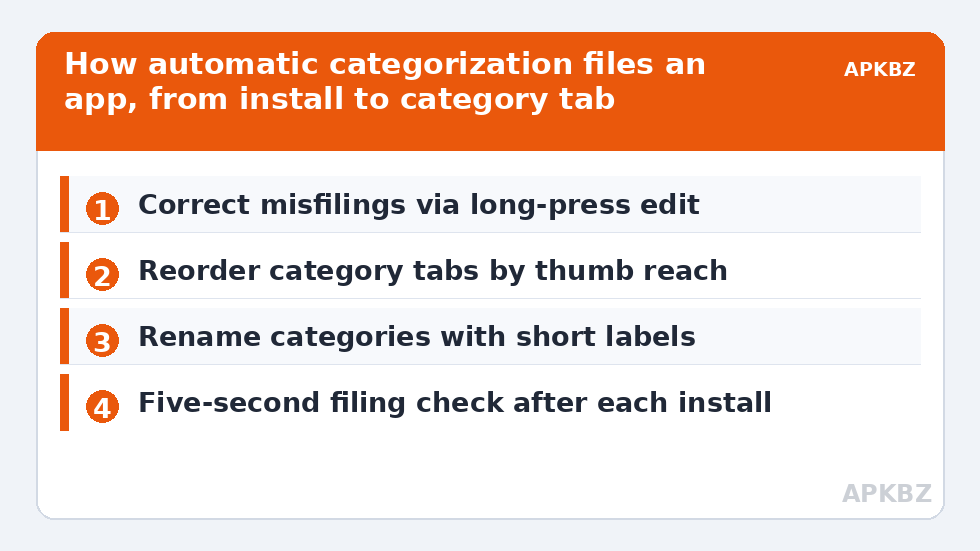
Fixing a misfiled app takes seconds: long-press its icon in the drawer, open the edit or info panel your version presents, and change its assigned category. The exact menu wording varies between Smart Launcher releases — look for “Edit”, “Change category” or the pencil icon on the long-press menu. Do this as a habit whenever you spot a mistake rather than in one big purge; thirty seconds after each install keeps the drawer permanently tidy. If an app refuses to stay where you put it after its own update, that is a known quirk with a handful of apps that aggressively re-declare their store category; re-filing it once more normally sticks.
If your real problem is drawer clutter rather than misfiling, pair this guide with our walkthrough on how to hide unused apps from category pages, and with the fully manual approach in creating custom app categories for apps the automatic system will never understand. Both live alongside this piece in the Layout Tweaks section.
Reordering, renaming and restyling categories
Smart Launcher lets you reorder the category tabs so your most-used category sits at the thumb-friendly end of the bar, and on current versions you can rename categories and change their icons. Renaming is underrated: “Media” means little to most people, while “Watch & Listen” describes what they actually open the tab for. Keep names short — long labels truncate badly on narrow phones. If you use the Icon Pack Studio or a third-party pack, category icons usually follow the pack’s style; mismatched category glyphs are a sign the pack lacks adaptive coverage, which is an icon pack issue, not a drawer issue.
Default category assignments at a glance
| Category | Typical contents | Common misfiling |
|---|---|---|
| Communication | Messengers, email, dialer, SMS | Social apps with messaging features |
| Internet | Browsers, social networks, news | Shopping apps with web views |
| Games | All games | Game launchers and stores filed as utilities |
| Media | Music, video, gallery, streaming | Camera tools filed under Utilities |
| Utilities | Files, scanners, tools, VPNs | Banking and ID apps — refile to a custom category |
| Settings | System and device settings shortcuts | OEM service apps you may prefer to hide |
Keeping the system healthy over time
Every few months, scroll each category page once with fresh eyes. You will find apps you forgot existed, duplicates (two PDF readers, three scanners) and at least one app whose purpose you no longer remember — uninstall candidates, all of them. Also check after a big app install spree or a phone migration: migrated apps sometimes arrive in a burst and get filed hastily by the classifier. Finally, back up your drawer work. Category edits are part of your launcher configuration, and Smart Launcher’s backup includes them, so the ten minutes you spend filing today survive a phone change if you follow the backup routine in our transfer guide.
Category bar placement and drawer habits
One setting new users rarely touch, and should: which edge the category bar lives on and how the drawer opens. On a large phone, a category bar anchored to the side of your dominant thumb turns drawer browsing into a one-handed act — your thumb rides the tabs and the page changes under it. On tablets and foldables the opposite logic applies, and centring your grip matters more than thumb reach. Experiment for a day in each position before deciding; drawer feel is intensely personal and the “correct” side is simply the one you stop noticing.
Also build one small habit: when you install an app, open the drawer once and glance at where it landed. Correcting a misfiling takes five seconds in the moment and five minutes of detective work a month later, when you have forgotten the app’s name but remember what it does. Users who do this instinctively are the ones whose drawers still make sense a year in — the automatic system does the bulk filing, but your five-second confirmations are its quality control, and they compound like interest.
When to use the alphabetical view instead
Categories are for browsing by purpose, but they are not always the fastest route. When you know an app’s name but have forgotten its category — common with a new app whose filing you have not yet checked — the alphabetical all-apps view or Smart Search will beat tab-hopping. Power users treat the two views as complementary instruments: categories for discovery and tidiness audits, alphabetical for known-item retrieval, search for everything else. There is no prize for purity here. The category system’s real achievement is not that you use it for every launch, but that it keeps the drawer’s population organised enough that every other method — scrolling, searching, browsing — works better because of it.
Frequently Asked Questions
How does Smart Launcher decide which category an app belongs to?
It combines the app’s store classification with Smart Launcher’s own database, decided on the device at install time. Well-known apps are almost always filed correctly; obscure or sideloaded apps may land in a generic category until you move them manually.
Can I create my own categories instead of using the automatic ones?
Yes. Alongside the built-in categories you can add custom categories and file apps into them by hand. Automatic filing still applies to the standard categories, so most people run a hybrid: automatic for the bulk, custom categories for banking, work or smart-home apps.
Why did an app move back to the wrong category after updating?
A few apps re-declare their store category in an update and Smart Launcher re-reads it. Re-assign the app once more from its long-press edit menu; in practice the manual assignment then holds.
Can I hide a whole category I never use?
Unused categories with no apps in them do not clutter the bar, and category management in the drawer settings lets you control which categories are shown on most versions. Hiding individual apps is the more common fix and is covered in our hiding guide.
Do my category corrections survive a phone change?
Yes, if you use Smart Launcher’s built-in backup and restore it on the new phone. Category assignments are part of the saved configuration, along with your home screen layout and icon choices.