Every icon pack has a gap. The banking app nobody themes, the local transit app with three hundred users, the work tool your employer ships with a logo from 2014. Changing the entire pack because of four ugly icons is wasteful, and living with them is worse, because your eye lands on the odd ones every single unlock. The better skill is to customize individual app icons in Smart Launcher while leaving the rest of the theme untouched — a surgical fix that takes under a minute per app once you know where the editor lives.
How per-icon editing actually works in Smart Launcher 6
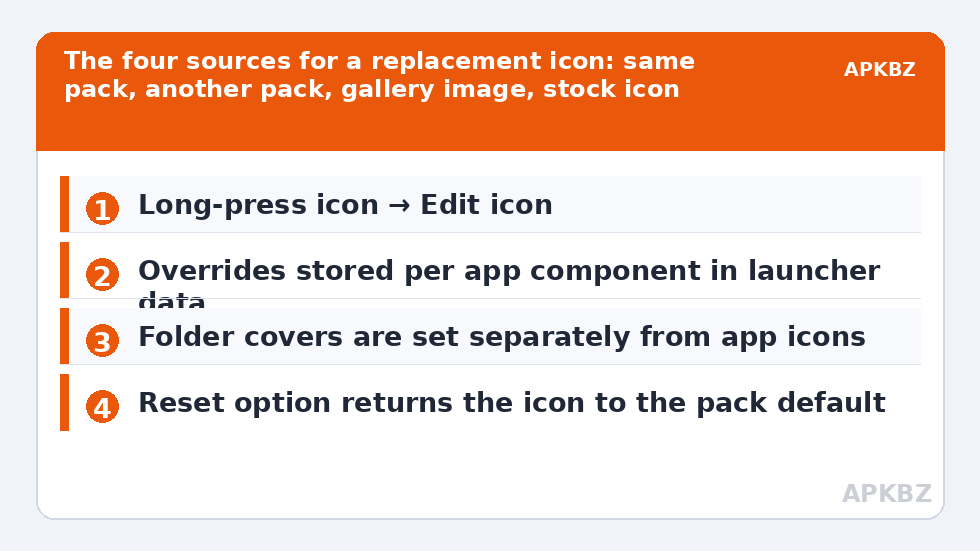
Smart Launcher stores icon overrides separately from the pack itself. When you edit one app’s icon, the launcher records “for this component, use this drawable instead” in its own database. The pack stays applied globally, and your override sits on top of it. This has two consequences worth understanding. First, overrides survive pack re-applies and most pack updates. Second, an override does not automatically survive uninstalling and reinstalling the edited app or clearing Smart Launcher’s data, because the mapping is keyed to the app’s component name and stored in launcher data — back up your layout before big changes, as described in our Smart Launcher backup coverage elsewhere on the site.
To start an edit, long-press the app’s icon on the home screen or in a category page and choose the edit/pencil option from the context menu. In the drawer, long-pressing may first offer app shortcuts; the icon edit entry appears in the same menu on current 6.x builds, though the exact label (“Edit icon” versus a pencil glyph) varies slightly by version and language.
Four sources when you customize individual app icons in Smart Launcher
- Another icon from the same pack. The editor opens the current pack’s full drawable list. This is the most useful source: many apps have alternate glyphs in the pack (a generic camera, mail, or folder icon) that match the pack’s style exactly.
- An icon from a different installed pack. You can browse other packs’ libraries from the same picker. This is how people borrow one perfect icon from a second pack without applying that pack globally.
- A PNG or image from your gallery. Useful for photos-as-icons (a partner’s face for the dialer, a pet for the camera). Smart Launcher masks gallery images to the current shape, and using custom PNG images as app icons covers sizing and transparency in detail.
- The app’s own stock icon. Occasionally the original is best — Google and a few other publishers design genuinely good adaptive icons. Reverting one app to stock is a legitimate aesthetic choice, not a failure.
A worked example: taming a mismatched banking app
Say your bank’s icon is a red rectangle with white text that becomes illegible inside a circle mask. Open the editor, switch to the pack’s drawable list, and search for “bank”, “card”, or “wallet” — most packs include generic finance glyphs even when they lack your specific bank. Pick the glyph whose weight matches neighbouring icons; a thin-line replacement among filled icons looks as wrong as the original did. Apply, then check the icon at real size rather than in the editor preview, because the editor shows icons larger than the home screen does. If the replacement renders too detailed, choose the simpler variant: at 48–60dp on screen, fine internal lines disappear into noise.
Treat these numbers as a starting point: apply them in Smart Launcher 6 under Settings → Home screen → Grid, use the layout for a day, then nudge one value at a time — your wallpaper, widget sizes and one-handed reach all shift what feels right.
Keeping overrides consistent across home screen, categories, and folders
One subtlety surprises people: Smart Launcher’s home screen shortcuts and its drawer/category entries for the same app share the override in most cases, because the override is attached to the app component, not to a single shortcut. Folder covers are the exception — a folder shows either a stacked preview of its contents or a cover icon you set explicitly, and editing an app inside the folder does not change the cover. Set covers deliberately using the method in custom folder icons and covers, so the closed folder matches the style of what is inside it.
| Surface | Uses your per-icon override? | Notes |
|---|---|---|
| Home screen shortcut | Yes | The primary place edits are made |
| App drawer / category pages | Yes | Same component-level override applies |
| Smart Search results | Yes | Search shows the launcher’s rendered icon |
| Folder cover | No | Covers are set separately; contents still use overrides |
| Recents / Settings | No | Rendered by Android with stock icons |
Give yourself a style rule before you start editing
Random per-icon edits are how a tidy screen turns into a collage. Decide one rule and let it arbitrate every choice. Common rules that work: “every replacement must come from the current pack’s own library”, “finance apps all use the pack’s generic wallet glyph”, or “only the dock gets photographic icons; everything else stays glyph-based”. The rule matters less than having one, because it keeps forty small decisions consistent with each other. Weight is the invisible half of the rule: within one screen, icons should share roughly the same visual mass. A solid filled glyph next to a hairline outline glyph looks broken even when both are “themed”, and no amount of colour matching fixes it. When you browse replacements in the editor, squint at the candidate beside its future neighbours rather than admiring it alone — the editor’s preview strip makes this easy if you scroll it into position. If a beloved icon breaks your rule, the honest options are to change the rule everywhere or let the icon go; exceptions are what you are trying to eliminate.
Shortcuts are not apps: know which icons you are actually editing
One distinction saves real confusion. Smart Launcher’s home screen holds two kinds of things that look identical: app icons, which launch an app, and shortcuts, which launch an action — a specific chat, a website, a navigation destination, a file. Editing an app’s icon does not restyle shortcuts created from that app, because a shortcut carries its own icon resource, captured when it was created. A WhatsApp shortcut to your partner keeps the photo or glyph it was born with even after you re-theme WhatsApp itself. This is usually a feature: shortcuts are personal objects and resist global changes. But when a restyle pass leaves one stubborn “wrong” icon on the screen, check whether it is a shortcut before blaming the pack — long-press it and look for shortcut-specific menu entries. You can delete and recreate the shortcut after the app edit so it inherits a fresher look, or edit the shortcut’s own icon where Smart Launcher offers it.
Reverting and auditing your edits
To undo an override, reopen the same editor for that app and choose the reset/default option; the icon returns to whatever the current pack (or stock) provides. It is worth auditing edits after switching packs: an override that rescued a bad icon in pack A may duplicate a perfectly themed icon in pack B. A quick pass through your categories after a pack change — checking each icon against the wider icon customization workflow — keeps the set coherent. Treat overrides as seasoning: a handful fixes a setup, thirty scattered edits usually mean the base pack is wrong for you.
Frequently Asked Questions
Does editing one icon affect the same app everywhere in Smart Launcher?
Almost everywhere. The override is stored per app component, so the home screen, drawer, category pages, and Smart Search all show the edited icon. The exceptions are folder covers, which are configured separately, and system surfaces like recents and Settings, which always use stock icons.
Will my custom icons disappear when the icon pack updates?
Normally not. Overrides live in Smart Launcher’s own data, not inside the pack, so a pack update keeps them. They can be lost if you clear the launcher’s storage or uninstall and reinstall the edited app under a changed component name, which is why a layout backup is worthwhile.
Can I edit icons for apps that are inside folders?
Yes. Open the folder, long-press the app, and use the same edit option. The change applies to the app itself, not just that folder instance. Only the folder’s cover image is independent and must be set on the folder itself.
What image format works best when I pick a photo as an icon?
A square PNG with the subject centred works best, because Smart Launcher crops and masks it to your chosen shape. Transparent-background PNGs keep the pack’s generated background; opaque photos fill the whole mask. Very detailed photos shrink badly, so choose bold, simple images.
Is there a limit to how many icons I can customize individually?
There is no practical limit in Smart Launcher itself. The real limit is maintenance: every override is one more thing to review when you change packs or phones. Most tidy setups carry between three and ten overrides at any time.