There is a particular kind of home screen that makes people ask what phone you are using: a calm wallpaper, one small clock, maybe four icons, nothing else. Building a minimalist home screen layout in Smart Launcher 6 is easier than on most launchers, because Smart Launcher’s drawer and search do the heavy lifting that other launchers force onto the home screen. The catch is discipline: minimalism fails when every app you install demands a home screen seat. This guide gives you a repeatable method — what earns a place on the screen, what gets exiled to search, and which settings make a sparse layout feel designed rather than empty.
Start from the drawer, not the home screen
Smart Launcher’s whole model is a strong drawer: automatic categories file your apps, and Smart Search finds anything in three keystrokes. That means the home screen’s only job is to hold the handful of things you open dozens of times a day plus the information you glance at — time, date, maybe weather or your next event. Before touching the layout, spend two days noticing which apps you actually launch from the home screen versus which you open from notifications, search or the drawer. Most people discover their true daily set is six to ten apps. Everything else on the screen is habit, not need, and habit is exactly what a minimalist layout retrains.
The minimalist home screen layout Smart Launcher 6 recipe: Flower, one widget, nothing else
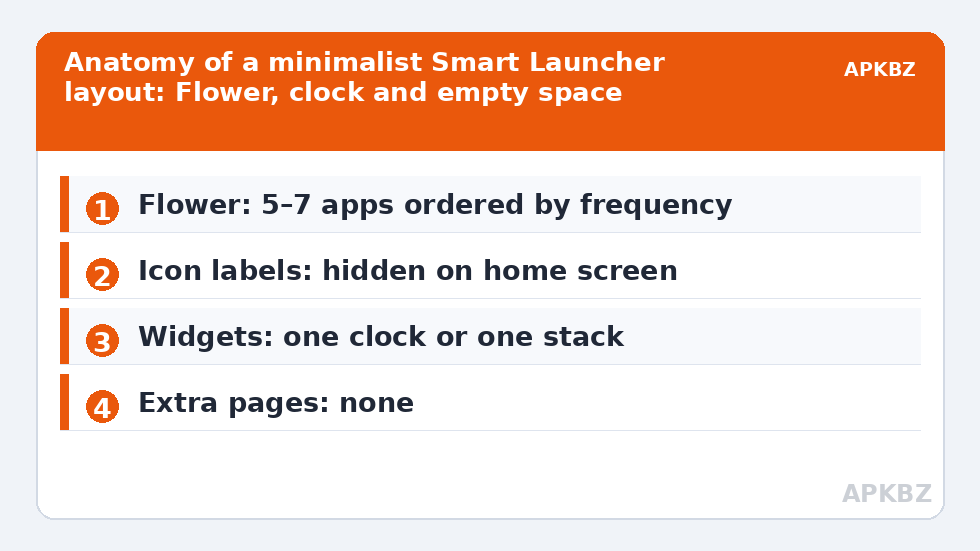
Smart Launcher’s signature home element is the Flower — the arc of favourite apps arranged for one-handed reach near the bottom of the screen. It is almost tailor-made for minimalism: a small fan of five to seven icons replaces a full grid, and the rest of the display stays clean. A practical minimalist build looks like this:
- Flower: five to seven apps — phone, messages, browser, camera, and your two or three genuine daily drivers.
- One widget: Smart Launcher’s built-in clock widget, or a single stacked widget if you need weather and calendar too. One widget, one job.
- Labels: off. You know your own icons; text under them is visual noise in a minimal layout.
- Wallpaper: a low-detail, darker image so icons and the clock stay legible without shadows or boxes behind them.
On versions where a traditional grid home page is offered instead of the Flower, the same recipe works with a single bottom row of icons and empty space above — the principle is identical: reach zone occupied, rest of the screen silent.
Treat these numbers as a starting point: apply them in Smart Launcher 6 under Settings → Home screen → Grid, use the layout for a day, then nudge one value at a time — your wallpaper, widget sizes and one-handed reach all shift what feels right.
Details that make sparse look intentional
Minimal layouts expose every inconsistency, because there is nothing else to look at. Three refinements separate a designed screen from a deleted-everything screen. First, icon coherence: a single adaptive icon pack with a consistent shape (all circles, or all squircles) matters far more here than on a busy grid — see our icon guidance alongside this article in the Layout Tweaks section, and consider hiding labels so shapes align cleanly. Second, spacing: give the Flower and the clock widget generous breathing room rather than pushing elements to the screen edges; if your version exposes home screen padding, a slightly larger margin frames the composition. Third, the clock: Smart Launcher’s clock widget styles range from bold typographic to nearly invisible; match its weight to the wallpaper — a heavy clock on a delicate wallpaper looks like a sticker.
For the widget side of this build, our guide to adding and stacking widgets shows how to keep several information sources inside one tidy widget footprint, and the clock widget styling guide covers fonts, colours and transparency in depth.
A wallpaper-first workflow
Professionals who design these setups usually work wallpaper-first, and you should too. Pick the wallpaper, then enable Smart Launcher’s Ambient theme so system surfaces borrow its colours, then choose icons that sit comfortably against it, then set the clock style. Doing it in the reverse order — icons first, wallpaper last — is why most home screens feel assembled rather than composed. If you keep a photo of people as your wallpaper, minimalism gets harder: faces compete with icons. Either move the photo to the lock screen, or apply a slight blur/dark overlay to the home wallpaper in an image editor before setting it.
Minimal layout settings checklist
| Element | Minimal choice | Where it lives |
|---|---|---|
| Home screen apps | Flower with 5–7 apps, or one bottom row | Long-press home screen → edit Flower/apps |
| Icon labels | Hidden | Home screen / appearance settings |
| Widgets | One clock (or one Smart Widget stack) | Long-press empty space → Widgets |
| Extra home pages | None — drawer and search handle overflow | Page management in home screen edit mode |
| Search access | Swipe-up gesture to Smart Search | Gesture settings |
| Theme | Ambient, matched to wallpaper | Theme settings |
Living with it: the two-week rule
Every minimalist convert hits the same wall around day three: an app they exiled turns out to matter. Resist re-adding it immediately. Launch it from search for a week; if you are still reaching for it five times a day after two weeks, it has earned a Flower seat and something else should leave to make room — the Flower is a fixed-size cabinet, not a growing shelf. The reverse also happens: an app in the Flower quietly stops being used when a habit changes. A monthly five-minute review keeps the layout honest, and because Smart Launcher search is fast, the cost of a wrong exile is three keystrokes, not a drawer expedition.
Find your real daily apps before you exile the rest
The two-day noticing exercise at the start of this guide has a data-driven shortcut: your phone already counts. Android’s Digital Wellbeing (or your OEM’s equivalent usage statistics) lists apps by screen time and launch count for the past week. Open it before redesigning and screenshot the top of that list — those eight or ten names are your evidence-based Flower candidates, and they regularly embarrass intuition. Most people discover a humble utility outranking a beloved app they would have sworn was daily. Build the Flower from the data, then let the two-week rule arbitrate disputes: an app the data loves but you consciously want to use less (the classic case is a social app) can be deliberately exiled to search, adding three keystrokes of healthy friction between impulse and opening. Minimalism, done this way, is not an aesthetic pose but a behavioural design for your own attention — the clean screen is merely what that design happens to look like.
A word on notification badges
Minimalism and badges have a negotiated peace. A screen with two icons and nine red dots is not calm, whatever its icon count. The workable rule: badges on for the Flower’s communication apps only, where a count changes what you do next, and off for everything else — the drawer and the apps’ own interiors can carry the rest of the nagging. Smart Launcher’s badge settings let you make that distinction, and it is worth the two minutes.
Frequently Asked Questions
How many icons should a minimalist home screen have?
Five to seven in the Flower (or one bottom row on a grid layout) plus a clock widget is the sweet spot for most people. Fewer than four usually means you are opening search for genuinely frequent apps, which adds friction instead of removing it.
Will hiding icon labels make the phone harder to use?
For your own most-used apps, no — recognition is by icon and position, not by reading the label. Labels matter in the drawer, where you browse unfamiliar apps, and Smart Launcher lets you keep drawer labels on while hiding them on the home screen.
What wallpaper works best with a minimalist layout?
Low-detail images with a darker or evenly toned area where the clock and Flower sit. Landscapes with a plain sky, gradients, textures and abstract art all work; busy street scenes and faces fight with the icons.
Can I keep a calendar widget and still call it minimal?
Yes, if it lives inside a single Smart Widget stack with the clock and weather rather than as a separate block. One widget footprint with swipeable content keeps the screen calm while holding real information.
Does a minimalist layout save battery?
Marginally, if it leads you to drop live wallpapers and heavy widgets. The real saving is attention, not power — although on OLED screens a dark, mostly empty wallpaper does use measurably less power than a bright busy one.