Every launcher philosophy eventually answers one question: where does the overflow go? Paged launchers answer “another screen to the right” until the home is a corridor of grids. Smart Launcher was designed around the opposite answer — one composed home screen, with the drawer and search absorbing everything else. Yet the multi-page vs single-page Smart Launcher layout debate persists among its own users, because Smart Launcher does allow additional home pages in grid configurations, and widget lovers genuinely need somewhere to put things. This guide lays out what each model costs and buys in daily use, who should choose which, and the hybrid most experienced users quietly settle on.
The single-page model, as Smart Launcher intends it
In the single-page model the home screen holds the Flower (or one composed grid), one widget stack, and nothing else. Every other app is reached by category drawer or Smart Search. The model’s strength is cognitive: there is exactly one home, it always looks the same, and your thumb builds perfect muscle memory because nothing ever moves to a second location. Its demand is equally clear — you must trust search and the drawer. Users coming from five-page Nova setups often feel exposed for the first week, then report the corridor model’s hidden tax: they had been swiping through pages hunting icons whose positions they only half-remembered, which is slower than a three-letter search they were avoiding out of habit.
The multi-page model, honestly assessed
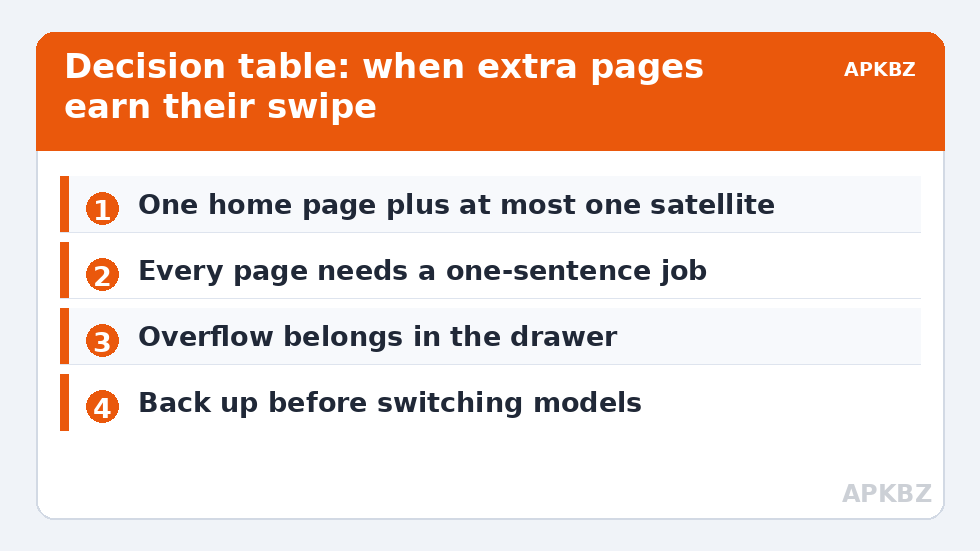
Additional home pages make sense when they hold contexts, not overflow. A second page that is genuinely a different room — a work page with calendar, mail and the work widget stack; a media page with a big music widget and streaming apps — earns its swipe. A second page that is “more apps that did not fit” is just a worse drawer: uncategorised, unsearchable by position memory, and visually inconsistent with page one. Multi-page also multiplies maintenance: every page needs its own composition discipline, and most people’s page three is a junk drawer with a wallpaper. If you run pages, cap them at two or three, give each a declared job, and apply the same ruthlessness as page one — the minimalist layout guide in this Layout Tweaks series is really a per-page discipline guide in disguise.
Treat these numbers as a starting point: apply them in Smart Launcher 6 under Settings → Home screen → Grid, use the layout for a day, then nudge one value at a time — your wallpaper, widget sizes and one-handed reach all shift what feels right.
Multi-page vs single-page Smart Launcher layout: the deciding factors
| Factor | Single page wins when… | Multi-page wins when… |
|---|---|---|
| App count | Any count — drawer/search scale infinitely | You insist on visual browsing for 40+ favourites |
| Widget appetite | One stack covers your glanceable needs | You run several large widgets (calendar month, media, smart home) |
| Context switching | Work and personal blur into one day | You keep strict work/personal separation and want a room per mode |
| Muscle memory | You value one invariant home above all | You reliably remember page-and-position for many apps |
| Guests/kids | One screen is explainable in seconds | A dedicated kids/media page isolates the chaos |
| Maintenance appetite | You want near-zero upkeep | You enjoy curating and will actually do it monthly |
The hybrid most people land on
Watch long-term Smart Launcher users and a pattern repeats: one true home page, plus at most one satellite page with a single declared job — most often a full-page widget context such as a calendar-and-tasks board or a media controller. The Flower and stack stay on page one; the satellite holds the one thing that is too big for a stack. Everything else still routes through drawer and search. This is not indecision; it is the recognition that “pages vs no pages” was always the wrong frame. The real question per candidate item is whether it deserves home presence, stack membership, satellite space, or drawer exile — and our widget stacking guide helps judge the stack boundary, which is where most borderline items belong.
Switching models without losing your mind
Moving from multi-page to single is a decluttering project: inventory every page, promote the genuinely-used items into the Flower or stack, confirm each remaining app is findable by search (it is — but doing it once by hand builds the trust), then delete pages from the emptiest backwards. Moving the other way, add one page with one job and live with it for a fortnight before adding another; page sprawl happens by enthusiasm, not by decision. In both directions, take a Smart Launcher backup before you start and another when the new model feels finished, so the experiment is reversible and the result is preserved.
A seven-day experiment that settles the question for you
Arguments about layout philosophy are unresolvable in the abstract because the right answer is a property of your habits, not of the launchers. So run the experiment instead; it costs one backup and one week. Day zero: back up your current multi-page layout, then build the single-page version — Flower, one stack, everything else exiled to the drawer. Note your three most-used page-two apps and consciously rehearse finding each by search once. Days one to three will feel slower; that is unlearning, not evidence. Resist editing anything. Days four to seven: keep a brutally simple tally, on paper or in a note, of every time you genuinely missed a page — not “felt like swiping”, but a moment where the single page cost you real seconds or real annoyance. At week’s end, read the tally. If it is empty or nearly so, restore nothing: you are a single-page user who owned extra pages out of inheritance. If it names the same context three times — the work board, the media wall — rebuild exactly that one page as a satellite and restore nothing else. Either way the decision is now yours, empirical, and finished. The users who stay undecided are the ones who never ran the week; they keep both models’ costs and neither model’s benefits, which is the only genuinely wrong answer this guide has to offer.
The verdict, by kind of user
If you would rather not run the experiment, here is the accumulated pattern honestly stated. Students and gig workers with chaotic, app-heavy days: single page, no contest — your surface must survive constant context-switching, and invariant beats expressive. Professionals with a hard work/personal boundary and the discipline to maintain it: one home page plus one work satellite is the strongest configuration in this entire guide. Parents sharing a device with children: single page for yourself, and let the kids’ presence live in a separate Android user profile rather than a page — pages do not isolate anything that matters. Tinkerers who genuinely enjoy home screen craft: run pages, plural, and enjoy them — your maintenance appetite is the rare kind that makes the model work, and enjoyment is a legitimate spec. Everyone else, including everyone who skipped to this section: single page, one stack, and your Saturday mornings back.
Frequently Asked Questions
Does Smart Launcher 6 support multiple home screen pages?
In grid-based configurations, additional home pages are available, though Smart Launcher’s design centre of gravity is a single composed home screen supported by the category drawer and Smart Search. Most users run one page, or one page plus a single-purpose satellite.
Is single-page actually faster than swiping to a second page?
For apps beyond your top favourites, usually yes: a swipe-up and two or three typed letters beats remembering which page and position an app occupies. For your top six apps, nothing beats the Flower on page one — which both models share.
What belongs on a second page if I keep one?
A single declared context: a work board, a media page, or one oversized widget set (full calendar, smart-home controls). If the page’s job cannot be stated in one sentence, it is overflow — and overflow belongs in the drawer.
Will more pages slow my phone down?
Not meaningfully by themselves. Widget-heavy pages cost more than empty ones because widgets update in the background, but two or three sensibly built pages are fine on any modern phone. Visual clutter, not performance, is the real price.
How do I try single-page without committing?
Back up your current layout first, then build the single-page version and live with it for a week, launching exiled apps from search. If it does not suit you, restore the backup and you are exactly where you started.