Widgets are where home screens go to become cluttered: a weather block here, a calendar there, a music player squeezed underneath, until the screen is a dashboard nobody reads. Smart Launcher 6’s answer is the Smart Widget — a container that holds several widgets in one footprint and lets you flip between them with a swipe. Learning how to add stack interactive widgets in Smart Launcher 6 properly changes what a single home screen can hold: clock, weather, calendar, music and notes in the space of one modest widget, each a flick away. This guide covers adding your first widget, building a stack, resizing discipline, and the quirks of third-party widgets inside stacks.
Adding a single widget the Smart Launcher way
Long-press an empty area of the home screen and choose the widgets option. Smart Launcher presents its own widget catalogue first — the built-in clock, weather and other Smart Launcher widgets — followed by widgets offered by your installed apps. Place a widget and it lands in the home layout; long-press it again to resize (on grid-based home pages) or reposition it. Two things trip up newcomers. First, on the classic Flower home layout, widget space is deliberately limited — Smart Launcher expects one or two meaningful widgets, not a wall of them. Second, some third-party widgets assume a standard grid cell size from other launchers and render slightly off; resizing by one cell usually fixes their internal padding.
Add stack interactive widgets Smart Launcher 6 style: building the stack
The stack is the feature worth learning. The flow on current versions runs like this:
- Place the first widget where you want the stack to live — choose the one you glance at most, because it becomes the stack’s face.
- Long-press the placed widget and look for the option to create or edit a Smart Widget / stack.
- Add further widgets from the picker into the same container. Weather, calendar agenda, music controls and a to-do list are the classic combination.
- Swipe up or down on the stack (the direction depends on version and settings) to flip between its members.
- Open the stack’s settings to control indicators — dots or a subtle bar showing which member you are on — and whether the stack auto-rotates to show, for example, the calendar when an event is near.
Not every Smart Launcher build exposes identical stacking controls, and some advanced widget behaviour sits behind the Pro/Feature Pack unlock. If the stack option does not appear on a long-press, check that you are long-pressing a widget Smart Launcher recognises as stackable and that you are on a reasonably current version.
Treat these numbers as a starting point: apply them in Smart Launcher 6 under Settings → Home screen → Grid, use the layout for a day, then nudge one value at a time — your wallpaper, widget sizes and one-handed reach all shift what feels right.
What belongs in a stack (and what does not)
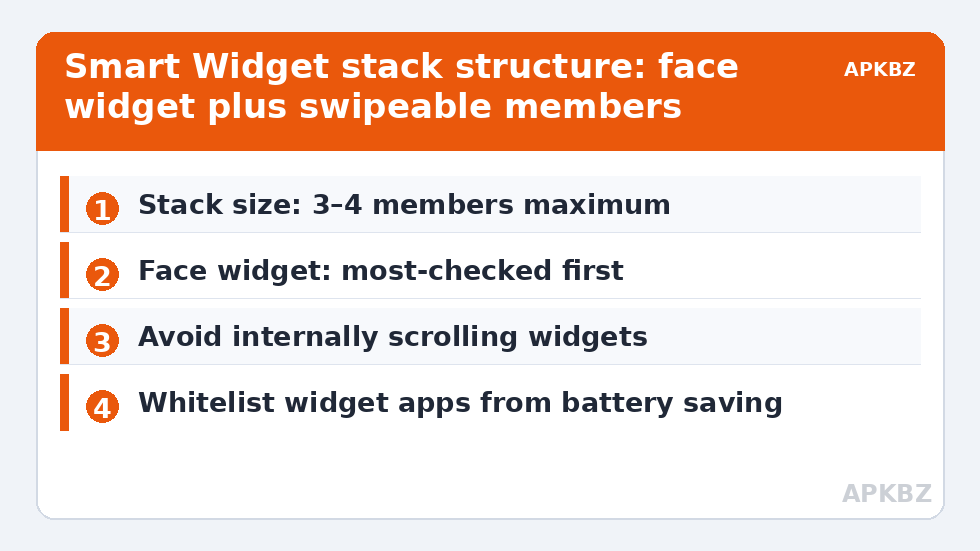
Stacks reward glanceable widgets and punish interactive ones. A music widget works because its controls are simple taps. A complex widget with its own internal scrolling — a full email inbox, a Twitter timeline — fights with the stack’s flip gesture and becomes frustrating. A sane stack composition most people settle on:
- Face: clock with date — the thing checked fifty times a day.
- Second: weather — current conditions plus today’s range.
- Third: calendar agenda — next two or three events only.
- Fourth (optional): music/podcast controls or battery status.
More than four members and you will forget what is in the stack; the flip becomes a slot machine. This pairs naturally with the restrained approach in our minimalist layout guide and with careful clock styling in the clock widget guide, both neighbours of this piece in Layout Tweaks.
Resizing and layout discipline
A stack inherits the footprint of its container, and every member widget is stretched or compressed to fit it. Mixed-size members are the main source of ugly stacks: a wide, short weather widget forced into a tall square container gains dead space, while a tall agenda squeezed into a banner loses events. Pick a footprint first (a 4×2-equivalent block suits most stacks on a grid home page) and choose member widgets that are designed to be resizable. Smart Launcher’s own widgets adapt gracefully to almost any footprint, which is one reason to prefer them as stack members; third-party widgets vary, and the honest test is to flip through the stack after building it and look at each member critically.
Widget and stack reference
| Widget | Good stack member? | Notes |
|---|---|---|
| Smart Launcher clock | Excellent — ideal face | Adapts to any footprint; tap opens clock app |
| Weather (built-in or quality third-party) | Excellent | Keep to today + short forecast inside a stack |
| Calendar agenda | Very good | Limit visible events to keep it glanceable |
| Music controls | Good | Simple tap targets survive the flip gesture |
| Full email/social feeds | Poor | Internal scrolling conflicts with stack flipping |
| Large photo frames | Poor in a stack | Deserve their own space if used at all |
Troubleshooting stacks and widgets
If a widget shows stale data — weather from yesterday, a calendar that stopped updating — the cause is almost always Android battery management killing the widget’s host app or Smart Launcher itself, not the stack. Whitelist both in your OEM’s battery settings (Samsung’s Device Care and Xiaomi’s MIUI battery saver are the usual suspects). If a widget vanishes after a reboot and returns slowly, that is the app restoring its widget provider; stacks cannot fix a badly behaved third-party widget, but moving that member lower in the stack hides the delay. Widgets removed from the Play Store or from a deleted app leave grey placeholders — edit the stack and remove the dead member.
Battery and background behaviour of stacked widgets
A reasonable worry: does a stack of four widgets cost four widgets’ worth of battery? Roughly, yes for update work — each member widget’s app still refreshes its own data on its own schedule, whether or not it is the visible face of the stack. The stack container itself is cheap; the members are the consumers. In practice the members people stack (weather, calendar, clock) are among the lightest updaters on the phone, and the calendar only changes when your calendar does. The widgets to watch are the chatty ones — news tickers, stock trackers, live sports scores — which poll frequently wherever they live. If battery is tight, audit by member, not by container: remove the one polling widget from the stack and the whole stack’s footprint drops, while clock, weather and agenda carry on almost free. Also remember that a widget you never flip to is pure cost. If a stack member has not been looked at in a month, it is not information architecture any more — delete it and let the remaining members breathe.
Reordering members and choosing the face deliberately
Once a stack exists, revisit its order after a week of use. The face position belongs to whichever member you actually flip to most, which is often not the one you placed first — many people discover the agenda outranks the weather by Friday. Reordering members inside the stack’s edit view takes seconds and pays off daily. Treat the face slot as the stack’s Flower seat: earned by frequency, reviewed monthly, and never occupied out of sentiment.
Frequently Asked Questions
What is a Smart Widget stack in Smart Launcher 6?
It is a container that holds multiple widgets in a single home screen footprint. You swipe on the container to flip between its member widgets, so clock, weather and calendar can share one space instead of occupying three separate blocks.
How many widgets should I put in one stack?
Three or four is the practical maximum. Beyond that, members get forgotten and flipping becomes guesswork. If you genuinely need more information, a second stack on another home page is cleaner than one overloaded stack.
Why does a widget in my stack show old information?
Android’s battery optimisation is usually throttling the app behind the widget or Smart Launcher itself. Exempt both from battery restrictions in your phone’s settings and the widget will resume updating on schedule.
Can any third-party widget go into a stack?
Most can, but widgets with their own internal scrolling (inboxes, social feeds) conflict with the stack’s flip gesture and feel broken. Glanceable widgets — weather, agenda, music controls, toggles — are the ones that work well.
Do Smart Widget stacks need the Pro version?
Some advanced widget features in Smart Launcher are part of the Pro or Feature Pack unlock, and stacking controls have varied between versions. If the stack option is missing from a widget’s long-press menu, check your version and unlock status in Smart Launcher Settings.