To organize an app drawer by color sounds like a Pinterest hobby. Then you watch someone who does it find an app: their finger travels to a region — “blue, upper left” — before they have consciously read a single name. Colour is the fastest channel human vision has; we sort by hue pre-attentively, before shape or text registers. Smart Launcher complicates the picture in an interesting way, because its drawer is not a drawer: it is a set of automatic category pages. Organising app drawer icons by color inside that system means working with categories, folders, and icon choices together — imposing a colour geography on a structure that was sorted by function. Done with a light hand, it is genuinely faster. Done dogmatically, it fights the categorisation that makes Smart Launcher worth using.
Organize app drawer icons by color: the Smart Launcher category problem
In a classic alphabetical drawer, colour-sorting means physically ordering icons along a spectrum. Smart Launcher’s app drawer replacement — the category pages (Communication, Internet, Media, Games, Utilities, and your own creations) plus the optional alphabetical all-apps view — sorts by purpose first. You cannot freely reorder a category page into a rainbow without giving up automatic sorting. So colour organisation here takes three achievable forms: colour-zoning within each category (folders and icon choices arranged so hues progress calmly), colour-coding between categories (each category gains a dominant hue through its most-visible icons and folder covers), and a colour-sorted favourites surface (your home screen and dock, where arrangement is fully yours). Understanding which of the three you actually want prevents the classic failure: dismantling automatic categories to chase a screenshot.
Method 1: the colour-zoned home surface (where it works best)
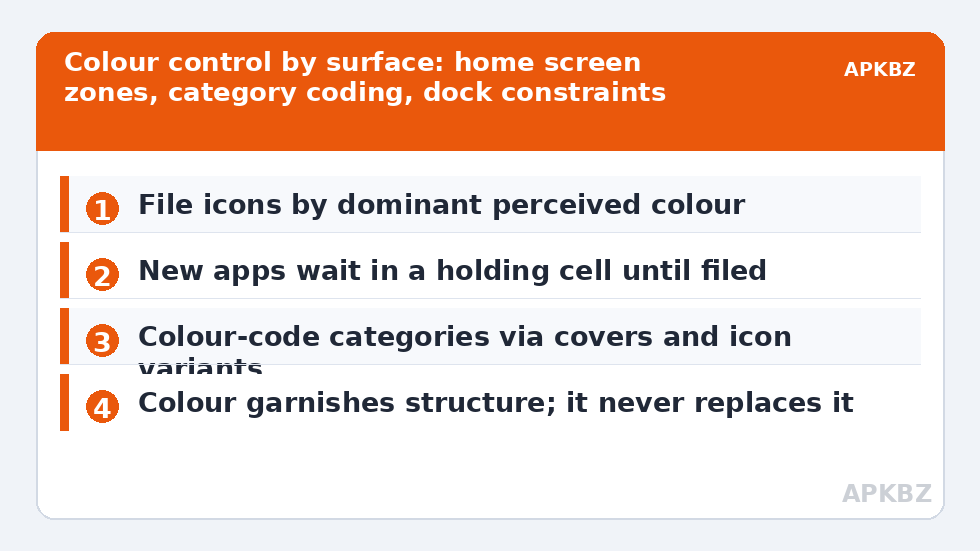
Your home screen is fully arrangeable, so give it the rainbow discipline: group icons so hues flow — blues together, greens together, warm tones together — with neutrals (black, white, grey icons) as borders between families. Two craft rules matter. First, sort by the icon’s dominant perceived colour, not its brand’s official colour: a mostly-white icon with a red glyph files under white/red depending on which your eye catches; there is no authority to appeal to, only your own perception, tested at arm’s length. Second, keep position sacred afterwards: colour zones accelerate finding only when membership is stable, so new apps wait in a holding spot until their colour files them, instead of landing wherever your thumb dropped them. This method pairs beautifully with label discipline — colour-first screens often hide labels entirely, since hue plus position is doing the finding.
Method 2: colour-coding the categories themselves
Within category pages, you steer colour through three levers Smart Launcher actually offers. Folder covers: set covers (per folder covers) to a category-defining hue, so each page opens with a colour thesis. Icon selection: where a pack offers glyph variants, or an app has alternates, choose the variant that supports its category’s palette — messaging stays in the blue-green family, media leans warm, utilities go neutral. And pack choice itself: desaturated or muted packs (the open-source sets include several) lower the colour volume so categories read as gentle families instead of confetti. What you cannot do is drag category members into a custom order without abandoning autosort — accept the tool’s grain and shape colour at the level it permits.
| Surface | Colour control you have | Best technique |
|---|---|---|
| Home screen | Total arrangement | Hue zones with neutral borders; stable positions |
| Category pages | Indirect: covers, icon variants, pack | One dominant hue family per category |
| Floating category dock | Indirect, small render size | Bold, distinct hues per category icon |
| Smart Search | None (results list) | Rely on names; colour is irrelevant here |
Treat these numbers as a starting point: apply them in Smart Launcher 6 under Settings → Home screen → Grid, use the layout for a day, then nudge one value at a time — your wallpaper, widget sizes and one-handed reach all shift what feels right.
The honest trade-off, and who should skip this
Colour organisation taxes two things: memory during the transition (your first week is slower — you rebuilt your map) and colour-vision differences. For users with colour-vision deficiency, hue zones collapse into fewer distinguishable families, and position-plus-labels remains the robust system; a colour-sorted screen they cannot parse is decoration at their expense. It also degrades gracefully or not at all: a half-maintained colour system (new apps dumped anywhere) is worse than none, because the map lies. If your library churns weekly, organise by category and frequency, and let colour be a home-screen pleasure only. The rest of the Icon Customization guides assume the mainstream case: colour as an accelerant layered on sound structure, never as the structure itself.
Intake rules: how a colour system survives new apps
Every organisation system dies at the inbox, not in the design. Colour systems especially: each new app installed in a hurry lands wherever the installer drops the shortcut, and three hurried installs can scar a zone map beyond recognition. Give yourself an intake rule with no exceptions: new apps go to one designated holding cell — the last slot of the last home page, or a folder named “New” — and are filed into their colour zone only during a deliberate moment. Once a week, empty the holding cell: file keepers by hue, delete the trials, and let nothing graduate without a zone. The rule sounds fussy; in practice it is the difference between a system and a screenshot, because systems are defined by how they absorb change, not by how they look on day one.
The hybrid most veterans settle into deserves stating plainly, because the purist version is rare in the wild: colour zones govern the home screen’s first page — the twelve to twenty apps that constitute 95% of launches — while everything deeper lives by Smart Launcher’s categories, searched when needed. This respects both truths of the topic: colour retrieval is fastest where it can be kept perfect, and categorisation scales where colour cannot. If your “colour-organised drawer” ends up meaning a colour-organised doorway with a well-categorised house behind it, you have not compromised. You have built the version that survives contact with a real app library.
Wallpaper choice can make or break the whole scheme, because zones are perceived against a ground. A multicoloured, high-frequency wallpaper scrambles hue reading — every icon’s colour competes with the noise behind it. Colour-organised screens pair with quiet wallpapers: dark, blurred, or single-hue. If your wallpaper is a detailed family photo you refuse to give up, accept zones on the dock only, where a strip of order survives the busy ground.
Frequently Asked Questions
Can I sort Smart Launcher’s app drawer purely by colour?
Not while keeping automatic categories — the category pages sort by function, and free ordering would disable the auto-sort that defines them. You can fully colour-arrange your home screen, and colour-code categories indirectly through folder covers, icon variants, and pack choice. Most people find that combination delivers the speed benefit without sacrificing categorisation.
Does organising by colour actually make apps faster to find?
Once learned, yes — colour is processed pre-attentively, so your eye lands on the right region before reading names. The gain requires stable membership: apps must stay in their colour zones. During the first week expect to be slower while the new map forms; after that, colour plus position is a genuinely fast retrieval system.
What do I do with multicoloured icons?
File by dominant perceived colour — squint at the icon at arm’s length and name the first hue you see; that is its zone. Icons that are genuinely even rainbows (photos, some Google apps) go in a neutral/multicolour row or keep their functional home instead. Forcing a spectrum position on a rainbow icon teaches your eye a lie.
Is colour organisation a good idea for accessibility?
It depends on the user. For colour-vision deficiency, hue differences may be weak or absent channels, so position, labels, and shape must carry the system — colour can garnish but never load-bear. For many other users, including some with reading difficulties, colour zoning genuinely helps. Know whose phone it is before optimising.
Which icon packs suit colour-organised setups?
Packs with clear, saturated, consistent colour per icon — where each app has one obvious hue — file best. Muted or monochrome packs defeat the purpose on the home screen (there is nothing to sort), though they suit category-level calm. Saturated packs with messy multi-hue icons sit in between; audit your top thirty apps before committing.