Gesture maps run out fast. Four swipes, a double tap, and suddenly every direction has a job and you still want a quick route to your work apps, your camera and your notes. That is when people go looking for two finger swipe gestures Android launcher support — a whole second layer hiding behind the first. It is a reasonable hope, and this guide treats it honestly: Smart Launcher 6 recognises fewer multi-touch motions than the name suggests, but between what it does offer and a couple of disciplined workarounds, you can still build that second layer without pretending a feature exists when it does not.
Start by lowering one expectation and raising another. There is no dependable set of two-finger up, down, left and right swipes in Smart Launcher to assign. What there is — pinch gestures, icon gestures and double tap alongside the four swipes — is genuinely enough for a second layer, if you assign it deliberately instead of collecting gestures at random. This article maps that real vocabulary, shows how to test what your own build lists, and keeps you away from overlay apps that promise the missing feature at a steep permission price.
What Smart Launcher Actually Recognises
Open Gestures and inputs and read the list as the ground truth for your phone. On typical Smart Launcher 6 builds you will find the four single-finger swipe directions, double tap, and pinch-related entries; the exact list shifts slightly between versions and between free and Premium builds, which is why this site keeps repeating the same advice: verify in your installed version. Two fingers sliding together across the screen is not, on most builds, one of the listed assignments — perform it and the launcher reads either a pinch beginning or nothing at all.
That distinction matters because pinch is a real, useful gesture family in its own right. Pinch in and pinch out describe fingers moving toward or away from each other, and they suit overview-style destinations — edit mode, the app page, a widget overview where your version offers it. The separate guide on two-finger pinch gestures shows one creative use of that family. Treat pinch as the multi-touch layer you actually have, and two-finger directional swipes as a feature to check for, not to plan around. A quick route back to the apkbz homepage and its category index will show how this piece fits the wider gesture system.
Treat these numbers as a starting point: apply them in Smart Launcher 6 under Settings → Home screen → Grid, use the layout for a day, then nudge one value at a time — your wallpaper, widget sizes and one-handed reach all shift what feels right.
Testing Your Build Before You Design Anything
- Long-press empty home screen space and open Home screen settings, then Gestures and inputs.
- Photograph or note every entry in the list. This is your build’s true gesture vocabulary.
- Tap each unfamiliar entry and read its action picker. If a two-finger or multi-touch swipe entry exists where your version offers it, note exactly which directions it supports.
- Assign any candidate two-finger entry a harmless, visible action — opening Smart Search is ideal — and test it ten times from different start positions.
- Count successes honestly. A motion that fires six times out of ten will frustrate you daily; retire it and use the reliable slots instead.
- Restore the test action to None or to its real job before moving on.
That ten-out-of-ten test is the difference between a gesture map and a gesture lottery. Readers who skip it end up blaming the launcher for misses that were really an unrecognised motion all along.
Building the Second Layer from Real Slots
Suppose your build, like most, offers no two-finger directional swipes. Your expansion slots are still generous. Per-icon swipe-up gestures turn every important icon into two destinations — tap for the app, flick for its partner action — and they scale with your layout instead of competing for four global directions. Assign the global swipes to system-level jobs (shade, search, app page, lock), the icon gestures to app-level jobs, pinch to overview jobs, and double tap to your single most frequent action. That is a coherent three-tier system, and it is exactly the structure explored in the guide to configuring swipe gestures for app shortcuts.
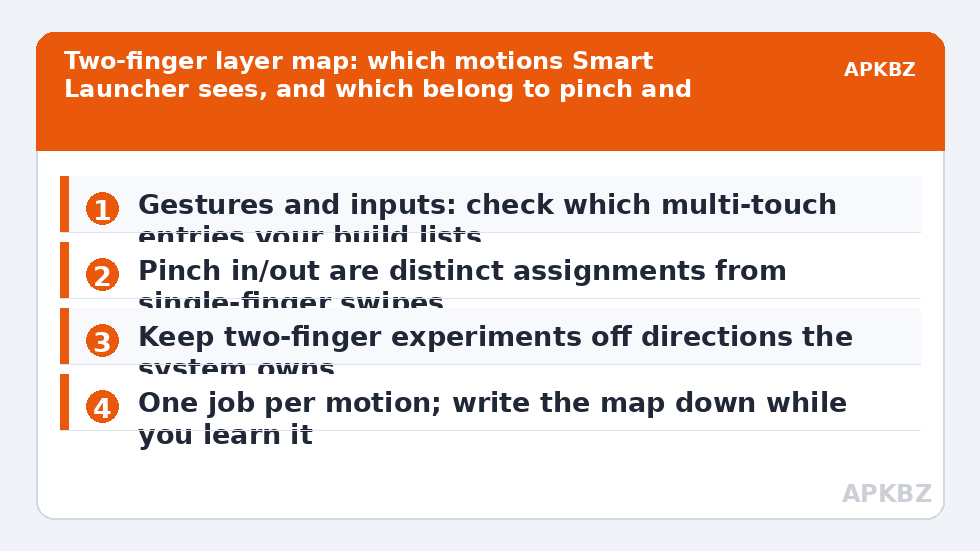
A concrete example helps. A commuter’s map might be: swipe down for notifications, swipe up for the app page, double tap to lock, pinch in for edit mode, and icon flicks on Messages for quick compose, on Maps for navigate home, on the browser for a new tab. That is nine fast destinations with zero two-finger swipes involved — and every one of them fires reliably because each motion is a recognised word in the launcher’s vocabulary. If you later add a genuine two-finger entry from a newer build, it slots in as a bonus, not a load-bearing wall. A natural next step is revisiting this setup after an update, or pairing your new pinch slot with the pinch route to edit mode and widget overview.
Why Overlay Apps Are the Wrong Answer Here
| Route | What it adds | Cost or risk |
|---|---|---|
| Launcher’s own slots (pinch, icon, double tap) | Reliable extra destinations | None beyond learning the map |
| Automation shortcut bridge | Gestures can fire tasks and modes | Needs the automation app kept alive by battery settings |
| Third-party gesture overlay | Claims system-wide custom multi-touch gestures | Accessibility-level access, conflicts with games and secure apps, another background service |
| OEM multi-touch features | Varies; screenshots or app pairs on some skins | Only where the manufacturer built it; disappears if you change brand |
The overlay row deserves emphasis. An accessibility service can observe your screen content and inject gestures; handing that to an obscure app so you can swipe with two fingers instead of one is a poor trade, especially on a phone with banking and work accounts. If a well-known automation app is already on your phone, its shortcuts are the respectable bridge: build the action there, expose it as a shortcut, and bind a real launcher gesture to it.
Teaching the Layer to Your Hands
A second layer fails socially before it fails technically: you forget it exists. Introduce it in the order you will use it, not the order you designed it. Live with the pinch assignments for two days until they are boring, then add icon gestures to your three most-touched icons only, then — a week later — consider whether you still need anything more exotic. Most people discover at that point that the honest second layer was sufficient all along, and the two-finger project quietly retires itself. If you do keep a multi-touch experiment, attach it to something you do daily, like opening your work set, because a gesture practised twice a month is a gesture re-learned twice a month. Frequency is the tuition muscle memory charges.
Reliability Rules for Any Multi-Touch Experiment
- Start mid-screen. Edges belong to Android’s Back gesture and OEM panels; multi-touch motions that begin there fail for reasons unrelated to the launcher.
- Move both fingers together. If your build does recognise a two-finger drag, uneven finger speed is read as a pinch beginning and routes to the wrong action.
- Keep nails and screen protectors in mind. Thick protectors dull multi-touch precision on budget panels first.
- Re-test after every major update. Touch tuning changes quietly in system updates; a motion that worked in March may be retuned by June.
- Write the map down. A second layer you cannot remember is decoration. Keep the list in your notes app until it is muscle memory.
Browse the rest of the library under Gesture Setup for the companion pieces, and back up your configuration once the layered map feels finished — rebuilding nine assignments from memory after a phone swap is nobody’s idea of fun.
Frequently Asked Questions
Does Smart Launcher 6 support two-finger swipe gestures?
Not as a full directional set on most builds. Smart Launcher’s recognised multi-touch gestures are centred on pinch in and pinch out, while its directional swipes are single-finger assignments. Where your version offers it, an extra multi-touch entry may appear in Gestures and inputs, but you should verify in your own build rather than assuming four two-finger directions exist.
What can I use instead of two-finger swipes for extra shortcuts?
The practical expansion slots are pinch in, pinch out, double tap, per-icon swipe-up gestures and the four single-finger swipes. Together those give most users more slots than they can memorise. Icon gestures in particular scale per icon, so a two-finger layer is rarely the missing piece once they are set up.
Why does my two-finger swipe just zoom or do nothing?
Because the motion is being read as a pinch variant or ignored entirely. Two fingers moving together in the same direction is not a distinct recognised gesture in most launcher builds, and two fingers moving apart or together trigger the pinch assignments instead. Nothing is broken; the gesture vocabulary simply does not include that word.
Can a third-party app add real two-finger swipes?
Some gesture overlay apps claim to, using an accessibility service to watch touches system-wide. That is a powerful permission for a marginal gain, and such overlays often fight with games and banking apps. For extra shortcuts, the launcher’s own icon gestures and automation shortcuts are the safer route.
Will two-finger gestures conflict with Android navigation?
They can. Multi-touch motions near screen edges may be interpreted by OEM features or ignored while system gesture areas take priority. Keep any multi-touch experiments in the centre of the home screen and re-test after system updates, which frequently retune touch behaviour.