Here is the disappointment everyone hits once: you find an icon pack whose screenshots show a gorgeous dark variant, you set your phone to dark mode at sunset, and the icons stay stubbornly bright. Nothing is broken. The pack, Android, and the launcher are each waiting for a different signal, because “icons that change with dark mode” is not one feature — it is three separate mechanisms that are constantly confused with each other. Setting up auto dark mode icon packs on Smart Launcher means picking the mechanism you actually want, then making sure every link in its chain exists.
Mechanism 1: Android themed icons (the system does it)
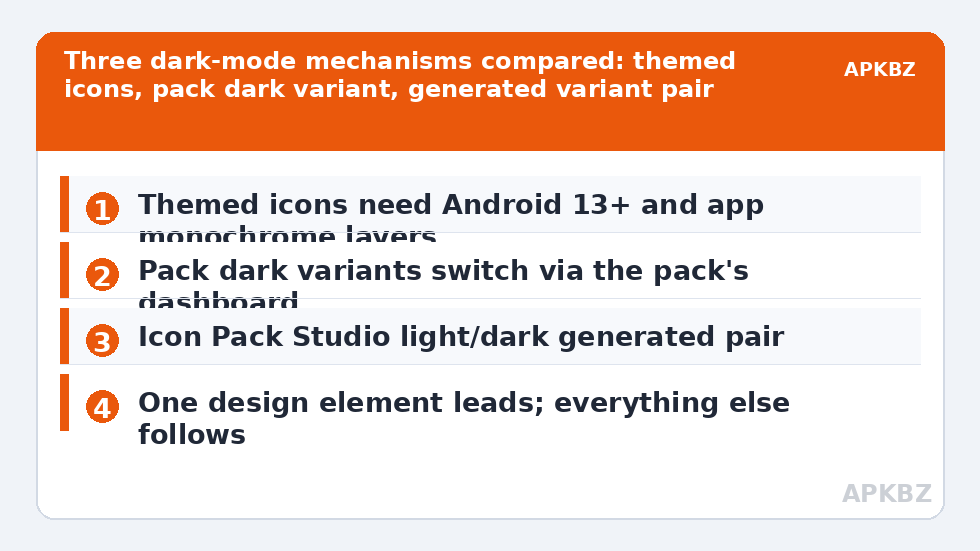
Android 13 introduced themed icons: apps supply a monochrome version of their icon, and the system tints it using your wallpaper-derived palette — light tint in light mode, dark-adjusted tint in dark mode. This is the only mechanism where “automatic” is truly system-wide, and it requires three things: a device/Android build that supports themed icons, apps that ship a monochrome layer (increasingly common, not universal), and a launcher that opts in — Smart Launcher 6 supports themed icons on compatible devices, with the toggle in its icon appearance settings. Note what themed icons are not: they are not your icon pack changing. Themed icons replace pack artwork with the apps’ own monochrome glyphs, tinted. If a pack is applied, themed icons typically take over only where an app provides the monochrome layer, and packs without support leave a mixed drawer — coloured pack icons beside tinted system glyphs. This interplay is the most common source of “why do half my icons match and half don’t?”
Mechanism 2: packs with a genuine dark variant
Some packs ship two complete sets — a light design and a dark design — and include a mechanism to swap. Historically this worked through the pack’s own dashboard app (apply the dark variant manually) or through launcher features that re-apply a chosen variant when the system theme flips. The constraint is honesty-in-advertising: many packs market “dark mode support” when they only mean “our icons have dark backgrounds that look fine in dark mode” — a static design, not a switching one. Before buying, read for explicit language about a dark variant or automatic switching, and check recent reviews mentioning your launcher. If a pack supports automatic switching through its dashboard, that dashboard must be allowed to run — battery optimisation that kills it breaks the swap, one of several ways the topics in this Icon Customization library collide with power management.
Mechanism 3: build auto dark mode icon packs for Smart Launcher yourself
The controllable route: generate two variants of the same set in Icon Pack Studio — a light treatment and a dark treatment from the same source pack — export both as packs, and switch between them. Switching can be manual (ten seconds in icon appearance settings) or tied to the routine you already use for wallpapers and themes in Smart Launcher’s ambient setup. It is not magic, but it is deterministic: same glyphs, same coverage, two colour treatments, no dependence on which apps bothered to ship monochrome layers. For many users this beats themed icons, because coverage stays at 100% instead of the 60–80% the app ecosystem currently offers. The generation workflow mirrors the monochrome conversion described in monochromatic icon packs, with colour treatments instead of full desaturation.
| Mechanism | Truly automatic? | Coverage | Main requirement |
|---|---|---|---|
| Themed icons | Yes, system-level | Only apps shipping a monochrome layer | Android 13+, supporting device and apps |
| Pack dark variant | Sometimes, via pack dashboard | Whatever the pack covers | A pack that genuinely ships two variants |
| DIY two generated packs | Manual or routine-based | Full — generation covers fallbacks | Icon Pack Studio and ten minutes |
Treat these numbers as a starting point: apply them in Smart Launcher 6 under Settings → Home screen → Grid, use the layout for a day, then nudge one value at a time — your wallpaper, widget sizes and one-handed reach all shift what feels right.
Setting up themed icons in Smart Launcher 6 (where supported)
- Update Smart Launcher and confirm your device offers themed icons (Pixel and several OEM builds do; some skins hide or omit the feature).
- Set a wallpaper with a clear colour identity — themed tinting derives from it, and the palette logic follows the same dynamic-colour system discussed in matching icons to dynamic wallpapers.
- In Smart Launcher’s icon appearance settings, enable the themed icons option if present on your build; labels differ slightly by version.
- Toggle system dark mode and watch the drawer: supporting apps re-tint, others keep their pack art. Decide whether the mixture pleases you before troubleshooting a “fault” that is actually app coverage.
Coordinating with the rest of your day/night setup
Icons do not flip in a vacuum. Smart Launcher’s ambient theming can already swap accent colours and adjust its own surfaces with your wallpaper and schedule, and most people who care about dark-switching icons also run a wallpaper that changes or a theme that follows the system. Decide which element leads. If the wallpaper leads (a bright day scene, a dark night scene), then themed icons are philosophically right for you, because their tint derives from that same wallpaper — the palette stays coherent even when coverage is partial. If the icon pack leads (a beloved set whose look you refuse to dilute), use the two-variant approach and let wallpaper follow the icons’ mood instead. Where people go wrong is mixing leaders: a fixed bright pack, a dark wallpaper at night, and themed icons tinting a third of the drawer by a fourth logic. Every element is “working”, and the result is chaos. One leader, everything else follows — that sentence will save you more evenings than any single setting in this guide.
Troubleshooting the half-and-half drawer
Mixed results are the normal state of mechanism 1, not an error. Your options, in order of sanity: accept the mix (many do; the tinted glyphs at least share a palette), restrict themed icons’ impact by relying on a strong pack and disabling the feature, or go the DIY route for full control. What not to do is install “dark icon” packs at random hoping one will flip automatically — without one of the three mechanisms above, no pack can know your system theme changed. The launcher side of this story is stable; the variability lives in app support, which improves a little with every Android release.
Frequently Asked Questions
Why don’t my icons change when I turn on dark mode?
Because a standard icon pack has no connection to the system theme. Icons only change automatically through Android’s themed icons feature (which uses apps’ own monochrome layers), a pack that ships a real dark variant with a switching mechanism, or a pair of generated variants you swap yourself.
Are themed icons the same as a dark icon pack?
No. Themed icons are a system feature: the phone tints each app’s monochrome glyph with your wallpaper palette, and they replace pack artwork where available. A dark icon pack is ordinary artwork designed with dark colours. They solve similar problems with completely different machinery and coverage.
Why do only some of my icons get the themed tint?
Because only some apps ship the monochrome layer the feature requires. Large developers mostly do now; smaller and older apps often don’t. Those apps keep their regular or pack icons. Coverage improves over time, but no setting on the phone can force an app to supply a layer it doesn’t have.
Can Icon Pack Studio make my current pack dark-mode friendly?
It can generate a dark-treated variant of your current set with full coverage, which you export as a second pack and switch to when you want the dark look. It is a manual (or routine-assisted) swap rather than a system trigger, but the artwork and coverage stay consistent between modes.
Does Smart Launcher 6 support themed icons on all phones?
Smart Launcher supports themed icons where the device and Android build expose the feature. On builds whose manufacturer skin omits or restricts it, the option may be absent or partial. If you don’t see it in icon appearance settings on a current Smart Launcher version, the limitation is the device software, not the launcher.