
Icon packs are apps. That single fact explains everything about importing them from local storage: a pack reaches your launcher by being installed as a package, and Smart Launcher then discovers it by the standard icon-pack declaration, regardless of whether the installer was the Play Store, F-Droid, or you tapping a file you own. How to import icon packs from local storage into your launcher is therefore a lesson in safe sideloading: when it is legitimate (often), how the discovery mechanism works, what can go wrong, and how to verify that the file in your Downloads folder is the artwork you think it is — and not something else wearing an icon pack’s name.
The legitimate cases (and the line)
There are honest reasons to hold a pack as a file: you bought a pack and keep the APK in your personal archive for a phone without Play services; a developer distributed a beta or a free pack through their own site or GitHub; an open-source pack (the ecosystem in open-source ad-free packs) offers direct APKs alongside its F-Droid listing; or you generated your own pack in Icon Pack Studio and exported it, which is literally a local file by design. The line is equally clear: a paid pack’s APK obtained from a warez site is piracy, full stop — the artwork is a designer’s product, and “I only use it privately” does not change what the file is. This guide covers packs you own, made, or were freely given by their authors. Everything else, obtain from the Play Store or F-Droid like everyone else; your home screen is not worth a malware roulette.
Import icon packs from local storage: how the launcher discovers them
Discovery is declarative. A pack’s manifest announces icon-pack support through well-known intent actions (the de-facto standard categories used across launchers), and its resources include the appfilter/drawable indexes launchers read. Smart Launcher scans installed packages for that declaration when you open the pack picker in Icon appearance — the same picker used in applying adaptive packs. Two consequences follow. Installation source is invisible to this mechanism: a legitimately sideloaded pack lists and applies exactly like a store-installed one. And a file that is not a real pack — a random APK with no icon-pack declaration — will simply never appear in the picker, no matter how it is named. If your imported pack does not show up, the file is wrong, broken, or not a pack, in that order of likelihood.
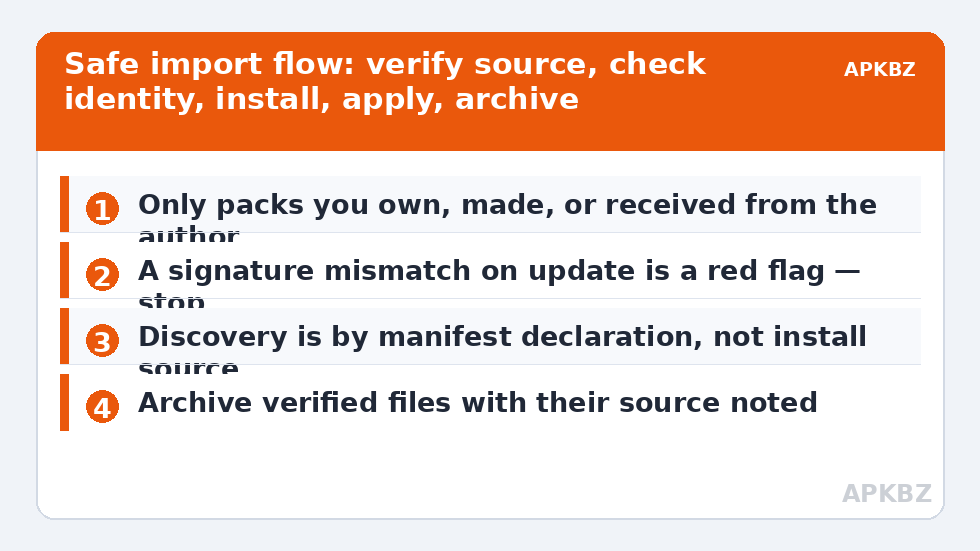
Safe procedure: from file to applied pack
- Verify the source before the file. Download only from the author’s own channel: their F-Droid listing, their GitHub project’s Releases page, or the developer site linked from their store listing. If a search result aggregator is offering a “premium unlocked” version, close the tab — that is the piracy/malware fork of the road.
- Check the file’s identity. Compare the package name and version with the official listing where possible; reputable projects publish checksums or sign their releases, and Android will refuse to “update” an installed app with a differently-signed file, which is a free integrity check — never uninstall an original just to force a mismatched file in.
- Install via the system installer. Open the file from a file manager and let Android’s package installer handle it, granting the install-from-this-source permission only for the moment and only to an app you trust with it.
- Apply in Smart Launcher. Icon appearance → Icon pack → your pack should be listed. Apply and audit as you would any new set (the dock-size and masking checks from this Icon Customization library apply unchanged).
- Archive deliberately. Keep the verified file in your icons folder with its source noted, so a future phone rebuild uses the file you already vetted.
Treat these numbers as a starting point: apply them in Smart Launcher 6 under Settings → Home screen → Grid, use the layout for a day, then nudge one value at a time — your wallpaper, widget sizes and one-handed reach all shift what feels right.
Troubleshooting imports that do not appear or misbehave
| Problem | Likely meaning | Response |
|---|---|---|
| Pack not in Smart Launcher’s picker | No icon-pack declaration in the file, or install failed silently | Confirm the app exists in Settings → Apps; re-obtain from the author’s channel |
| “App not installed” / parse error | Corrupt download or Android-version mismatch | Re-download; check the pack’s minimum Android version against your phone |
| Update refused (signature mismatch) | The file is not from the same signer as the installed pack | Treat as a red flag: remove the file, get the genuine one from the official channel |
| Pack applies but icons are wrong/stale | Ancient pack format or damaged resources | Test another pack to isolate; report to the author with your launcher version |
| Security warning on install | Play Protect or the installer flagged the file | Stop. Re-verify provenance; a legitimate pack from the author’s channel should not need warnings waved through |
One more route deserves naming: individual PNG icons never need installation at all — if all you want from a downloaded package is three glyphs, extracting images (from a pack you own) and assigning them per-icon avoids installing anything. But do not redistribute what you extract; ownership of a copy is not a licence to publish someone’s artwork.
The special case: packs you generate yourself
Your own Icon Pack Studio exports occupy the safest corner of local importing: you are the author, the provenance is your own hands, and the file was never near a warez channel. They still deserve the same filing discipline, because a generated pack’s value compounds — it encodes your colour treatments, your coverage decisions, possibly hours of tuning. Export with a versioned filename (myset-v3.apk), keep the project/source settings alongside it in your icons archive, and note which source pack and treatments produced it. When a phone dies or a launcher resets, that archive rebuilds your exact icon system in minutes, on any device, without a store. Treat the folder the way photographers treat RAW files: the derivatives on your home screen are prints; the archive is the negative. And the same rule closes the topic as opened it — generated packs built from packs you own are yours to keep and use, not to hand around; the underlying artwork still belongs to its designers.
Frequently Asked Questions
Will Smart Launcher recognise an icon pack I installed from a file?
Yes, if it is a genuine icon pack. Smart Launcher discovers packs by their manifest declaration and resource indexes, not by where they were installed from. A pack sideloaded from the author’s official channel lists and applies identically to a Play Store one. If it never appears in the picker, the file lacks a proper pack declaration.
Is it legal to keep APK files of icon packs I bought?
Keeping a personal archive copy of software you purchased, for your own devices, is the generally accepted legitimate use, and developers of open packs explicitly encourage file distribution through their own channels. What is not legitimate is obtaining paid packs from warez sites or sharing your copies publicly — that is piracy of the designer’s work.
Why does Android refuse to update my pack with the file I downloaded?
Because the file’s signing certificate does not match the installed app’s — Android’s built-in protection against exactly this substitution. Treat a mismatch as a serious warning about the file’s provenance. Get the update from the same official channel as the original instead of uninstalling to force the mismatched file in.
Can installing an icon pack APK harm my phone?
A genuine pack is inert artwork plus indexes and carries no special powers. The risk lives entirely in provenance: APKs from untrusted sources can be repackaged with malicious code, and icon themes are popular bait. Verify the author’s channel, respect installer warnings, and prefer F-Droid or the Play Store whenever the pack exists there.
What is the safest source for icon pack files outside the Play Store?
F-Droid for open-source packs, and the developer’s own GitHub releases or website for everything else — ideally the very links their store listing publishes. Aggregator and “mod APK” sites are the unsafe tier; anything they offer “unlocked” should be assumed tampered with until proven otherwise, which you cannot prove.