Material You changed the question. It used to be “which pack matches my wallpaper?” — a static puzzle you solved once. Now the wallpaper generates a living palette, the system re-tints its surfaces from it, the wallpaper itself may change daily, and somewhere in the middle your icon pack is supposed to keep up. To match icon pack colors with a dynamic wallpaper is therefore less about finding the perfect pack and more about choosing a strategy: let the system theme the icons, generate a pack from the palette, or anchor the wallpaper to a beloved pack. Each strategy suits different temperaments, and mixing them mid-stream is how setups end up matching nothing at all.
Match icon pack colors to a dynamic wallpaper: what the palette actually is
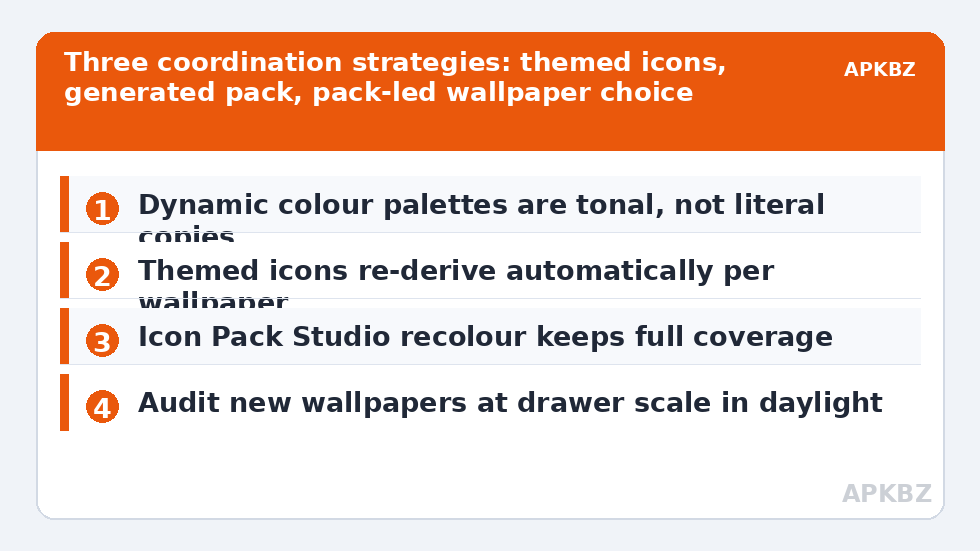
Android’s dynamic colour system extracts a small set of seed colours from your wallpaper and expands them into tonal palettes — primary, secondary, tertiary, neutral — at fixed lightness steps. System surfaces (quick settings, Settings, Google’s apps) pick tones from those palettes, which is why a teal wallpaper turns your toggles teal. Themed icons drink from the same well: their monochrome glyphs get a palette tint. Two properties matter for icon planning. The palette is derived, not chosen — you influence it only by choosing the wallpaper and, on some devices, picking among offered palette variants in Wallpaper & style. And it is tonal, not literal: the system prefers harmonious tones over exact wallpaper pixel colours, so “match” means family resemblance, not identical hex values. Expecting pixel-perfect coordination misunderstands the tool and guarantees frustration.
Strategy A: themed icons lead
Let Android’s themed icons do the matching. With themed icons enabled (Android 13+, supporting device, apps supplying monochrome layers), icons automatically share the wallpaper’s palette, including its light/dark shifts. The cost is the coverage story told in dark-mode icon setups: apps without a monochrome layer keep their own colours, and your chosen pack steps aside wherever themed icons apply. This strategy suits wallpaper-changers and palette-lovers who accept a two-tier drawer. In Smart Launcher, themed icons live in the icon appearance settings where your build supports them; pair them with Smart Launcher’s ambient theme so the launcher’s own accents pull from the same wallpaper, and the whole screen tells one colour story.
Strategy B: generate a pack from the palette
Icon Pack Studio can recolour an existing set: take a full-coverage pack whose drawing you like, and apply a colour treatment — restrict its palette, shift hues toward your wallpaper’s family, set backgrounds to a sampled neutral. Export, apply in Smart Launcher, done: every icon, including the obscure ones, now speaks the wallpaper’s language at full saturation (unlike themed icons’ enforced monochrome). When the wallpaper changes seasonally, regenerate — five minutes per change is the tax on this strategy, and in return you keep branded, colourful, recognisable icons. This is also the rescue for monochrome setups that feel stark: a one-hue tinted generation keeps the calm and adds the coordination.
| Strategy | Who leads | Coverage | Ongoing effort |
|---|---|---|---|
| Themed icons | System palette | Apps with monochrome layers only | None — fully automatic |
| Generated recoloured pack | You, via the palette | Full, including fallbacks | Regenerate when wallpaper changes |
| Fixed pack, chosen wallpaper | The pack | Whatever the pack covers | Discipline: only matching wallpapers |
Treat these numbers as a starting point: apply them in Smart Launcher 6 under Settings → Home screen → Grid, use the layout for a day, then nudge one value at a time — your wallpaper, widget sizes and one-handed reach all shift what feels right.
Strategy C: the pack leads, wallpaper follows
The unfashionable, durable option: pick the pack you love, then only use wallpapers drawn from its palette family. Practical method: open your pack’s drawer, note its dominant hues (most packs lean on a recognisable spectrum — desaturated pastels, neon, earth tones), and build a wallpaper folder inside that spectrum. Wallpaper apps and your own photos both qualify after a colour edit; even a heavy blur of a favourite photo harmonises, because blur averages colour. Smart Launcher’s ambient theme then extracts accents from whichever wallpaper you set, and since the wallpaper was pre-harmonised, the accents agree with the icons instead of arguing. Users who set a wallpaper and keep it for a year — a real and sizeable tribe — lose nothing with this strategy and gain total chromatic peace.
Neutral ground: backgrounds, labels, and widgets
Whatever strategy you choose, the supporting cast decides believability. Icon backgrounds (for generated backplates) should be neutral tones from the palette’s neutral ramp, not a fourth accent colour. Labels in plain white/black with no coloured shadow keep text out of the colour argument entirely. Widgets are the usual saboteurs — a music widget in brand red ignores everyone’s palette — so prefer widgets that accept custom colours or transparency, and set them to a palette neutral. These small neutrals are why coordinated screenshots look effortless: not because everything matches, but because the things that don’t match were deliberately made quiet. The rest of the Icon Customization library applies the same principle at the level of shape, size, and coverage.
A five-minute audit for any new wallpaper
When a new wallpaper tempts you, run this audit before committing — it converts colour regret into a two-minute decision. First, set the wallpaper and open your fullest category page, not the home screen; the drawer is where colour clashes concentrate, because that is where the most icons share a frame. Second, identify the single worst offender — there is always one app whose brand colour fights the new palette head-on. If it is a top-ten app, the wallpaper loses; no scenery is worth a daily eyesore at the centre of your grid. Third, check the neutrals: if the wallpaper’s overall temperature (warm vs cool) disagrees with your pack’s backgrounds, everything will look faintly wrong in a way no single icon explains — that temperature mismatch is the most common real cause of “something’s off”. Fourth, glance at the setup in daylight, since OLED colour perception shifts with brightness. Pass all four and the pairing is sound for any of the three strategies. Fail one, and you know precisely which conversation to have — with the wallpaper, the pack, or the offender’s individual icon.
Frequently Asked Questions
Why don’t my icon colours exactly match my wallpaper?
Because dynamic colour builds tonal palettes, not copies. Android extracts seed colours from the wallpaper and generates harmonious light/dark tones for surfaces and themed icons. Family resemblance is the design goal. If you need literal palette control, generate a recoloured pack in Icon Pack Studio where you pick the treatment yourself.
Do themed icons work with any icon pack?
Themed icons and packs are alternatives more than partners. Where an app supplies a monochrome layer and themed icons are on, the system tint replaces the pack’s artwork for that app; apps without the layer keep pack icons. The result is a mixed drawer unless coverage is high, which is a property of your app library, not a setting you missed.
How do I recolour an icon pack to match my wallpaper?
Use Icon Pack Studio: import a pack you own, apply a colour treatment (palette restriction or hue shift toward your wallpaper’s dominant family), and export it as a new pack, then apply it in Smart Launcher. Your source pack’s mappings carry over, so coverage — including the obscure apps — stays complete.
My wallpaper changes daily. Which strategy survives that?
Themed icons, because they re-derive from each new wallpaper automatically. A generated pack would need regenerating daily, and a fixed pack will clash with half of a rotating wallpaper collection. Accept the coverage mix of themed icons, or slow the rotation — those are the honest options.
What is Smart Launcher’s ambient theme’s role in all this?
Ambient theme colours Smart Launcher’s own surfaces — search, settings accents, and related UI — from your wallpaper, keeping the launcher’s chrome in the same palette family as your system and themed icons. It doesn’t recolour pack artwork itself; think of it as the mortar between the bricks the other strategies lay.